

Instructions on how to insert image links into Excel
Inserting image links into Excel allows viewers to quickly access the webpage containing the image if they click on the link. You can also insert one or more images into Excel cells when creating a table or list with images.
Instructions on how to insert links into existing images in Excel.
Step 1:To insert an image link into Excel, first open the webpage containing the image you want to link to. Then right-click on the image and select [option].Copy image address.
.png)
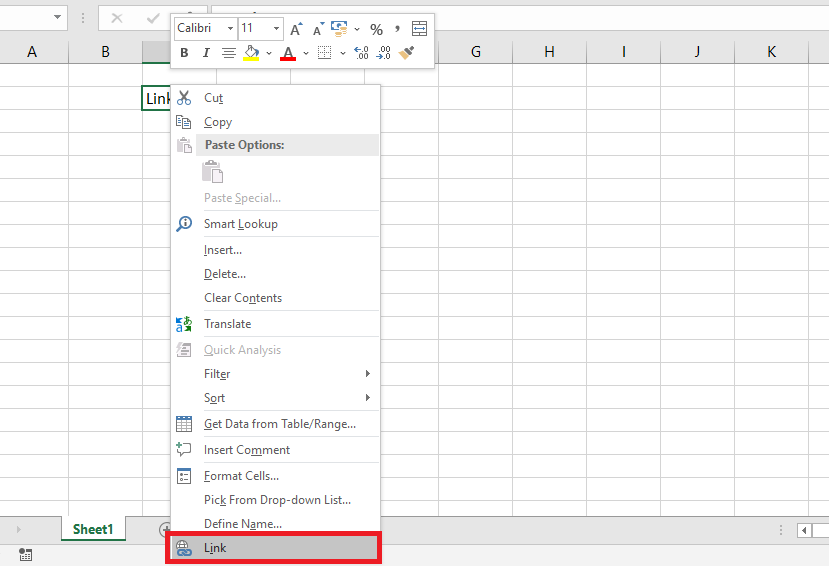
Step 2:Next, open the Excel file where you want to insert the image link. Then, right-click on the location where you want to insert the image link. When the scroll bar appears, select the option.Link.
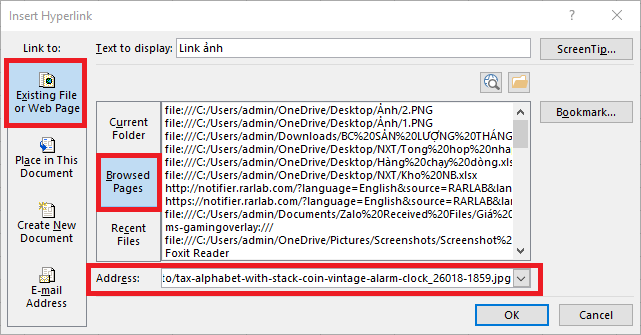
Step 3:At this point, the Insert Hyperlink dialog box will appear. Click on the option.Existing File or Web PageThen switch to the menu column next to it and select the item.Browsed PagesNow you need to paste the copied image link into the section.IncorrectAfter entering, press [button/button].OKTo insert image links.
Step 4:After successfully inserting the link, move your mouse to the cell where the link was inserted, and the image's URL will appear.
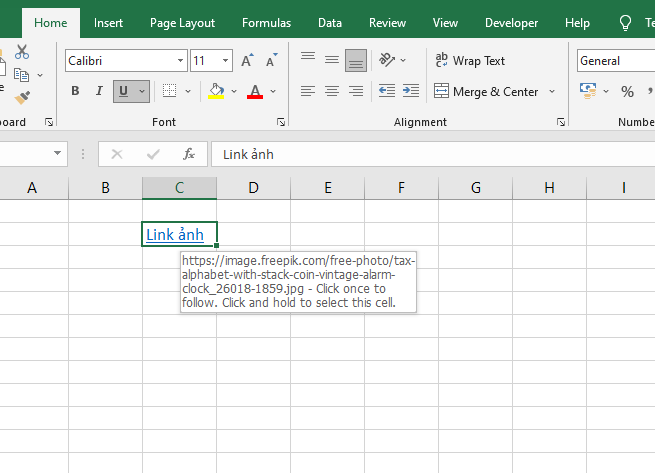
If you want to open that image, simply left-click on the link. The webpage containing the image will open quickly.
.png)
Instructions on how to insert image links into Excel using VBA
Press Alt + F11 to open the Visual Basic for Applications (VBA) Editor.
Go to Insert > Select Module.
Enter the following VBA code into the new module:
Sub InsertImageFromURL() Dim ws As Worksheet Dim imageURL As String Dim pic As Object Dim rng As Range ' Select sheet and cell containing image URL Set ws = ActiveSheet Set rng = ws.Range("A1") ' Replace A1 with the cell containing the image link ' Get image path from cell imageURL = rng.Value ' Check if cell has a valid URL If imageURL = "" Then MsgBox "Cell does not contain image link!", vbExclamation, "Error" Exit Sub End If ' Add image to Excel Set pic = ws.Pictures.Insert(imageURL) ' Align image size with cell With pic .ShapeRange.LockAspectRatio = msoFalse .Left = rng.Left .Top = rng.Top .Width = rng.Width .Height = rng.Height End With ' Release memory Set pic = Nothing Set ws = Nothing Set rng = Nothing End SubPlace the image link in cell A1 (or another cell, but you must modify rng = ws.Range("A1") in the code).
Return to the Excel window, press Alt + F8, select InsertImageFromURL, and then click Run.
The image will be automatically downloaded and displayed in cell A1.
This VBA code works on Excel 2016 and later versions.
If you want images to automatically display when you enter a link, you can assign a macro to Worksheet_Change to run automatically.