

How to deal with iPhone battery draining quickly.
Want to extend your iPhone's battery life? Here are some features you should turn off immediately.
Do you frequently have to charge your iPhone because Low Power Mode keeps popping up? While phone batteries degrade over time, nobody wants their device to shut down in the middle of a GPS call or an important conversation.
The good news is there are still ways to optimize battery life even if your iPhone isn't new. By adjusting some default settings, you can extend the usage time after each charge, which is especially useful when you're on the go or can't charge immediately.
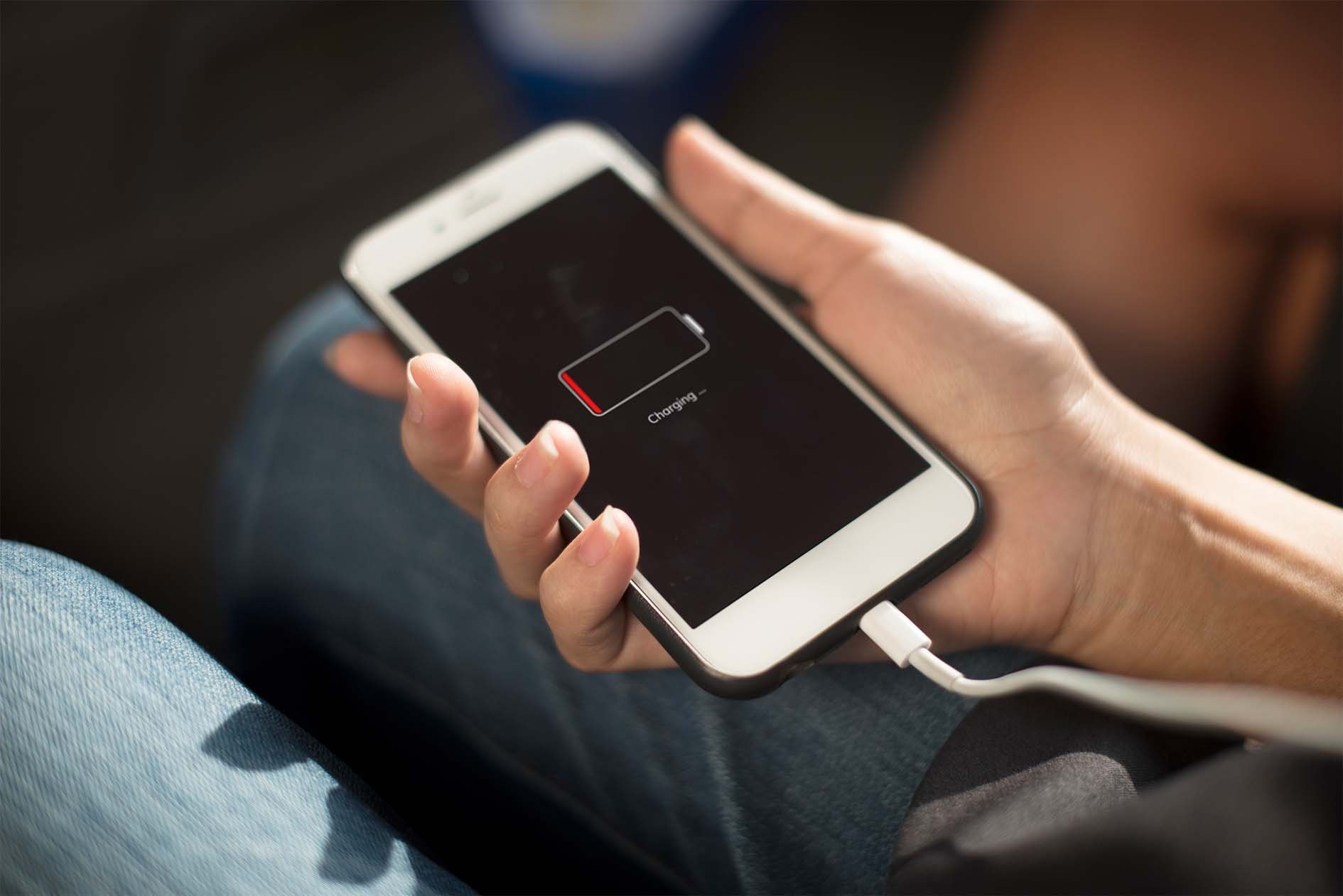
Additionally, the Battery Health menu in iOS provides important information such as battery health (above 80% is considered good), number of charge cycles, and overall battery condition.
This article will point out 3 iOS features that are silently draining energy and guide you on how to disable them, thereby significantly improving your iPhone's battery life.
Turn off widgets on the lock screen.
Lock screen widgets such as weather forecasts, sports scores, or calendar events are convenient, but they cause apps to constantly run in the background to update data. This silently drains battery power, especially on iOS 18, where the more customizable the lock screen becomes, the higher the risk of excessive power consumption.
.jpg)
To optimize battery life, you should consider completely removing widgets from your lock screen (and home screen). The simplest way is to switch to a widget-free lock screen; just press and hold the current lock screen, then swipe to select a widget-free interface.
If you want to keep the current lock screen but remove widgets, press and hold the lock screen, then selectCustomizenewsLock screenThen, tap on the widgets area and tap the minus sign icon "-" to remove each widget from the list.
Turn off motion effects
Smooth motion effects are an integral part of the immersive visual experience on the iPhone, from the effects when opening apps, the color effects when activating Siri with Apple Intelligence, to the parallax-like motion when you tilt the device. However, these aesthetic elements are also the silent culprits that shorten battery life.
.jpg)
If you prioritize performance and battery life over visual effects, iOS allows you to reduce animations through a simple setting. To enable this option, go toSettingnewsAccessibilitynewsMove, then activateReduce movement(Reduce Motion).
Turning off these effects not only saves battery but also makes the device faster, which is especially useful for older iPhone models.
Turn off keyboard vibration.
It wasn't until iOS 16 that Apple added haptic feedback to the iPhone keyboard, providing a subtle vibration with each keystroke, making the typing experience more immersive. However, this feature can affect battery life.
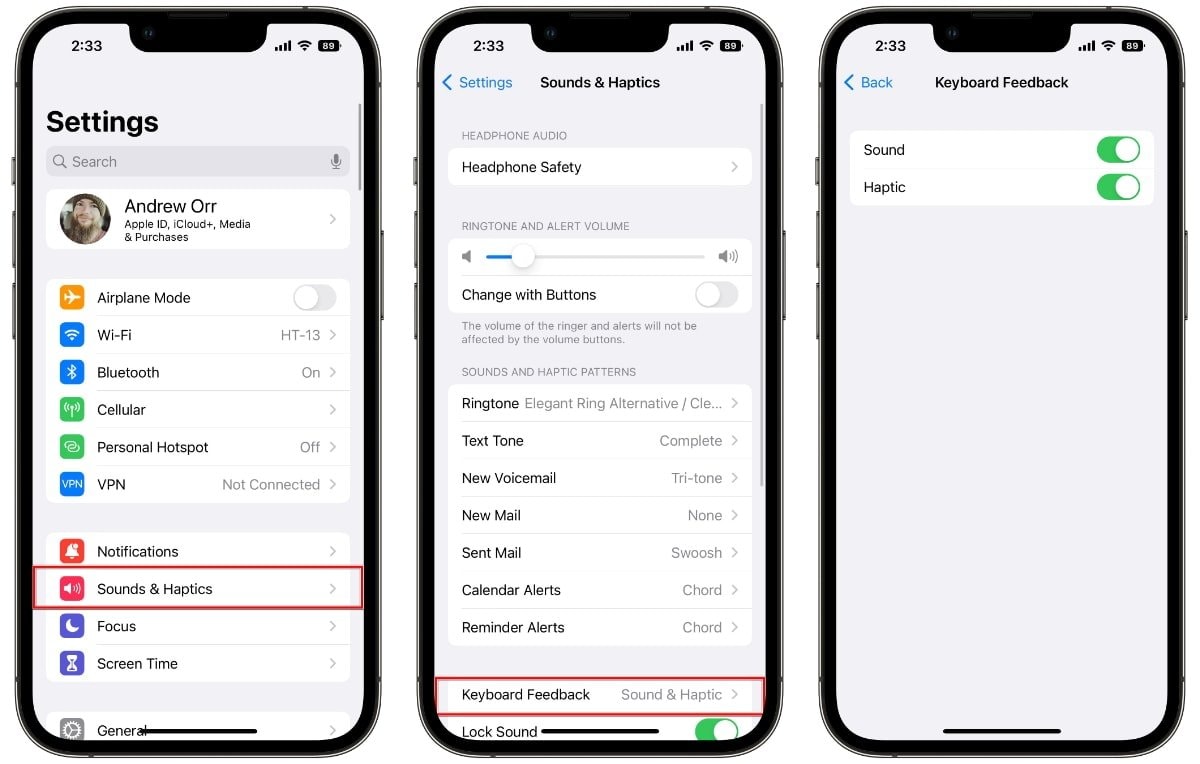
According to Apple's support documentation, haptic feedback from the keyboard "may affect battery life," although the company doesn't provide specific figures. If you're trying to optimize battery life, especially on older devices, disabling this feature is a worthwhile option.
Fortunately, haptic feedback isn't enabled by default. If you ever have it enabled, you can disable it by going toSettingnewsSound & Tactile FeedbacknewsKeyboard feedback, then turn off the itemHaptic feedback.