

How to make all iPhone icons transparent
The iOS 26 update allows users to make all iPhone icons transparent, creating a unique Liquid Glass effect.
iOS 26 and a complete overhaul of the interface.
Apple introduced a completely new look in iOS 26 with a translucent effect called Liquid Glass. The entire system of original app icons was redesigned, and users can customize them to become transparent. This is considered the most significant change to the iPhone home screen since Apple added widgets.
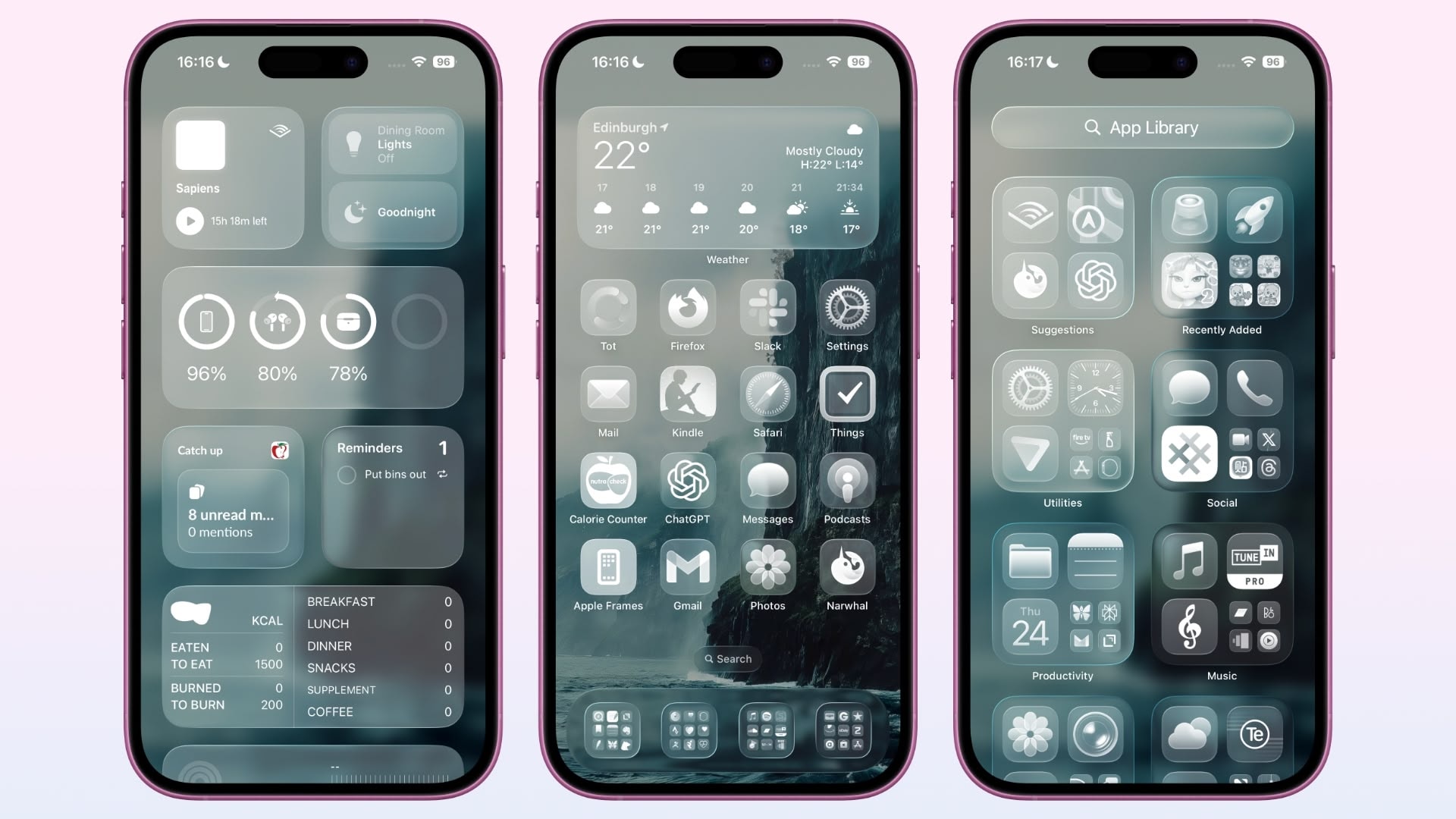
How to make all iPhone icons transparent
Users can perform actions directly on the home screen:
Touch and hold an empty space on the screen until the icons start shaking.
SelectEditin the upper left corner.
Presssubsidy(customizable).
SelectClearThis is the third option in the list of icon styles.
Default modeLightA preset will be selected, but you can switch to Dark or Auto to automatically adjust to your iPhone's light/dark mode.
If you want to go back to the colorful icons, simply repeat the steps above and selectDefault.
Other options
In addition to Clear, iOS 26 also adds an upgraded version of Tinted with three modes: Light, Dark, and Auto. This allows users to freely personalize their home screen according to their aesthetic preferences.
Not only iPhones, iPadOS 26 also allows similar customization. iPad users can create multiple home screens, each with its own icon style. Widgets on the screen also synchronize with the Clear effect.
On macOS Tahoe 26, Apple has for the first time added Clear and Tinted options for app icons, alongside the Dark option. Users can enable them in Settings > Appearance > Icon & Widget style.
Transparent icons create a modern feel, especially on the iPad when combined with widgets. While the loss of color makes app identification harder, many consider this to be Apple's boldest interface design change in years.