

Copilot Vision: The AI assistant on Windows 11 can now 'see' the screen.
Copilot Vision allows Microsoft's AI assistant to analyze on-screen application content in real time to provide immediate assistance, changing the way users interact with computers.
Microsoft has officially released Copilot Vision to Windows 11 and Windows 10 users in the US, giving its AI assistant the ability to "see" and "understand" the content displayed on your screen. This feature, previously limited to the Windows Insider program, is now available with Copilot app version 1.25061.104.0 and above.
Essentially, Copilot Vision allows users to share an application window or the entire screen with Copilot. From there, the AI can analyze the context and provide answers, guidance, or insights directly related to what you're doing, opening up a new and more intuitive way to interact with computers.
How it works: When AI can 'see' the screen.
Copilot Vision is an optional feature that requires user activation. When enabled, you can choose to share a browser window, a specific application, or your entire desktop. The AI chatbot then processes the received image to understand the context, which can then assist with tasks such as explaining how to use a feature in a software application or answering questions about the content you're viewing.
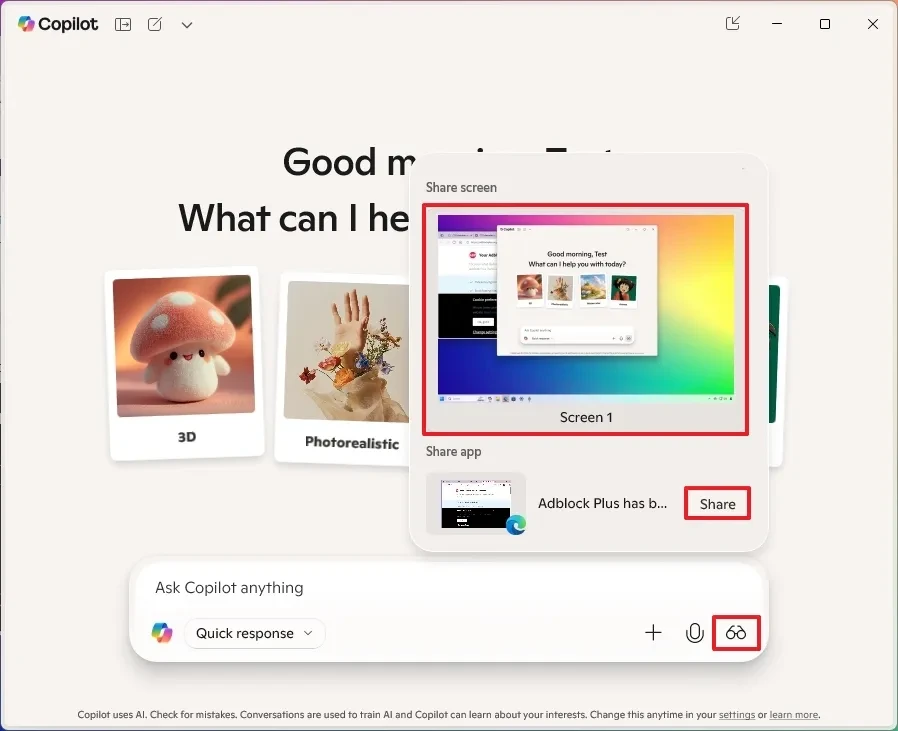
This feature works on most apps and websites, but will be limited to content protected by digital rights management (DRM) technology.
Instructions for activating Copilot Vision on Windows 11
To start using Copilot Vision on your Windows computer, you can follow these simple steps while an application or browser is open:
- Open the Copilot application from the taskbar.
- Click the magnifying glass icon ("Share screen with Copilot") next to the text input dialog box.
- Select the application window or screen you want to share, then click the button.Share.
- Ask questions or request support for Copilot.
- When finished, click the button.StopTo conclude the sharing session.
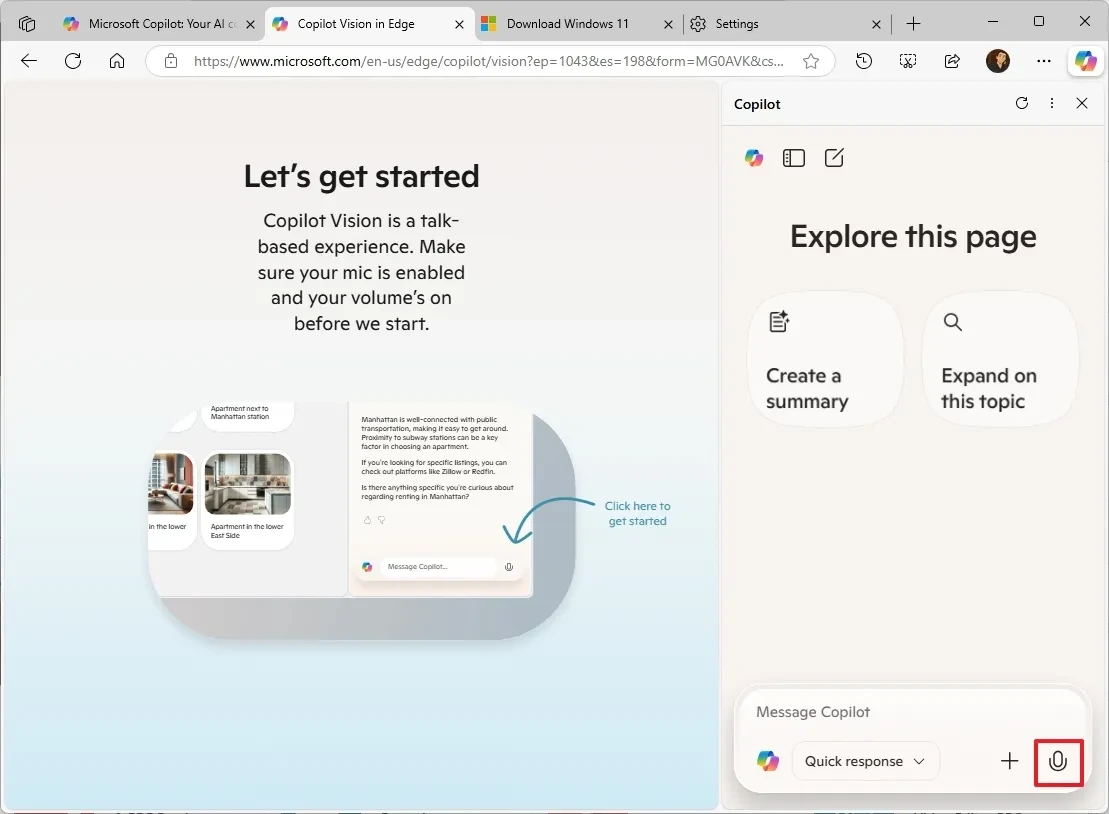
Deeply integrated into the Microsoft Edge browser.
Microsoft Edge users can also conveniently take advantage of Copilot Vision right in the browser:
- Open the website you want Copilot to analyze.
- Click the Copilot icon in the upper right corner of your browser.
- You can start a voice conversation by clicking the microphone icon; Vision will be enabled by default.
- Alternatively, you can click the magnifying glass icon to manually turn screen sharing on or off.
To completely disable this feature on Edge, you can go to the settings page.edge://settings/appearance/copilotAndSidebarand uncheck the option "Allow Copilot Vision to view your website".
Privacy and security: What is Microsoft's commitment?
Microsoft asserts that Copilot Vision is designed with privacy as a priority. This feature doesn't run continuously; it only collects data when a user actively initiates a sharing session and automatically turns off after a period of inactivity.
The company also stated that users' images and audio are not recorded or stored. However, voice conversations will be transcribed and stored in the chat history, which users can delete at any time. For web usage, Microsoft commits to not collecting data or using it for AI training purposes.
The future and other platforms
In addition to Windows, Copilot Vision is also available on iOS and Android, but requires users to subscribe to the Copilot Pro plan. On these platforms, the AI can access both the device's screen and camera.
Microsoft is also testing a new feature for Copilot that allows users to search, open, and question files stored directly on their computer, promising to make this AI assistant even more useful in the future.