

Turn off ads in Windows 11: A guide to 6 essential settings.
Windows 11 includes many service suggestions and promotions. This guide will show you six key settings areas where you can disable them for a cleaner experience.
Experience a cleaner Windows 11 with no more ads.
Windows 11 doesn't display ads directly; instead, it features subtly integrated promotional content and suggestions. App suggestions in the Start Menu, OneDrive banners in File Explorer, and tips on the lock screen are all forms of promotion for Microsoft services. However, users can disable them through the available settings for a cleaner and more focused operating system experience.
1. Clean up the Start Menu: Remove suggested apps.
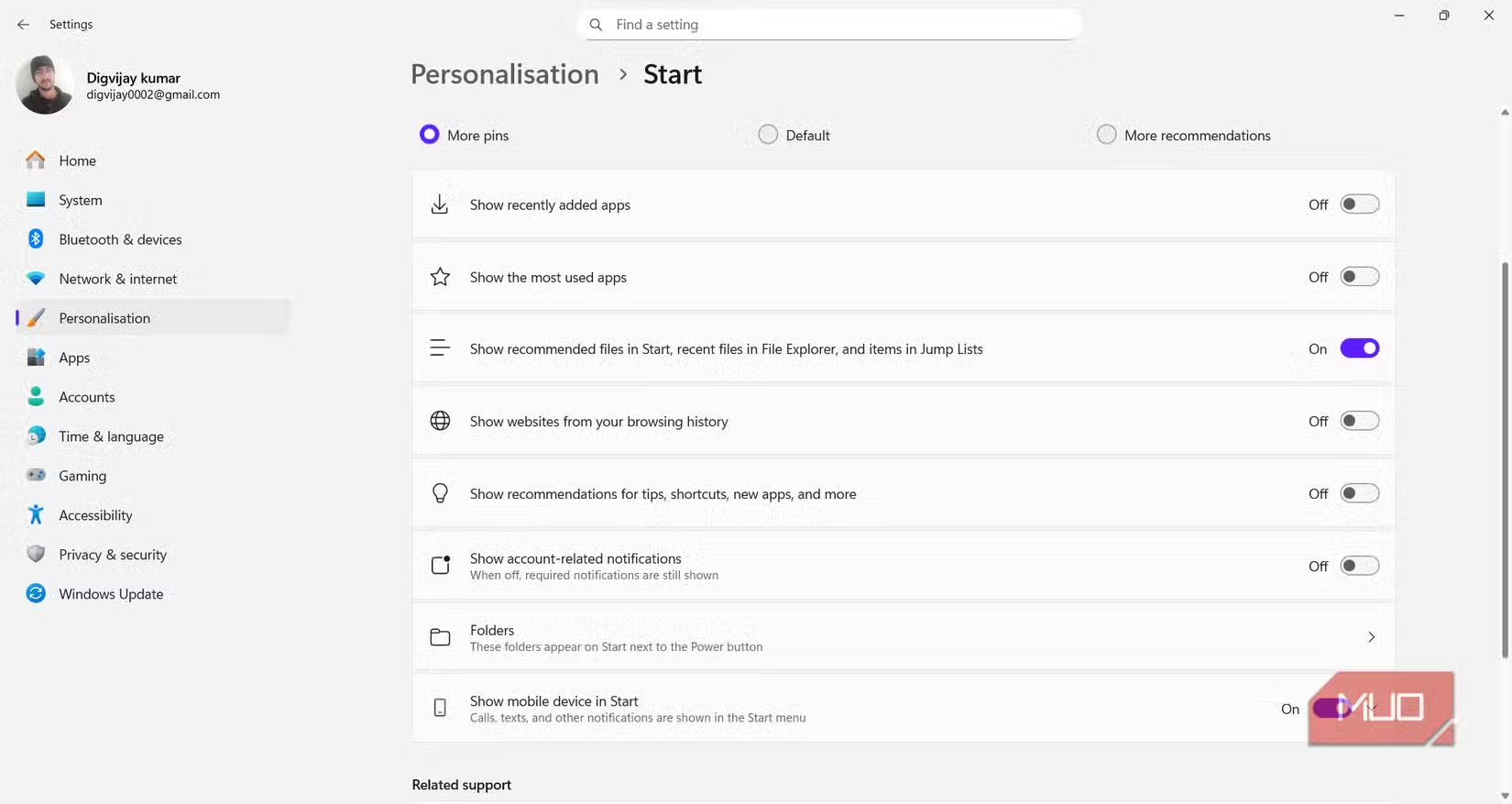
The Start Menu is the first place users encounter promotional content. The "Recommended" section may display apps or websites not based on your usage habits, creating a cluttered feeling. To turn off these suggestions, follow these steps:
- OpenSettings→Personalization→Start.
- Turn off the following options:
- Show recommendations for tips, shortcuts, new apps, and more.
- Show websites from your browsing history.
- Show account-related notifications.
After disabling this feature, the Start Menu will focus only on the apps you've pinned and use frequently.
2. The File Explorer interface is cleaner.
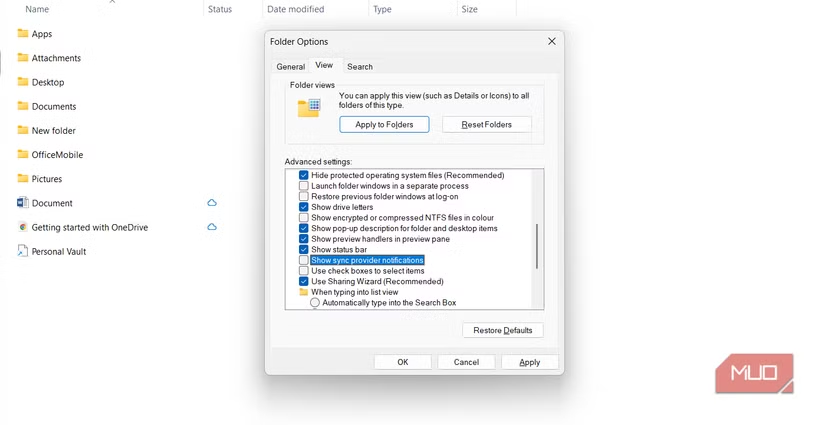
Even within the file manager, Microsoft can display advertising banners for services like OneDrive or Microsoft 365. These notifications are called "sync provider notifications" and can be turned off to keep the interface clean.
- OpenFile Explorer.
- Click the three-dot icon (⋯) on the toolbar and selectOptions.
- Switch tabView, find the itemShow sync provider notifications.
- Uncheck this option, then clickApplyandOK.
3. Customizing the lock screen has no suggestions.
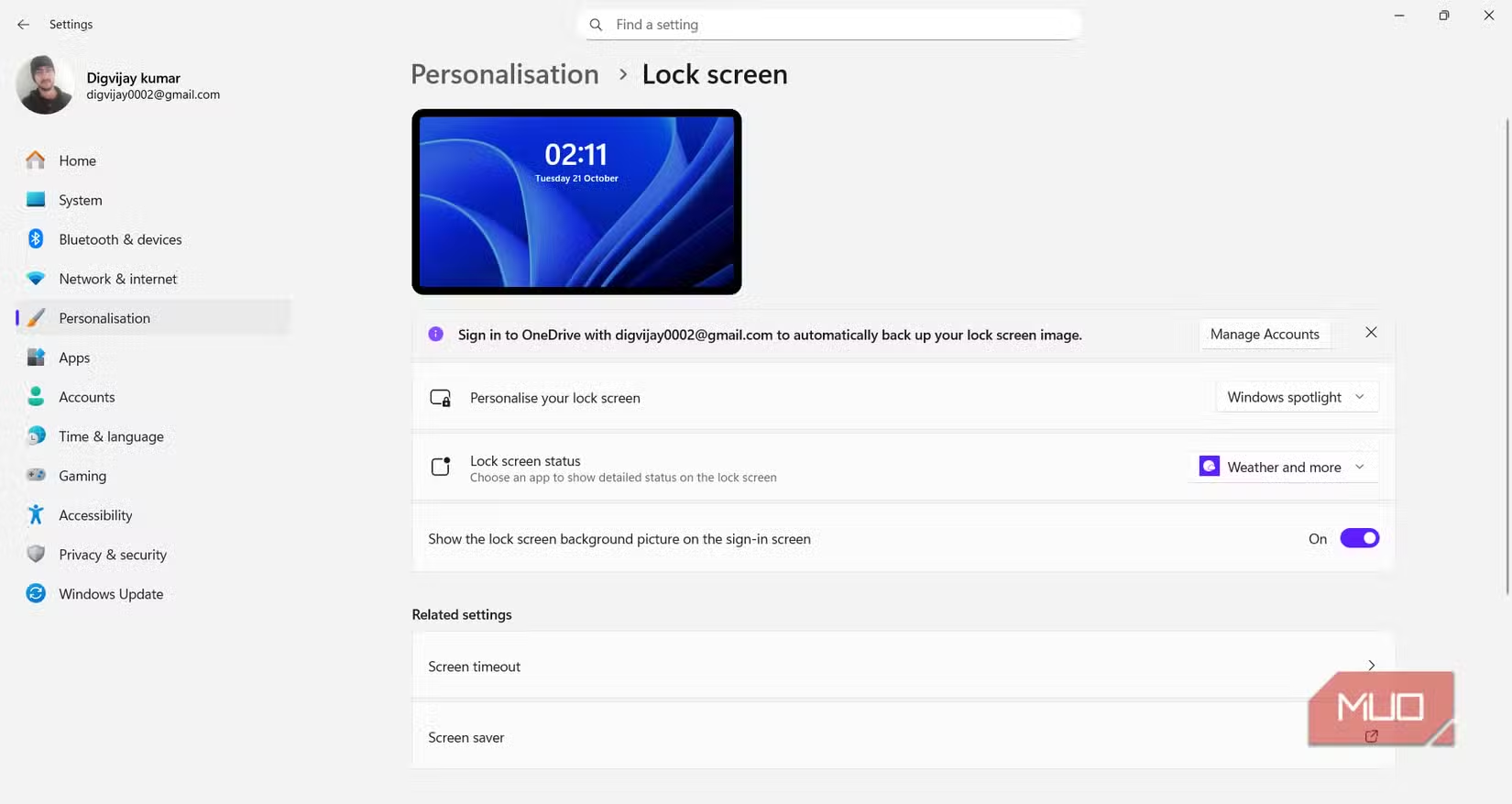
The Windows Spotlight feature on the lock screen displays beautiful wallpapers but also includes tips and suggestions, sometimes related to Microsoft services. To remove them, you can switch to using a static image.
- AccessSettings→Personalization→Lock screen.
- In the "Personalize your lock screen" section, change the option fromWindows SpotlightwallPictureorSlideshow.
This will allow the lock screen to display only the image you've chosen without any promotional content.
4. Disable ads in the Settings app.
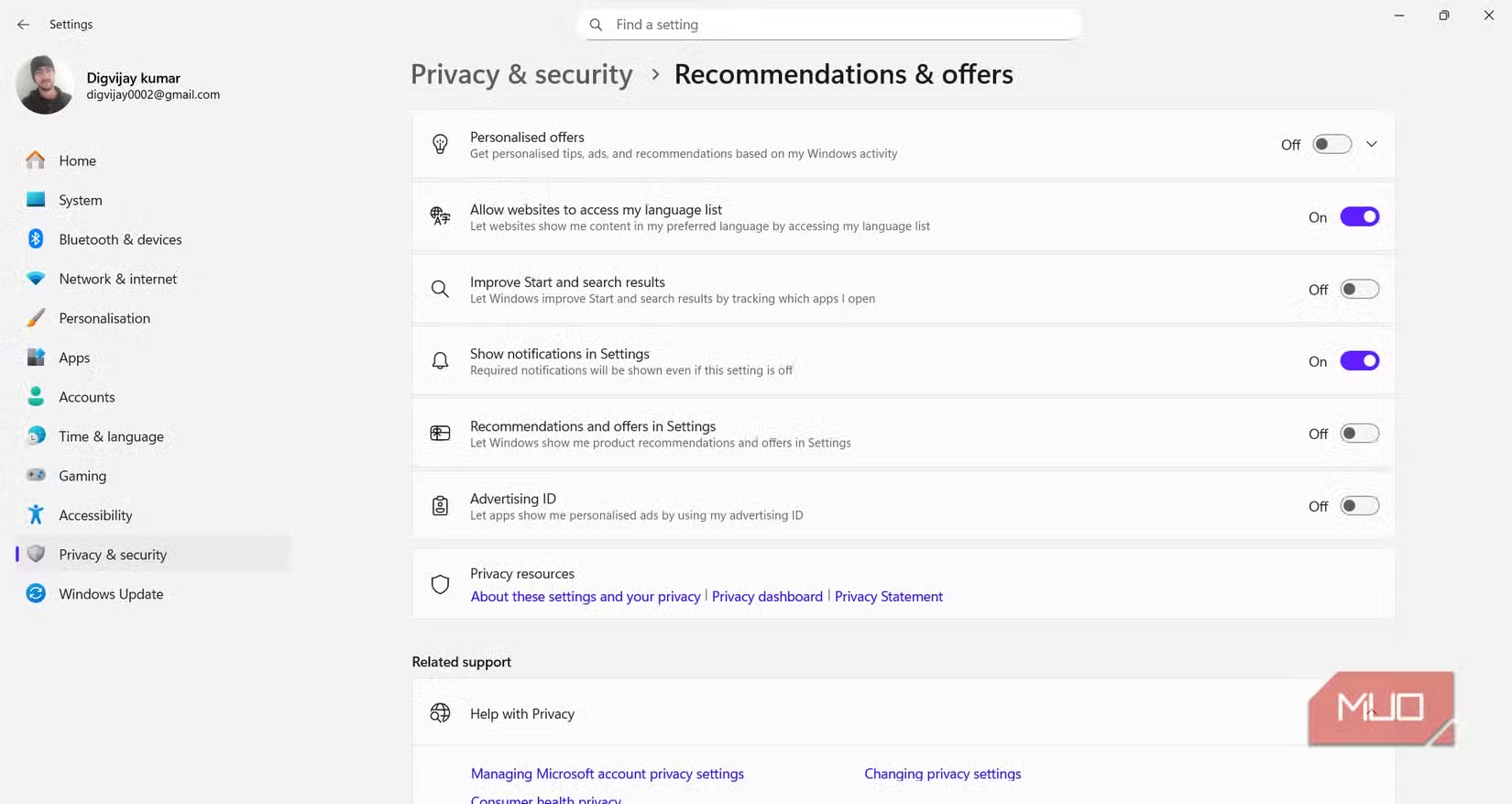
The Settings app itself may display advertising banners at the top of some pages, suggesting you try Microsoft 365 or sign in to OneDrive. You can turn them off in your privacy settings.
- OpenSettings→Privacy & security.
- Find and disable the following options in the section.General:
- Let apps show me personalized ads by using my advertising ID.
- Show me suggested content in the Settings app.
5. Block unnecessary tips and notifications.
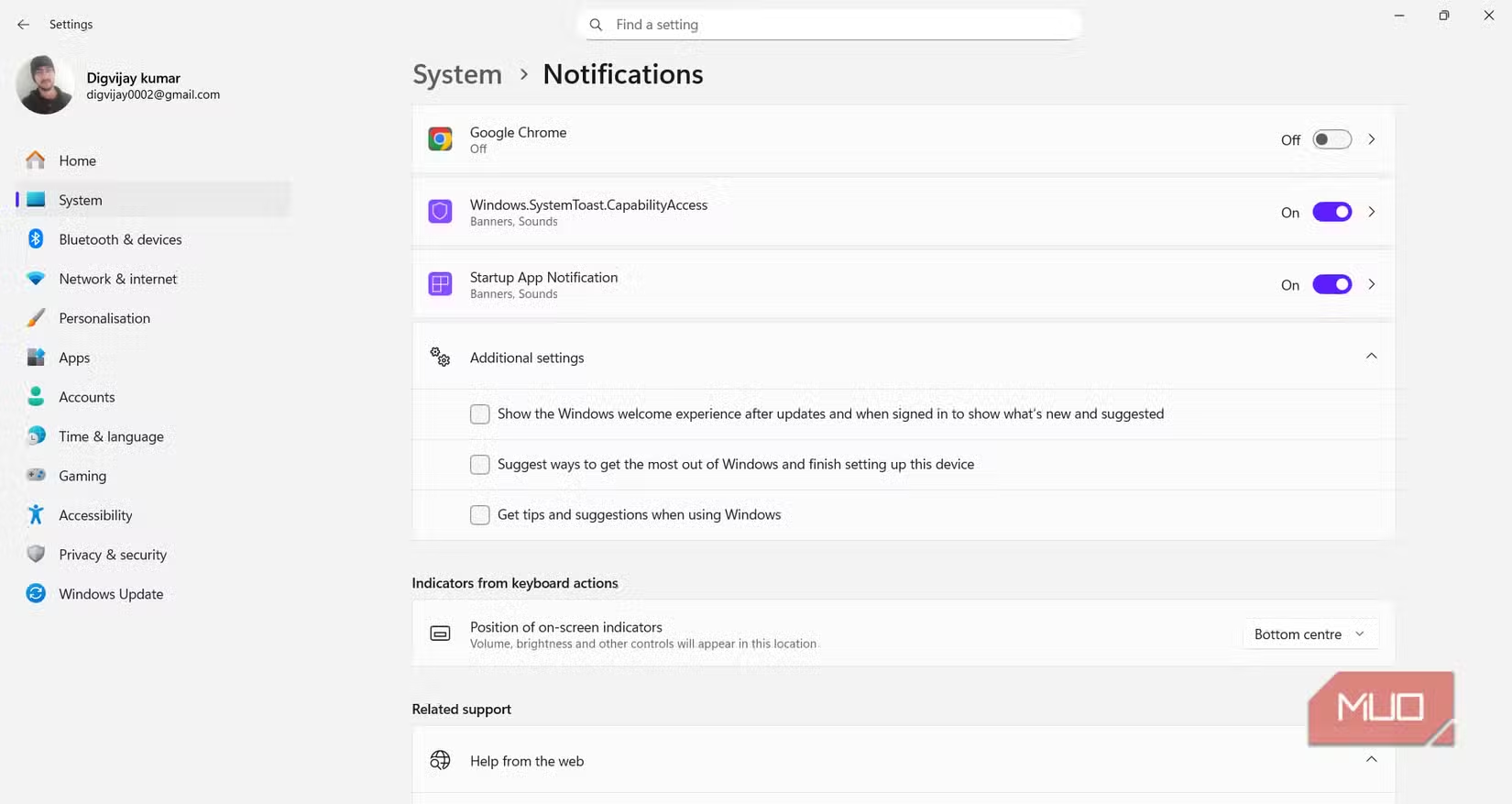
Windows often sends notifications in the form of tips or suggestions to "complete setup" or "get the most out of Windows." These are essentially promotional prompts and can be disabled.
- GoSettings→System→Notifications.
- Scroll to the bottom and expand the item.Additional settings.
- Uncheck all three options in this section, including "Get tips and suggestions when using Windows".
6. Optimize the Taskbar: Remove widgets and search content.
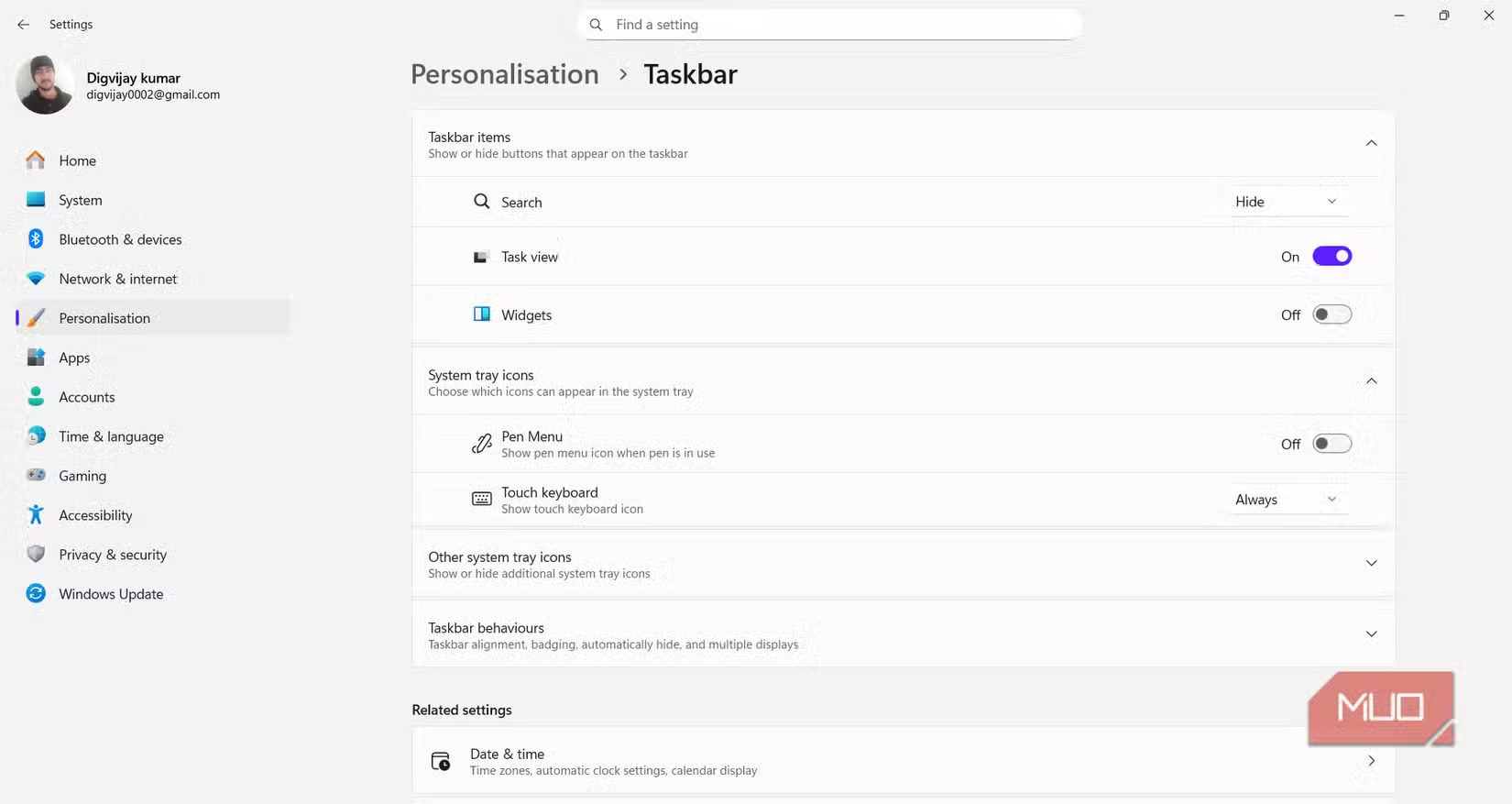
The taskbar can display sponsored content or trending news through widgets and a search box. For a minimalist desktop, you should disable these items.
- AccessSettings→Personalization→Taskbar.
- In the sectionTaskbar items, turn off the optionWidgets.
- You can also customize the item.SearchSwitch to either "Search icon only" or "Hide" mode to minimize unnecessary suggestions.
Maintain an undisturbed version of Windows 11.
By making these adjustments, you can remove much of the unwanted promotional content from Windows 11, making the operating system cleaner and more work-focused. Note that after major Windows updates, some of these settings may be reset to default. Therefore, checking these options periodically is a good habit to maintain an optimal user experience.