

Optimizing Windows 11: 5 customizations to eliminate distractions.
This guide provides detailed instructions on how to restore the right-click menu, customize the Start Menu, and remove Bing Search, Copilot, and OneDrive for a more focused and productive work experience.
Windows 11 brings many interface changes compared to its predecessor, but not all of them have been well-received by users. If you feel some of the new features disrupt your workflow, there are effective solutions to customize the operating system, making the experience more familiar and focused.
This article will guide you through five methods to fix the most common annoying changes, from restoring classic menus to removing unwanted applications.
Restore the traditional right-click menu.
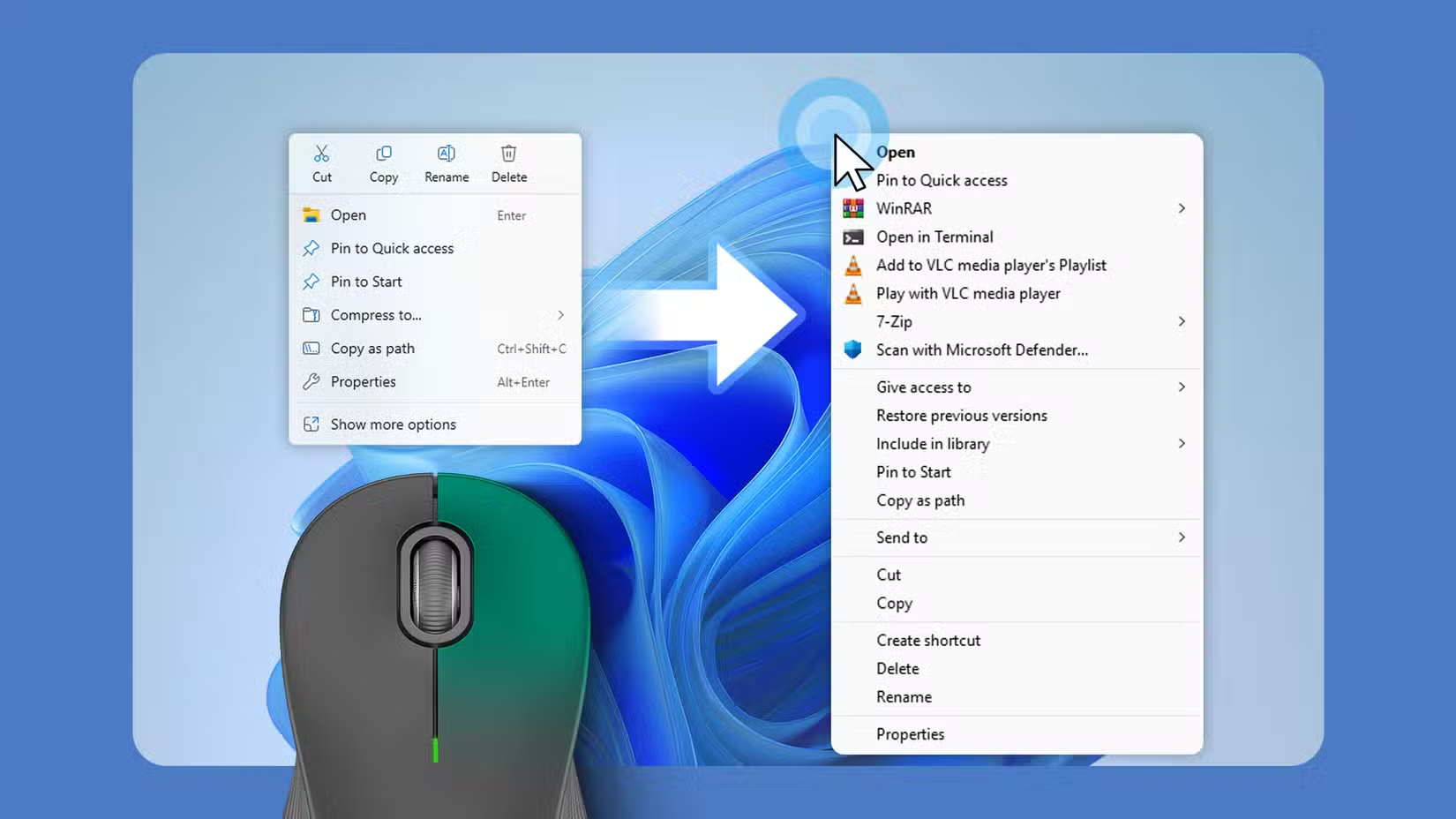
One of the most controversial changes in Windows 11 is the simplified right-click menu, which hides many familiar options. Although keyboard shortcuts are still available.Shift + Right-clickTo open the full menu, performing this extra step frequently can be inconvenient. To permanently restore the classic right-click menu, you can modify the system Registry.
Note:Editing the Registry can affect the system if done incorrectly. Users should back up the Registry before proceeding.
The steps are as follows:
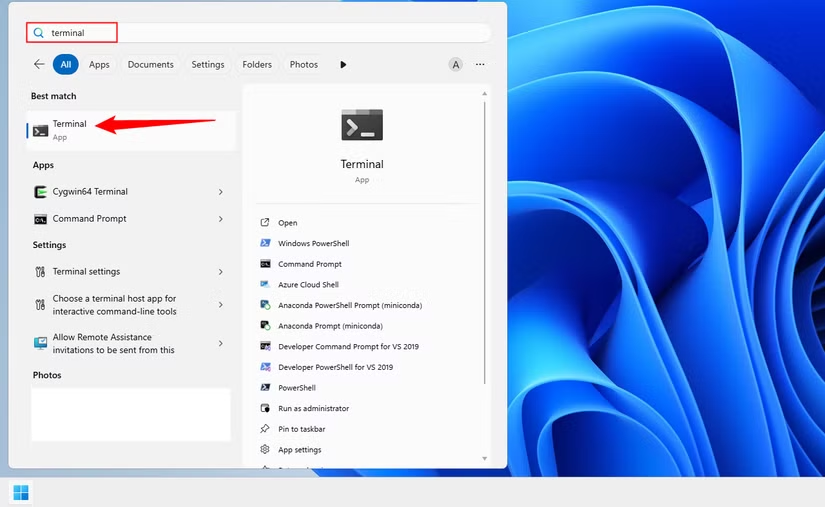
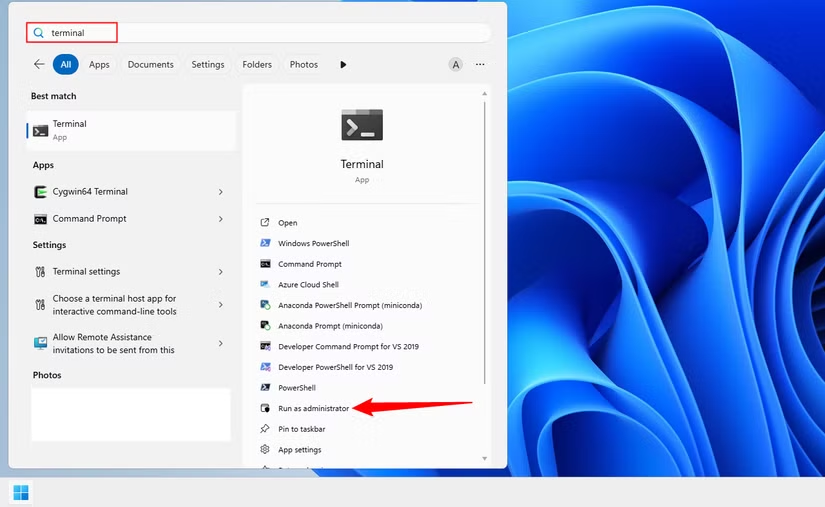
- Open the Terminal application by searching for it in the Start Menu.
- Copy and paste the following command into Terminal, then press Enter:
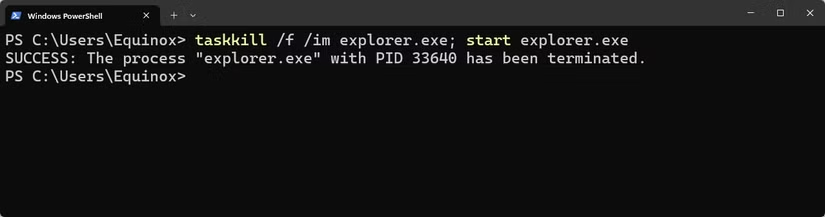
reg add "HKCU\Software\Classes\CLSID\{86ca1aa0-34aa-4e8b-a509-50c905bae2a2}\InprocServer32" /f - When the message "The operation completed successfully" appears, you need to restart File Explorer to apply the changes. You can restart your computer or run the following command in Terminal:
taskkill /f /im explorer.exe; start explorer.exe
Once complete, the full right-click menu will appear every time you click.
Customize the Start Menu to your familiar style.
Many users find the new Windows 11 Start Menu interface inefficient, taking up too much space but displaying little useful information. To fix this, you can use third-party tools like Windhawk to customize the layout.
Warning:Windhawk is a tool that provides community-created customizations. While there have been no reports of malware, users should be aware of the potential risks of installing third-party mods.
To customize the Start Menu, follow these steps:
- Download and install Windhawk from the official website.
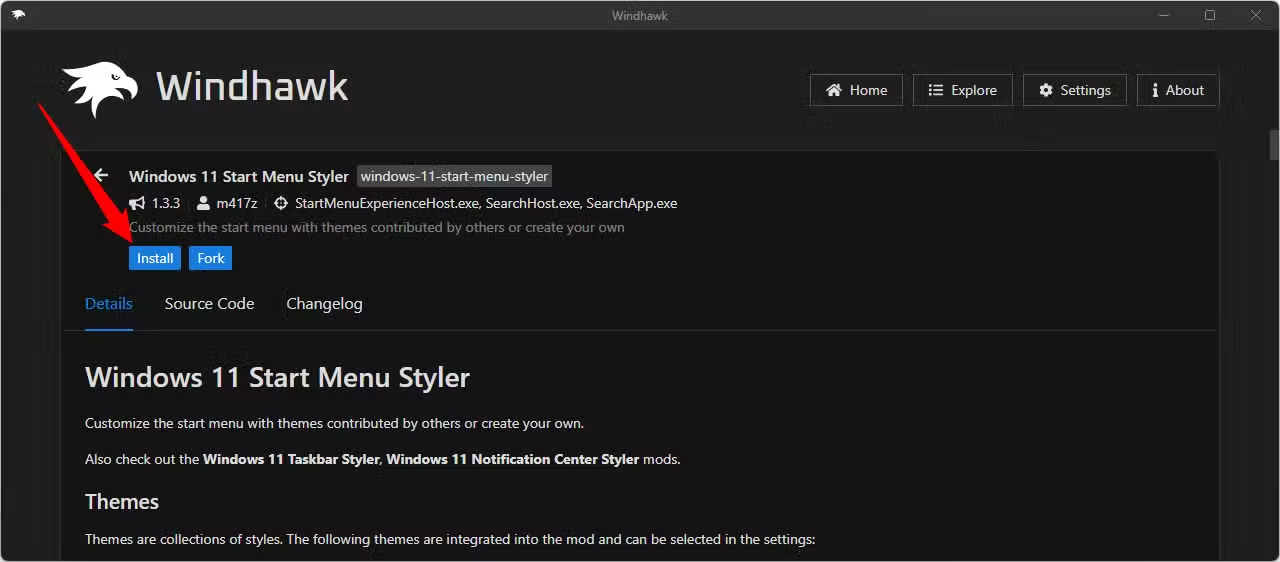
- Open the application, go to the “Explore” tab, and search for “Windows 11 Start Menu Styler”.
- Click on “Install” and select “Accept Risk and Install”.
- After installation is complete, go to the mod's "Settings" section, select a theme from the dropdown menu (for example, "Windows11_Metro10" for a Windows 10-like interface), and click "Save Settings".
The next time you open the Start Menu, the new interface will be applied.
Disable Bing search in the Start Menu
When searching from the Start Menu, Windows 11 defaults to integrating results from the Bing search engine, which may be unnecessary for many users. You can disable this feature with a single command.
- Open Terminal with administrator privileges (Run as Administrator).
- Copy and paste the following command, then press Enter:
reg add HKEY_CURRENT_USER\Software\Microsoft\Windows\CurrentVersion\Search /v BingSearchEnabled /t REG_DWORD /d 0
After the command is successfully executed, Bing web search results will no longer appear in the Start Menu.
Remove the Copilot AI assistant.
Microsoft has deeply integrated the Copilot AI assistant into many components of Windows 11. If you don't need or prefer other AI solutions, removing Copilot is quite simple.
Simply search for "Copilot" in the Start Menu, right-click the application, and select "Uninstall." Note that Copilot may be automatically reinstalled after major Windows updates.
Remove the deep integration of OneDrive.
OneDrive is Microsoft's cloud storage service built into the operating system. However, some users may encounter unexpected synchronization errors or simply want to use a different service. Uninstalling OneDrive can help keep your system cleaner.
Important:Before removing OneDrive, make sure you back up all important files stored on it to avoid data loss.
To uninstall, search for “OneDrive” in the Start Menu, then click the “Uninstall” option on the right, or right-click the application and select “Uninstall”.
By making these customizations, you can tailor Windows 11 to better suit your personal usage habits, creating a more efficient and less distracting work environment.