
3 ways to install Perplexity AI on Windows 10 and 11 computers
This guide provides detailed instructions on how to install the Perplexity AI search engine on Windows, including the native application and the PWA version via Microsoft Edge and Google Chrome browsers.
Perplexity AI is a search and answer tool that uses large language models (LLMs) to provide direct answers to queries, accompanied by clear references. While Perplexity can be easily accessed via a web browser, installing the dedicated application on Windows 10 and 11 offers a more seamless and convenient experience.
Users can choose between installing the official native app or creating a Progressive Web Application (PWA) through popular browsers like Microsoft Edge and Google Chrome. Below are detailed instructions for each method.
Install the native Perplexity application for Windows.
This is the official application installation method released by Perplexity, providing a full and optimized experience for the Windows operating system.
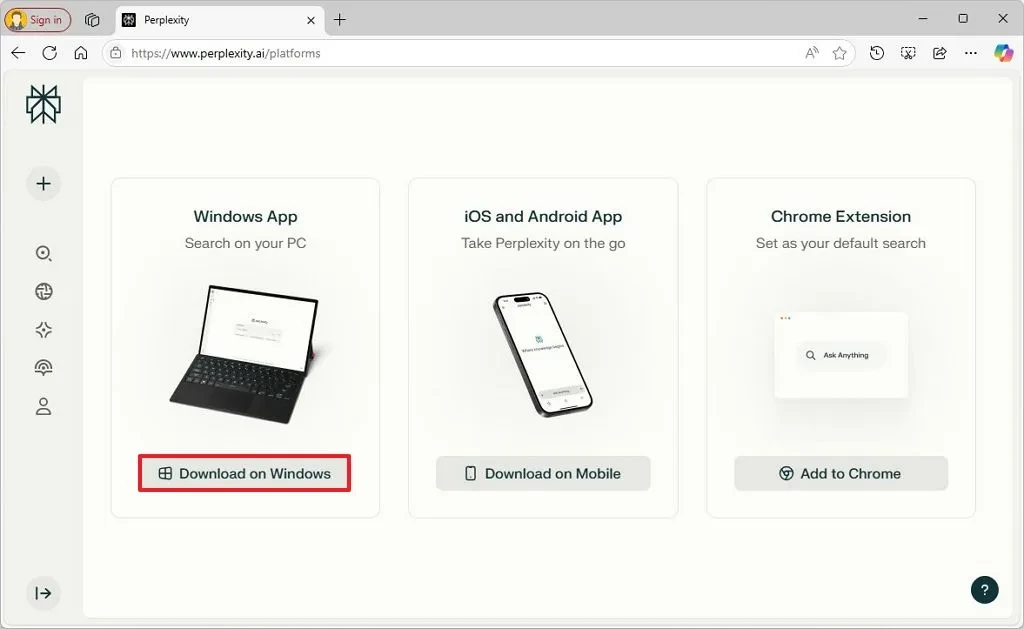
- Visit the official Perplexity website.
- Click the “Download on Windows” button to download the installation file.
- Open the downloaded file “Perplexity Setup xxx-x64.exe” to launch the installer.
- Press the buttonInstall(Install) to complete the process.
After installation, the Perplexity application will be available in the Start menu. The application's interface is similar to the web version, including an input field in the middle and a navigation bar on the left. The application will automatically register to launch with Windows, but you can disable this feature inSettings > Apps > Startup.
To uninstall, you can accessSettings > Apps > Installed apps, find Perplexity and select the “Uninstall” option.
Using a web browser to create a post-processing application (PWA)
Progressive Web Applications (PWAs) are technologies that allow websites to function similarly to a native application. They offer a lightweight alternative if you don't want to install a full-fledged application.
Install Perplexity PWA via Microsoft Edge
Microsoft Edge users can install the Perplexity PWA by following these steps:
- Open the Microsoft Edge browser and go to the Perplexity website.
- Log in to your account for the full experience.
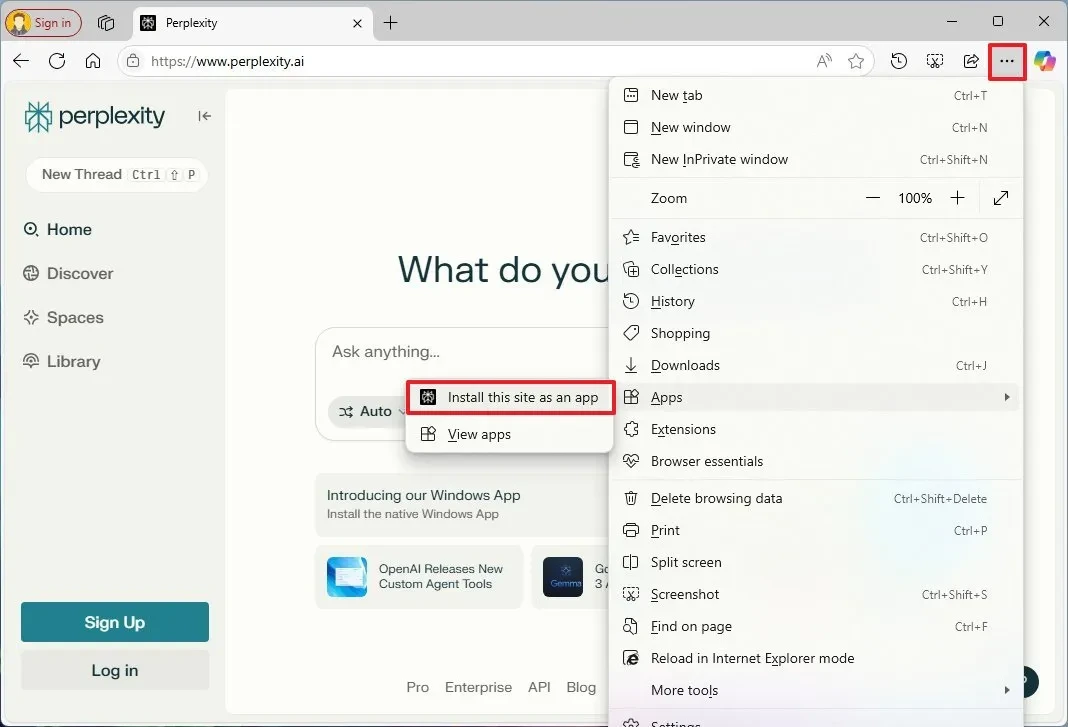
- Click the three-dot icon in the upper right corner to open the menu.
- Select itemApps, then select “Install this site as an app”.
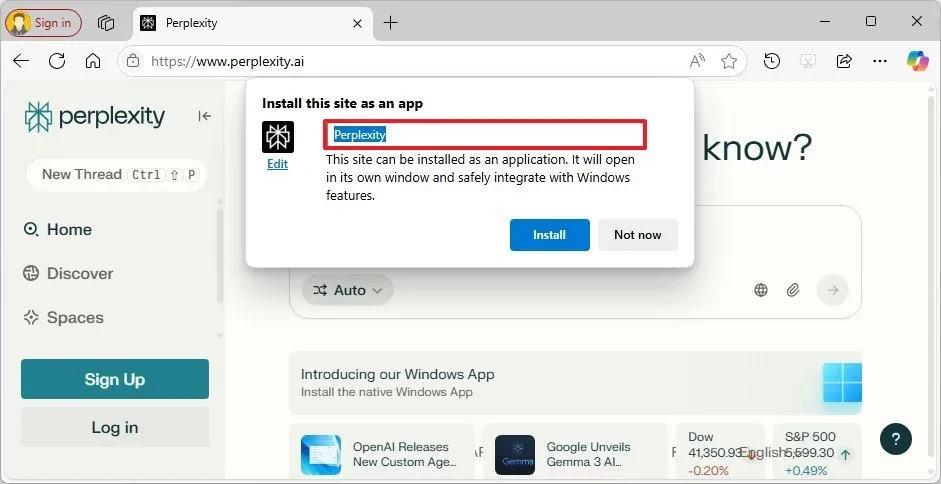
- Press the buttonInstallin the confirmation dialog box.
Install Perplexity PWA via Google Chrome
For Google Chrome users, the installation process is similar:
- Open the Google Chrome browser and go to the Perplexity website.
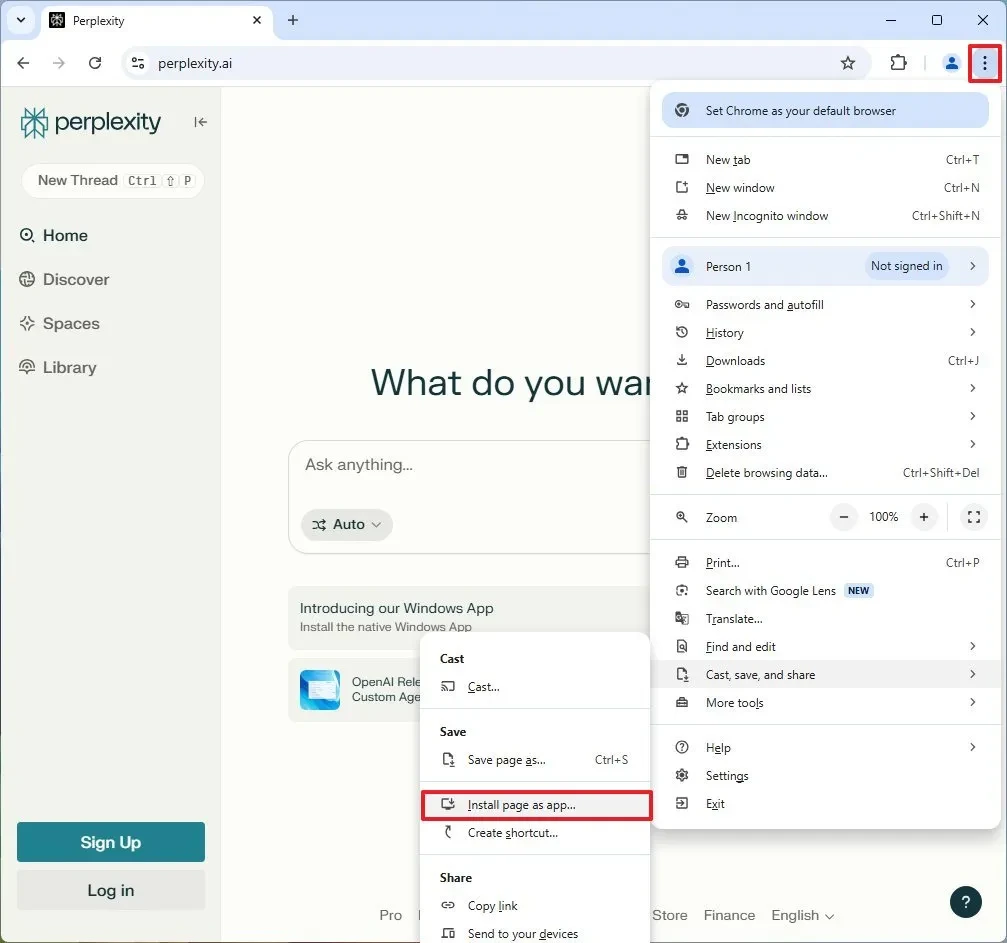
- Click the three-dot icon in the upper right corner.
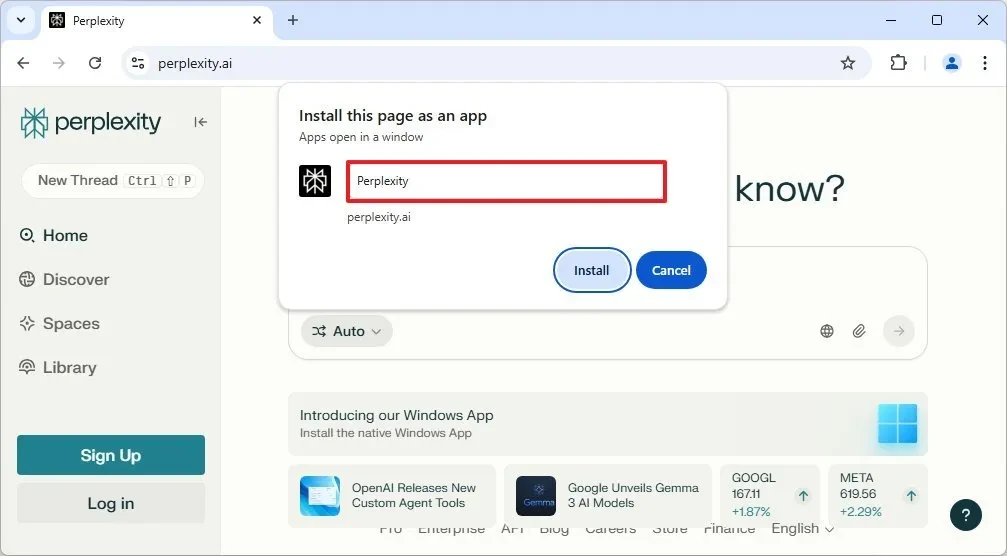
- Select the “Cast, save, and share” menu and then choose the “Install pages as app” option.
- You can customize the name for the app (optional).
- Press the buttonInstallTo complete.
After installing the PWA from either browser, the Perplexity application will appear in the Start menu. You can easily uninstall the PWA by right-clicking the application icon in the Start menu and selecting "Uninstall" or through the settings.Settings > Apps > Installed appsof Windows.
CTVX