

Mastering Notepad: Troubleshooting and Help Guide for Windows
This article provides methods for searching for Notepad support directly within Windows, along with troubleshooting common issues such as encoding errors, application crashes, and how to use new features.
Notepad has been a familiar and indispensable tool on Windows for many years, favored by users for quick note-taking, list creation, and simple text editing. Despite its minimalist interface, users sometimes encounter problems or need guidance when using new features. This article will provide effective methods for getting help and troubleshooting common Notepad issues.
Notepad: More than just a simple text editor
Despite its simple appearance, Notepad offers all the necessary features for everyday writing and editing tasks. Its biggest advantage is its fast startup speed and clean interface, allowing users to focus entirely on the content.
- Quick note:Ideal for jotting down ideas, reminders, or temporary information.
- Clean interface:Minimalist design helps eliminate distracting elements.
- Quick start:Opens almost instantly, convenient when you need to jot down information urgently.
- Supports a variety of file types:It has the ability to open log files, small source code files, and configuration files, which is very useful for programmers and IT professionals.
- Display plain text:Remove all formatting to view the original content and avoid compatibility issues.
Find help for Notepad right on Windows
Windows includes many built-in support resources, allowing users to quickly find answers to common questions without having to search far and wide.
1. Use the search bar.
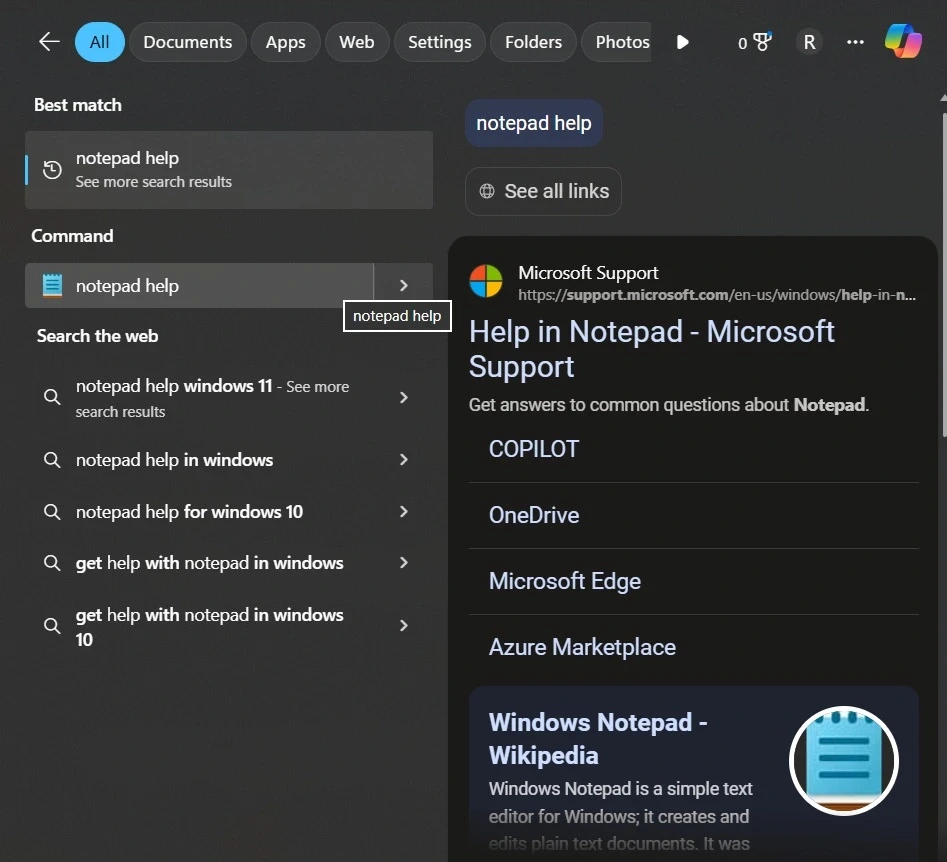
The search bar next to the Start button is the quickest tool for finding solutions. By typing keywords like “Notepad help” or “install Notepad,” the system will display relevant suggestions from the system, help pages, and online links. This is the recommended starting point for new users.
2. Access the application settings page.
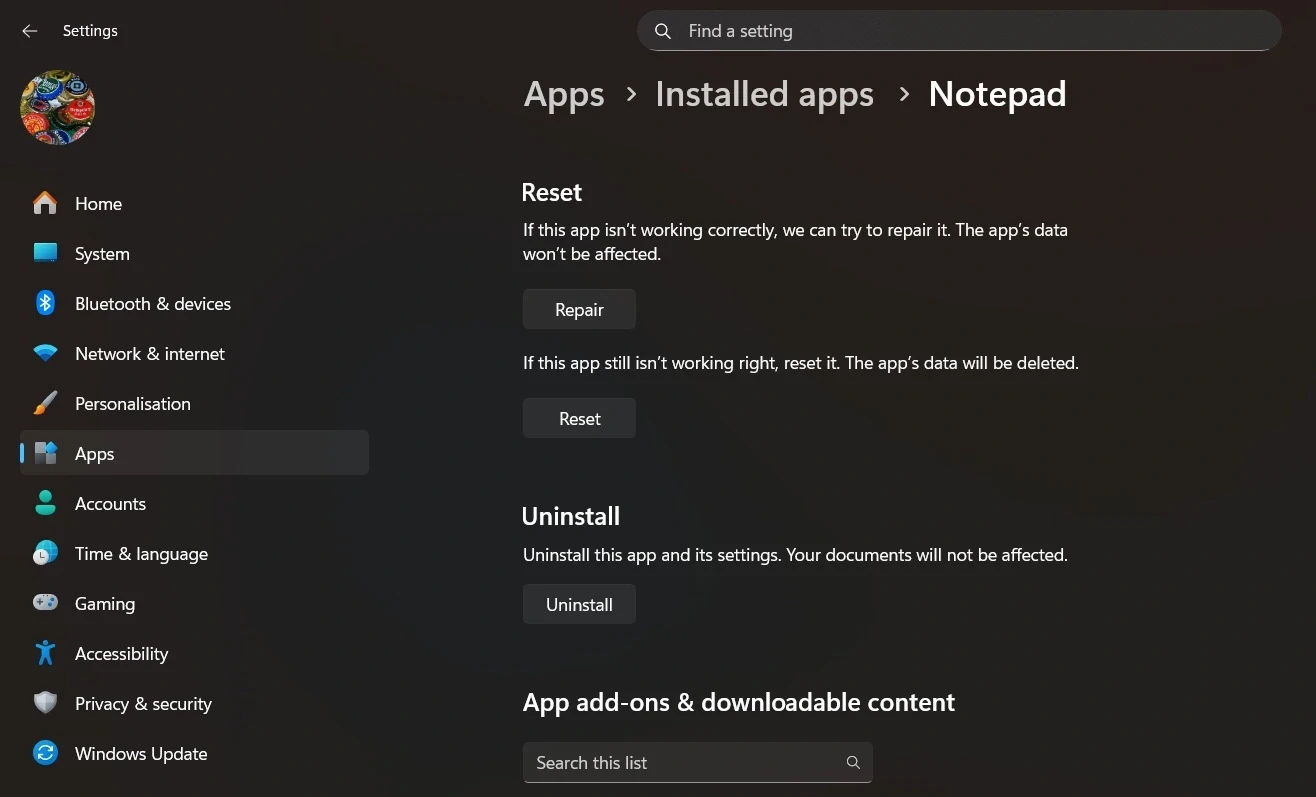
In the Windows Settings app, search for “Notepad”. This settings page allows you to repair or reset the application to its default configuration, an effective solution for many problems without affecting your saved files.
3. Microsoft Support Website
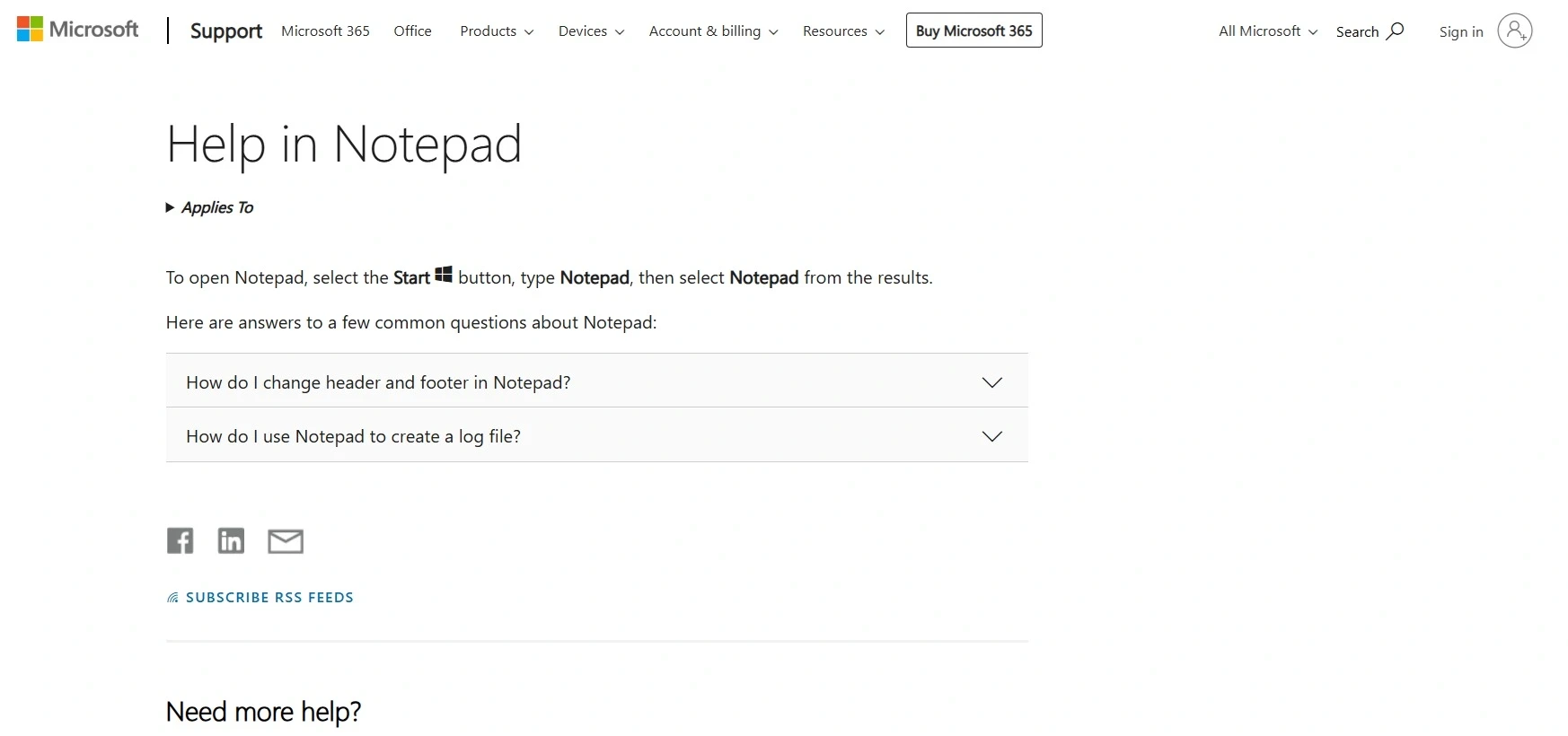
The Microsoft Support page provides detailed, step-by-step guides for common tasks. These articles are written for the average user, using simple language and clear illustrations, making them a reliable source of information for learning about new features or troubleshooting errors.
4. User community forum
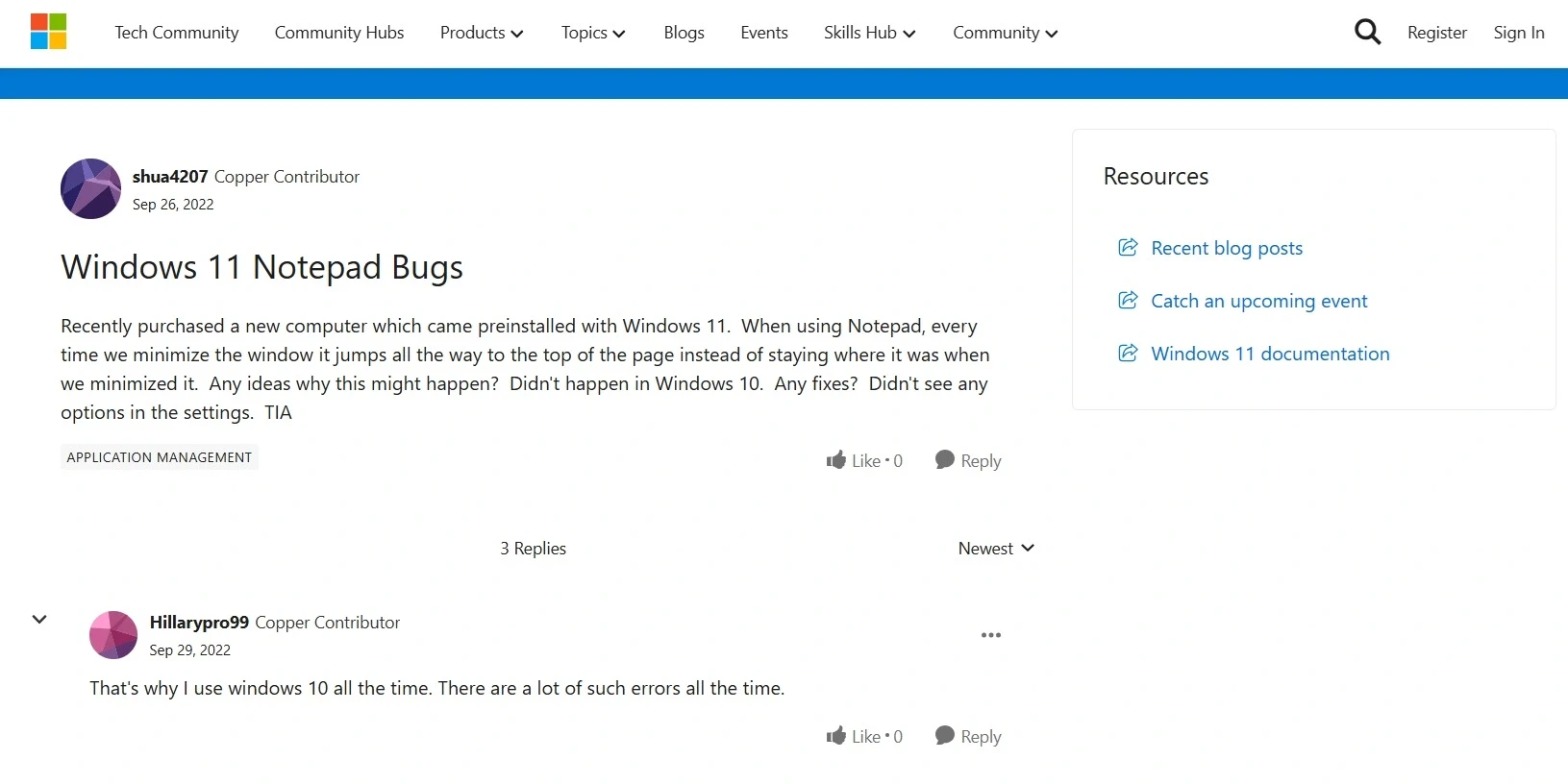
Forums like Microsoft Community are places where users share experiences and solutions to real-world problems. By clearly describing your issue, you can get help from others who have faced similar situations.
Quick solutions when Notepad crashes
Before resorting to more complex solutions, try these basic troubleshooting steps. They often resolve most minor issues quickly.
- Close and reopen Notepad:This process refreshes the application and clears temporary memory errors.
- Restart your computer:Free up memory and reset system processes that may be causing conflicts.
- Check the file size:Notepad handles small files best. If the file is too large, the application may slow down or freeze. Consider splitting the file into smaller parts.
- Update Windows:Operating system updates typically include bug fixes and improvements to built-in applications like Notepad.
- Reset the app:If the above steps don't work, go to Settings > Apps > Installed apps, find Notepad and select "Reset".
Addressing common problems
Besides general issues, users may encounter some specific problems related to new features or file formats.
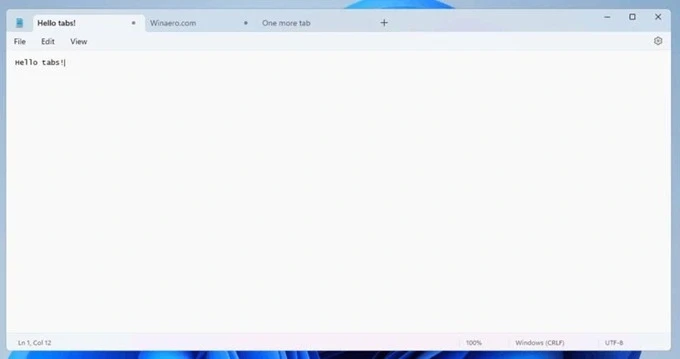
Use tabs in newer versions.
The tab feature is one of the most valuable upgrades, allowing you to open multiple files in the same window. This reduces screen clutter and makes switching between documents easier. You can create new tabs using the keyboard shortcut Ctrl + N, and drag and drop to rearrange them, making your work more organized and efficient.
Troubleshooting text encoding issues
When a text file displays strange or incorrect characters, the cause is usually an encoding error. This happens when Notepad reads the file in a format other than the original. To fix this, go to the File menu > Save As and save the file again in UTF-8 format, which supports most languages and characters. If that doesn't work, try other formats such as ANSI or UTF-16.
When Notepad freezes or stops working
Notepad crashing isn't common, but it can happen with excessively large files or due to system conflicts. If this occurs, try opening the file with a different editor, such as WordPad, to check. If the file opens successfully, the problem lies with Notepad. Ensure Windows is updated and try repairing or resetting the application in the Settings.
Frequently Asked Questions (FAQs)
Below are answers to some of the most frequently asked questions about Notepad.
Why is my file displaying strange characters?
This is an encoding issue. Try saving the file (Save As) in UTF-8 encoding to resolve it.
Why does Notepad slow down when opening large files?
Notepad is designed for small files. For larger files, use more powerful editors like WordPad or split the file into smaller parts.
How do I reset Notepad to its default settings?
Go to Windows Settings, find Notepad, and select the "Reset" option. This will restore the application to its factory settings without deleting your files.