

Manage virtualization features on Windows 11 through the new Virtual Workspaces page.
Microsoft has integrated the Virtual Workspaces page into the Settings app, allowing users to quickly enable Hyper-V, Windows Sandbox, and other virtualization tools without accessing the old Windows Features.
In an effort to modernize the interface and centralize system customizations, Microsoft has officially added a new management page called Virtual Workspaces to Windows 11. This is an important step towards gradually replacing the traditional "Windows Features" dialog box that has existed for many generations of operating systems.
Virtual Workspaces: Modern Virtualization Control Centers
The new Virtual Workspaces page is integrated directly into the Settings app, allowing professional users such as programmers and system administrators to manage virtualization components more intuitively. Instead of searching through the old Control Panel, all features, from Hyper-V to Sandbox testing environments, are now listed centrally.
How to enable virtualization features via Virtual Workspaces
To take advantage of this new interface to enable virtual machine support components, users need to follow these steps:
- Open the applicationadjusting(Setting).
- Select itemSystem(System) is in the left-hand category.
- Access the pageAdvanced(Advanced) on the right side.
- Click on the optionVirtual Workspaces.
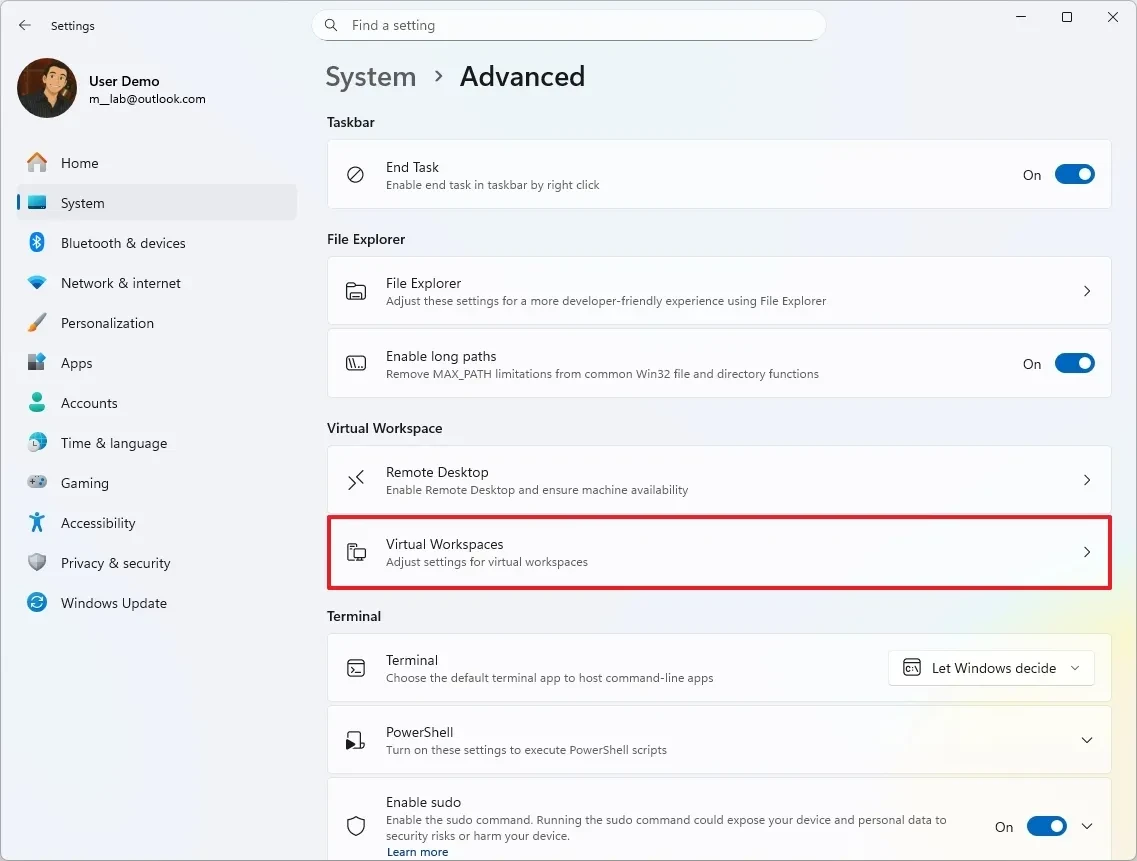
Here, the system provides a list of customizable components, including:
- Containers:We provide services for creating and managing Windows Server containers.
- Guarded Host:Supports running shielded virtual machines (Shielded VMs).
- Virtual Machine Platform:The basic foundation for virtual machines.
- Windows Hypervisor Platform:Allows third-party virtualization software to run on the Windows hypervisor.
- Windows Sandbox:Create an isolated Windows environment to test for unsafe software.
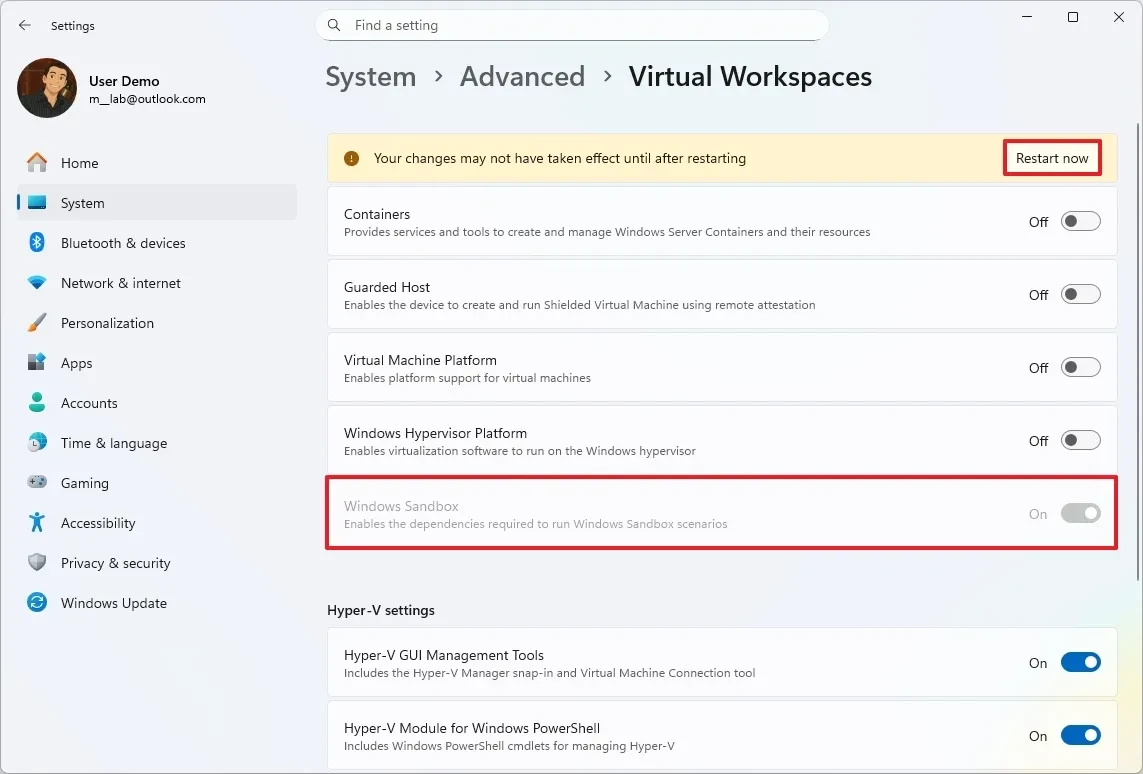
Additionally, users can further enable Hyper-V components such as the GUI management tool, PowerShell modules, and accompanying services. After selecting the necessary components, press [button].Restart now(Restart immediately) for the system to apply the changes.
Procedure for disabling virtualization
Disabling unnecessary features helps optimize system resources and improve performance for other tasks. The process is similar to enabling them:
- EnteradjustingnewsSystemnewsAdvanced.
- SelectVirtual Workspaces.
In the list that appears, the user simply needs to toggle the status bar to the side.OffFor the components you want to remove.
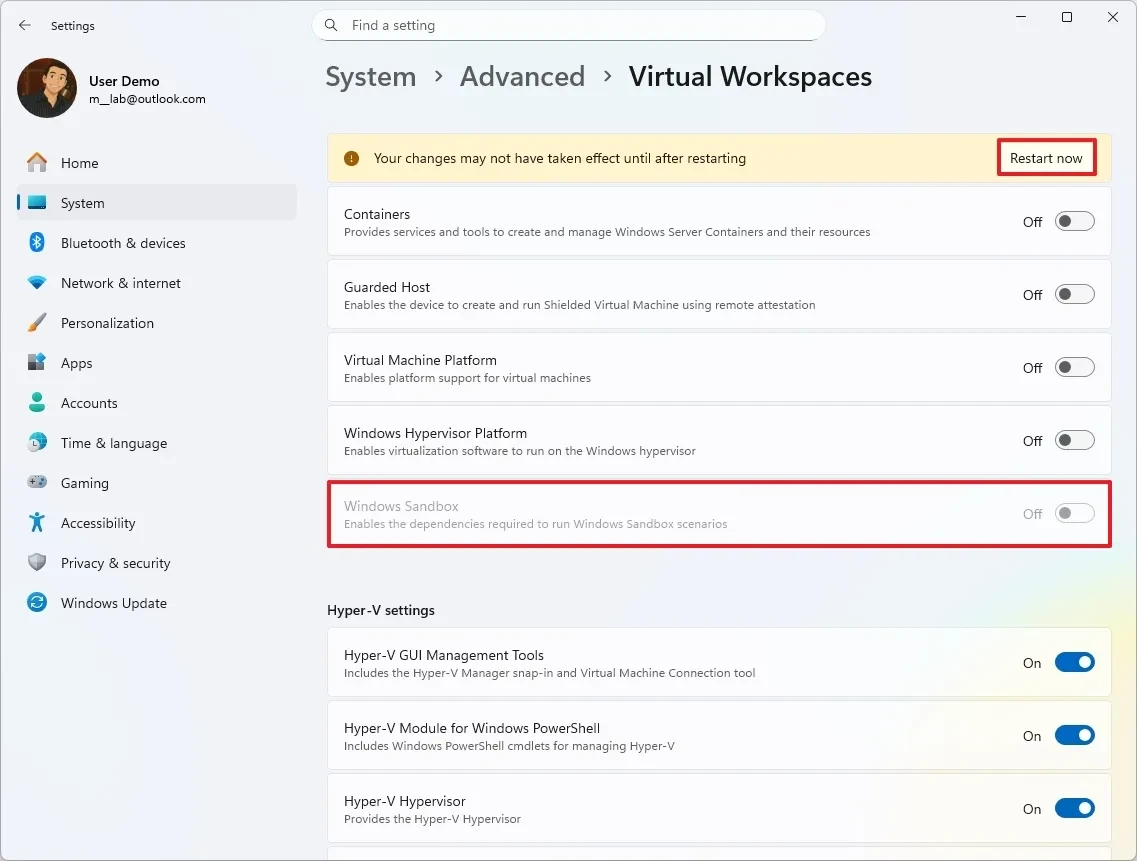
Note that restarting your computer is required for Windows to reconfigure the system kernel and virtualization-related drivers. If the Virtual Workspaces page does not appear, users should check for Windows 11 updates or ensure that hardware virtualization is enabled in the device's BIOS/UEFI.