

3 easiest ways to turn Bluetooth on and off on your iPhone.
This guide provides detailed instructions on three methods for managing Bluetooth connections on your iPhone via Control Center, Settings, and Siri, enabling quick accessory connection.
Bluetooth is a core feature on the iPhone, playing a crucial role in connecting to external devices such as wireless headphones, speakers, smartwatches, or transferring data via AirDrop. Understanding how to use it will help users manage connections effectively and optimize battery life.
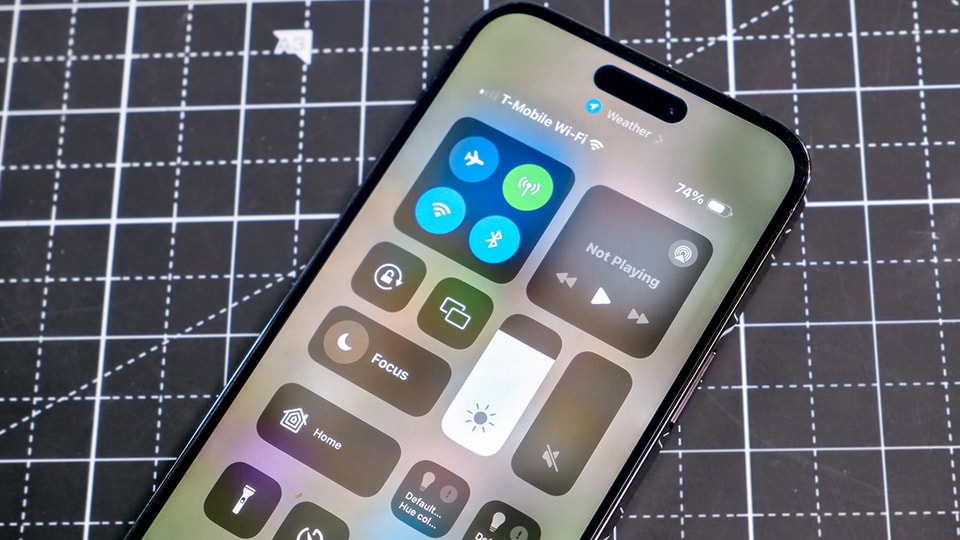
1. Use the Control Center
This is the quickest and most common method, allowing users to perform actions without exiting the application they are currently using.
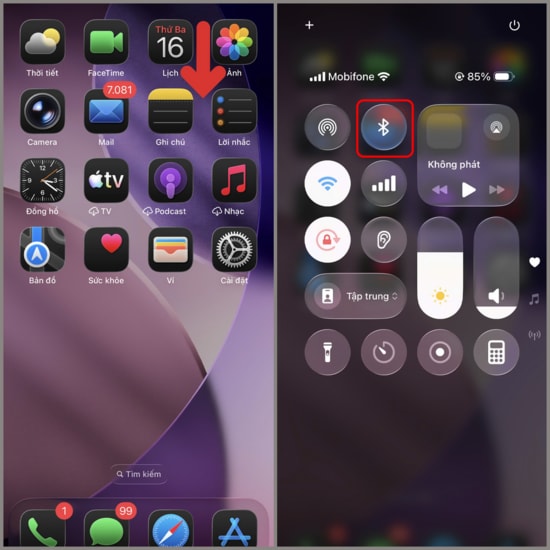
- Step 1:Open Control Center. For iPhones with Face ID, swipe down from the top right corner of the screen. For iPhones with a physical Home button, swipe up from the bottom edge of the screen.
- Step 2:Tap the Bluetooth icon (the distinctive icon). When the icon is blue, Bluetooth is turned on. When the icon is gray or white, this feature is temporarily disconnected from accessories.
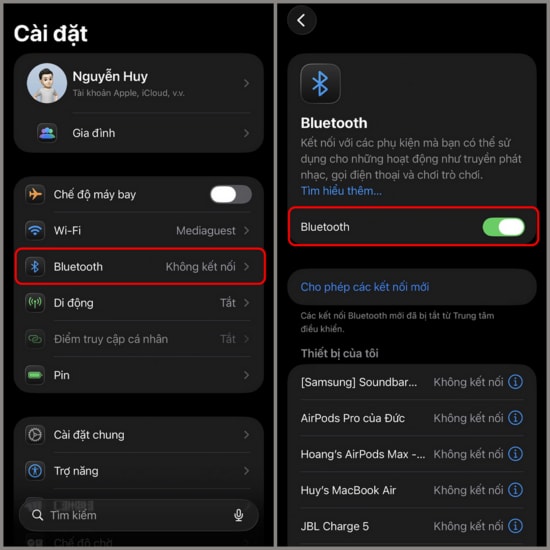
2. Access directly through the Settings app.
This method is suitable when you want to completely turn off Bluetooth or manage a list of previously paired devices.
- Open the applicationSettingon the iPhone's home screen.
- Find and select the itemBluetooth.
- Slide the status bar to green to activate or slide it to the left (gray) to completely turn it off.
Note: Unlike the Control Center, which only temporarily disconnects Bluetooth until the next day, turning it off in Settings will completely disable Bluetooth until you manually turn it back on.
3. Control via Siri virtual assistant
If you're driving or it's inconvenient to operate the device manually, you can use your voice to give commands to Siri.
- Activate Siri by speaking."Hey Siri"Alternatively, press and hold the Power button (on newer iPhone models) or the Home button.
- Use voice commands:"Turn on Bluetooth"to turn on or"Turn off Bluetooth"To turn it off.
- Siri will confirm and implement the status change immediately on the system.
Using these methods flexibly will help you easily connect your iPhone to any device in the Apple ecosystem as well as third-party accessories in the smoothest way possible.