

This guide shows you how to delete Safari history on your iPhone, iPad, and MacBook to protect your data.
Deleting your browsing history is essential for protecting your privacy and optimizing device performance. This article provides detailed instructions on how to safely clean up Safari on iOS and macOS.
Deleting your Safari search history not only protects your personal information from prying eyes but is also an effective way to clear your cache, allowing the browser to run more smoothly. However, before doing so, users should be aware of some technical issues to avoid losing important data.
Important notes before cleaning your Safari.
Thorough preparation ensures a quick and uninterrupted process. Users should note the following points:
- Check the battery:Make sure the device has enough battery power or is charging to avoid sudden shutdowns.
- Identify your Apple ID account:If you enable iCloud sync, deleting history on one device will apply to all devices sharing the same account.
- Website hosting is important:Add necessary pages to your Bookmarks or Reading List because once deleted, they cannot be found again in your history.
- Close the tabs:Check and close any open tabs for more precise operation.
How to delete Safari history on iPhone and iPad (iOS)
For Apple mobile devices, users can choose to delete files through the Settings app or directly within the Safari browser.
Method to delete via the Settings app.
This is the most thorough way to delete all browsing data, including history, cookies, and cache.
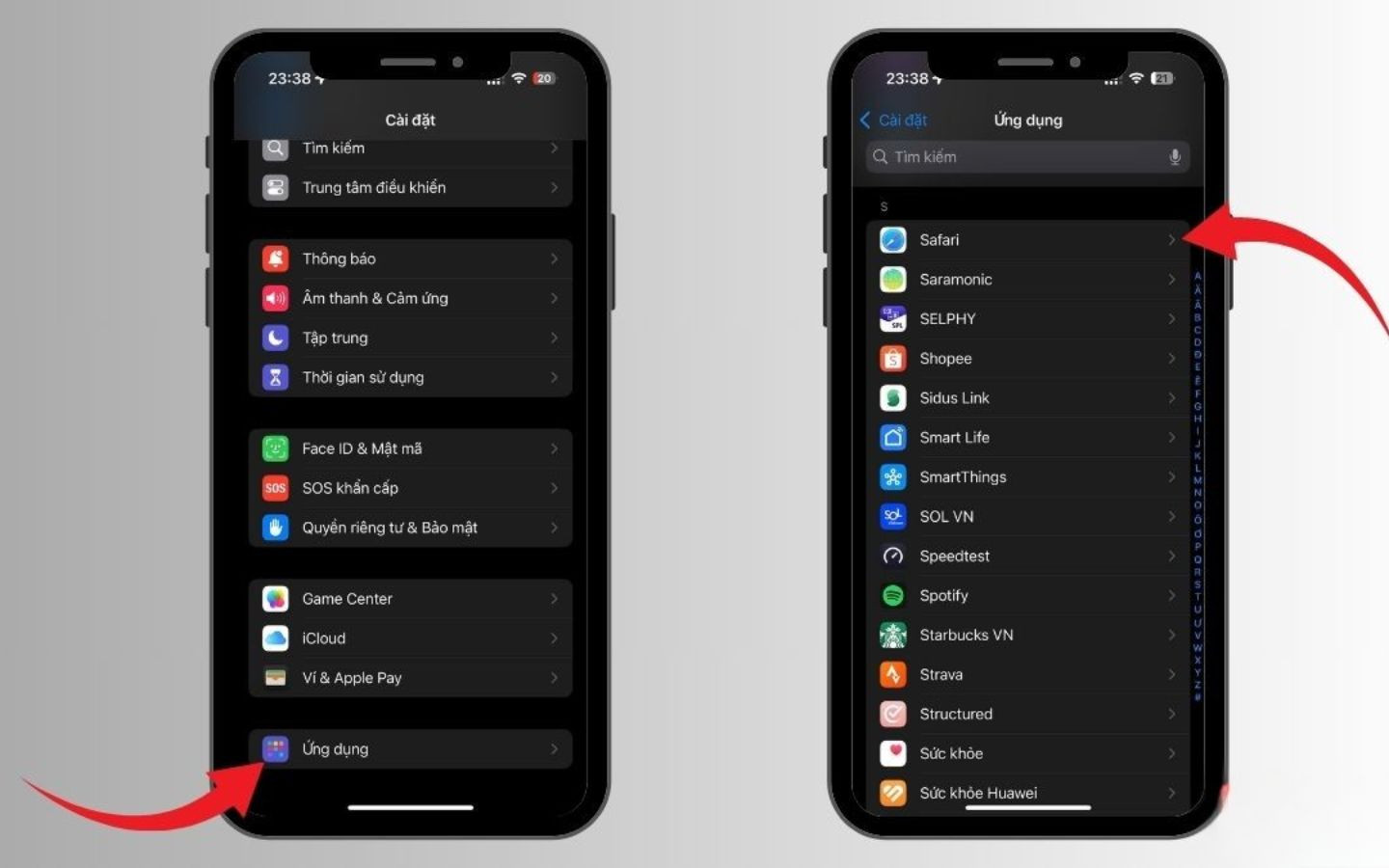
Step 1: Open the Settings app, scroll down, find and select Safari.
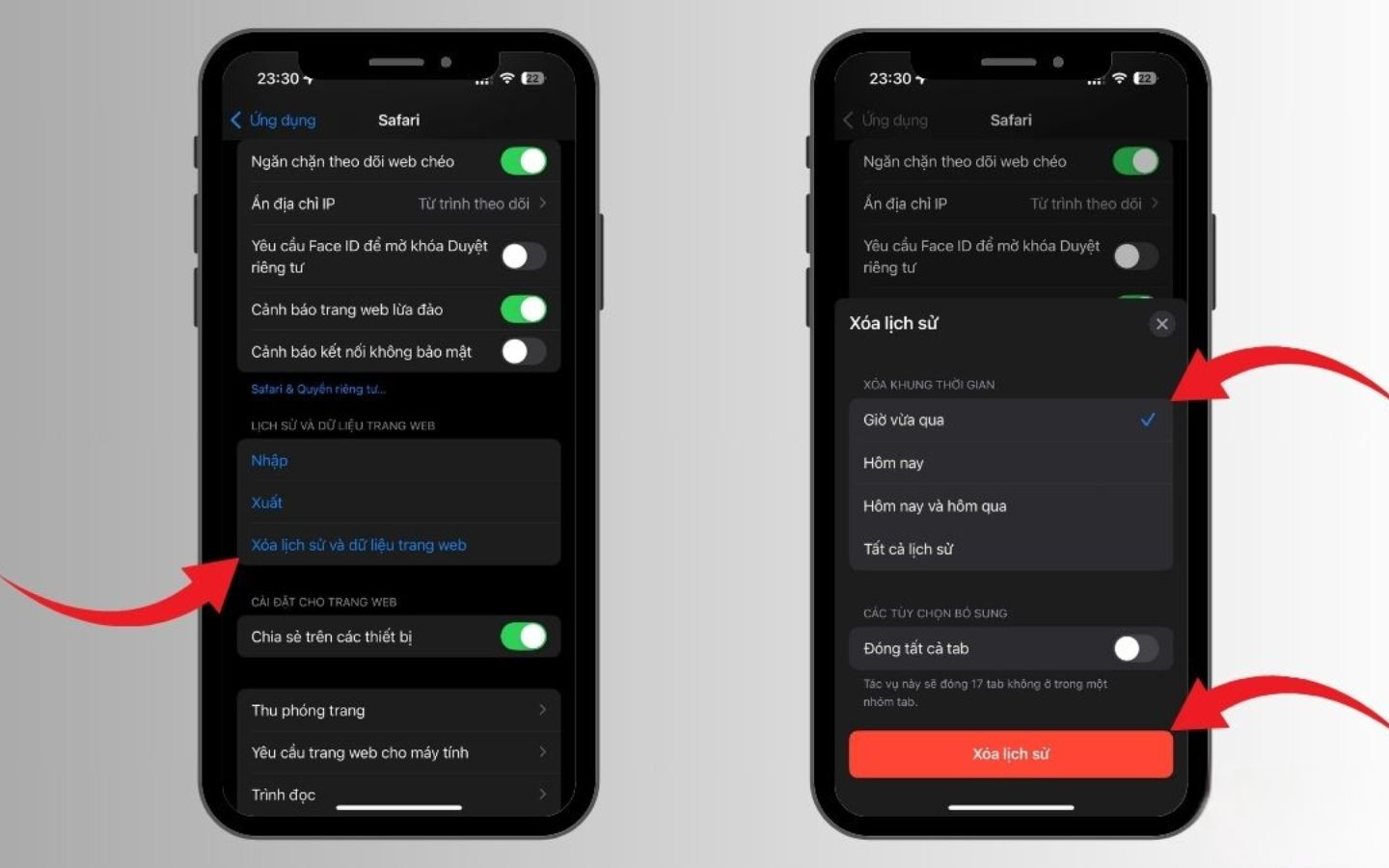
Step 2: Scroll down, select "Delete history and website data," and confirm the action.
Method for direct deletion within the Safari app.
This method allows users the flexibility to delete content by specific time periods or websites.
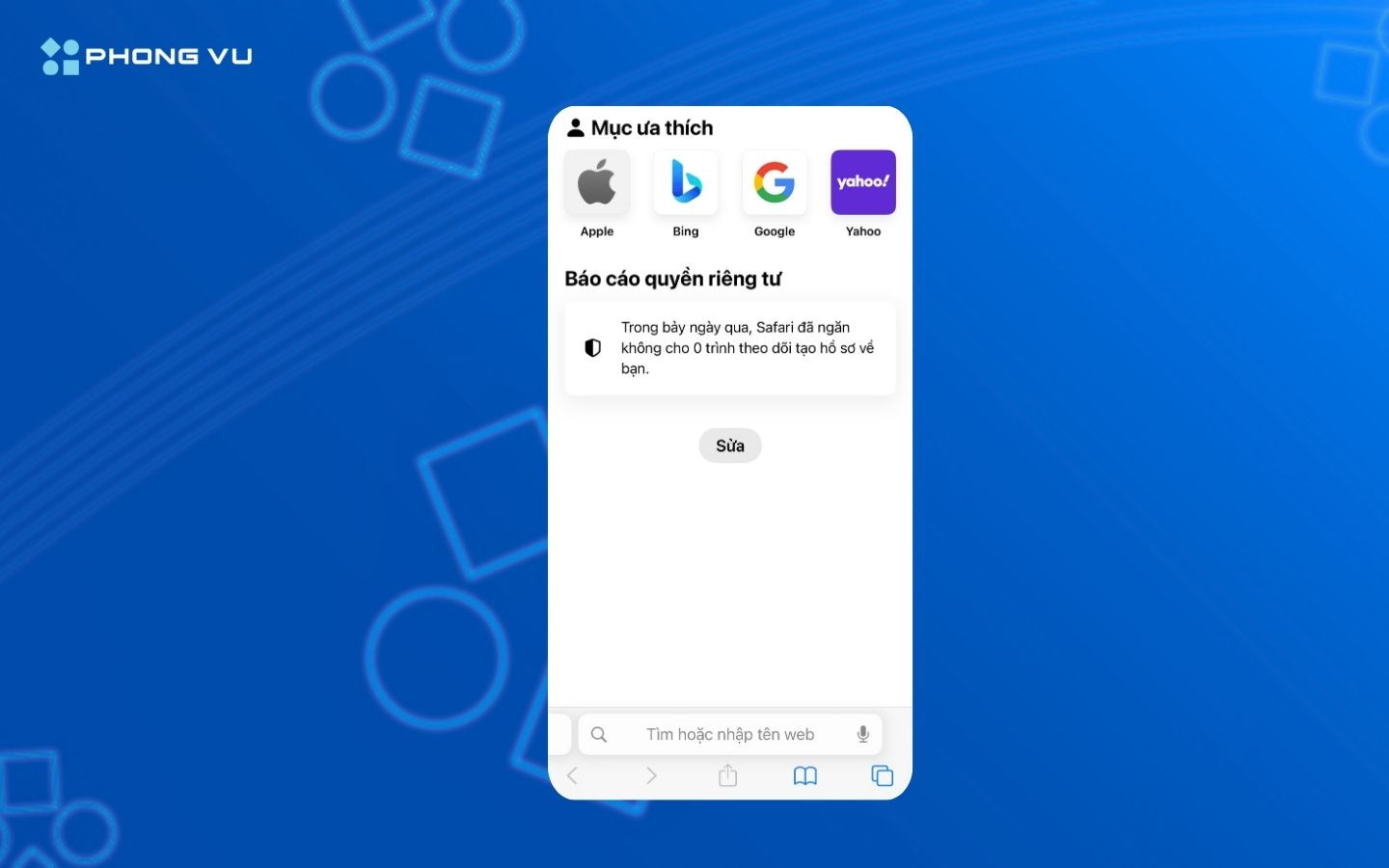
Step 1: Open the Safari browser and tap the book icon in the bottom toolbar.

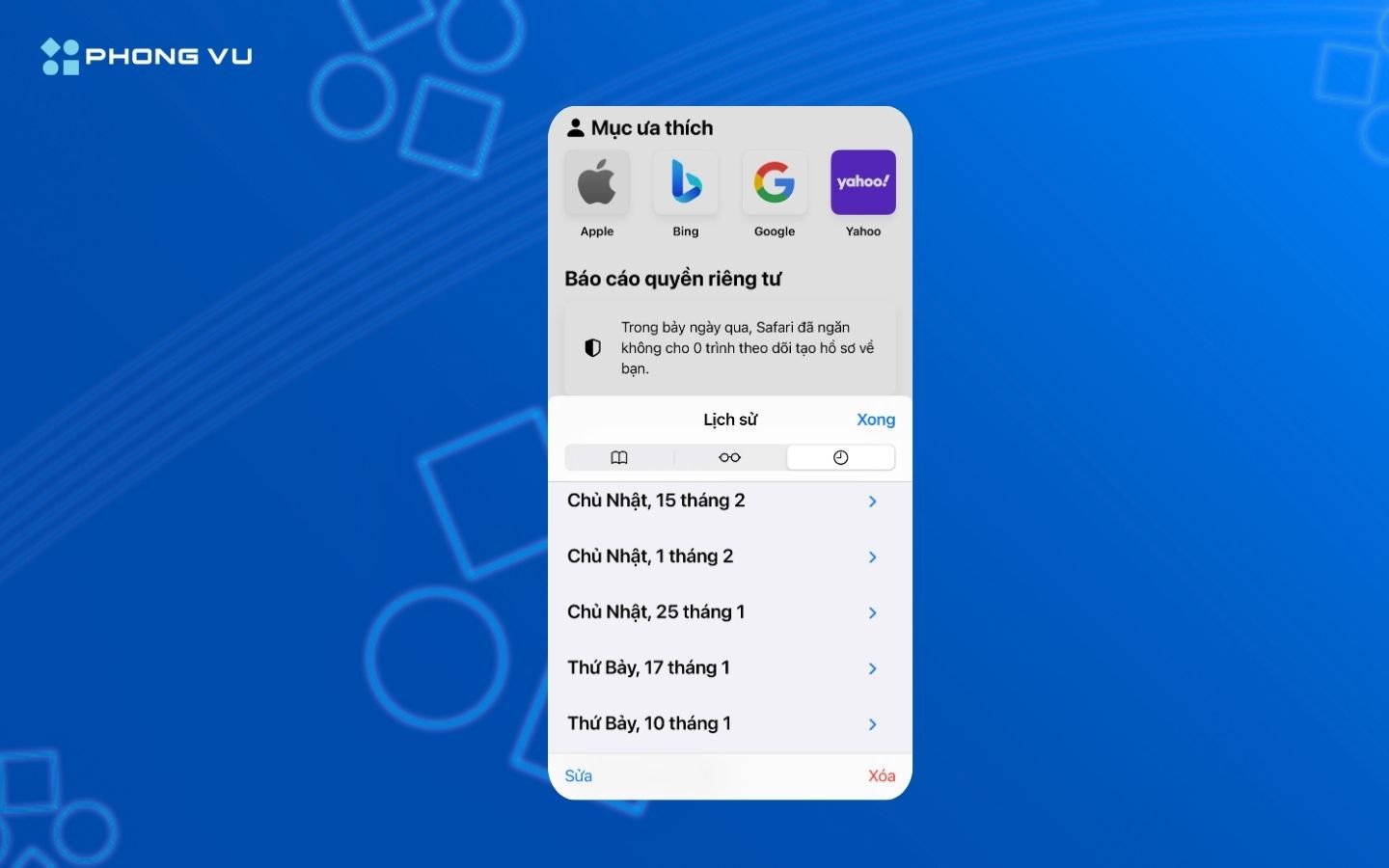
Step 2: Select the History tab (clock icon). Here, you can press and hold a specific page to delete it or select the "Delete" button in the corner of the screen.

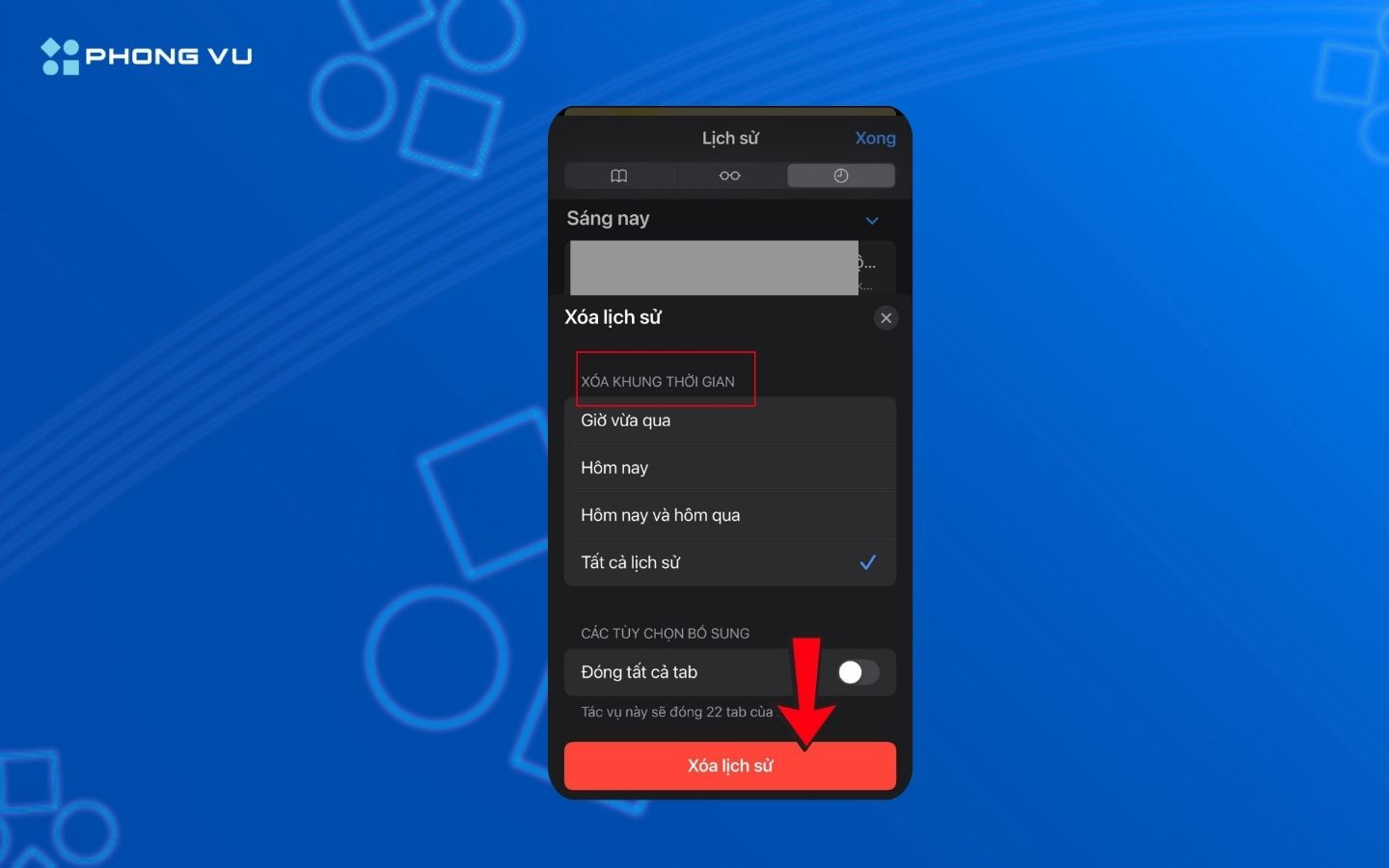
Step 3: Select the time period you want to exclude (Last hour, Today, Today and yesterday, or All history) and press Done.
How to delete Safari history on MacBook (macOS)
The process on a Mac computer has a different interface but still ensures a high degree of consistency.
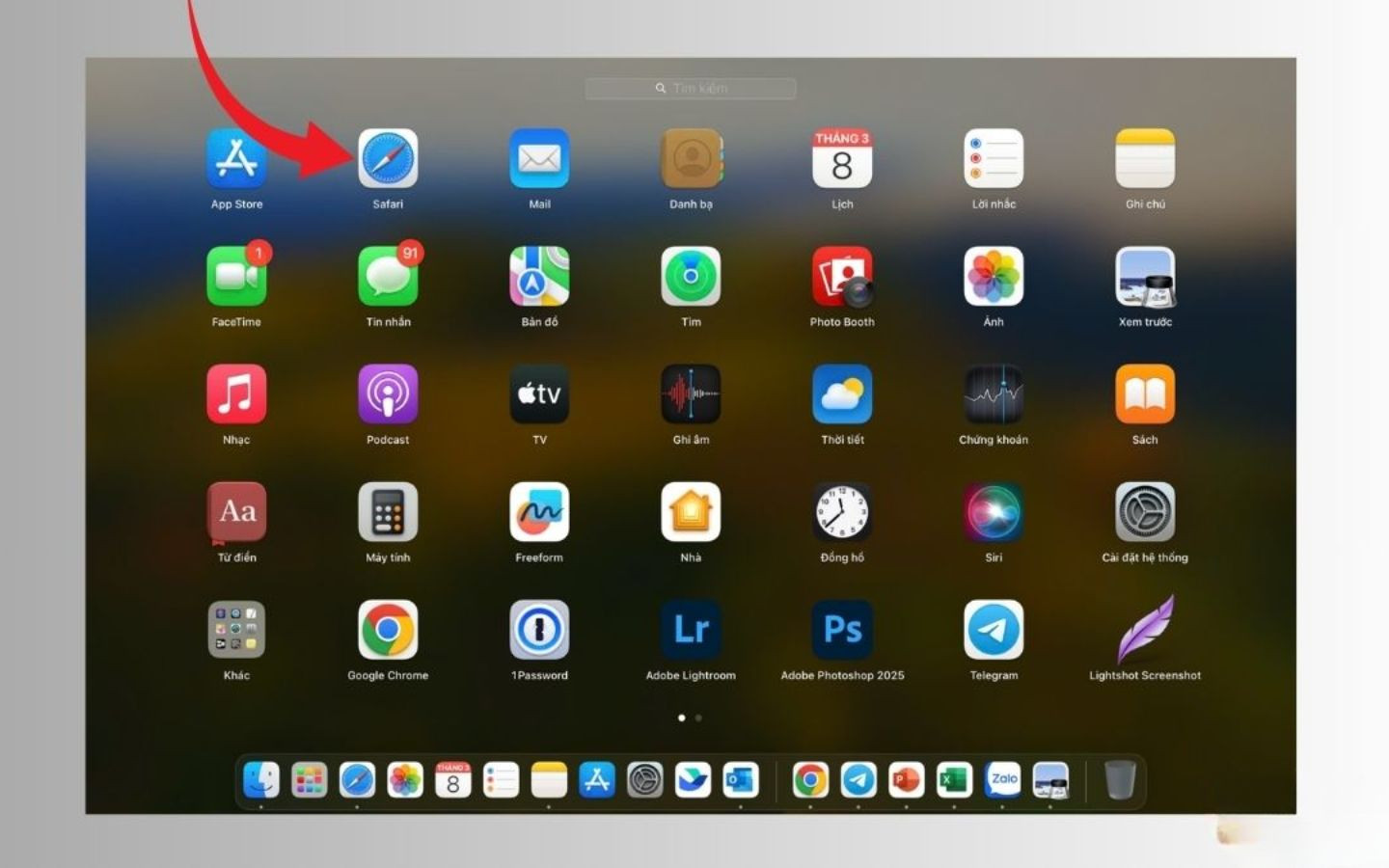
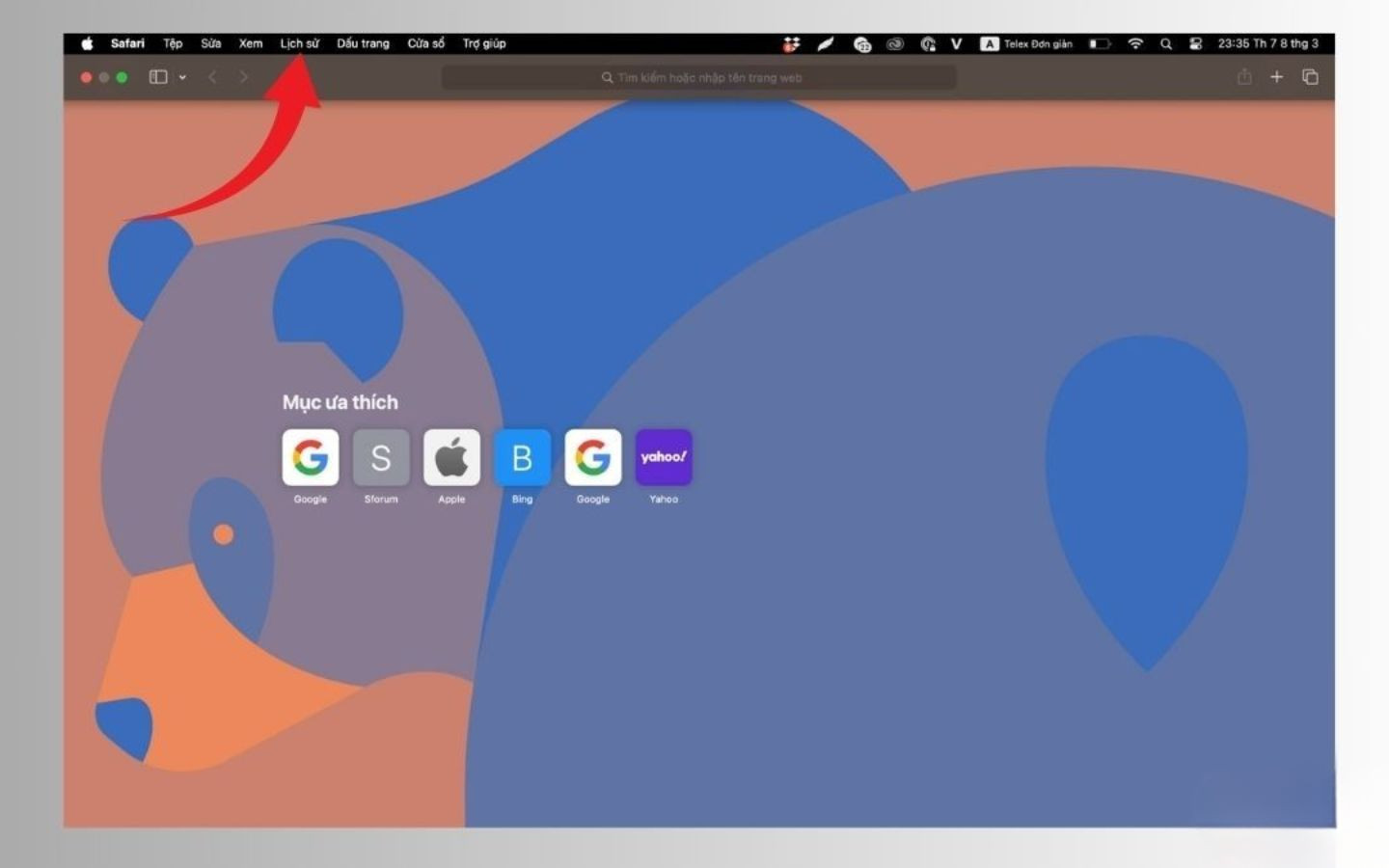
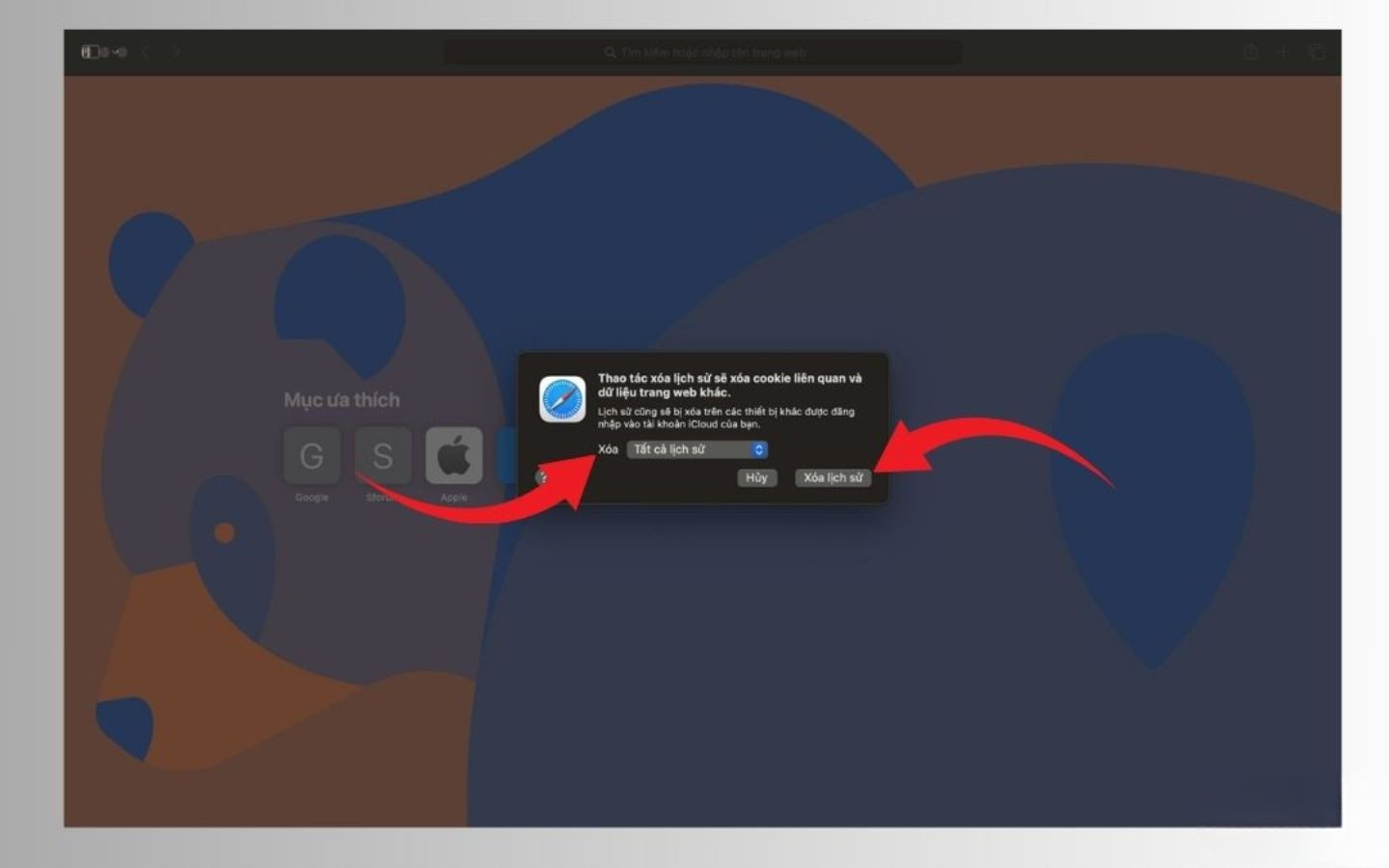
Step 1: Launch Safari on your MacBook. On the system menu bar, click "History".
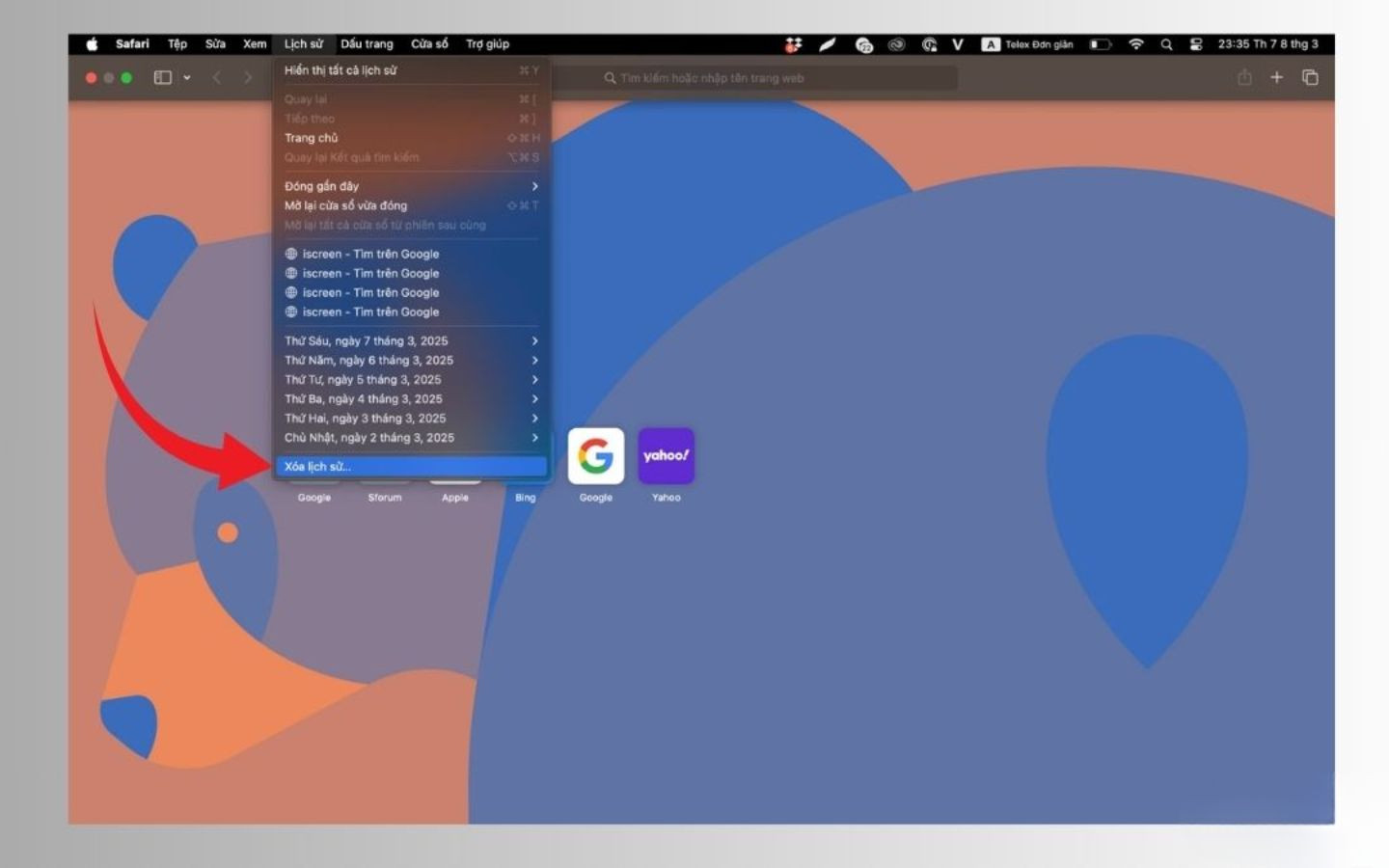
Step 2: Select the last option, "Delete history...". A notification panel will appear allowing you to choose the time period for cleaning.
How to clear cookies and cache without losing history.
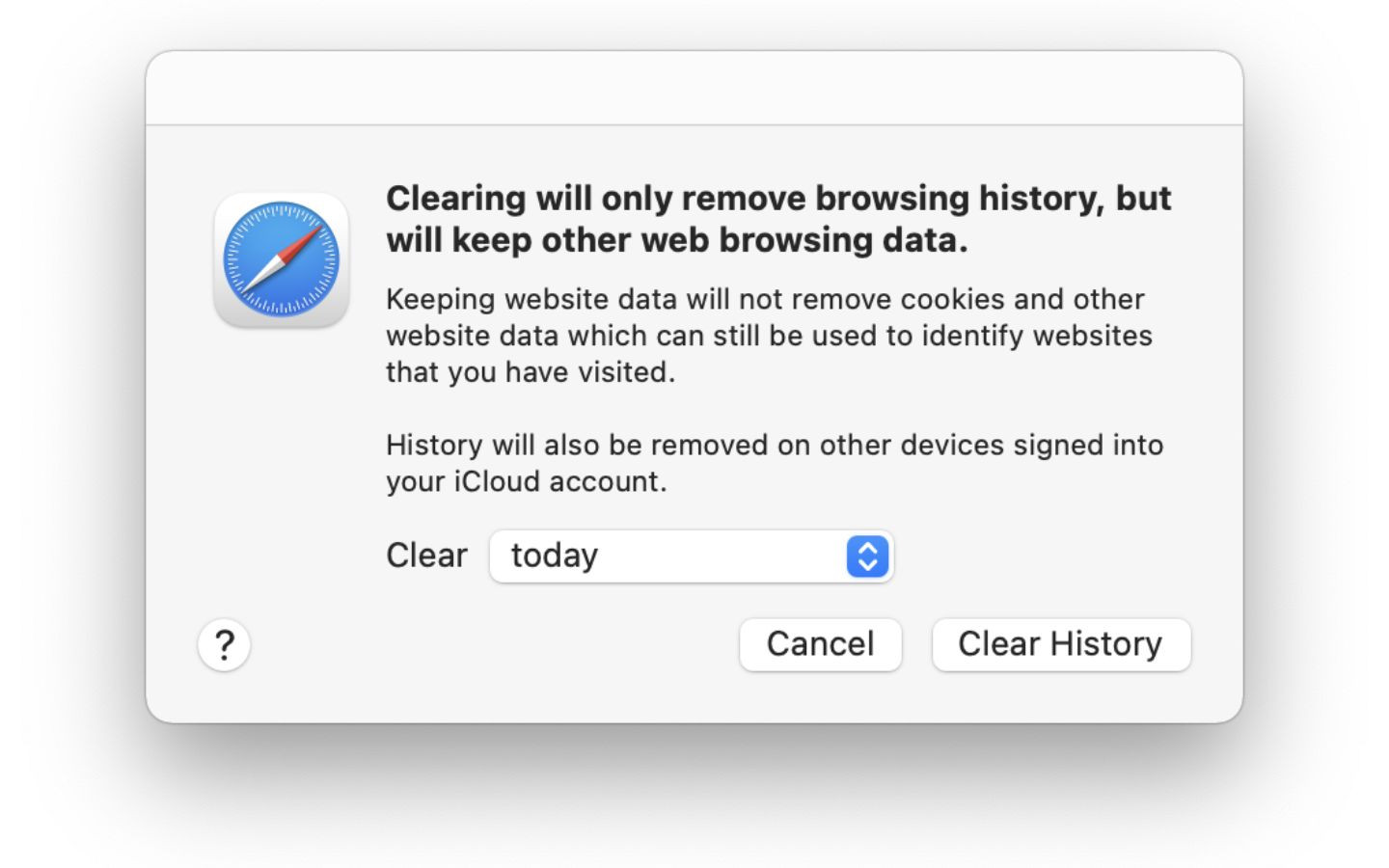
If you only want to fix page loading errors or speed up your browser while retaining your list of viewed pages, delete cookies and cache separately.
- EnterSafarinewsSetting(Settings).
- Select tabPrivacy(Privacy).
- Click hereWebsite data management(Manage Website Data).
- Select the websites from which you want to delete data or pressDelete all.
Tips for using Safari safely and without leaving a trace.
Instead of having to manually delete files frequently, users can take the following proactive measures:
- Private Browsing Mode:Always use private browsing when accessing sensitive information.
- Turn off iCloud sync:If you don't want your browsing history to appear on other devices, go to iCloud Settings and turn off Safari.
- Do not save passwords automatically:Restrict the autofill feature on public transportation.
- Log out of your account:Always log out of social media and banking sites after use.
Regularly managing your browsing data is a good habit that helps maintain the security of your personal information and ensures your device always operates at its best.