
Tips to fix 6 common Zalo errors for smooth messaging and calling.
Learn how to handle errors 506, 704, not receiving notifications, or having your account banned on Zalo to ensure your work and communication are not interrupted.
Zalo is an essential communication app serving daily messaging, calling, and work-related needs. However, users sometimes encounter technical issues that disrupt their experience. Below is a detailed guide on how to fix the 6 most common errors on this platform.

1. Fixing Zalo errors preventing sending messages or making calls (Errors 506 and 704)
Errors 506 and 704 often occur due to poor network connection, overloaded Zalo servers, or outdated applications. To resolve this, you can try one of the following two methods:
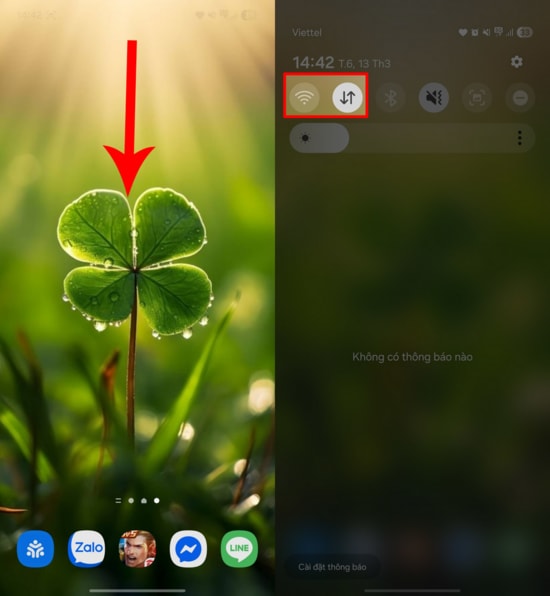
- Method 1: Check your network connection.Swipe the screen to open the status bar, then turn off and then on your WiFi or mobile data (4G/5G) connection to refresh the signal.
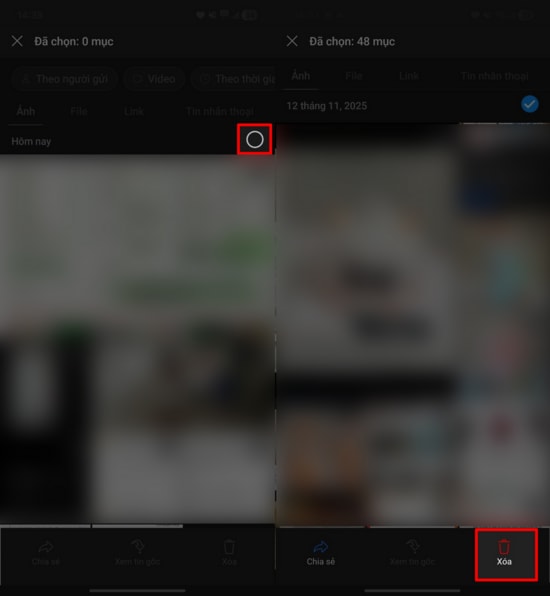
- Method 2: Free up device memory.Delete unnecessary files, images, or applications. Remember to also clear the "Recently Deleted" section to ensure sufficient free space for applications to run.
2. Handling the situation where a Zalo account is temporarily banned.
The system will temporarily lock your account if it detects unusual activity such as sending mass messages or logging in from multiple unfamiliar devices. To restore your account, you need to follow these steps:
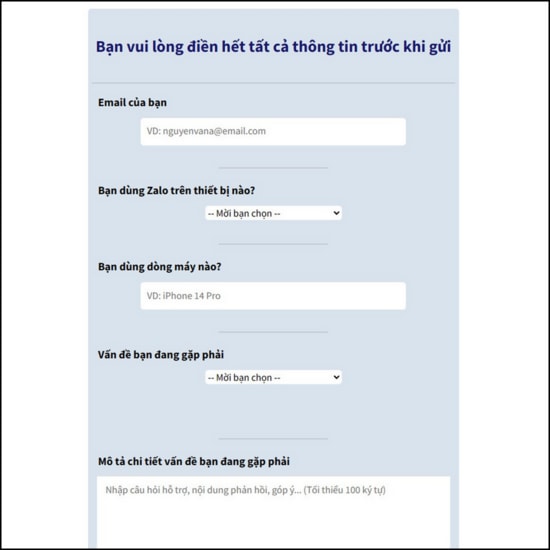
- Visit Zalo's official support page.
- Please fill in all the information, including your phone number and a detailed description of the problem you are experiencing.
- Submit a verification request so the technical department can check and unlock your account if there are no serious violations.
3. Fix the issue of being unable to upload new photos or status updates.
This error is usually caused by account data conflicts. The most effective solution is to log out and log back in.
- Go to sectionSettingin Zalo.
- Select itemLog outaccount.
- Please log in again so the system can synchronize the latest data.
4. Resolving the issue of images not displaying in messages.
When the image only shows a blank frame, the most common cause is a weak network connection or a temporary application malfunction. You should:
- Check your current internet speed.
- Completely close the application and reopen it, or restart your phone.
- Update Zalo to the latest version from the App Store or CH Play.
5. Troubleshooting the issue of not receiving notifications from Zalo
This situation causes you to miss important communications. To fix this, check your phone's access permissions:
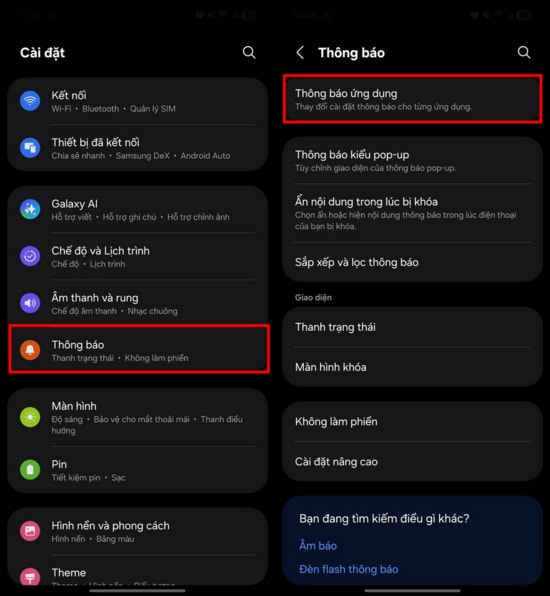
- EnterSettingon phone > SelectNotification.
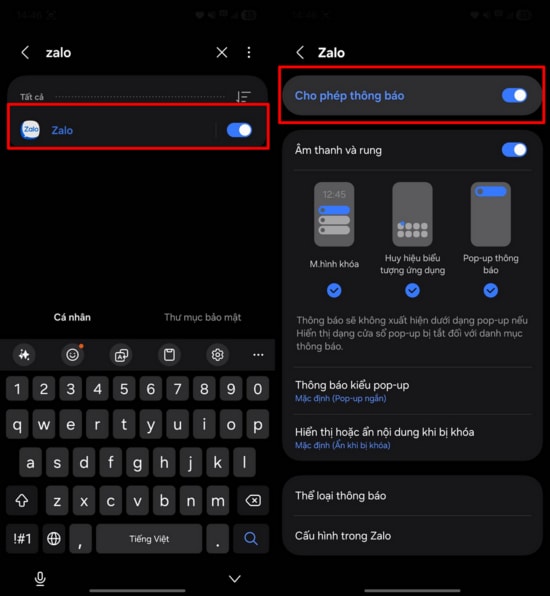
- Find the appZaloin the list.
- Turn on the modeAllow notificationsTo reactivate message and call alerts.
6. Error connecting to Zalo account
If the system reports a connection error even though your network is stable, the Zalo server may be undergoing maintenance. You should patiently wait a few minutes or try logging out and logging back in. Additionally, maintaining the latest version of the application is always the best way to avoid system connection errors.