

Tips for using 7 smart iPhone shortcuts to optimize your work and daily life.
The Shortcuts app on iPhone allows users to automate tasks from document scanning to battery management, helping to improve device efficiency.
The iPhone boasts a powerful Shortcuts app, acting as a "virtual assistant" to automate repetitive tasks. Instead of performing multiple manual steps, users can create automated workflows to save time and improve productivity professionally.
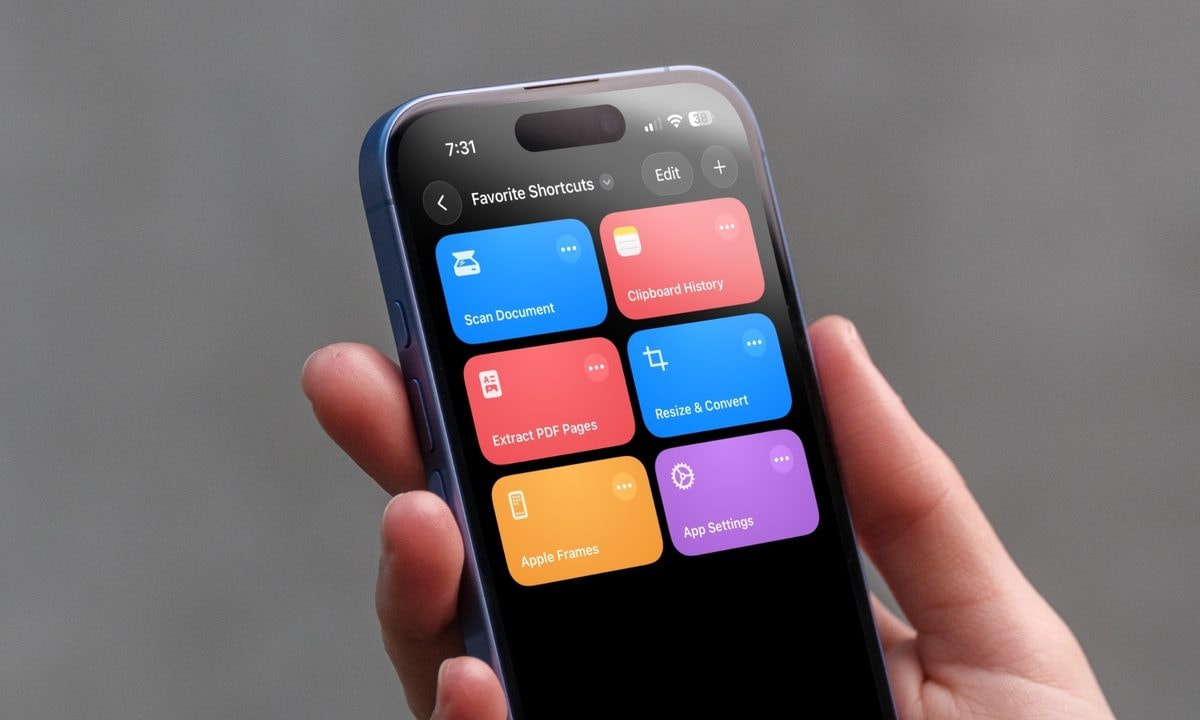
1. Quick access to app settings
Instead of having to open the Settings app and scroll through a long list to find the item you need to edit, this shortcut takes you straight to the settings page of the currently open app. By using the "Get Current App" action in combination with "Open URLs," you can simply swipe the Control Center to make changes instantly. This is the ideal solution for those who frequently need to adjust app access permissions or notifications.
2. Apple Frames 4: Frame screenshots
Apple Frames 4 is a powerful tool for content creators, bloggers, and presenters. This shortcut automatically and accurately embeds screenshots into frames for corresponding Apple devices (iPhone, iPad, Mac). A highlight of this version is its ability to process multiple images simultaneously, allowing you to combine them into a single, aesthetically pleasing image without the need for specialized graphic design software.
3. High-speed pocket document scanner
You can easily turn your iPhone into a professional scanner without installing any third-party apps. The document scanning shortcut activates the camera to recognize text, automatically align it, and save it as a file or note. Placing this shortcut directly on your home screen will make storing invoices, contracts, or paper documents faster than ever.
4. Change the size and format of the image.
By default, the Photos app on iPhone doesn't support resizing files directly. This shortcut solves the problem by allowing users to select an image, enter the desired size parameters, and convert the format (for example, from HEIC to JPEG). This is an extremely useful feature when you need to send photos via email or upload them to platforms with file size limits.
5. Extract odd-numbered pages from a PDF file.
When working with PDF documents that are dozens of pages long but only need to share a small portion, the page extraction shortcut is a lifesaver. Users can select specific pages from the original file and save them as a new, independent PDF file. The entire process takes place locally on the iPhone in just a few seconds, ensuring security and saving considerable time compared to using a computer.
6. Managing Clipboard History
The current iOS operating system only saves the most recent copied item, which can easily lead to the loss of important data. To overcome this, you can create a shortcut to save copied content to a designated note. Combined with the "Back Tap" feature in Accessibility Settings, you can simply tap the back of your device to save all important copied information to a continuous history list.
7. Automate mobile data and Wi-Fi management.
This is a completely automatic shortcut based on location or network connection. You can set your iPhone to automatically turn off cellular data (4G/5G) as soon as it connects to a stable Wi-Fi network and vice versa. This process not only saves data usage but also helps extend battery life by preventing the phone from searching for unnecessary cellular signals when a local network is available.