

5 ways to make your computer last longer and run more smoothly.
Computers are devices used for both work and daily entertainment. However, if not properly cleaned and maintained, dust, heat, and junk data can cause the machine to slow down and degrade quickly.
Many people focus only on protecting their computers from bumps or viruses, forgetting that both hardware and software need regular maintenance.
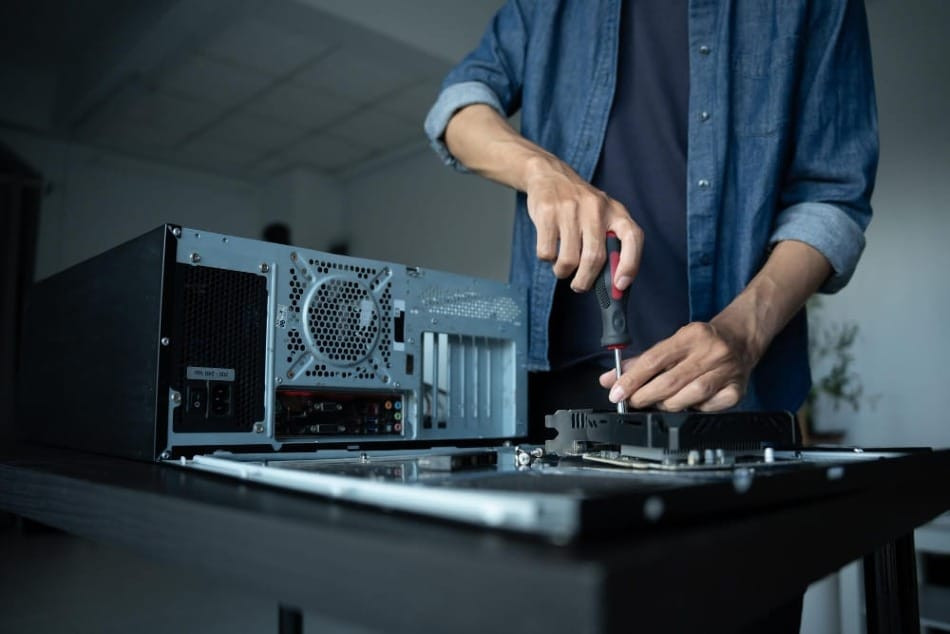
From cleaning cooling fans and keyboards to clearing unnecessary data, these simple habits can help your computer run smoothly and significantly extend its lifespan.
1. Regularly clean the dust from the fan and ventilation vents.
Dust is one of the biggest enemies of computers. Whether you place your computer on a desk or on the floor, dust will gradually accumulate in the fans, vents, and connection ports.
When dust obstructs airflow, the computer's heat dissipation capacity is significantly reduced, causing component temperatures to rise. This not only slows down the computer but can also lead to overheating, affecting the lifespan of the CPU, graphics card, and other internal components.
Experts recommend cleaning your computer regularly, once a month or at least every 3 to 6 months.
For basic cleaning, users should turn off and unplug the computer before proceeding. Compressed air can be used to blow away dust from the ventilation vents, connectors, and cooling fans. The outside of the case should be wiped with a soft microfiber cloth to avoid scratches.
For a more thorough cleaning, users can remove the side panel of the computer case to clean the fans and heatsinks inside. However, caution is needed when cleaning sensitive components such as the motherboard or RAM.
2. Keep your keyboard clean.
The keyboard is the most frequently touched part of a computer during use, and it's also the easiest place to accumulate dust, hair, food crumbs, and oil from the user's hands.
Over time, dust can get under the keys, making the keyboard less responsive or causing keys to get stuck. With mechanical keyboards, accumulated dust can also affect the lifespan of the keys.
Cleaning the keyboard is actually quite simple. Users just need to disconnect the keyboard, gently turn it upside down, and shake it to remove any large dust particles inside.
For fine dust or hard-to-reach crevices, you can use compressed air or a specialized soft brush to clean them. Afterwards, wipe the key surfaces with a microfiber cloth to remove grease and fingerprints.
Performing a monthly cleaning will help your keyboard function more smoothly and stay significantly cleaner.
3. Clean the screen properly to avoid damage.
Modern computer and laptop screens offer high-quality displays but are also much more sensitive than older screens. Even a single incorrect cleaning action can scratch or damage the screen coating.
Experts advise users to limit direct contact with the screen. However, dust and fingerprints will still appear after prolonged use, so regular cleaning is necessary.
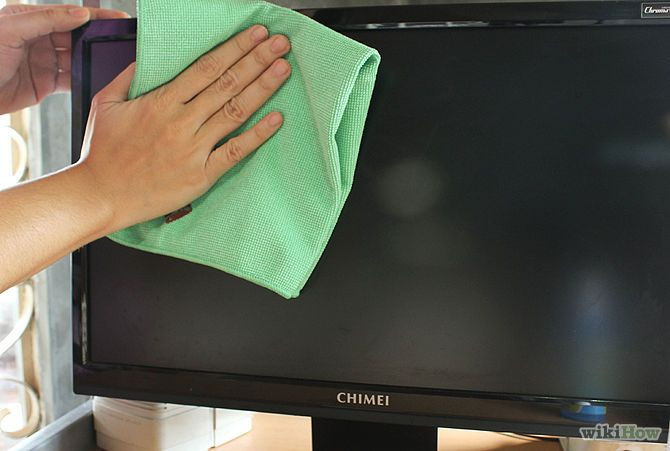
Before cleaning the screen, users should turn off and unplug the device. Then, use a soft microfiber cloth to gently wipe the screen surface.
If there are stubborn stains, you can lightly dampen a clean cloth with water and wipe it clean. Absolutely do not spray water or cleaning solution directly onto the screen, as moisture can seep into the internal components.
Additionally, avoid using paper towels, tissues, strong alcohol, or glass cleaner to clean the screen, as these materials can damage the protective coating.
4. Clean up junk data and back up important files.
Computer maintenance involves more than just cleaning the hardware; it also includes "cleaning up" the internal system.
During use, many temporary files, downloaded data, or unnecessary programs silently occupy storage space. When the hard drive is full, computer performance can decrease significantly.
One of the folders most prone to accumulating junk data is the Downloads folder. Users should regularly check and delete files they no longer use.
Large software or games that are rarely used should also be uninstalled to free up memory. After deleting data, don't forget to empty the Recycle Bin to ensure that the space is truly freed up.
Conversely, important documents should be regularly backed up to external hard drives or cloud storage services to prevent data loss in case of a computer failure.
5. Replace the thermal paste after several years of use.
After years of continuous operation, the thermal paste between the CPU, GPU, and heatsink can dry out, reducing cooling efficiency.
If you notice your computer getting hotter than usual, the fan spinning constantly, or a significant drop in performance, it may be time to replace the thermal paste.
This is a much more complex procedure than regular cleaning because it requires removing the heatsink, cleaning off the old thermal paste with specialized alcohol, and then applying a new layer of thermal paste using the correct technique.
If you lack experience in disassembling components, you should take your device to a reputable repair center to avoid damaging the hardware.
Although it costs extra, replacing thermal paste at the right time can help your computer run cooler, more stably, and extend the lifespan of its components.
Like many other electronic devices, computers need regular maintenance to ensure optimal performance and longevity.
With simple habits like regular dusting, keyboard cleaning, junk data cleanup, and temperature control, users can significantly reduce the risk of damage and help their devices operate more stably and smoothly over the long term.