

5 settings you should activate right away when you buy a new iPhone.
iPhones are renowned for their stable performance and high level of security. However, by simply changing a few key settings in a few minutes, users can significantly increase their security and optimize their user experience.
Despite differing opinions, the iPhone remains one of the most popular smartphone lines in the world. It holds a large market share in the US, is particularly popular with young people, and even many who previously used Android appreciate the overall experience that the iPhone offers.
The strengths of the iPhone lie in its stable operation, minimalist interface, emphasis on privacy, and increasingly accessible price points for some versions. Many users rate the iPhone as "smooth right out of the box," but spending a few minutes fine-tuning key settings will provide a significantly safer and more convenient experience.
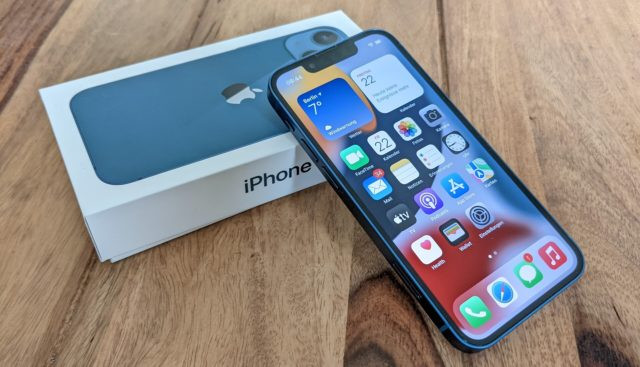
Here are five settings you should enable on your new iPhone. These combine security features to protect your data with useful settings to optimize your daily user experience.
1. Enable the device theft protection feature.
Due to their high resale value, iPhones are always a target for thieves. According to experts, if criminals know the unlock passcode, they can find ways to access the victim's password, bank account, and Apple account.
To mitigate this risk, Apple includes a Stolen Device Protection feature, but it is not enabled by default.
When this feature is enabled, important actions such as viewing passwords, changing Apple account settings, or using Face ID will all require Face ID authentication and cannot be replaced with a PIN. Additionally, changing your Apple account password will be delayed by one hour and will still require biometric authentication before completion.
Users can enable this feature in Settings > Face ID & Passcode > Protect your device from theft.
2. Utilize Action Buttons
On iPhone 15 Pro models and later, Apple replaced the ringer switch with an Action Button.
In addition to switching to silent mode, users can assign this button to open the camera, turn on the flashlight, record audio, quickly translate, or activate shortcuts.
Through the Shortcut app, Action Buttons can perform multiple tasks with just one tap, such as calling a loved one, opening a frequently used app, enabling battery saver mode, scanning documents, or starting a timer.
3. Change the default application.
Newer versions of iOS give users more flexibility in choosing default apps instead of just using Apple's own apps.
In Settings > Apps > Default Apps, users can change their web browser, email app, messaging app, keyboard, password manager, calling app, or translation app as needed.
This helps those who are already familiar with services like Chrome or Gmail have a more seamless experience when switching to iPhone.
4. Turn off unnecessary data collection options.
Apple is highly regarded for its privacy practices, but the company still collects some analytical data to improve its products.
To enhance security, users should go to Settings > Privacy & Security > Analytics & Improvements and turn off all data collection options.
Additionally, you should turn off Personalized Ads in Apple Advertising and disable the Help Apple Improve Search option to limit the storage of search data from Safari, Siri, and Spotlight.
5. Activate helpful accessibility features.
Many features in the Accessibility section are not only for people with disabilities but also help everyone use their iPhone more conveniently.
One feature worth trying is Back Tap, which allows you to double or triple-tap the back of the phone to perform actions such as opening the Control Center, Notification Center, taking a screenshot, or activating a Shortcut.
In addition, Sound Recognition can detect important sounds such as doorbells, crying babies, or alarms and send notifications to the user.
Another feature is Vocal Shortcuts, which allows the iPhone to recognize a user-defined command and automatically execute the corresponding shortcut, enabling faster operation without touching the screen.
Although iPhones may work perfectly right out of the box, taking a few minutes to adjust security, privacy, and accessibility settings will make the device safer, more convenient, and allow you to fully utilize the features Apple has provided.