
5 iPhone security settings to help prevent theft and scams.
iPhones incorporate many security tools, but not all features are enabled by default. Adjusting the five settings below can help protect your accounts, data, and personal assets.
Smartphones are increasingly storing important information, from personal data and bank accounts to emails and private photos. Therefore, if an iPhone is stolen or falls into the wrong hands, the consequences extend beyond simply losing the device.
In addition, phone scams, impersonating banks, government agencies, or acquaintances, are becoming increasingly sophisticated. Some tactics exploit users' carelessness to steal login information and money from their accounts.
Apple has integrated many security tools into the iPhone. However, users need to proactively check and activate certain options to enhance device protection.
1. Disable the unlock code when your iPhone is stolen.
If a thief sees or memorizes the unlock code before stealing an iPhone, they can use it to access important information, or even change the password for an Apple account.
The Stolen Device Protection feature is designed to mitigate this risk.
When activated, the iPhone requires authentication using Face ID or Touch ID for sensitive actions when the device is outside familiar locations such as home or work.
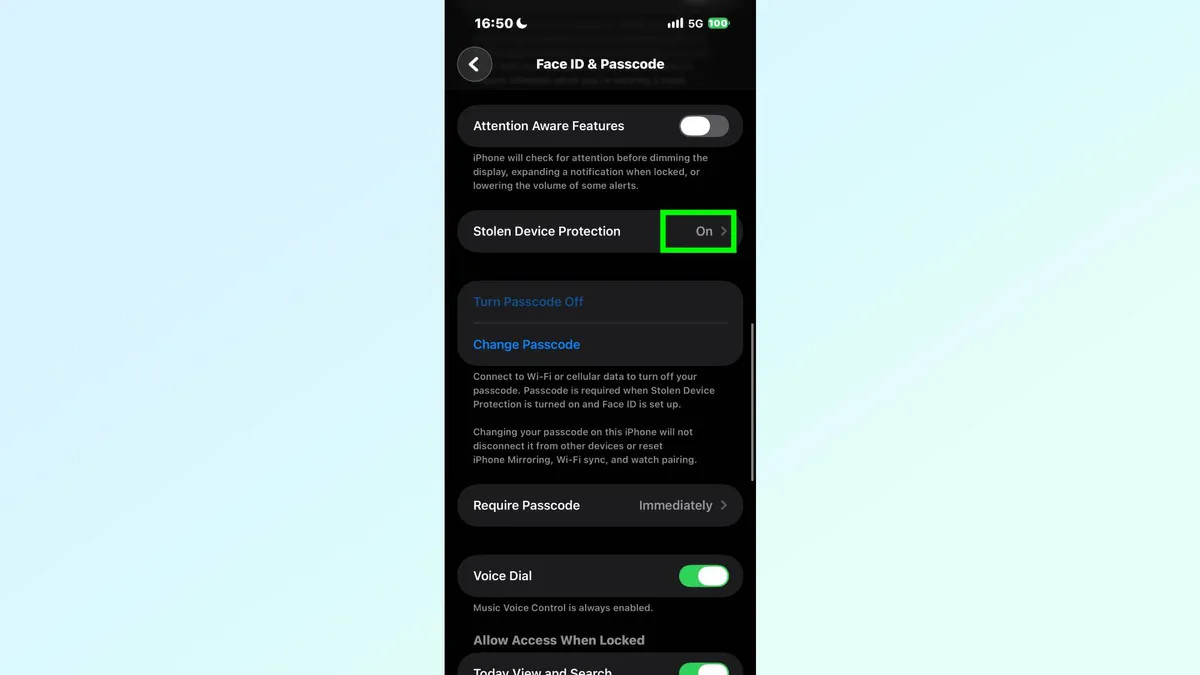
Notably, some significant changes related to Apple accounts undergo a one-hour security delay before being implemented. This provides additional time for owners to mark their devices as lost via iCloud.
To activate it, go to Settings → Face ID & Passcode → Stolen Device Protection and turn the feature on.
2. Detecting fraudulent activities and identity theft.
Scammers often use pressuring calls or fake text messages to ask victims to transfer money, provide passwords, and account information.
The Impersonation Risk Detection feature, introduced in iOS 27, is Apple's built-in protection tool to combat these types of scams.
This feature analyzes signs of unusual interaction and behavior directly on the device, without needing to read the content of messages, emails, or personal images.
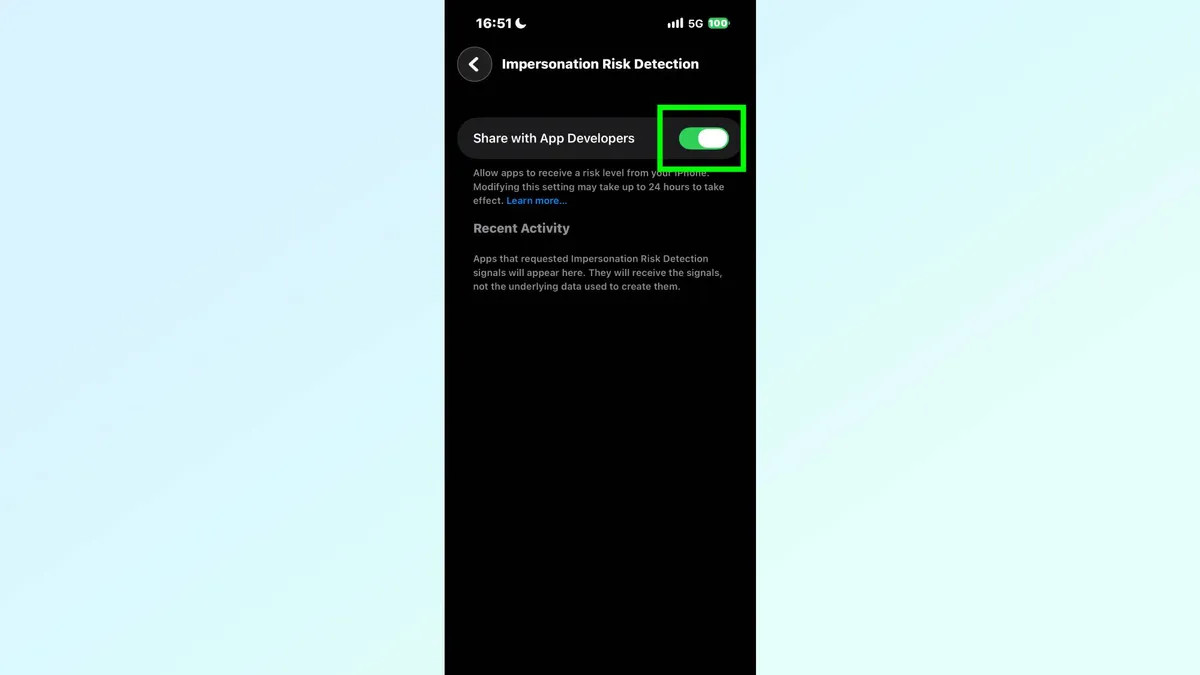
When the iPhone detects signs that a user may be being pressured into important transactions or sensitive account operations, it can issue a warning. With supported banking apps, the system may require additional verification before allowing the transaction.
To activate it, go to Settings → Privacy & Security → Impersonation Risk Detection, and then turn the feature on.
3. Block calls from unknown phone numbers.
Scamming victims with fake calls impersonating bank employees, delivery services, or tax authorities is one of the methods criminals commonly use to reach them.
The Silence Unknown Callers feature helps to limit calls from phone numbers not in your contacts, preventing them from interrupting you with ringing.
To activate it, go to Settings → Apps → Phone → Silence Unknown Callers.
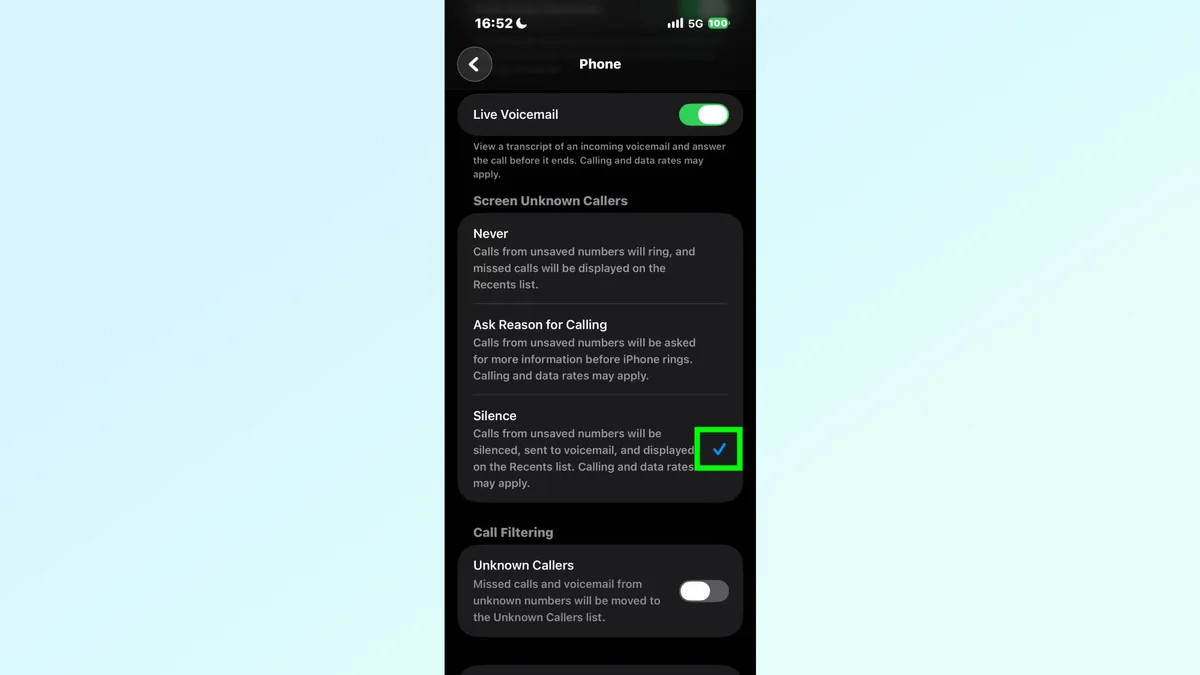
Users can also filter messages from phone numbers not saved in their contacts by going to Settings → Messages → Filter Unknown Senders and enabling the feature.
This setting helps reduce the risk of being disturbed by unwanted calls and messages. However, users should note that legitimate calls from the new number may also be muted.
4. Find your iPhone even when it's turned off.
When a phone is stolen, the thief may turn it off or the battery may be dead, making it difficult to locate. Fully activating the options in the Find My network increases the chances of locating the device.
Apple's Find My network allows nearby Apple devices to locate an iPhone even when it's offline or powered off, provided certain conditions are met.
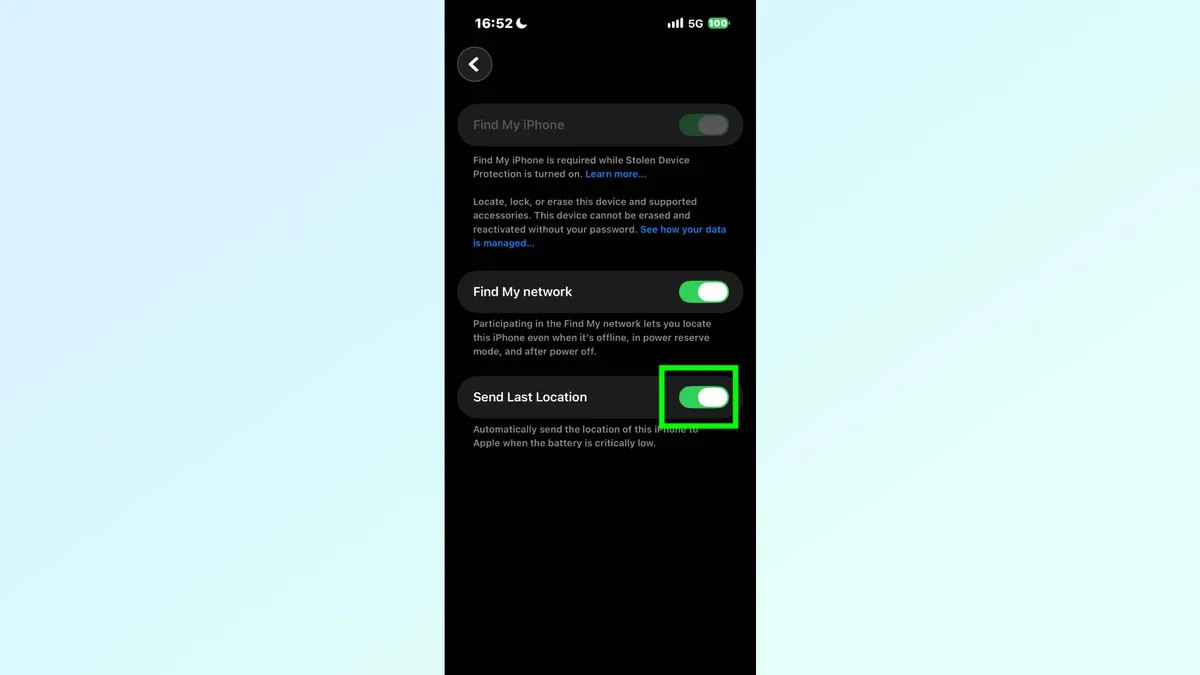
Additionally, the Send Last Location option allows the iPhone to automatically send its location to Apple when the battery is low.
To activate, open Settings and tap your Apple account name at the top > Select Find My > Select Find My iPhone > Turn on Find My network > Turn on Send Last Location.
5. Prevent the lock screen from revealing personal information.
The default lock screen may display message content, calendar notifications, or bank verification codes. This poses a risk of others seeing private information even when the phone is not unlocked.
To limit this, users can adjust the notification display settings.
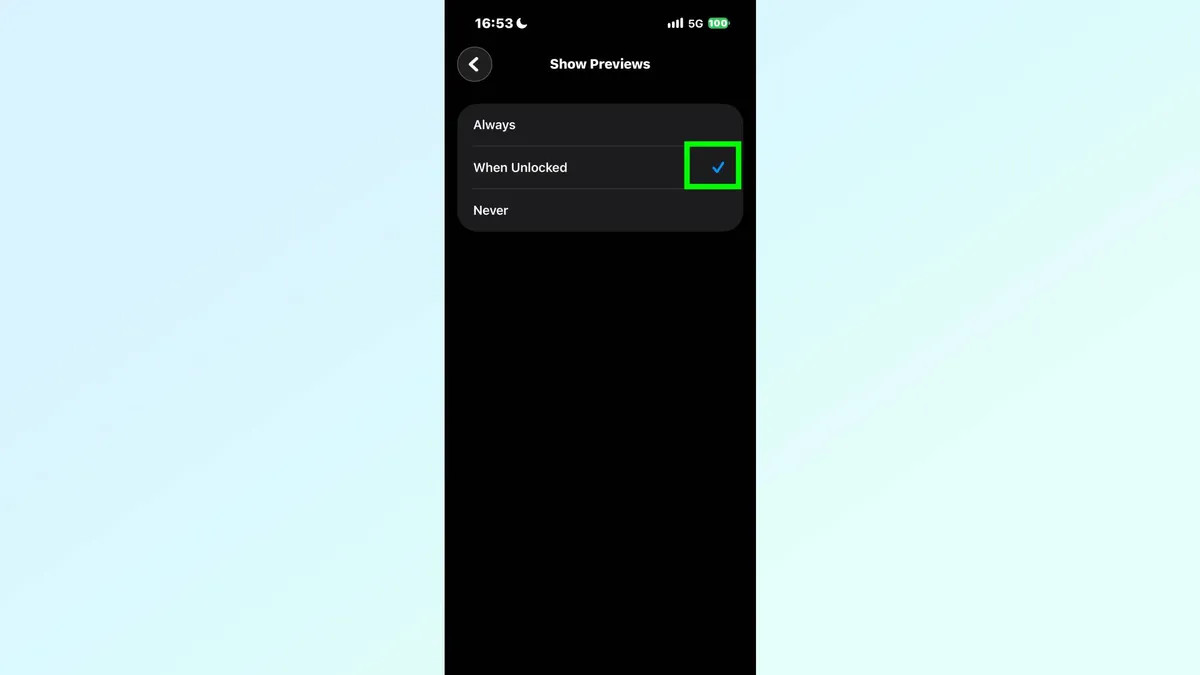
Go to Settings → Notifications → Show Previews, then select When Unlocked.
With this setting, notification content will only be fully displayed after the user authenticates and unlocks the device.
Additionally, to restrict others from accessing important functions when your iPhone is locked, go to Settings → Face ID & Passcode, and find the "Allow Access When Locked" option.
Here, you can disable access to the Control Center, Wallet, and USB Accessories.
These adjustments help reduce the risk of unauthorized access to information or functionality on the device when the owner is not present.
Phan Van Hoa