

5 ways to fix WiFi access errors
There are many reasons why a computer or smartphone might not be able to access WiFi, such as a broken cable, incorrect configuration, or a frozen router. How can you fix this problem?
1. Ping
First, try checking your connection to the website you want to access by pressing the Windows + R key combination (Windows), typing cmd, and pressing Enter. Similarly, if you are using macOS, simply press Command + Space, then type Terminal to open the command prompt window.
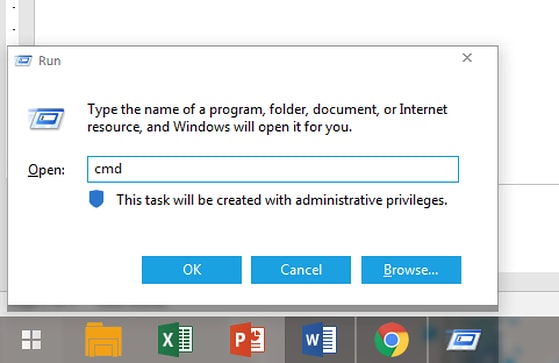
Next, you enter the command line.ping <website address to access>For example, ping kynguyenso.plo.vn will send packets to the server to check its operational status. If the response is "Reply from…", everything is working normally, and vice versa. Note that some websites will not respond to the ping command, such as microsoft.com.

See more:6 Tips to Reduce Battery Drain on iOS 11 You May Not Know - Many users have complained about iPhone and iPad battery drain after upgrading to iOS 11. What are the causes and how can you fix this problem?
2. Problems with a specific website
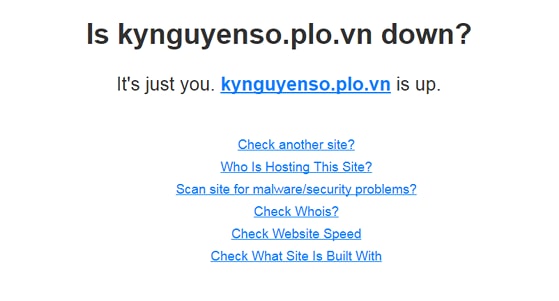
To check the functionality of a specific website, go to http://downforeveryoneorjustme.com/, then enter the website address you want to check into the empty field. If the result returned is "Up" (as shown below), everything is working normally; in this case, the problem lies with the device or the user.
3. Modem and Router Issues
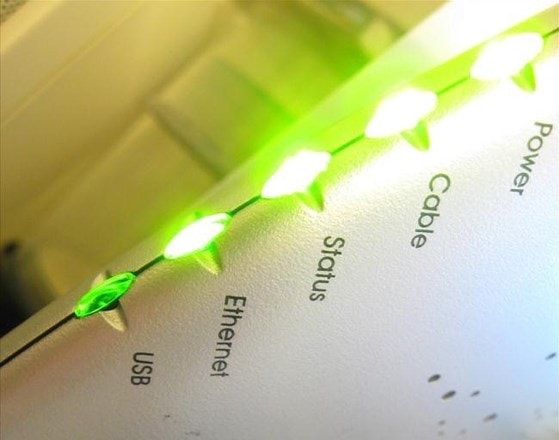
To check the status of your router/modem, look at the device. If the green light is blinking, everything is working normally. Conversely, if the light is yellow or orange, there is an error. Additionally, you can plug an Ethernet cable into the router to try accessing the internet. If everything works normally, the problem lies with the WiFi broadcasting part of the router.
In this case, turn off your router/modem and wait about 30 seconds, then turn it back on.
4. Problems with the computer
Viruses, malware, and incorrect firewall configurations are some of the reasons why you might not be able to access WiFi. To fix this, install antivirus software and scan your entire computer, uninstall your firewall application, and restore everything to its default settings.

5. DNS Issues
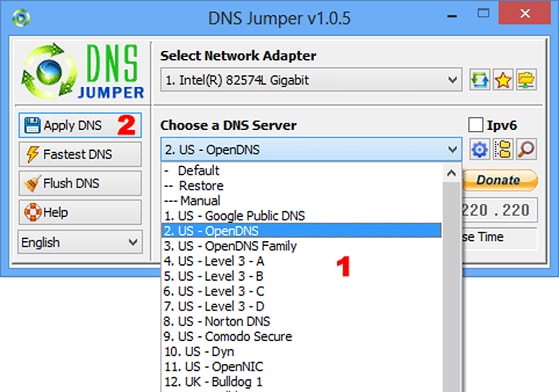
If your ISP's DNS is experiencing issues, you can switch to a third-party DNS server such as Google DNS, OpenDNS, etc., using DNS Jumper software. The application is currently available for free at https://goo.gl/LnTDC2. Once complete, users simply select the corresponding DNS server or enter their own, then click Apply DNS to save the changes.
If you still can't access WiFi after trying the above methods, try contacting your service provider to have a technician come and check it.
According to PLO
| RELATED NEWS |
|---|