

5 tips to free up iPhone storage without deleting your favorite apps.
Having a full iPhone storage is always a nuisance for many people, especially when you don't want to delete any of your favorite apps. Luckily, there are many ways to free up storage space while maintaining your experience, and you don't have to sacrifice anything.
Running out of iPhone storage can slow down your device, prevent software updates, download new photos, or install necessary apps. However, you don't necessarily have to delete your favorite apps to free up space.
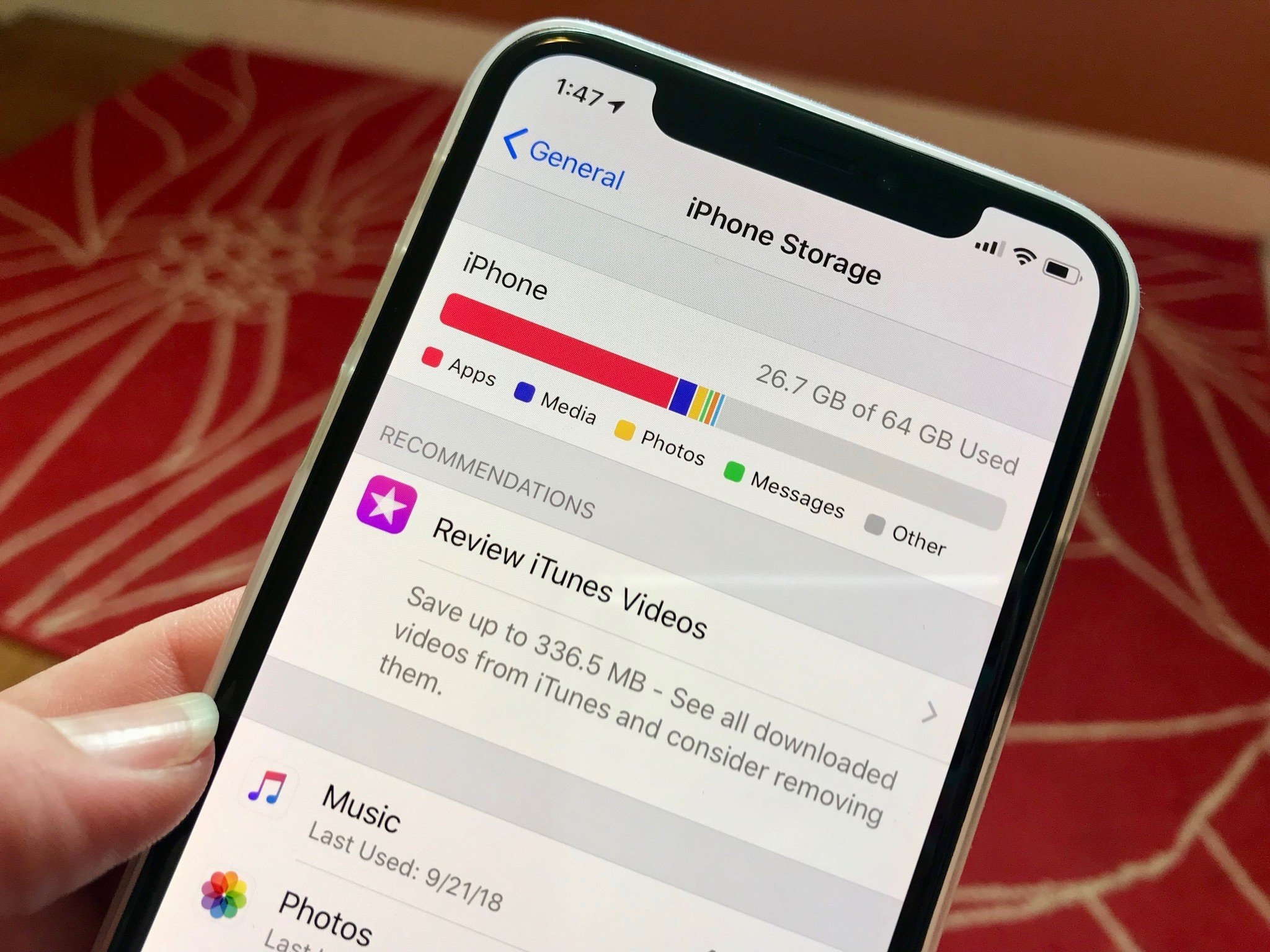
With a few simple but effective tips, you can significantly free up storage space while keeping all the familiar apps you use every day.
1. Deletemessageold andattachmentsbig
Over time, iPhones can silently accumulate gigabytes of data from iMessage conversations, including photos, videos, audio recordings, and stickers that users often overlook. All of this content is stored locally, gradually taking up valuable storage space on the device.
If you've ever scrolled through an old conversation and discovered a bunch of memes or birthday videos from years ago, that's a prime example of the "hidden archive" your device is holding.
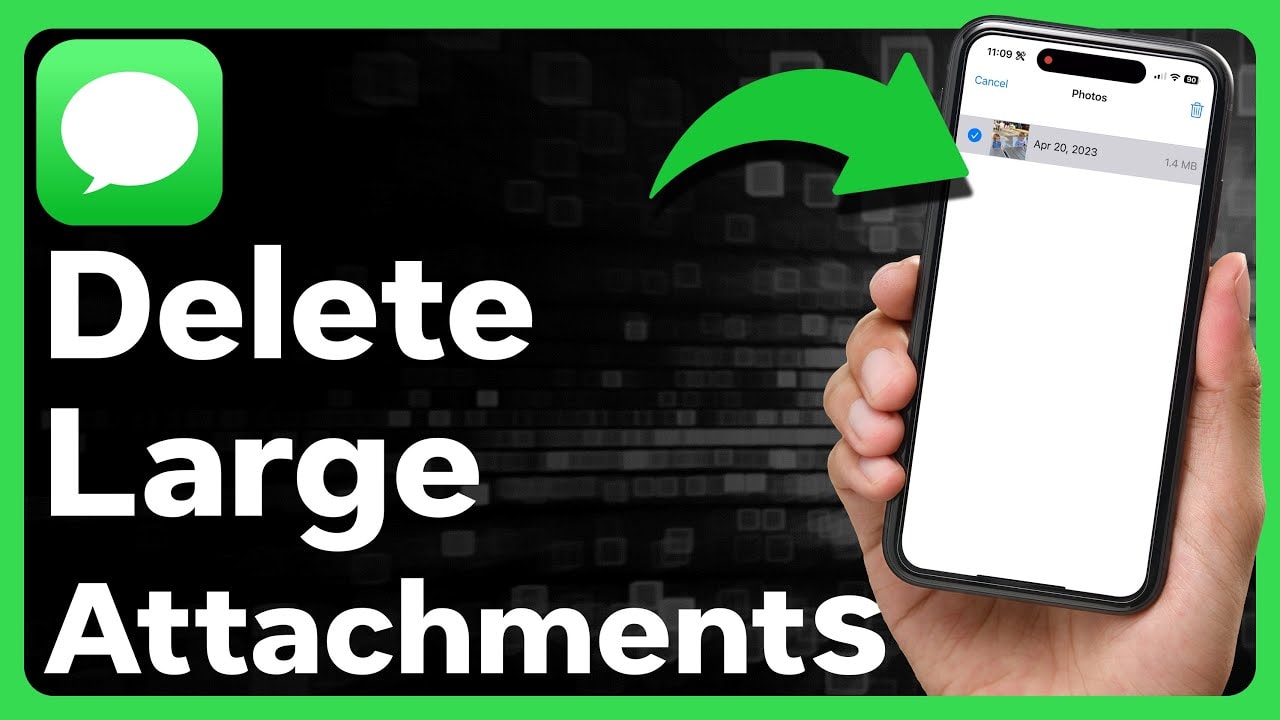
Fortunately, you don't need to delete the entire conversation to free up memory. Let's start by going toSettingnewsMessagenewsSave messageand choose a shorter storage period, such as 30 days or 1 year, instead of the default Forever. Once set up, your iPhone will automatically delete expired messages and media, saving you space without manual intervention.
For more detailed management, you can accessSettingnewsGeneral settingsnewsiPhone storage capacitynewsMessageHere, the system will display large attachments sorted by size. You can choose to delete large, unnecessary files while keeping important message threads.
2. Clean up browser data.
Browsers like Safari and Chrome are not only gateways to the web, but also silently accumulate data every time you visit a website.
From cookies and cache files to browsing history, everything is stored to help pages load faster on subsequent visits. However, over time, this data can become a burden, consuming storage space and slowing down device performance.
Deleting browser data is a simple, safe process that doesn't affect saved passwords or bookmarks, yet it offers noticeable results.
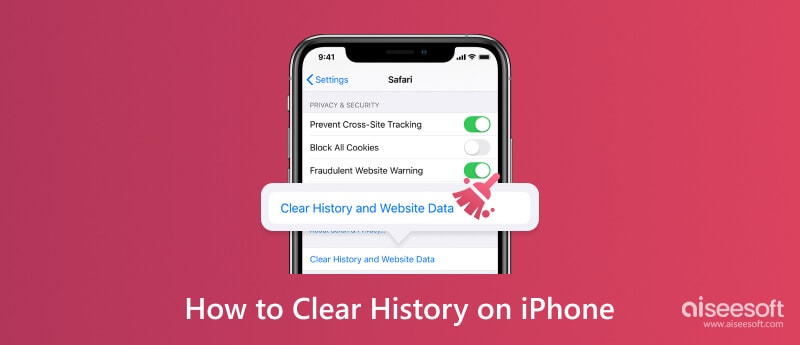
On Safari, users can accessSettingnewsSafarinewsDelete website history and data.To clear the cache and browsing history, while keeping passwords and autofill information intact. For more control, go toAdvancednewsWebsite dataTo view and delete data from specific pages that you no longer use.
With Chrome or other browsers, open the app, access the sectionSettingorPrivacy, then find the optionDelete browsing dataTo avoid having to log in again, you should uncheck the login information option if you don't need to delete it.
Although small, hidden files from your browser can accumulate quite quickly. Regularly deleting them not only frees up space but also helps your device run more smoothly, especially with low-capacity or older iPhone models.
3Remove offline downloads.
Offline downloads, from music playlists to movies, podcasts, or study files, are often forgotten after you've watched or listened to them. Content that was saved for long flights or commutes may now be taking up gigabytes of storage space without your knowledge.
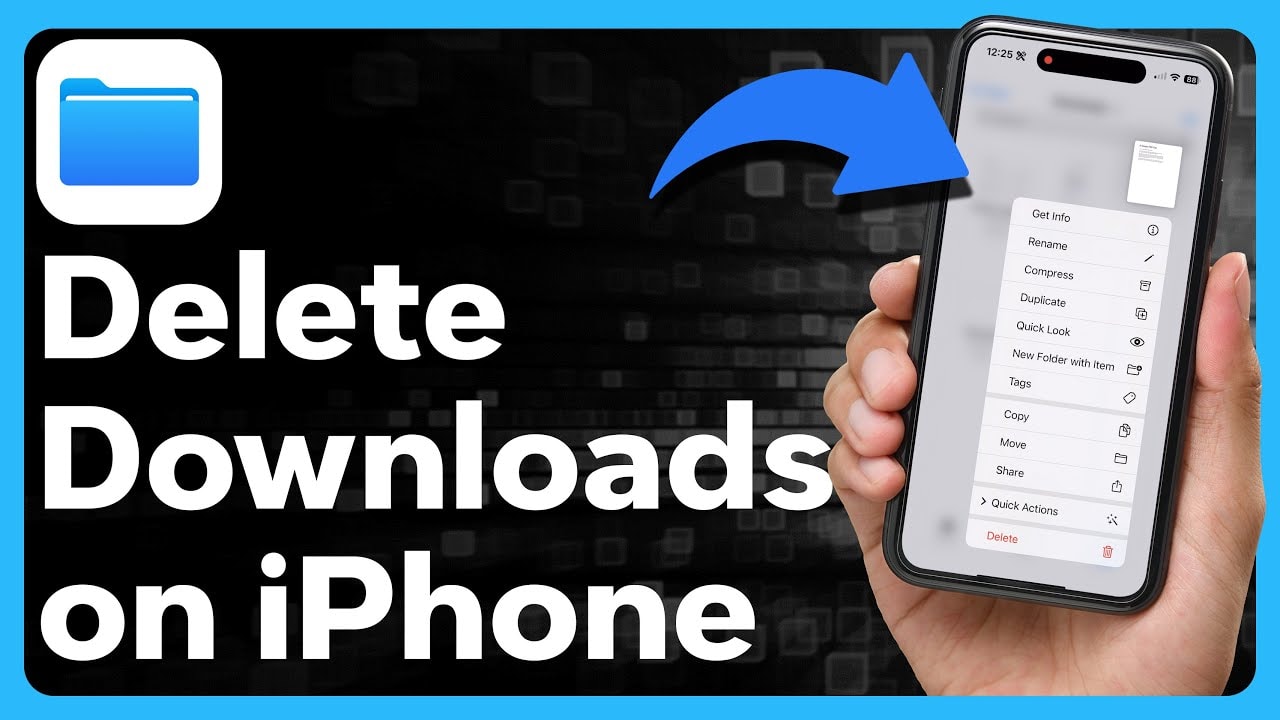
The cleanup begins with the apps you use daily, such as Spotify, Apple Music, YouTube, Netflix, or any podcast app you enjoy. Most of these apps have a section.DownloadThis allows you to easily check what content is being stored locally. If it's a movie you've finished watching, or an album you no longer listen to, don't hesitate to delete it.
The good news is you can always re-download it anytime if you change your mind. But for now, the goal is to free up storage space without sacrificing the user experience. Deleting unnecessary offline content not only frees up memory but also helps the device run more smoothly in the long run.
4. Uninstall unused apps.
If you've ever scrolled through home screens and app folders, chances are you've come across many icons you can't remember the last time you opened. Over time, these "dormant" apps can take up a significant amount of storage space, sometimes gigabytes, even though you hardly ever use them.
Many people are hesitant to completely delete apps because they worry about losing data or think, "I might need it again later." This is where iOS's "Offload Unused Apps" feature comes in handy.
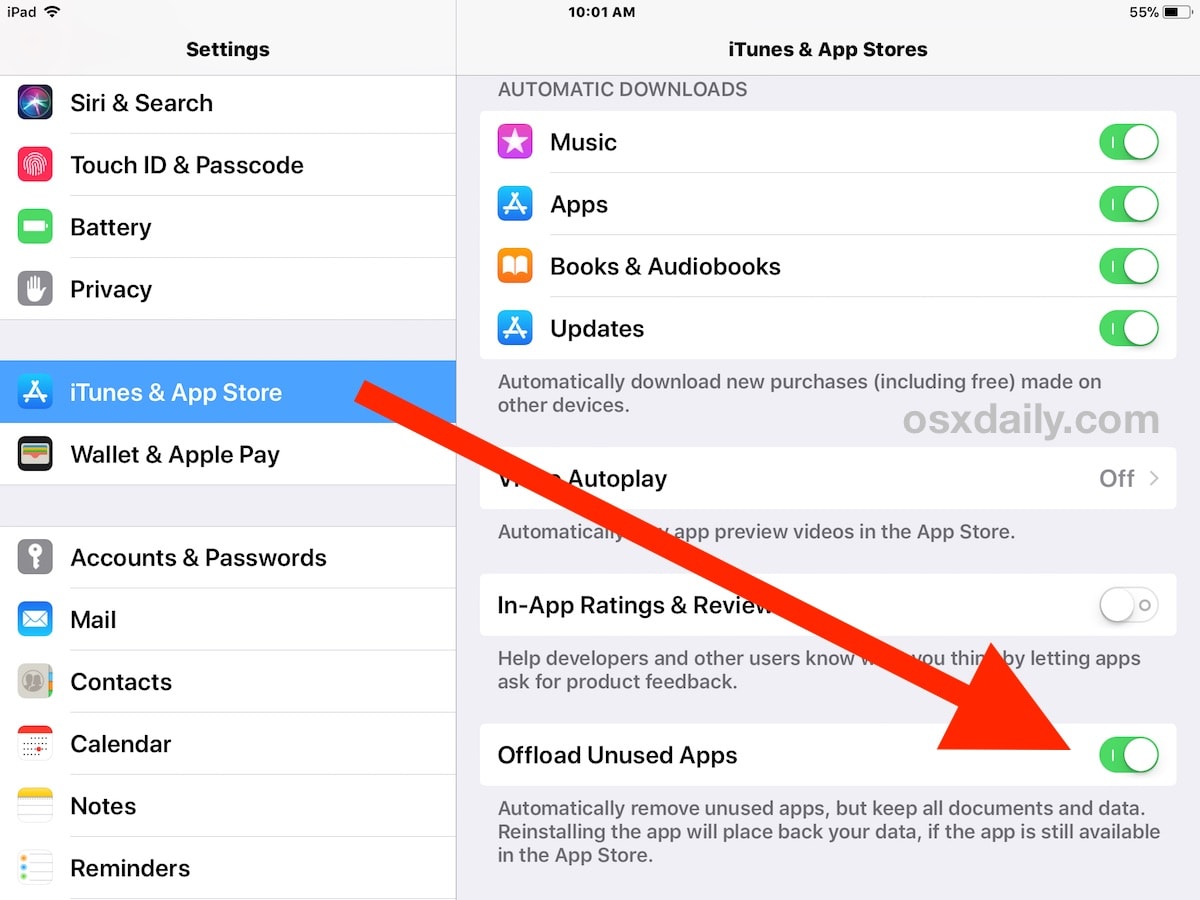
This feature allows you to uninstall apps from your device while retaining your data and related settings. When you need to reinstall them, everything will return as if it were never removed, from login information to personal settings.
To enable automatic uninstallation, go toSettingnewsApp Unlockand activate the optionUninstall unused apps.If you want to control it manually, go toSettingnewsGeneral settingsnewsiPhone storage capacity, select the least used app and pressUninstall the appThis is an efficient and streamlined method that helps you free up memory without sacrificing important data.
This feature acts as a "temporary storage" for infrequently used apps; you don't have to delete them completely, simply store them away until you need them again. A small change, but it can make your device much lighter and more efficient.
5. Upload photos and videos to the cloud.
When you've cleaned up apps, cleared the cache, and removed offline content, but your iPhone is still showing full storage, the culprit is most likely photos and videos. With increasingly high-quality cameras, just a few trips or family events can cause your photo library to swell by gigabytes.
Instead of deleting precious memories, you can move your entire media library to the cloud to save local storage space. Apple offers a built-in solution called iCloud Photos, which allows you to store full-resolution versions in the cloud while keeping smaller copies on your device. When needed, your iPhone will automatically download the high-quality version from iCloud in an instant.
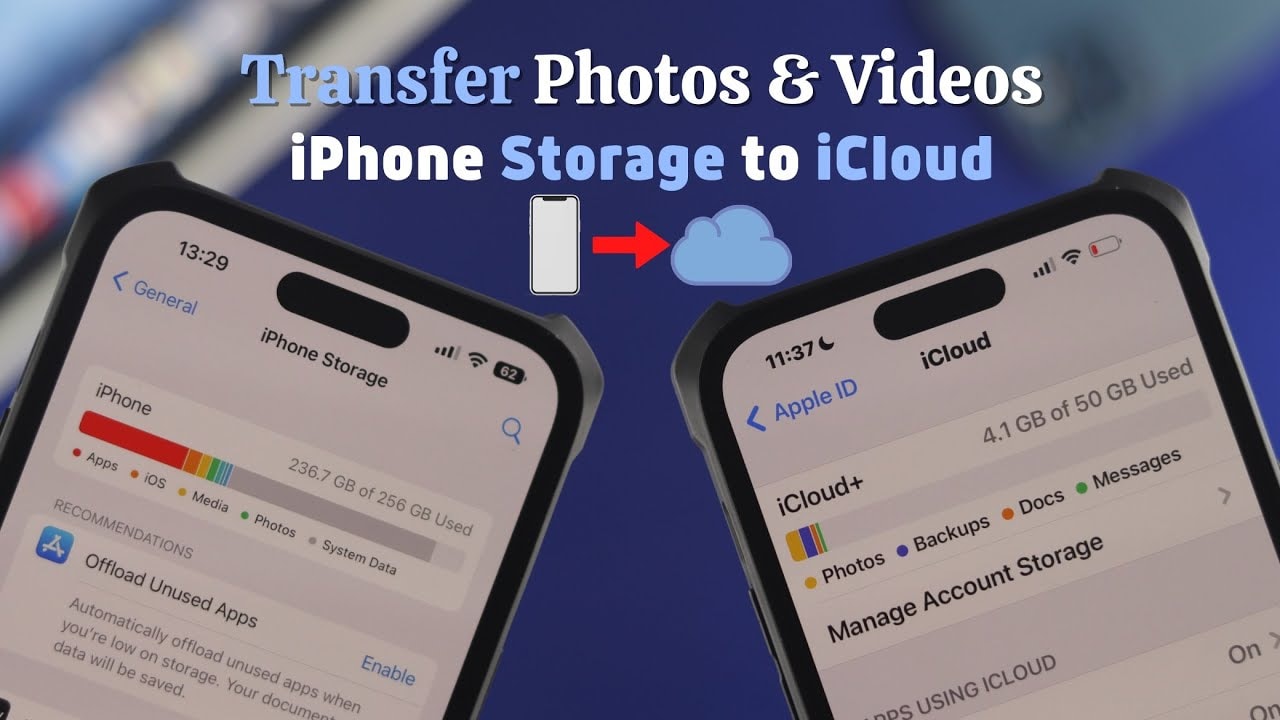
To set it up, accessSettingnewsImage, turn oniCloud Photos, then selectOptimize iPhone storage space.With large libraries, you can see gigabytes freed up in just a few days without deleting any photos.
If the free iCloud plan isn't enough, for less than the cost of a cup of coffee a month, a 50GB or higher plan can make a big difference. Alternatively, you can also consider alternatives like Google Photos, Dropbox, or OneDrive, all of which support automatic photo and video uploads and work effectively as reliable backup solutions.
In short, running out of storage on your iPhone doesn't mean you have to delete your favorite apps or sacrifice precious memories. With a little strategic cleanup, from managing photos and videos to optimizing app data, you can quickly reclaim storage space without sacrificing your user experience.
With streamlined memory, the iPhone will operate more smoothly, be more responsive, and be ready to accompany you in all tasks, from major updates to unexpected moments you want to capture.