

Adjust these 9 settings on your iPhone immediately to avoid being tracked.
Although iPhones are renowned for their security features, many default settings can still allow your personal data to be tracked. Below are 9 settings you should adjust immediately to avoid being tracked.
Apple is often praised as one of the tech companies that prioritizes user privacy. However, that doesn't mean every default setting on an iPhone is geared towards maximizing your benefit.
.jpg)
Some settings prioritize convenience over security, while others silently allow the sharing of more personal data than you realize. Therefore, to truly control your information, you need to proactively fine-tune some privacy options directly on your device.
1. Prevent your iPhone from sending diagnostic data to Apple.
Like most hardware manufacturers, Apple collects diagnostic data from iPhones to analyze errors, measure performance, and track how users interact with the operating system.
In theory, these reports help make the iOS operating system more stable and intelligent. However, if you want maximum control over your personal information, disabling this feature only takes a few seconds without degrading your experience.
To turn this feature off, go toadjusting→Privacy & Security→Analytics & ImprovementsHere, you will see 3 main options. First, toggle it on.Share iPhone AnalyticsSwitch it to "off" to prevent the device from sending system logs and error reports to Apple's servers.
.jpg)
Turn off all options to send data to Apple.
Next, disableImprove Siri & DictationThis prevents the storage and analysis of your voice recordings. Finally, turn it off.Share iCloud AnalyticsTo keep all iCloud-related activities, such as syncing photos, notes, and backups, private.
These adjustments do not affect the speed or functionality of the iPhone at all; they simply ensure that your usage data does not leave the device without your explicit consent.
2. Turn on Mail Privacy Protection
Every time you open an email, you may be unaware that you're being tracked. Many emails, especially from marketers or spammers, contain tracking pixels—tiny, invisible images that allow the sender to know exactly when and from where you opened the email. This is a form of covert surveillance that most users don't realize is being monitored.
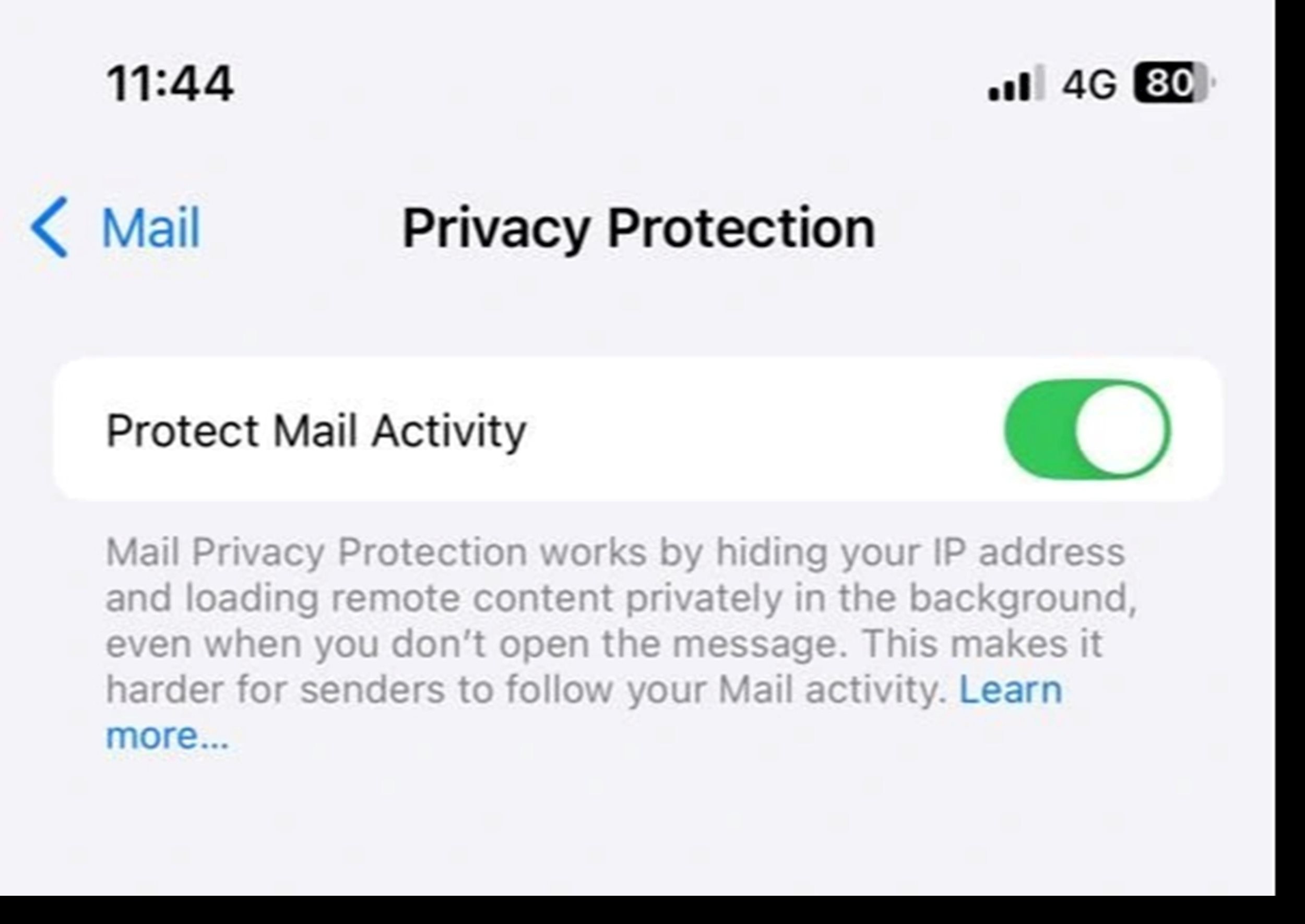
Apple has developed a simple but effective solution called Mail Privacy Protection. When this feature is enabled, your iPhone automatically hides your IP address and prevents senders from knowing whether you've read their emails. The mechanism is quite clever: the iPhone downloads email content from Apple's servers instead of directly from your device, helping to conceal your true identity and location.
To activate, go toadjusting→Mail→Weather, then turn it onProtect Mail ActivityNote: This feature does not prevent tracking if you click on a link in the email. If you see a suspicious email, it is best not to open or interact with it.
3. Hide notification previews on the lock screen.
On iPhones, the lock screen is designed to quickly display new notifications, but it can also inadvertently "reveal" private information. By default, the content of messages, emails, and other notifications will be displayed verbatim, along with sound and screen light, enough to attract the attention of anyone standing nearby.
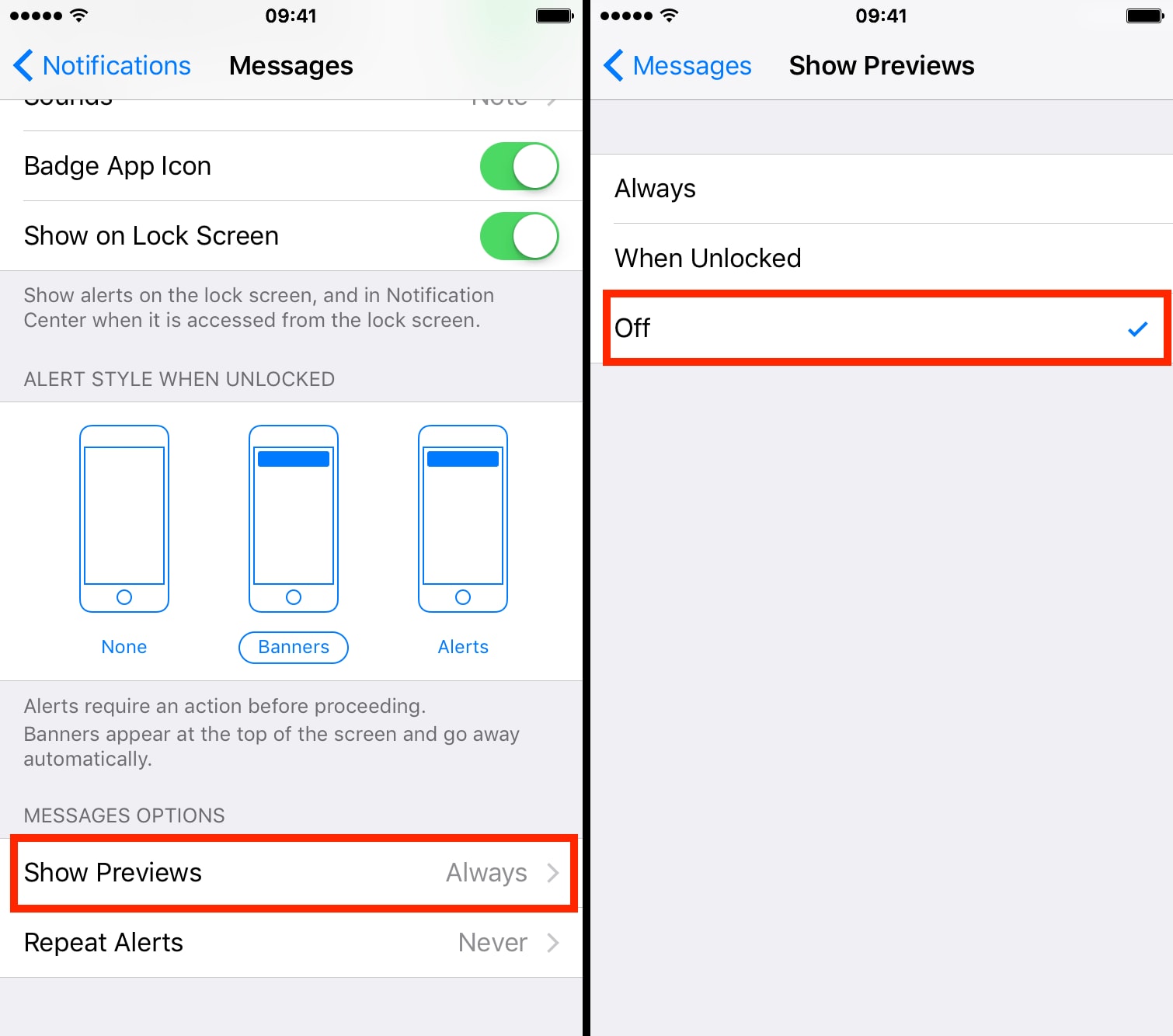
To better protect your personal data, proactively limit what is displayed when your device is locked.adjusting→Notifications→Show Previewsand choose the cityWhen UnlockedorNeverTo ensure that content only appears when you authenticate with Face ID, Touch ID, or a passcode.
4. Enable automatic app and software updates.
Apple consistently releases software updates to patch security vulnerabilities, fix system bugs, and sometimes add privacy-protecting features without much fanfare.
Third-party apps also offer many updates that bring subtle but important enhancements to keep your data safe. If you don't enable automatic updates, your iPhone may miss out on these important improvements for days, even weeks.
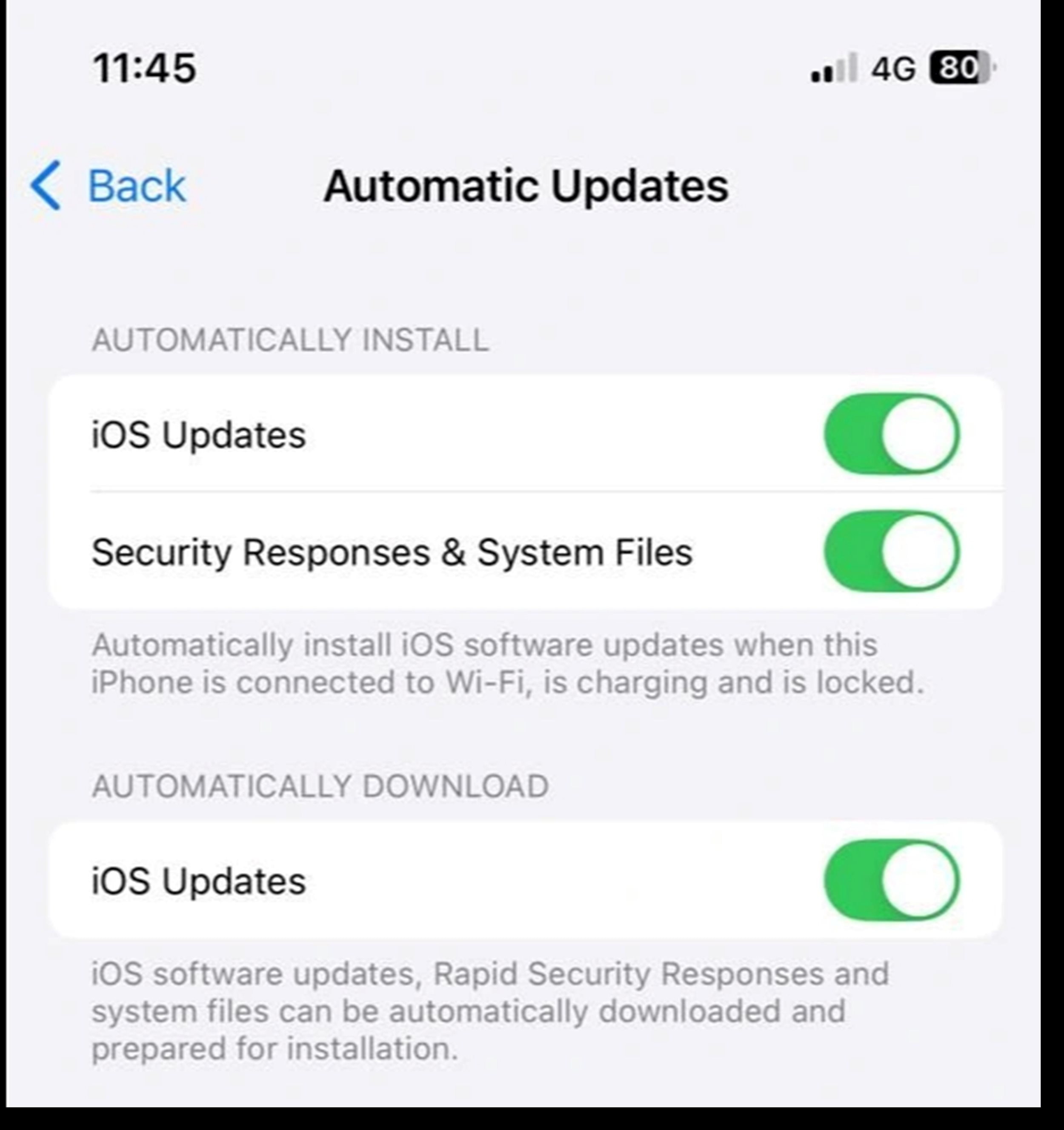
To ensure your device is always maximally protected, enable automatic updates for both iOS and apps. Accessadjusting→General→Software Update→Automatic Updatesand activate this option. Then go back.adjusting→App Unlock, turn onApp UpdatesWith just a few simple steps, you'll always be protected by the latest security patches and features.
5. Turn off ad tracking.
If you've ever felt like your iPhone is "reading your mind" by displaying ads at the most opportune moments, it's very likely your device is being tracked by apps. Many apps collect your behavioral data to build detailed user profiles and deliver personalized ads. Fortunately, iPhones offer powerful tools to block this activity.
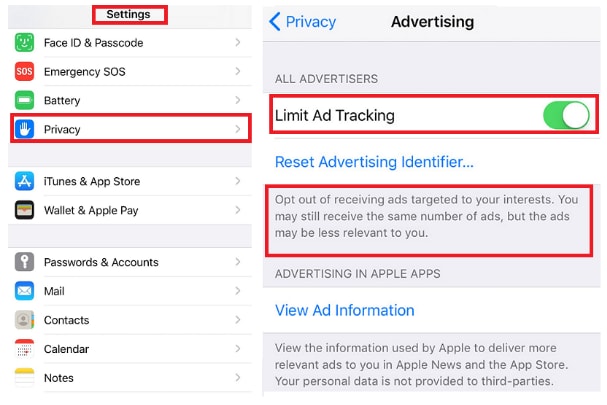
To block this activity, go toadjusting→Privacy & Security→Tracking, then turn off the itemAllow Apps to Request to TrackThis will prevent all applications from sending requests to track your activity across other apps and websites.
Next, scroll down and selectApple Advertising, then turn it offPersonalized AdsAlthough Apple claims it doesn't track users in the way third parties do, disabling this feature still helps minimize the amount of personal data used to serve ads within the Apple ecosystem.
6. Turn on “Advanced Data Protection” to enhance iCloud security.
Backing up iPhone data to iCloud is a convenient and popular solution, but not everyone considers an important question: how secure is that backup data and who can access it?
FeaturesAdvanced data protectionApple's Advanced Data Protection (ADD) provides a stronger layer of security by adding end-to-end encryption to most iCloud data. This means only your trusted devices can decrypt and access that information; even Apple cannot interfere, even if requested to provide the data.
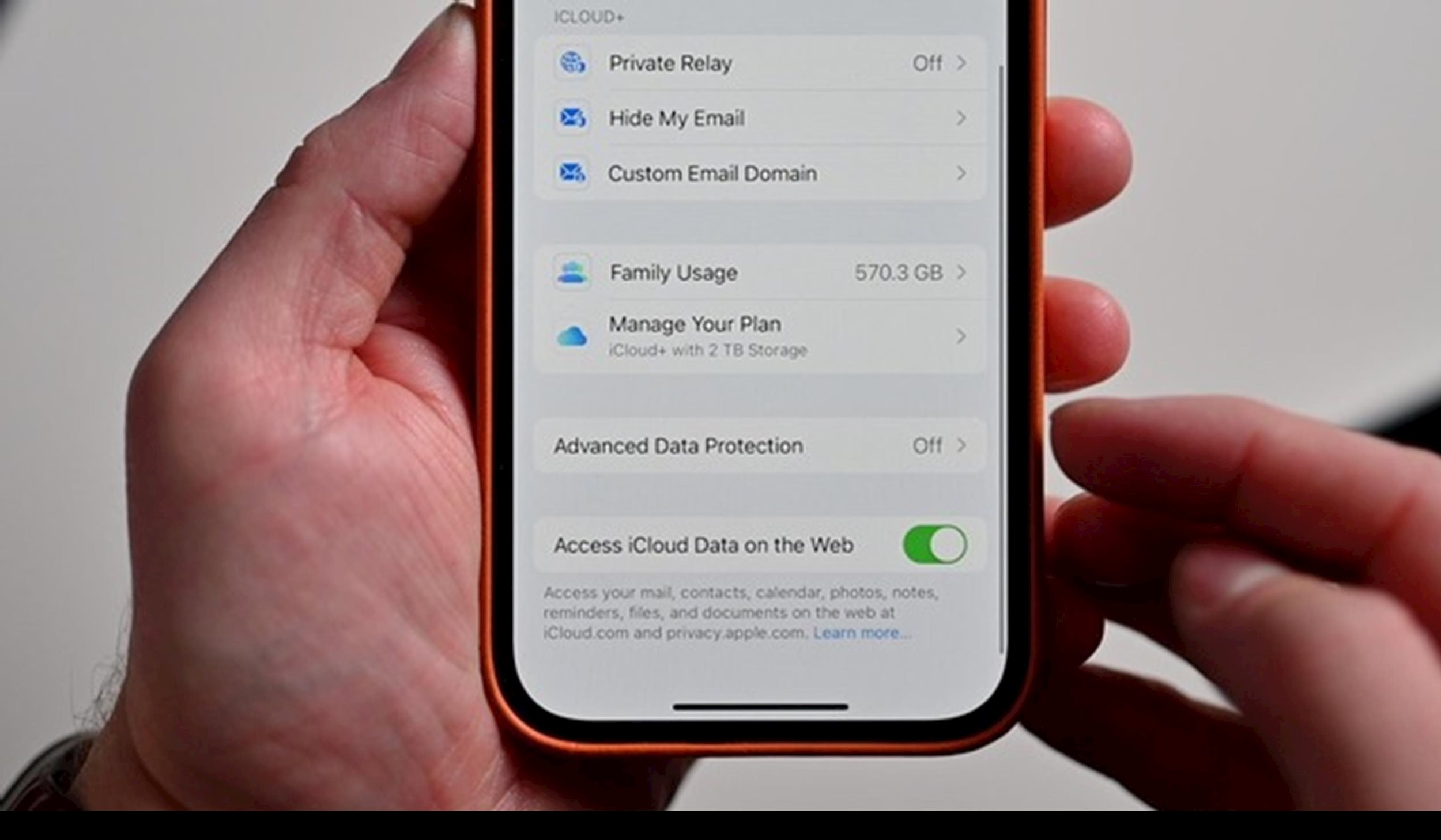
However, this feature is not enabled by default. To activate it, go toadjusting→ [Your name] →RCA→Advanced Data ProtectionYou will need to set up a recovery plan such as a recovery key or trusted contact to avoid losing access if you forget your password. This is a small step, but it can make a big difference in security.
7Turn ontwo-factor authenticationApple account
Two-Factor Authentication (2FA) is no longer an option; it's an essential security measure for all important accounts, especially your Apple Account. Your iPhone stores a vast amount of personal information, from photos, messages, and location history to payment information and health data. If someone gains access to your Apple Account, they essentially control your entire digital life.
When 2FA is enabled, a password alone isn't enough. Anyone attempting to log into your account must also enter a 6-digit verification code sent to your trusted device, providing a strong layer of protection against remote attacks.
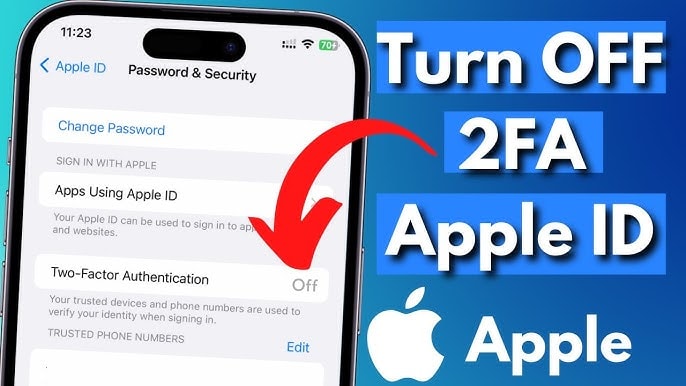
To check if 2FA is enabled, go toadjusting→ [Your name] →Sign-In & Security→Two-Factor AuthenticationIf it's not already enabled, it only takes a few minutes to set up but provides long-term peace of mind.
8Change your search engine and Safari settings to better protect your privacy.
Google currently spends billions of dollars annually to maintain its position as the default search engine on iPhones. But if you don't want all your search queries tracked, stored, and turned into targeted ads, you can certainly choose a more private solution.
Come inadjusting→Safari→Search Engine, then selectDuckDuckGo- a search engine that commits to not tracking, not saving history, and not creating user profiles.
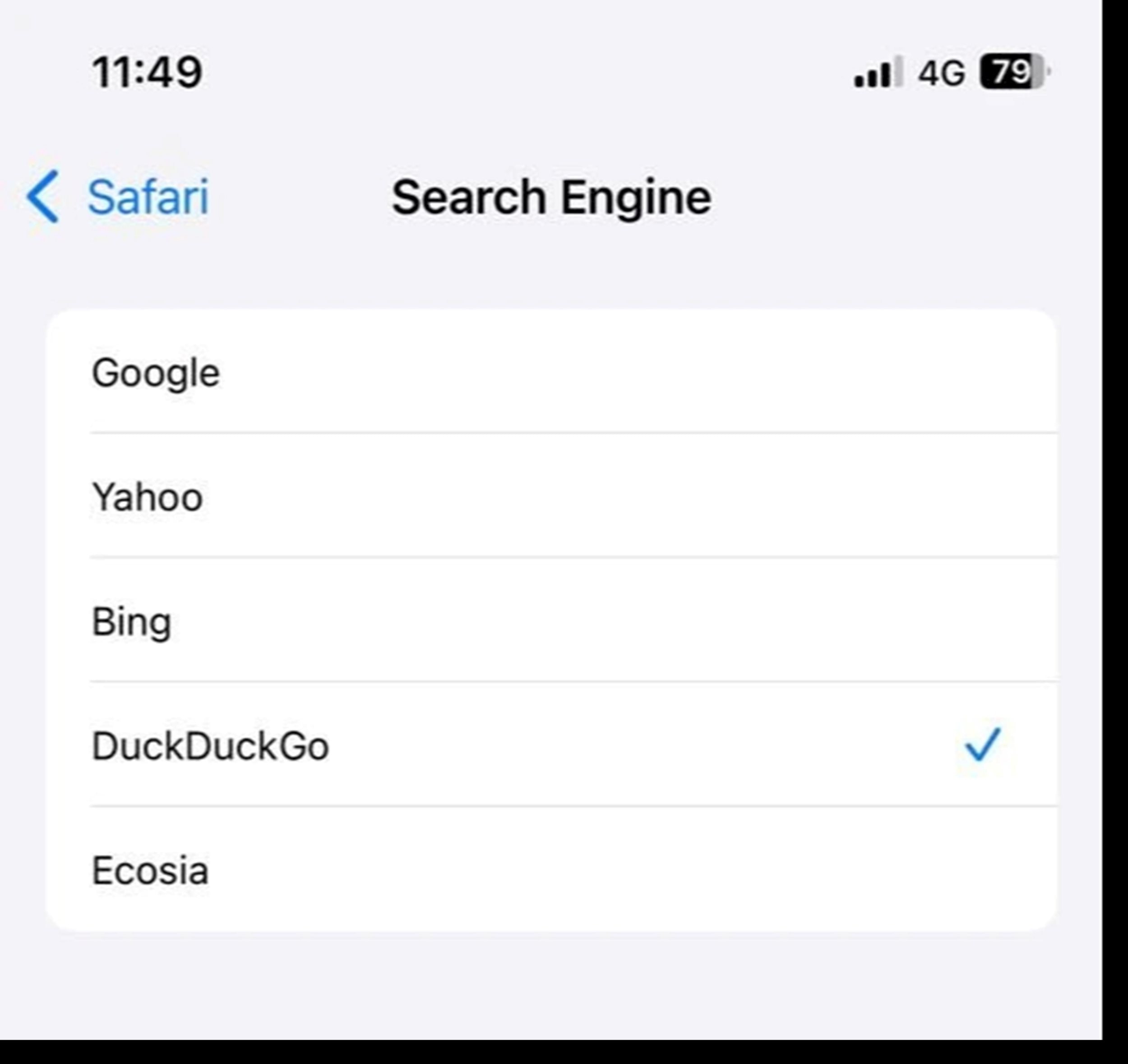
While in Safari settings, you should also enable it.Prevent cross-site tracking(Prevent Cross-Site Tracking) to limit websites from sharing your behavioral data.
At the same time, in the sectionHide IP address(Hide IP Address), selectTrackers and websites(Trackers and Websites) to prevent the recording of your IP address, information that can be used to identify and track you across the entire Internet. These are simple but important steps to regain control of your personal data.
9. Review permissionsapplication access
On iPhones, every app must "ask permission" before accessing sensitive data such as location, photos, microphone, camera, or contacts. In theory, this helps users control their privacy, but in reality, many apps request more permissions than necessary just to provide a simple function.
To review, openadjusting→Privacy & SecurityThen, access each section in turn, from Location Services, Photos, Microphone, Camera, and Contacts. Each screen will clearly list which application has requested which permissions, along with their current permission status.
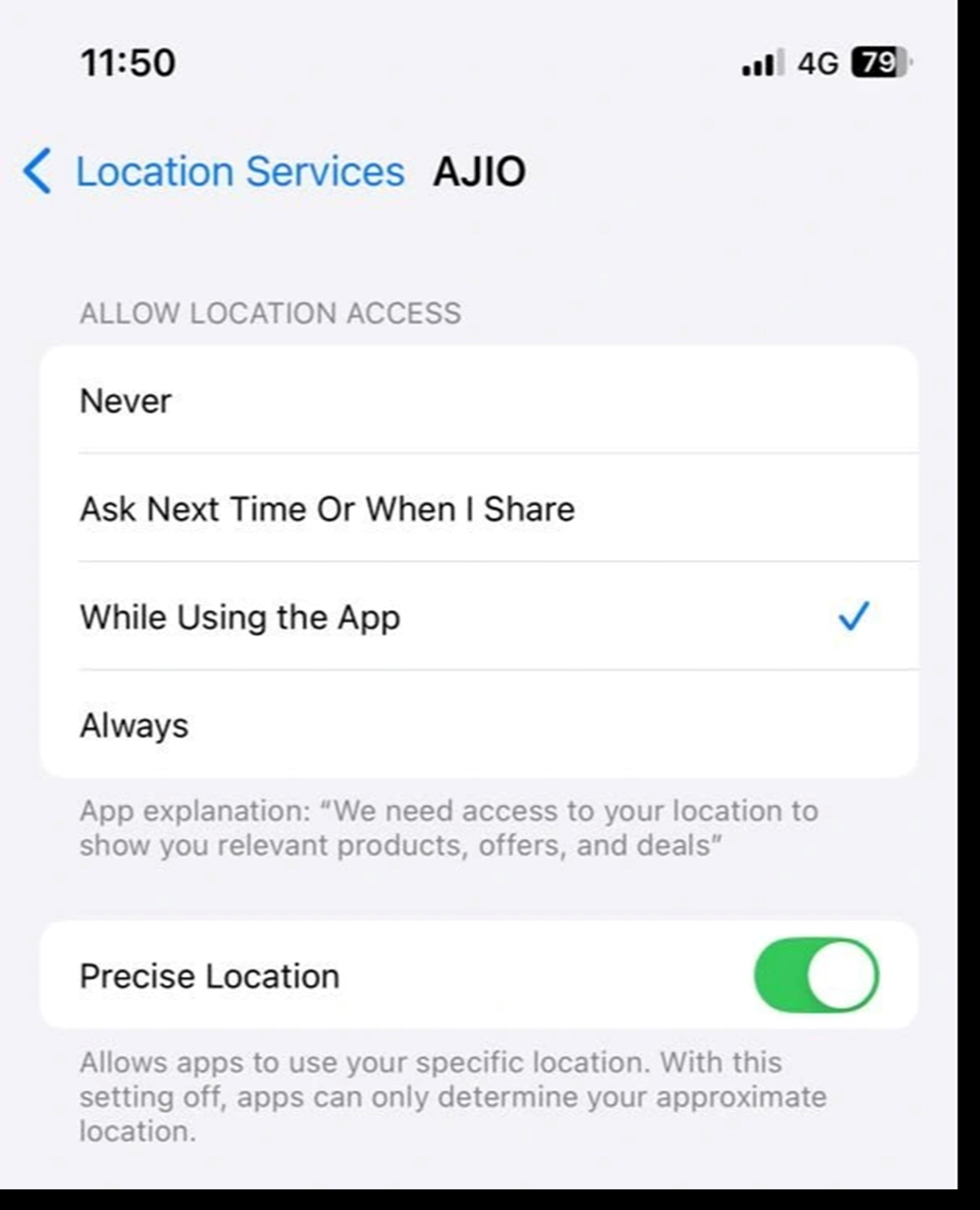
If a shopping app allows access to your microphone, or a mobile game can access your photos, consider revoking that permission. Similarly, with location services, only allow access in certain modes.While using the app; selectAlwaysIt should only be reserved for navigation or food delivery apps that are truly necessary.
Taking a few minutes to make these adjustments not only gives you greater peace of mind but is also a smart move to assert your ownership of personal data in the digital age.