

Simple tips to improve your Wi-Fi speed.
Many people get frustrated when their Wi-Fi is slow, but few know that a simple action like unplugging and replugging the router can improve connection speeds and even speed up data downloads.
At first glance, unplugging your Wi-Fi router to speed up your internet might seem like an outdated tech "folk trick," but behind this seemingly simple action lies a sound technological basis.
A router is essentially a miniature computer. It's responsible for handling network connections, storing temporary data in a cache, and allocating bandwidth to household devices in real time. After days or weeks of continuous operation, minor software errors and memory leaks can accumulate, causing the router to gradually become sluggish.
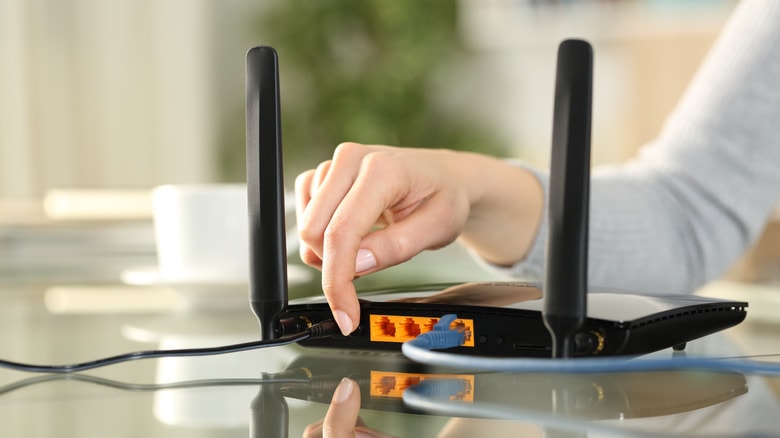
Unplugging the device, or in other words, forcing a restart, will clear all cache memory, close any suspended background processes, and re-establish the connection with your Internet service provider (ISP).
This new "handshake" process helps the network run more smoothly, which is why many people are surprised to see a significant improvement in download speeds just a few minutes after restarting their devices. This is also the advice frequently given by IT professionals whenever there are network problems.
However, the benefits don't stop at performance. Restarting your router also has significant security implications. Routers aren't just for online entertainment or Zoom meetings; they're also a crucial gateway to your entire home network.
Like any other software-powered device, routers also need regular updates. Restarting the device gives it a chance to install the latest system updates and security patches, thereby preventing exploitation, minimizing malware risks, and ensuring a more secure network operation.
How and when to restart your router
Restarting your router might seem like a minor action, but it can have a significant impact on the speed and stability of your home network. There are many ways to do this, and most are very simple.
The most traditional method is to unplug the router from the power outlet, and also unplug the modem if the two devices are separate. Then, wait about 30 seconds to a minute for the device's internal memory (RAM) to be completely erased before plugging it back in. When the indicator lights stop flashing erratically and return to a steady state, it means the restart process was successful.
In the digital age, many manufacturers offer even more convenient methods. Modern routers often come with their own management app or an app developed by the internet service provider. In this app, you simply tap the "Restart" button to remotely command a restart, eliminating the need to reach behind the TV cabinet or deal with a tangled mess of cables.
Alternatively, more savvy users can utilize the router's web interface. Most devices have a default IP address (usually 192.168.0.1 or 192.168.1.1). Simply enter this address into your browser, log in with your administrator account, and then find the restart option in the control menu.
Experts recommend that users restart their routers regularly, even if there are no obvious network problems. Think of this as a form of "routine maintenance" to keep the device operating optimally.
Once a month is considered a reasonable frequency, while households with lower internet usage may need to extend this interval. However, there are some signs that you need to restart immediately, such as unusually slow internet speeds, dropped connections, or video calls that start to sound distorted or stutter.
Additionally, after a firmware update or when experiencing issues such as high lag in online gaming, restarting is also a basic but helpful troubleshooting step.
What if restarting doesn't work?
Restarting your router is often a quick and simple fix for network problems. However, if after several attempts the connection drops or internet speeds remain sluggish, the problem is likely more serious. In that case, the next solution to consider is resetting your router to its factory settings.
Unlike a restart, a factory reset erases all saved configurations, from the Wi-Fi network name (SSID) and access password to any advanced settings you've customized. In other words, the device returns to its "factory" state. This is why experts often recommend resetting only as a last resort, when other measures have failed.
To perform this reset, most routers have a small button located on the back or bottom edge. Users need to use a toothpick or paperclip to press and hold it for about 10-30 seconds (depending on the model) until the indicator light changes state. After the reset, the device will restart, and you will need to set it up again from scratch, such as entering the login information provided by your internet service provider, resetting a strong Wi-Fi password, and activating necessary security features.
Besides the physical button, many router management applications or web interfaces also support this operation with just a few clicks, but the result is always the same: a "blank sheet" ready for reconfiguration.
Resetting not only resolves technical issues but is also useful in security-sensitive situations, such as when there is suspicion of a network breach or a device infected with malware.
Although more complicated than a restart, this is sometimes the safest option. And if even a reset doesn't fix the problem, it could be a clear sign that it's time to invest in a new, more powerful and secure router.