

Guide to backing up and restoring Windows 11 using OneDrive
The built-in Windows Backup feature makes it easy to back up files, applications, and settings to OneDrive, ensuring a seamless transition to a new computer.
Windows 11 includes the Windows Backup tool, allowing users to back up important files, settings, applications, and login information to their OneDrive account. This solution simplifies data recovery when reinstalling the operating system or moving to a new computer.
This feature creates a cloud backup. Files can be accessed directly from the OneDrive folder, while settings and applications are restored during the initial setup (Out-of-Box Experience - OOBE) of a new device.
Instructions for creating a Windows 11 backup.
Users can enable and manage backups through the Settings app or the dedicated Windows Backup app. Both methods yield the same result and synchronize with each other.
Enable backup from Settings.
This method is integrated directly into the Windows 11 installation system, allowing for centralized management.
- Openadjustingon Windows 11.
- Select itemAccounts.
- Click on the pageWindows pact.
- In the "OneDrive folder syncing" section, selectManage sync settings.
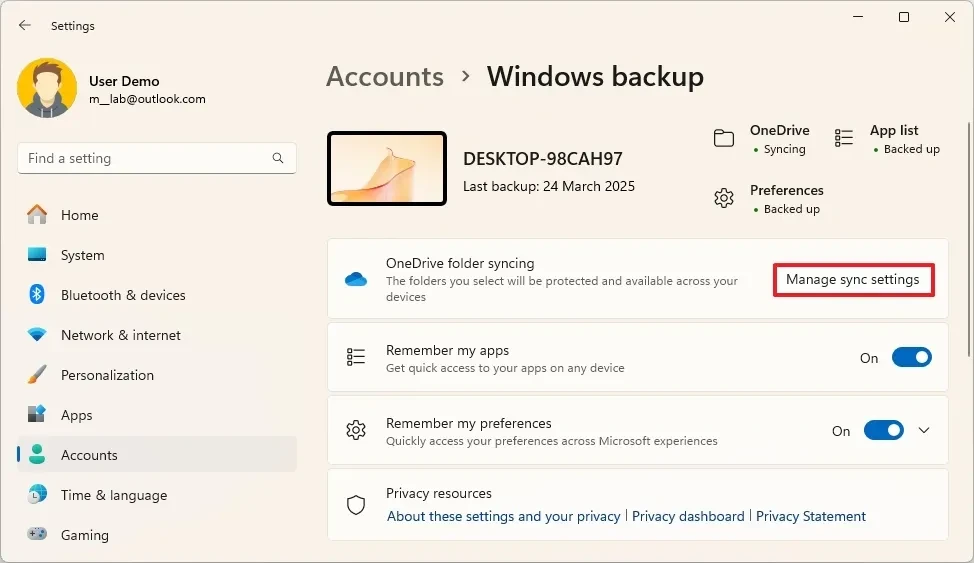
- Turn on the switches for the folders you want to back up to the cloud, including Documents, Pictures, Desktop, Music, and Videos.
- Click the buttonStart backup.
- Go back to the Windows backup page and turn the switch on.Remember my appsTo back up the list of installed applications from the Microsoft Store.
- Turn on the switchRemember my preferencesTo back up personal settings, language, passwords, and other system options.
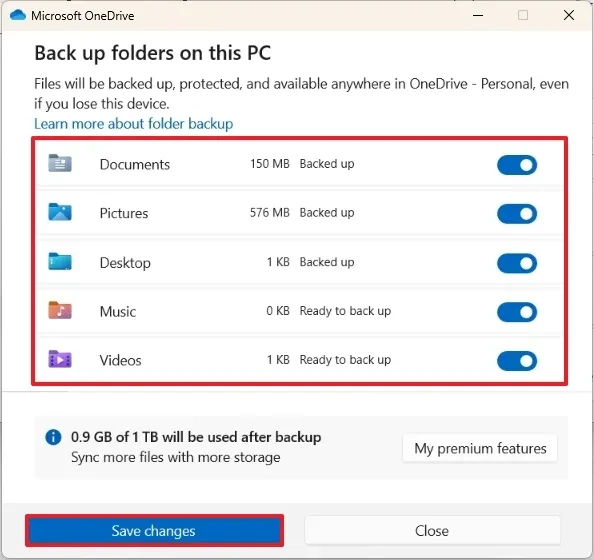
Once complete, your data will be uploaded and synchronized with your OneDrive account.
Use the Windows Backup application.
Windows 11 also provides a separate application called Windows Backup to perform the same task.
- Open menuStart.
- SearchWindows Backupand open the application.
- Select the items one by one.Folders,Apps,adjusting, andCredentialsTo customize what you want to back up.
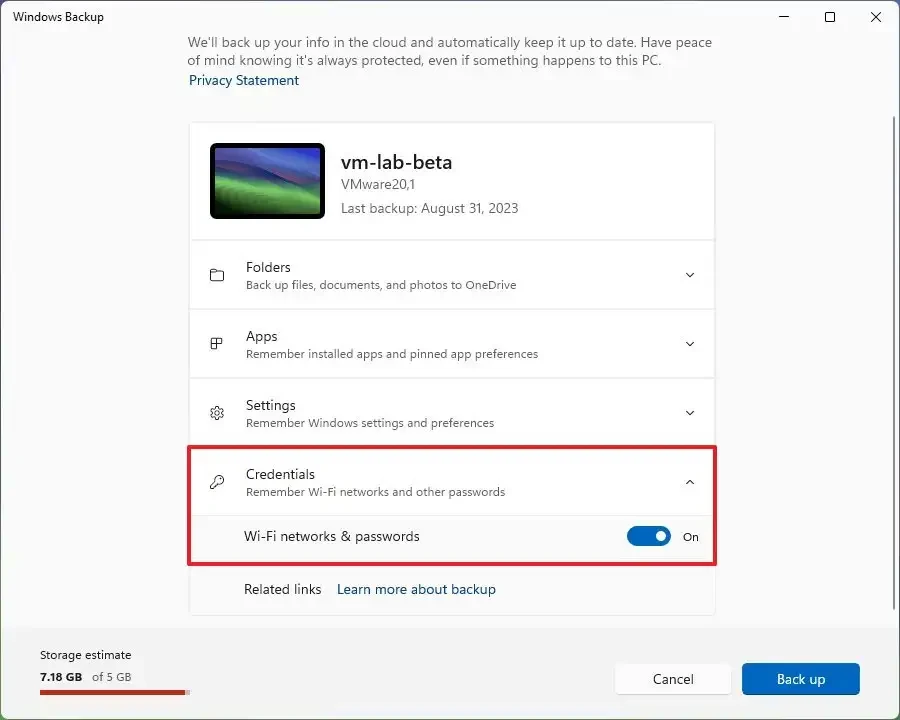
- In each section, turn on the switches corresponding to the data you want to protect, for example, the Desktop folder, Documents, Pictures, Wi-Fi network, and password.
- Once set up, the system will automatically back up the selected items to your OneDrive account.
How to recover data from a OneDrive backup
The process of restoring settings, applications, and login information is designed to be performed during the initial setup of a new Windows 11 computer or after a reinstallation of the operating system. Users cannot restore these items on a working system.
- Begin the Windows 11 installation process and perform the basic setup steps (select region, keyboard language).
- When prompted, sign in with the same Microsoft account you used to create the backup.
- The system will detect available backups and suggest restoring them. You can choose...ProgrammingUse the most recent backup.
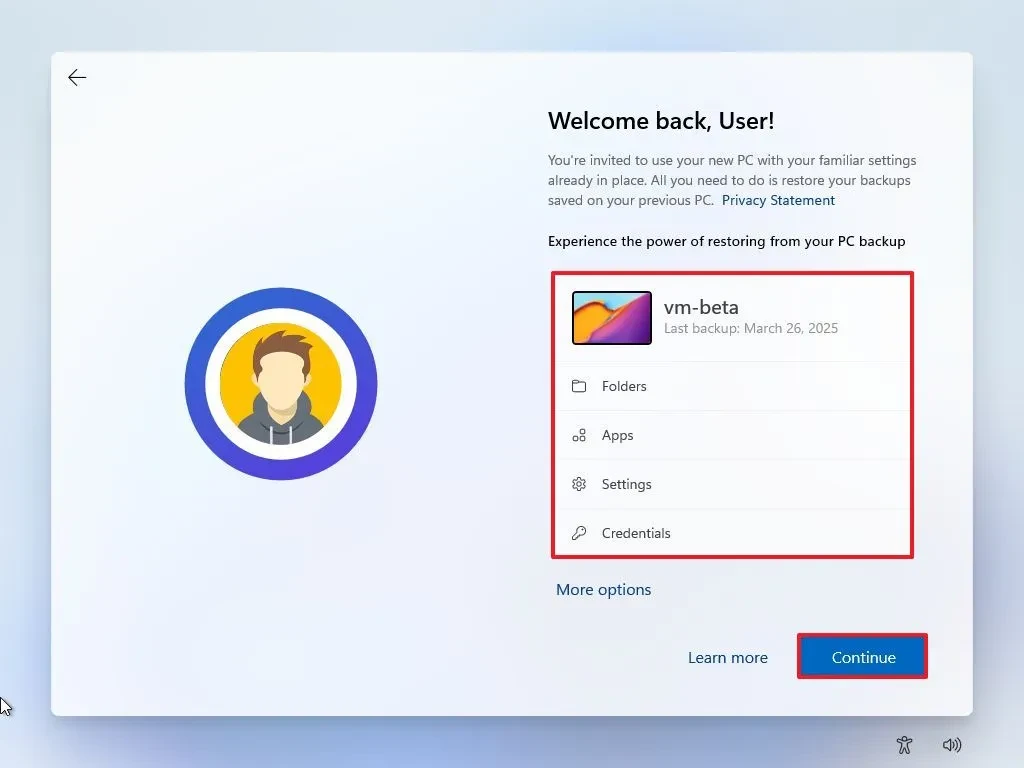
- To select a different backup, click here.More optionsand select from the list.
- Generate a PIN and complete the remaining setup steps following the on-screen instructions.
Once complete, the system will automatically download the files, reapply the settings, and pin your applications back to the Taskbar and Start menu as before.
Mechanism of operation and limitations
Understanding how Windows Backup works will help users manage their data more effectively. Here are some key points:
- Restore the app:The system will automatically reinstall applications from the Microsoft Store. For traditional applications (legacy apps) not available on the Store, Windows will create shortcuts. When the user clicks on these shortcuts, the system will navigate to the developer's website to download the installer.
- Accessing files:Personal folders (Documents, Photos, Wallpapers, etc.) are synchronized via OneDrive and are always available for access or direct download on any device.
- Backup scope:This is not a full system image backup. This feature cannot be used to restore the operating system after a serious hardware failure. For that need, users should consider other specialized tools.
- Conditions for restoration:Restoring settings and applications is only available during the OOBE process when logged in with the same Microsoft account that created the backup.