

7 default Excel settings you should change for better productivity.
Many of Microsoft Excel's default settings can slow down your workflow. Discover 7 simple tweaks that will save you time and help you process data more accurately.
Microsoft Excel is a powerful tool, but some of its default settings can be inconvenient and reduce productivity. By changing the following seven settings, users can optimize their workflow, save time, and avoid unnecessary errors.
1. Enhance focus with row and column highlighting.
When working with large data tables, losing track of the selected cell is a common occurrence. The Focus Cell feature solves this problem by highlighting the entire row and column of the active cell, making it easier to track and analyze the data.
This feature is available to Excel for Microsoft 365 users on Windows, Mac, and the web version.
How to activate:
- On the toolbar, go to the tabView.
- In the groupShow, selectPrimary Cell.
- Windows users can use the following keyboard shortcuts:Alt > W > E > F.
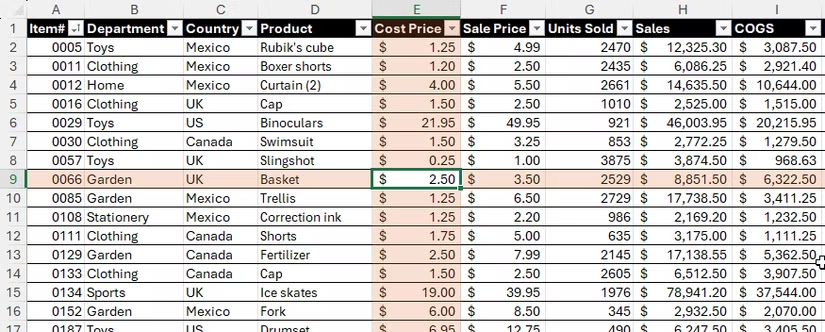
This feature is only displayed on the screen and does not affect the printed output. Users can customize the highlight color by clicking the arrow next to the Focus Cell button.
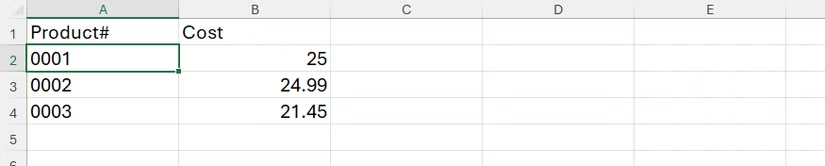
2. Processing codes and phone numbers: Keep the leading zero.
By default, Excel automatically removes leading zeros when entering numerical data, making it difficult to work with employee codes, phone numbers, or serial numbers. To permanently change this behavior, you can adjust it in Excel Options.
How to do it:
- PressAlt > F > Tto open the dialog boxExcel Options.
- Switch to tabData.
- Uncheck the item“Remove Leading Zeros And Convert To A Number”(Remove the leading zero and convert to a number).
- ClickOKTo save changes.
After the settings are configured, any numerical data with leading zeros will be retained as text. Note that this change only applies to data entered after the settings are configured.
3. Optimize your workspace by hiding the Copilot icon.
The Copilot icon appearing next to the active cell can be distracting for some users. Instead of turning it off completely, you can customize it so that it only appears when there's a truly relevant suggestion.
How to adjust:
- OpenExcel Options(Alt > F > T).
- SelectCopilotfrom the menu on the left.
- Select an option“Show Copilot Icon Only For Highly Relevant Suggestions”(Only display the Copilot icon when there is a very relevant suggestion).
- ClickOK.
You can still access Copilot at any time through the icon on the Home tab of the toolbar.
4. Prevent automatic conversion of text into hyperlinks.
Excel tends to automatically convert web or email addresses into clickable hyperlinks. This often alters the formatting (color, font size) and makes it difficult to edit cell content later. You can disable this feature to preserve the original text formatting.
How to disable automatic hyperlink generation:
- OpenExcel Options(Alt > F > T).
- Go to sectionProofingand choose"AutoCorrect Options"(Automatic correction option available).
- Switch tab"AutoFormat As You Type"(Automatic formatting as you type).
- Uncheck the item“Internet And Network Paths With Hyperlinks”(Internet and Network links become hyperlinks).
- ClickOKPress twice to close the windows.

5. Automatically open important files when Excel starts.
If you regularly work with a specific group of files each day, setting up Excel to automatically open them at startup can save you considerable time.
How to set it up:
- Create a separate folder and move all the Excel files you need to open into it.
- Copy the path to this folder.
- InExcel Options, into the sectionAdvanced.
- Scroll down to the sectionGeneralPaste the folder path into the box.“At Startup, open all files in:”(When starting up, open all files in:).
- ClickOK.
6. Control the cursor after pressing the Enter key.
By default, after pressing Enter, the cursor automatically moves to the cell below. However, in many cases, such as when checking formulas or entering multiple test values, it is more convenient to keep the cursor in its current position.
How to change it:
- OpenExcel Optionsand go to the sectionAdvanced.
- Deselect the box“After pressing Enter, move selection”(After pressing Enter, move the selection area.)
- ClickOK.
After making changes, the cursor will remain in the current cell after you press Enter. You can use the arrow keys to move to another cell.
7. Set the default PivotTable layout to your liking.
Whenever you create a PivotTable, Excel applies a default compact layout. If you frequently need to adjust the layout, setting up your own default template will speed up your workflow.
How to change the default layout:
- InExcel Options, go to tabData.
- Click the button"Edit Default Layout"(Edit Default Layout).
- Here, you can customize items such as subtotals, totals, report layout, or import a layout from an existing PivotTable.
- ClickOKTo save.
All PivotTables created later will automatically adopt the new layout you set up.