

OptiScaler: Bringing AMD FSR 4 technology to all games with DLSS.
Discover OptiScaler, a community tool that allows AMD and Intel graphics card users to experience FSR 4 and XeSS technologies in games that are not yet officially supported.
For AMD graphics card users, game developers' delays in integrating FSR 4 technology can lead to limitations in the gaming experience. However, a community-based tool called OptiScaler has provided an effective solution, allowing FSR 4 to be "injected" into most DLSS-supported games, optimizing performance and image quality.
OptiScaler: A technological "bridge" for gamers.
OptiScaler is an application that allows players to replace the default image upscaler in a game with an alternative. Essentially, this tool interferes with the game's calls to the upscaler library and redirects them to the technology the user has chosen.
For example, if a game only supports NVIDIA's DLSS, users of AMD or Intel graphics cards can use OptiScaler to enable FSR or XeSS. This mechanism is particularly useful for owners of AMD Radeon RX 9000 series cards, as it allows them to take advantage of FSR 4 – the latest version based on machine learning – in games that don't yet have official support.
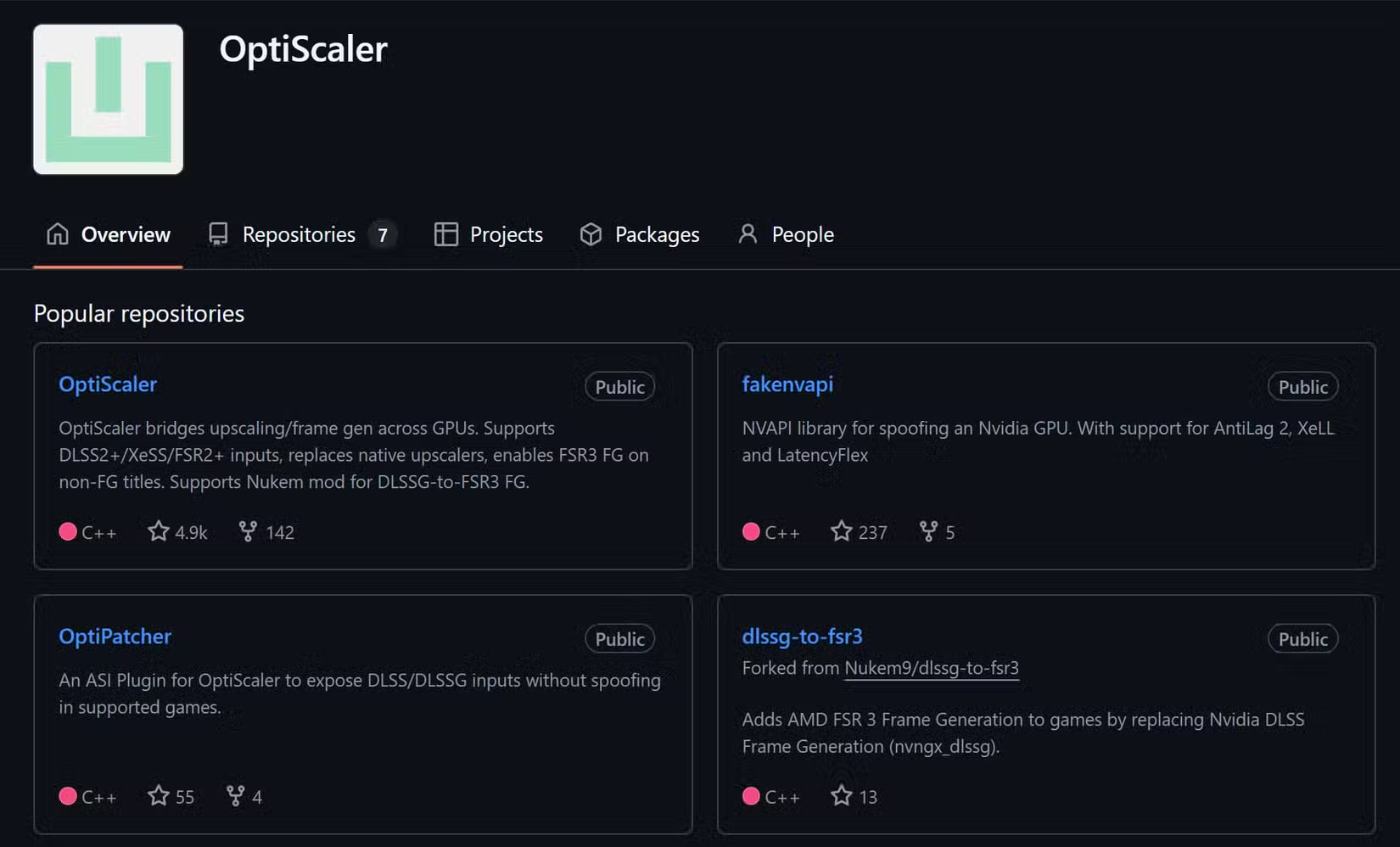
This tool has been updated to be compatible with most games using DirectX and without anti-cheat systems. However, games based on the Vulkan platform are not currently supported.
Detailed OptiScaler installation guide
The OptiScaler installation process is quite simple and only involves a few steps. Users need to follow the procedure correctly to ensure the tool works properly.
1. Download and extract
First, visit OptiScaler's release page on GitHub to download the latest version. After downloading, extract the entire contents of the archive file to the folder containing the executable (.EXE) file of the game you want to use.
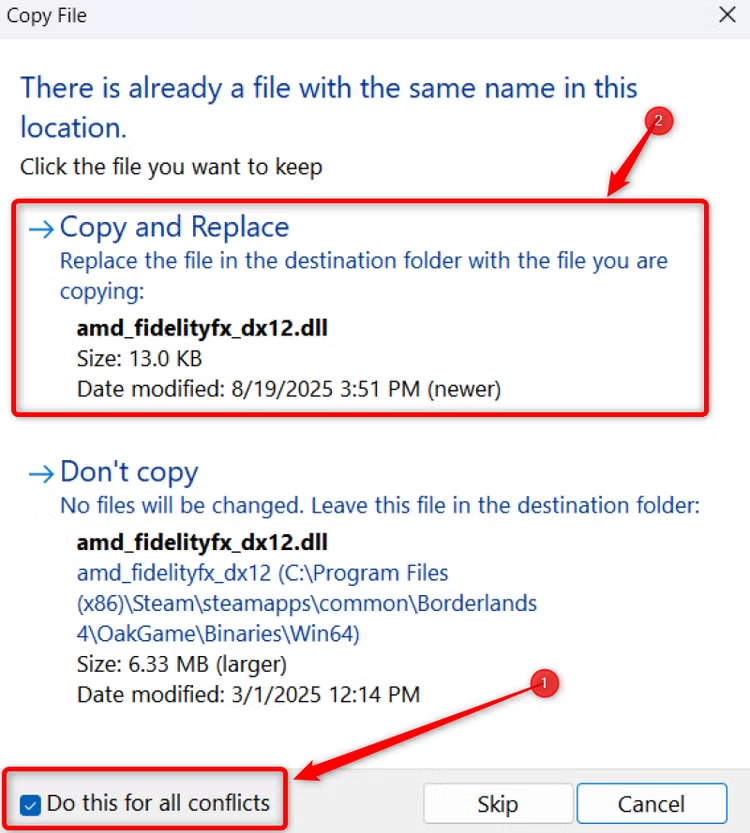
Important notes for Unreal Engine 5 games:You need to identify the correct subdirectory containing the .EXE file. The path is usually in the following format:Game-folder/Game-name/Binaries/Win64/Do not extract to the game's root directory.
2. Run the installation file.
After extracting the files, find and double-click the file.setup_windows.batIf Windows displays a security warning, select "Run" to continue.
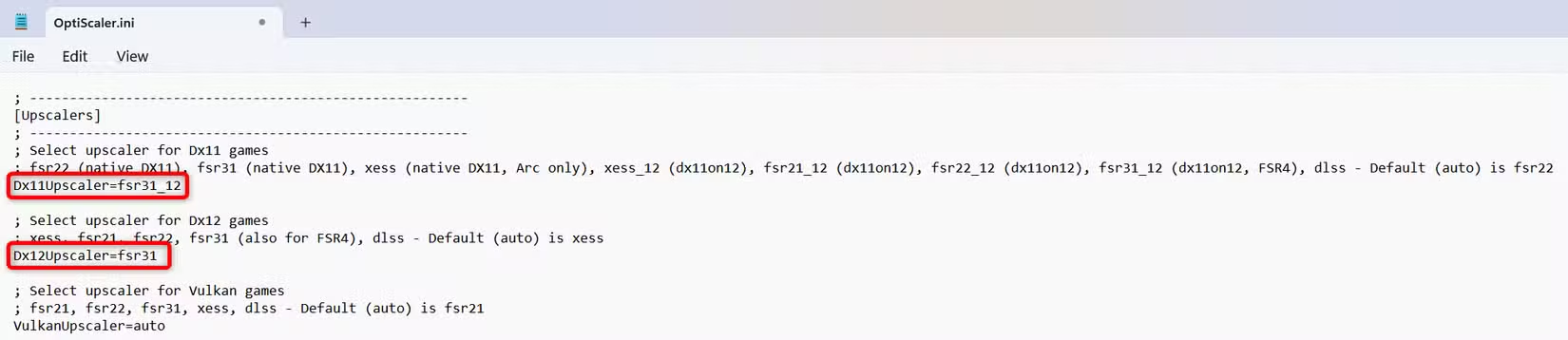
In the command line window that appears, simply press "Enter" at the first step. Next, select your GPU vendor (for example, press 1 for AMD). Subsequent steps can then be continued by pressing "Enter". DLSS spoofing is no longer mandatory but can be useful in certain situations.
Activate and verify FSR 4 in the game.
After installation, you need to configure OptiScaler to prioritize using FSR 4 for games.
1. Edit the configuration file.
In the OptiScaler installation directory, find and open the file.OptiScaler.iniusing a text editor like Notepad.
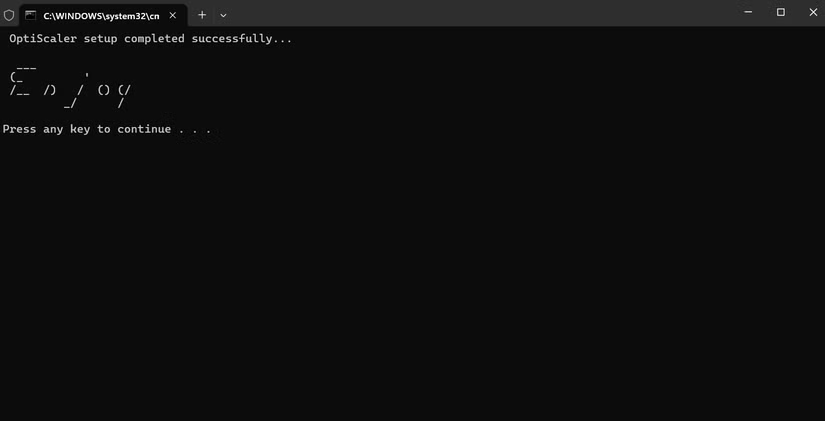
Here, make sure the following values are set:
- The DX11 upgrader is set to
fsr31_12. - The DX12 upgrader is set to
fsr31.
You just need to change the value to match the version of DirectX your game uses.
2. In-game testing
Launch the game, go to the graphics settings, and enable any available image enhancement technologies (DLSS, old FSR, etc.). After entering the game, press the key."Insert"Press and hold on the keyboard to open the OptiScaler overlay.
If in the overlay you see information showing the FSR version starting with the number "4" (e.g., "FSR 4.0.2"), it means you have successfully installed and activated it. If the "Insert" key doesn't work, you can change the shortcut in the file.OptiScaler.ini.
Common problems and solutions
If the overlay still shows FSR 3.1 instead of FSR 4, it's possible OptiScaler failed to automatically "inject" the necessary DLL file. To fix this, visit OptiScaler's compatibility page, download the latest version of FSR 4, and extract the DLL file to the same folder where you installed the tool.
For games that only support DLSS Frame Generation, you can enable FSR frame generation by downloading the DLL file from the project.dlssg-to-fsr3and copy it to the game folder, then configure it in the file.OptiScaler.ini.
OptiScaler is a powerful tool, a testament to the creativity of the gaming community. It allows users to maximize the power of their hardware without having to wait for official updates from the developer, resulting in a smoother and higher-quality gaming experience.