
10 Apple Watch optimization tips to improve usage efficiency.
From managing notifications and leveraging Double Tap gestures to in-depth sleep tracking, these tips will help you master your Apple Watch more effectively.
The Apple Watch is more than just a device that mirrors notifications from the iPhone; it's a powerful, independent tool for health and work. By adjusting advanced settings and leveraging new features in watchOS, users can personalize the watch and make it more useful in their daily lives.
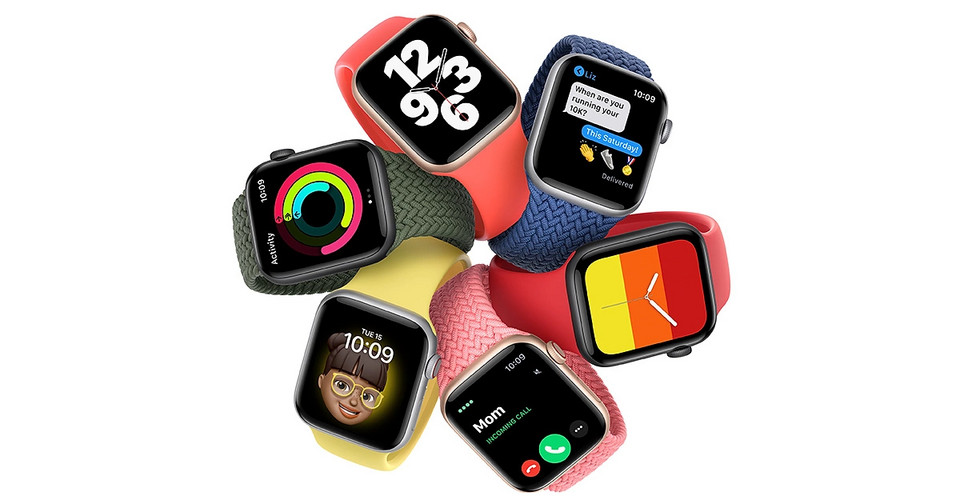
1. Filter notifications and enable silent mode.
By default, the Apple Watch will forward all notifications from the iPhone, which can be distracting. You should go to the Watch app on your iPhone and select...NotificationAnd turn off apps that aren't really important. Also, consider enabling permanent silent mode by pressing the side button to access Control Center and tapping the bell icon.
2. Use smart wrist gestures.
Newer Apple Watch models (Series 9, Ultra 2, SE 3 and later) allow for touchless operation:
- Double Tap:Touch your index finger and thumb together to answer a call, stop a timer, or end a workout.
- Wrist Flick:Shake your wrist to return to the previous screen or quickly exit the menu.
3. Automatically unlock your Mac
This feature allows your Mac to automatically sign in when it detects you're wearing an Apple Watch nearby. To set it up, go toSystem settingson Mac >Touch ID & Passcode> Enable authentication for Apple Watch.
4. Optimize your watch face with widgets.
Instead of cluttering your watch face with too much information, use the Smart Stack. Scroll the Digital Crown or swipe up from the watch face to access widgets like Weather, Calendar, or App Shortcuts. This helps keep your watch face minimalist and clean.
5. Customize multiple watch faces for different purposes.
You can create custom watch faces (like Typograph for everyday style or Meridian for sports activities) and switch between them quickly by swiping from the left or right edge of the screen. Setting them up in the Watch app on your iPhone is easier and more intuitive.
6. Pause or change the Activity Cycle
Since watchOS 11, users can pause their workout series if they are sick or need a day off without losing progress. Go to the app.ExerciseOn iPhone > TapActivity cycle> SelectChange the goalorPause the round.
7. Control Apple TV from your wrist.
If you lose your remote control, you can use the app.Remote controlUse your Apple Watch to navigate and stream content on your Apple TV, as long as both devices are connected to the same Wi-Fi network.
8. Silent Break mode for alarms
To ensure you don't miss important alarms when your watch is in silent mode, you can set individual alarms. In the Alarms app, selectEdit alarmScroll down and turn onBreak the silence.
9. Link the watch face to Focus mode.
You can set each Focus mode (Work, Personal, Fitness) to automatically display a corresponding watch face. This setting is located in the settings.SettingnewsConcentrateon iPhone.
10. In-depth sleep tracking
Use Sleep Focus mode to automatically dim and silence the watch screen. With newer software versions, the Apple Watch provides sleep scores and detailed analysis of sleep stages, helping you improve your long-term health.


