5 ways to completely fix screen flickering when watching videos on Microsoft Edge.
Screen flickering issues on Microsoft Edge are often caused by hardware or extension conflicts. You can resolve this by disabling hardware acceleration or changing the refresh rate.
Screen flickering while watching videos on Microsoft Edge is a common issue, often caused by conflicts between the browser and computer hardware. This problem can be quickly resolved by adjusting system settings, restoring a smooth entertainment and work experience.
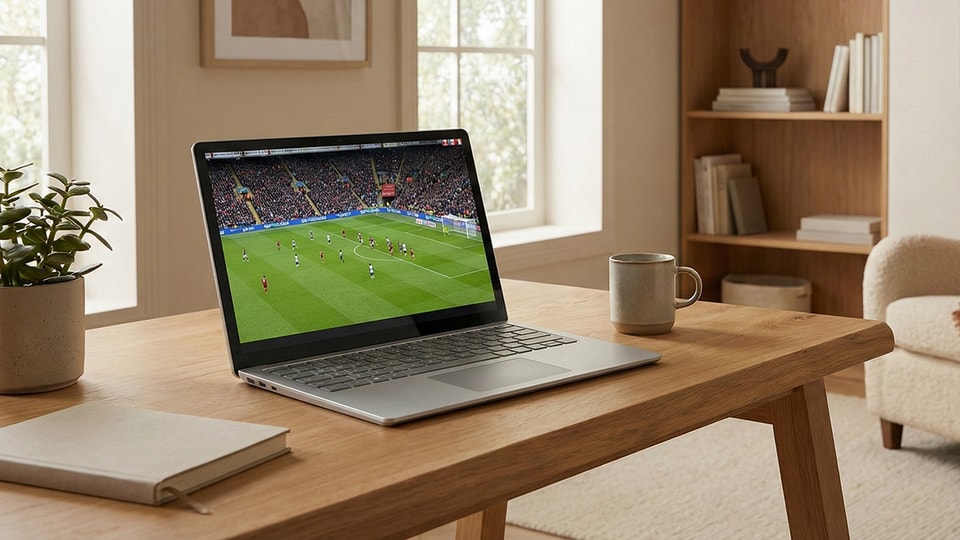
1. Disable hardware acceleration.
Hardware acceleration allows the browser to use the graphics card (GPU) to display images. However, incompatibility between the software and the graphics driver is often the cause of screen flickering. When this feature is disabled, Microsoft Edge switches to using the CPU for processing, resulting in more stable images.
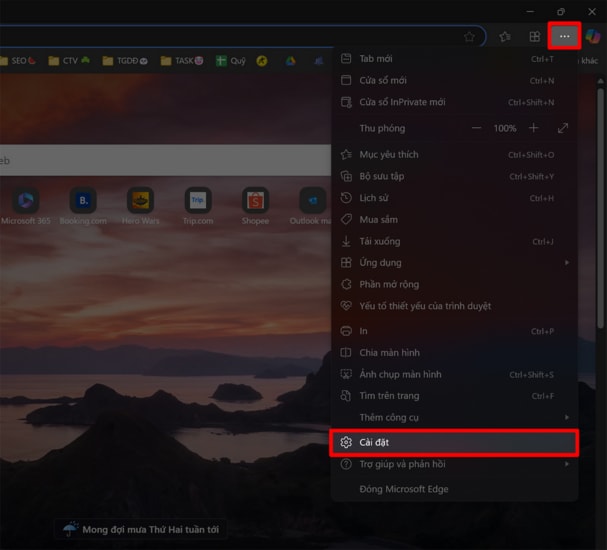
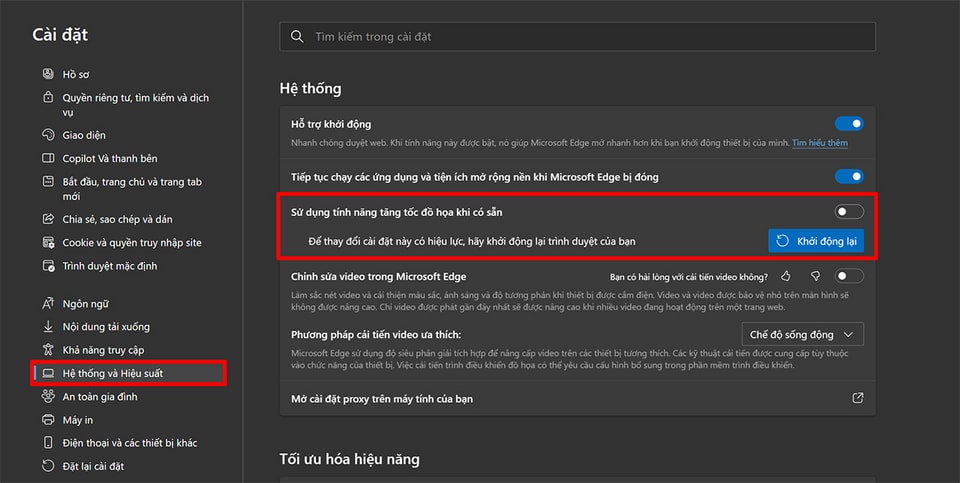
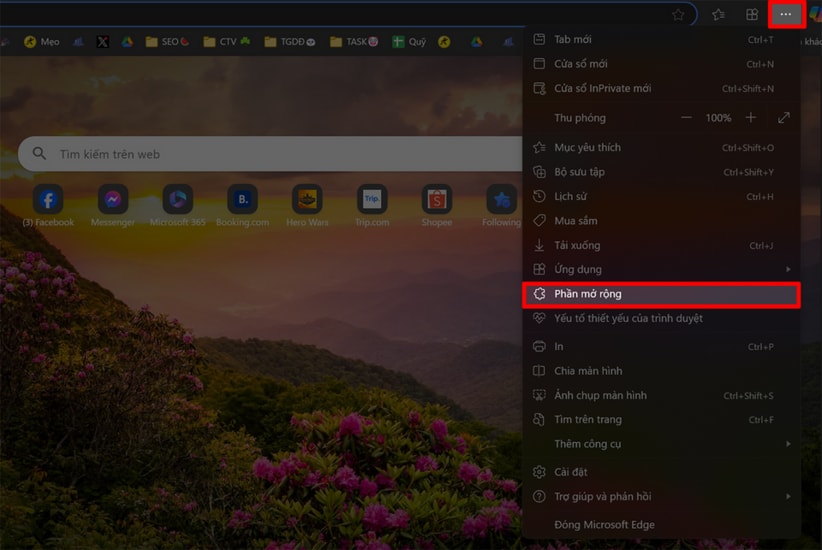
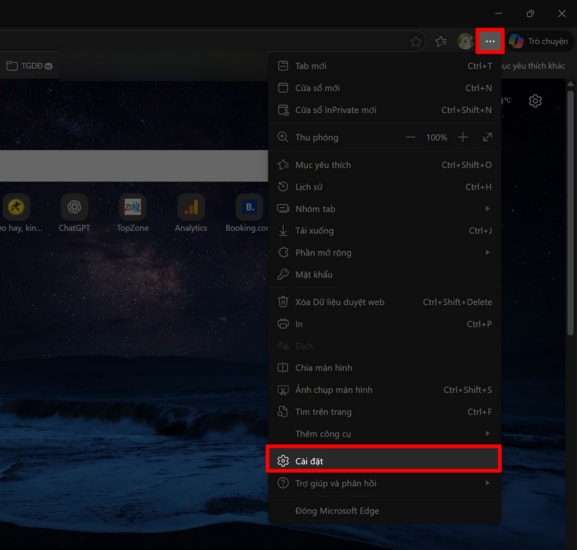
To do this, click the three-dot icon in the upper right corner of your browser, then selectSetting.
In the menu on the left, selectSystem and PerformanceThen, find the item.Use hardware acceleration when available.and switch to the off state.
2. Check and remove extensions.
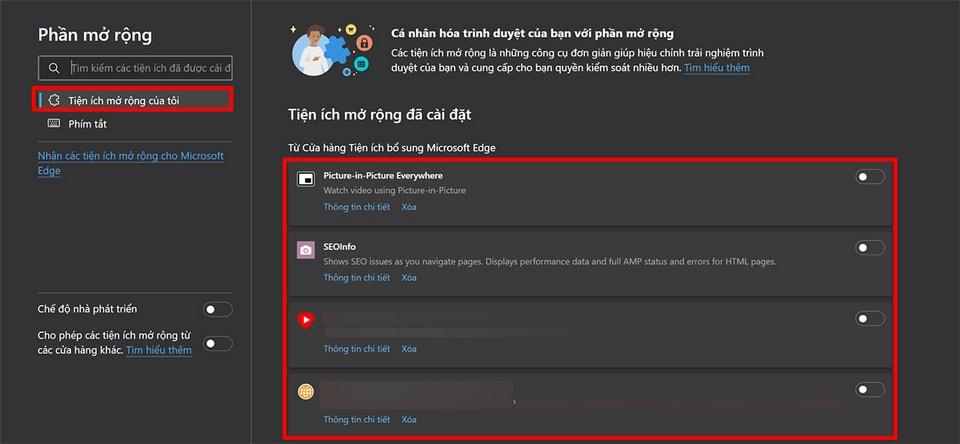
Extensions can offer many features but can also easily cause system conflicts. You should try uninstalling or temporarily disabling each extension to pinpoint the exact cause of the error.
The user taps the three dots, then selectsExtensionTo manage the list of installed extensions.
Here, you can remove or disable unnecessary extensions to improve browser stability.
3. Adjust the screen refresh rate.
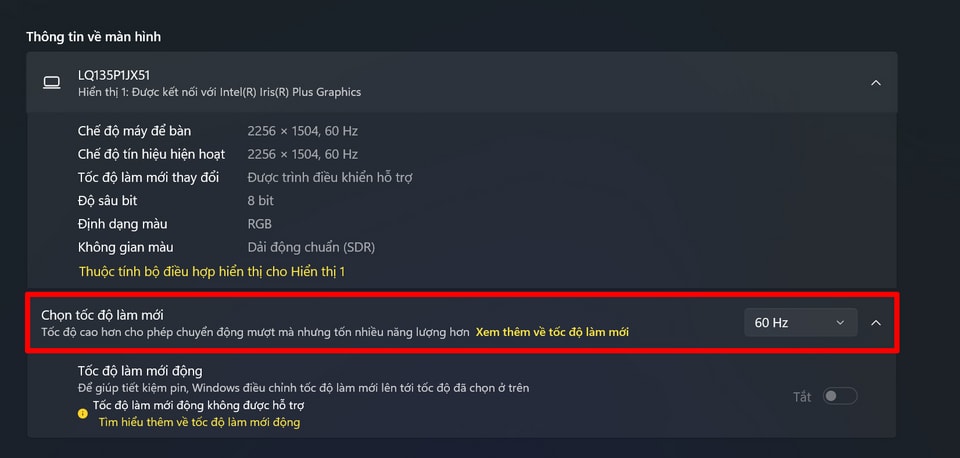
Changing the refresh rate is an effective solution if the problem arises from an incompatibility between the video frame rate and the monitor's refresh rate. Switching to 60 Hz often helps resolve stuttering, lag, and flickering.
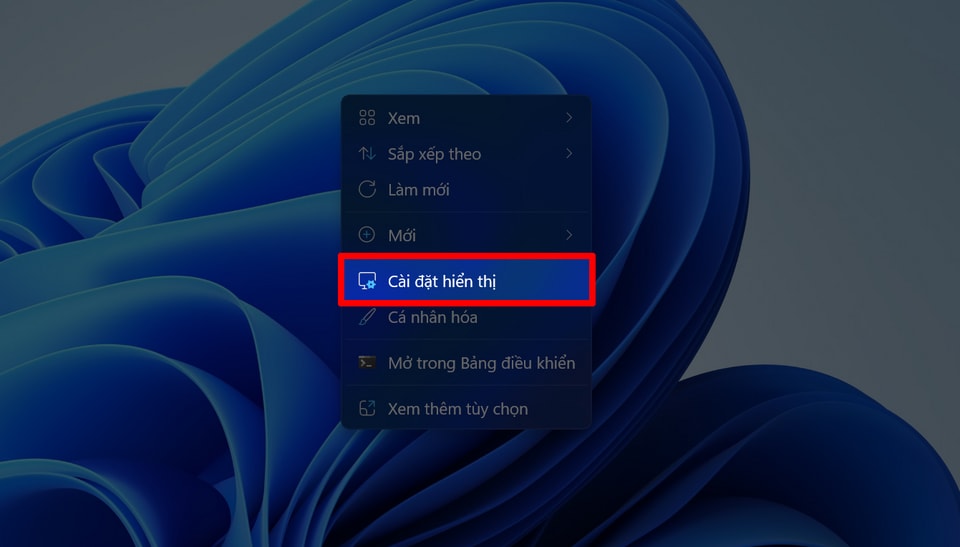
Step 1:Right-click on the Desktop, selectDisplay settings(Display settings).
Step 2:SelectAdvanced display settings(Advanced display settings).
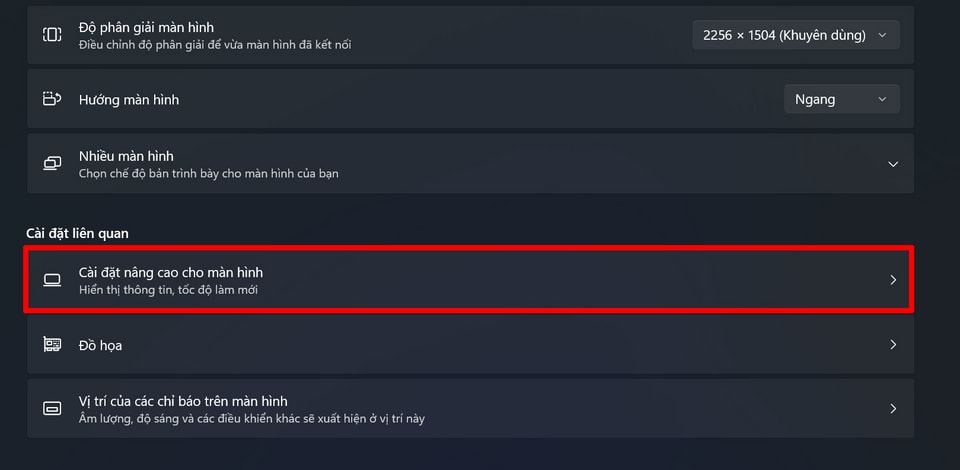
Step 3:In the sectionSelect refresh rateTry switching to a different, more stable frequency (e.g., 60 Hz).
4. Restart your computer.
Although simple, restarting your device refreshes system processes and frees up temporary memory. This can immediately eliminate temporary software conflicts that cause video display errors.
5. Update Microsoft Edge and the Windows operating system.
New updates often include security patches and improvements to graphics driver compatibility. Ensuring both your browser and operating system are up-to-date is the best way to maintain performance.
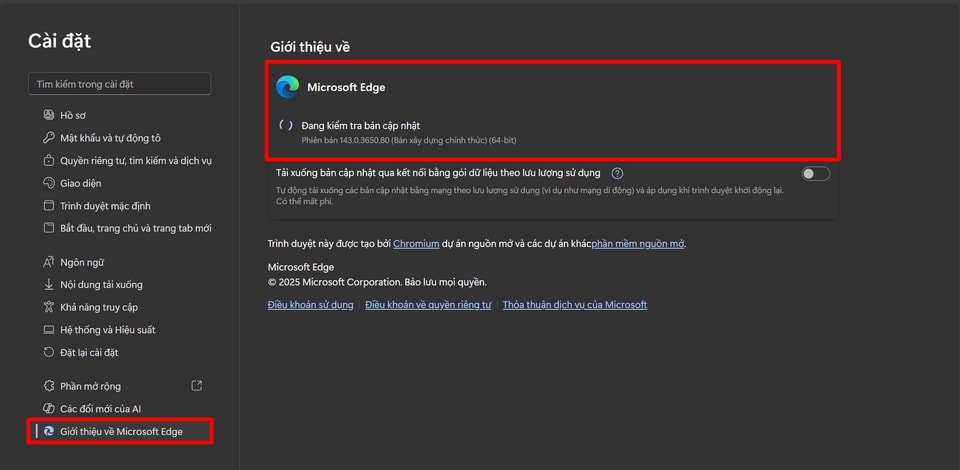
To update Microsoft Edge, go toSettingnewsIntroduction to Microsoft EdgeLet the system perform the check automatically.
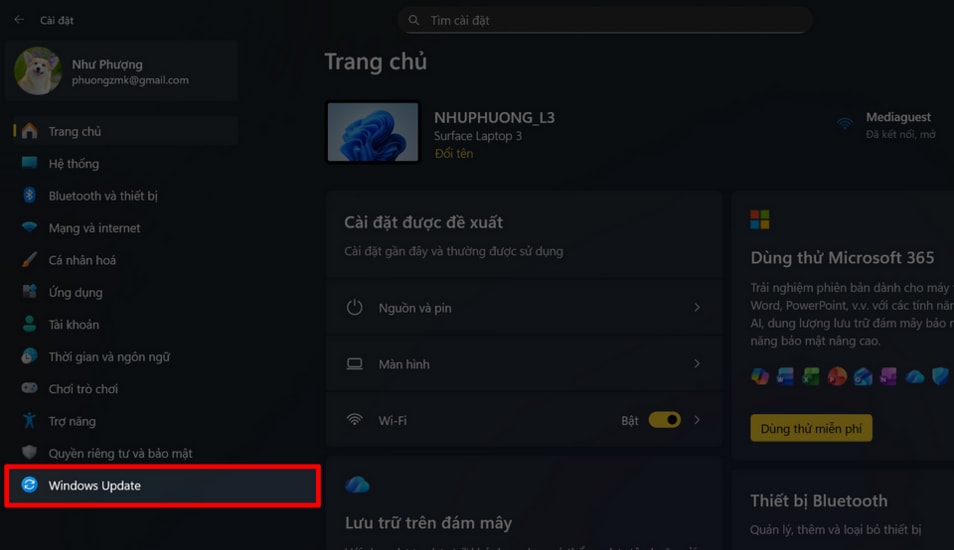
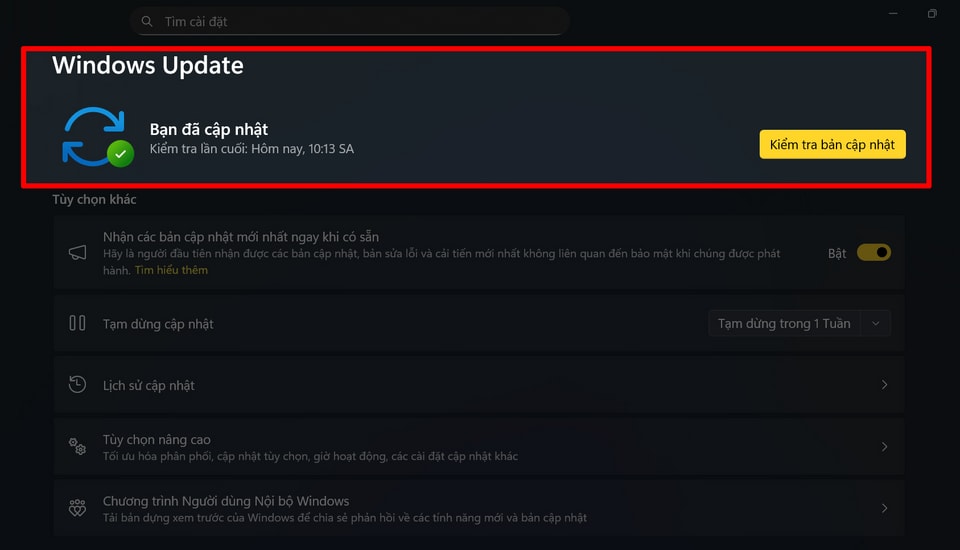
For Windows, press the key combination.Windows + I, selectWindows Updateand pressCheck for updates.