5 changes in iOS 18 that will refresh your iPhone.
iOS 18 brings many small but powerful customization options. Discover 5 hidden features, from locking apps with Face ID to personalizing the interface, to optimize your daily user experience.
The iOS 18 operating system incorporates many useful features that aren't widely publicized. Instead of waiting for major future updates, users can explore practical improvements already available, helping to personalize and enhance device security. These adjustments only take a few minutes to set up but can significantly change how you interact with your iPhone.
1. Enhance security with Face ID for each app.
iOS 18 allows users to lock individual apps using Face ID, adding an important layer of security. This feature is especially useful when lending your phone to someone to view photos without worrying about them accessing other sensitive apps.
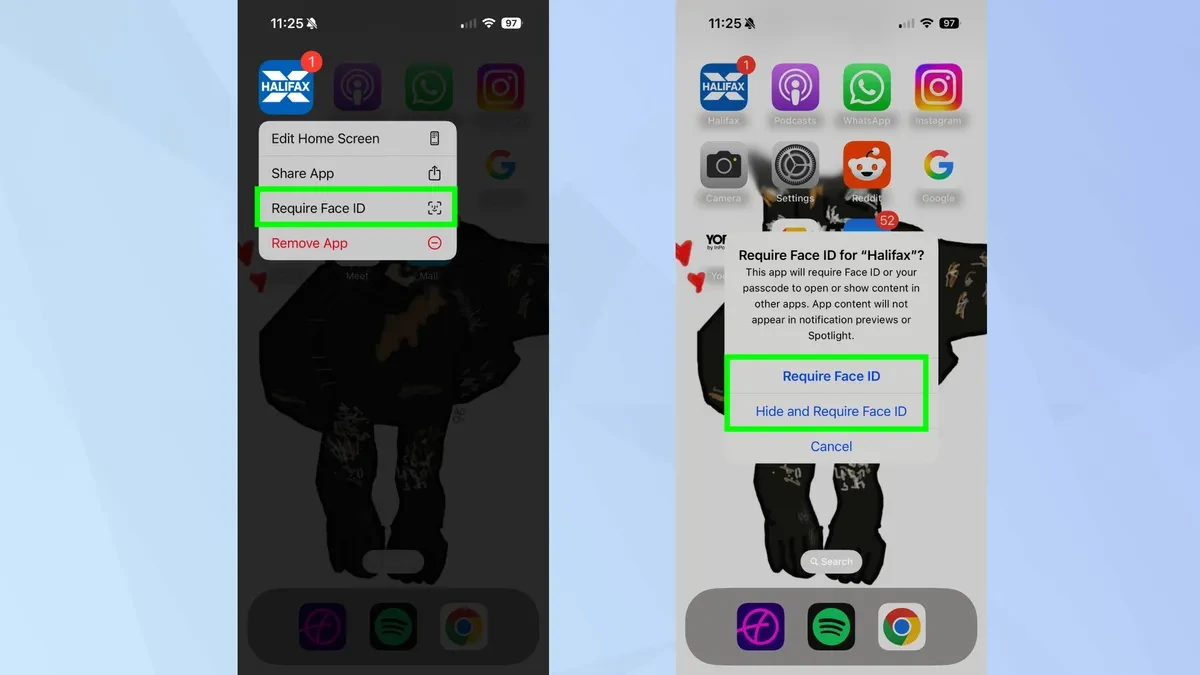
To activate it, users simply press and hold the app icon, then selectRequires Face ID.From there, the app will require facial authentication to unlock, even if the phone is already unlocked.
For applications requiring higher security, such as banking or messaging, users can choose an option.Hide and Require Face IDThis action will remove the app from the Home screen and move it to a protected folder in the App Library.
2. Personalize the interface with matching app icons.
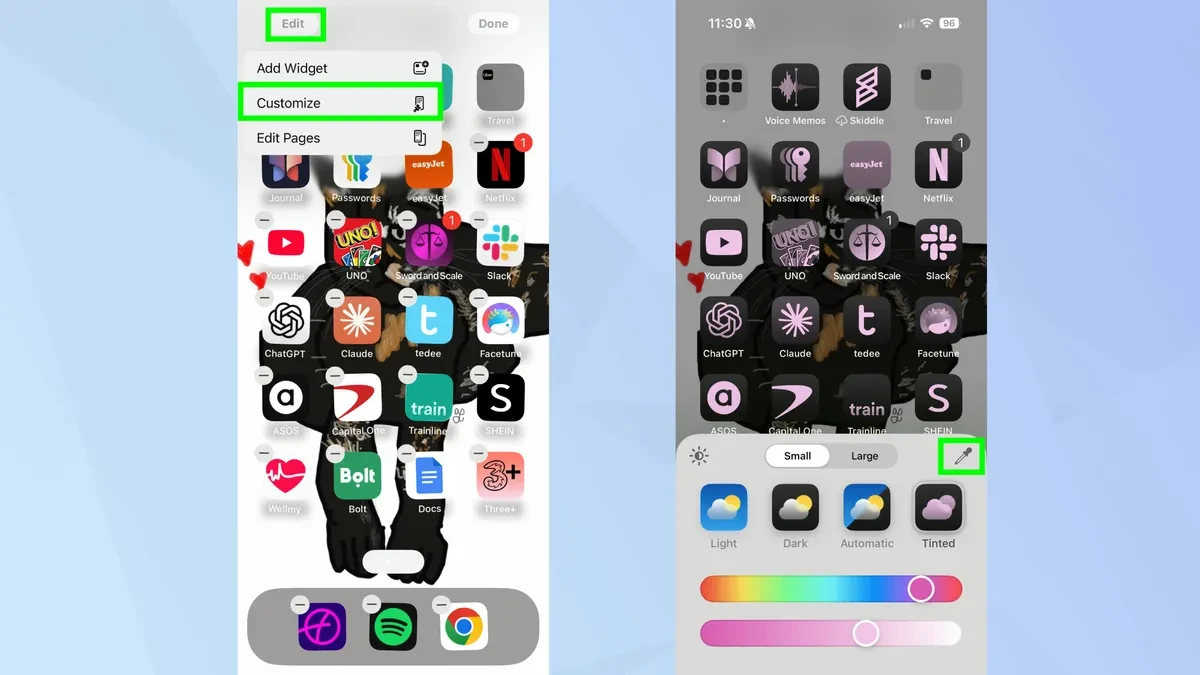
iOS 18 introduced the ability to customize the colors of app icons, creating a more consistent and aesthetically pleasing interface. Instead of the default multi-colored icons, users can apply a single color tone to the entire Home Screen.
To use it, press and hold on an empty area of the screen, then selectEditin the upper left corner, then selectCustomizeHere, select the item.Tintedand use the color picker or slider to adjust. A convenient feature is the dropper tool, which allows you to take colors directly from the background to create harmony.
3. Control the video player in the Photos app.
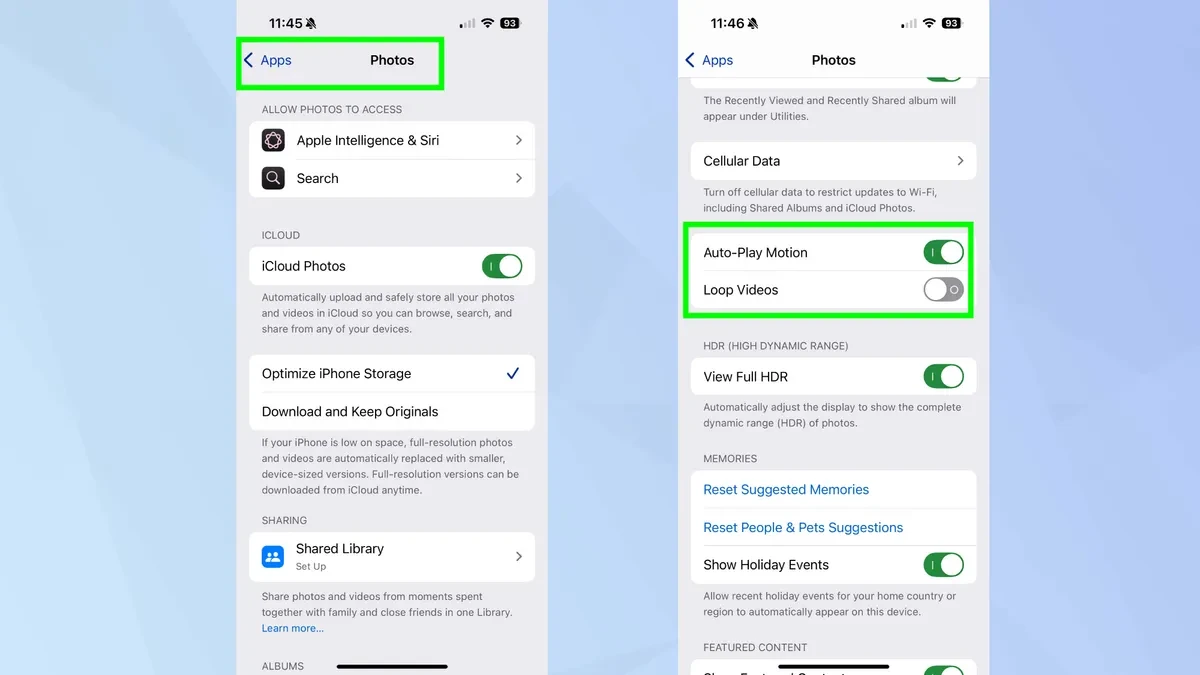
One of the small but effective changes to improve the user experience is the ability to turn off the auto-repeat video feature in the Photos app. Previously, videos would play continuously until the user manually stopped them.
To turn this feature off, go toSettings > Photosand find the optionLoop VideosSimply flipping this switch will cause the video to play only once and then automatically stop. Alternatively, users can also turn it off.Auto-Play MotionTo prevent videos from automatically starting to play when browsing the library.
4. Redesign the Control Center to your liking.
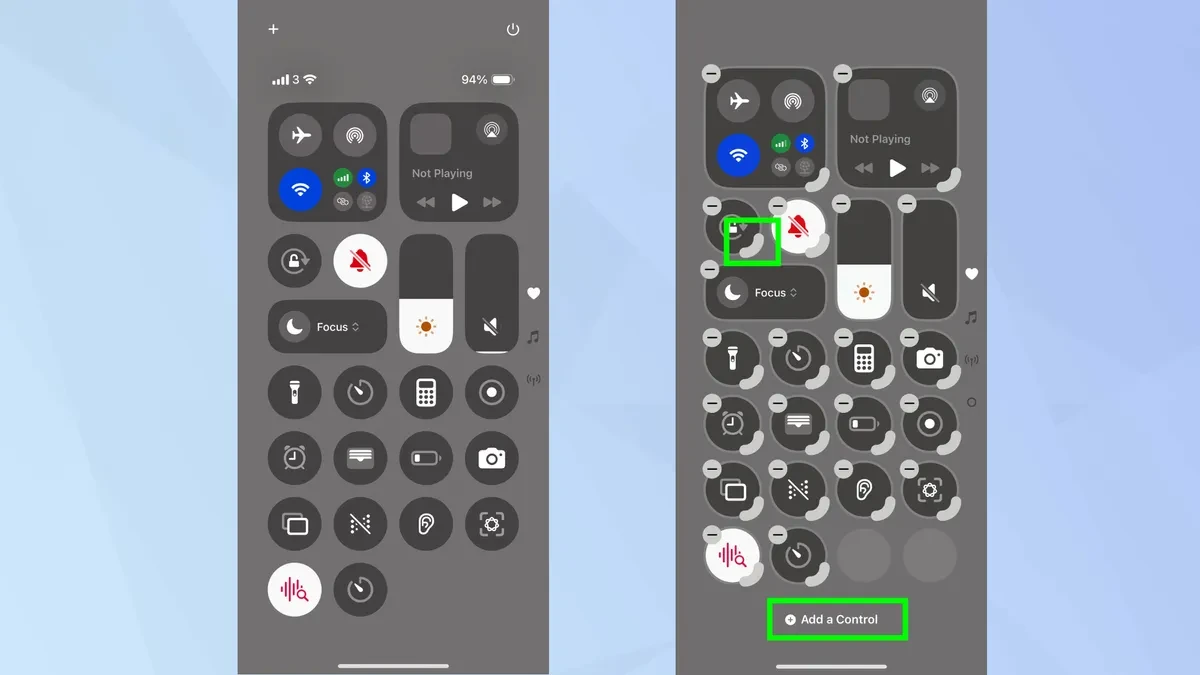
The Control Center in iOS 18 has become more flexible, allowing users to customize the layout and size of the control buttons more deeply. Instead of small, fixed buttons, you can now expand them to display more information.
To edit, swipe down from the top right corner to open Control Center, then press and hold on an empty area to enter edit mode. Users can drag and drop controls to rearrange their positions. Notably, by dragging the handles at the bottom corners of some controls, they will expand into larger buttons, displaying details without opening the app.
5. Customize shortcuts on the Lock Screen
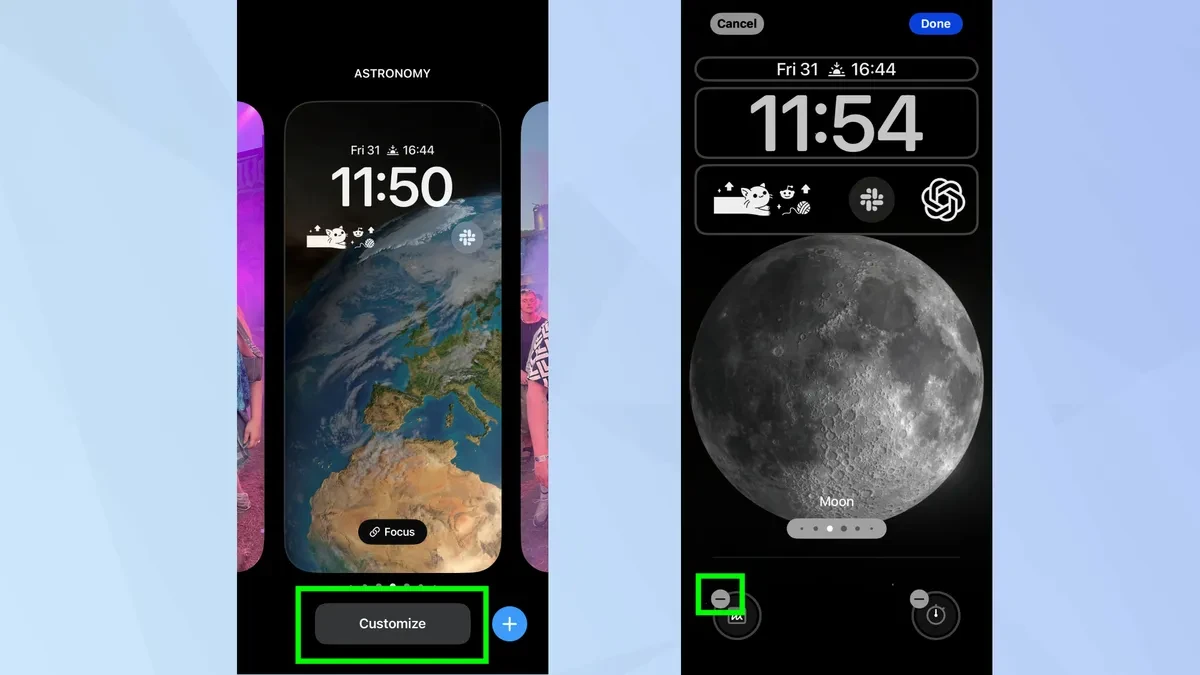
The default shortcuts for the flashlight and camera on the Lock Screen can now be replaced with other, more useful functions to suit personal needs. This helps prevent accidental flashlight activation and allows quick access to frequently used tools.
To change it, press and hold the Lock screen, then selectCustomize, then selectLock screenTap the minus (-) icon on the current shortcut to delete it, then tap it again to select from the list of replacement options. For example, you can replace the camera shortcut with the timer button or change the flashlight to the Quick Notes button.