5 hidden features on iPhone that will help you master your device.
Discover lesser-known iPhone settings to eliminate annoying notifications, edit text more accurately, and turn the Apple logo into a versatile shortcut.
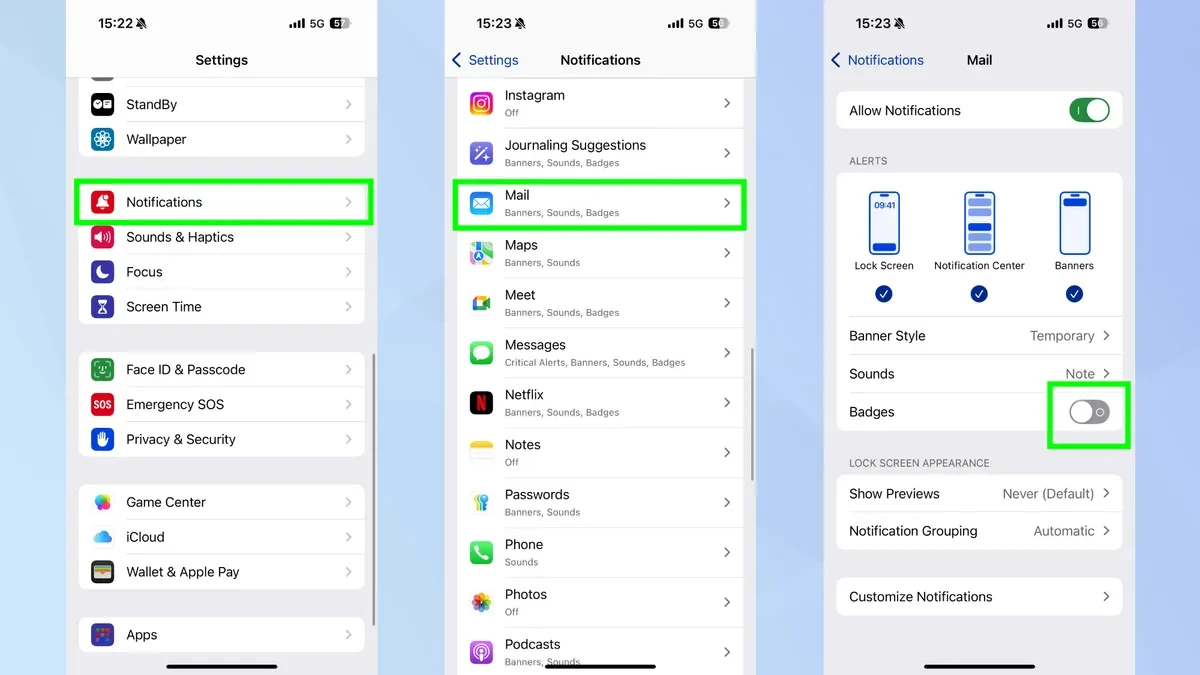
Clean up your home screen: Turn off notification badges.
The red notification badges on app icons can be distracting and clutter the home screen. Users can easily turn them off for a cleaner interface without deleting notifications.
To do this, open the application.Settingsand select the itemNotificationsHere, select the app you want to customize and turn off the option.BadgesThis process needs to be repeated for each application, resulting in a more intuitive and less distracting home screen.
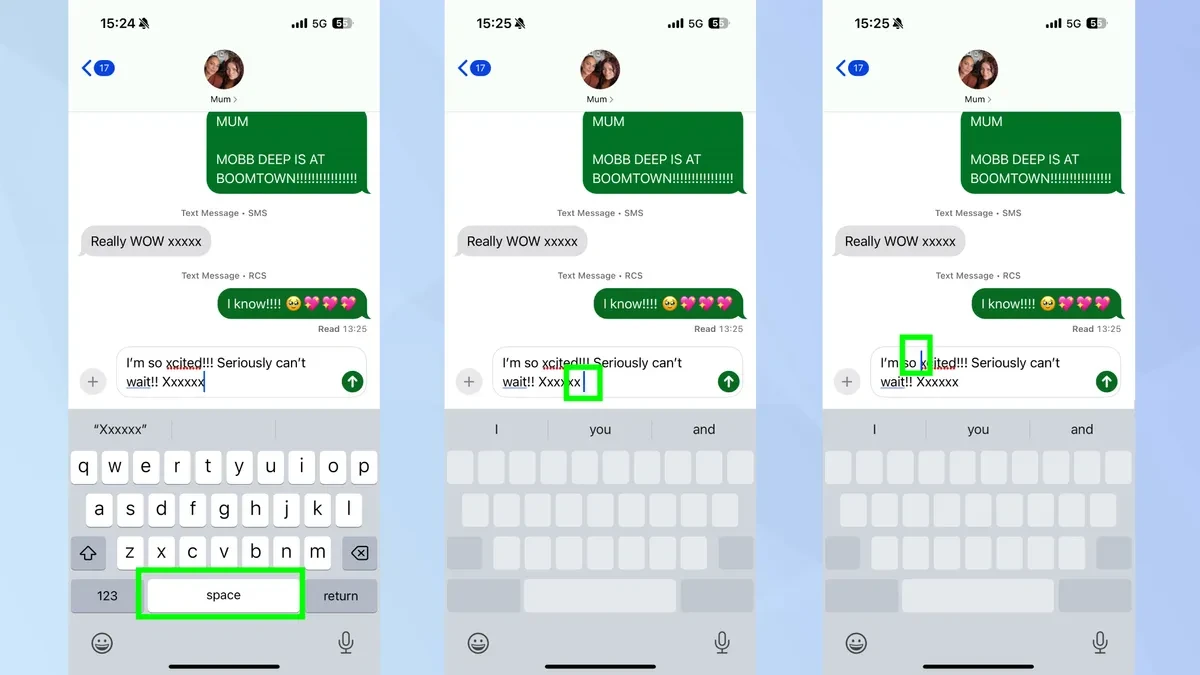
Turn your keyboard into a trackpad: Precise text editing
Moving the cursor to the correct position when typing on a touchscreen is often difficult. However, iOS incorporates a feature that allows you to turn the entire keyboard into a virtual trackpad, making navigation easier and more precise.
Instead of pressing and holding on text, users simply press and hold the spacebar. Immediately, the characters on the keyboard disappear, and you can slide your finger in any direction to move the cursor smoothly. This method offers superior control compared to traditional tap-and-drag gestures.
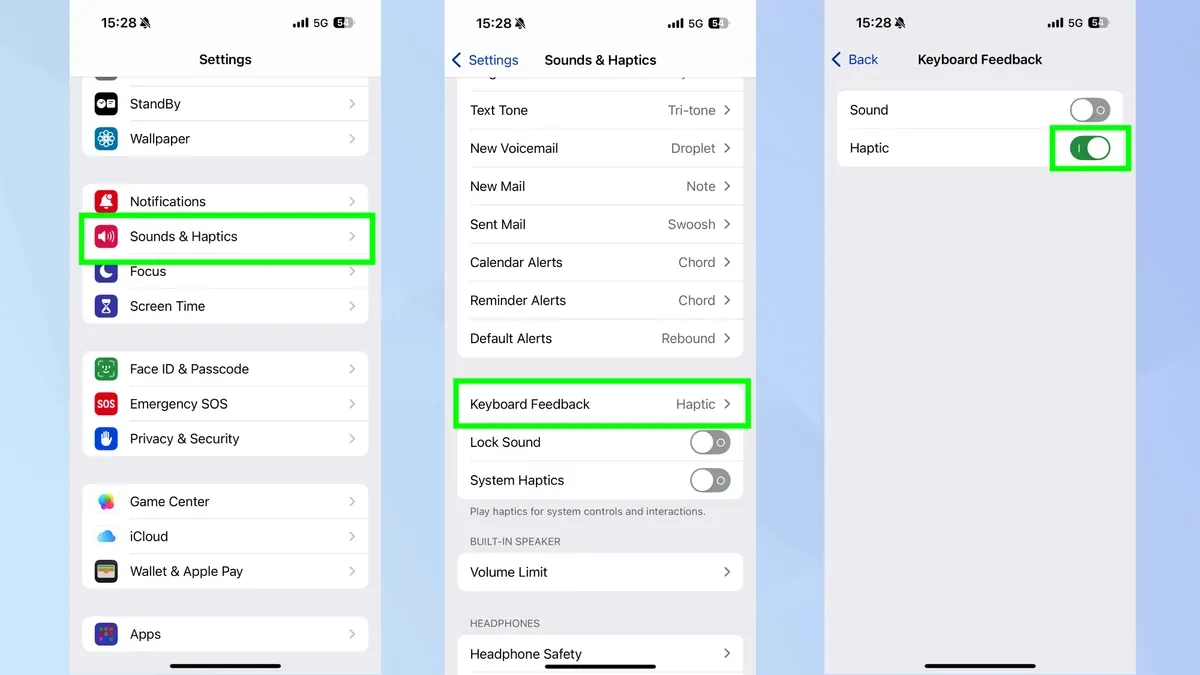
Stay quiet without muting: Customize keyboard sounds
The sound of typing can be distracting in a quiet space, but switching your phone to silent mode entirely will cause you to miss important calls or notifications. iPhones allow you to turn off keyboard sounds individually without affecting other system sounds.
To customize, visitSettings, selectSound & Haptics, then find the itemKeyboard FeedbackHere, you can turn off the item.Soundbut still keptHapticTo get haptic feedback when typing.
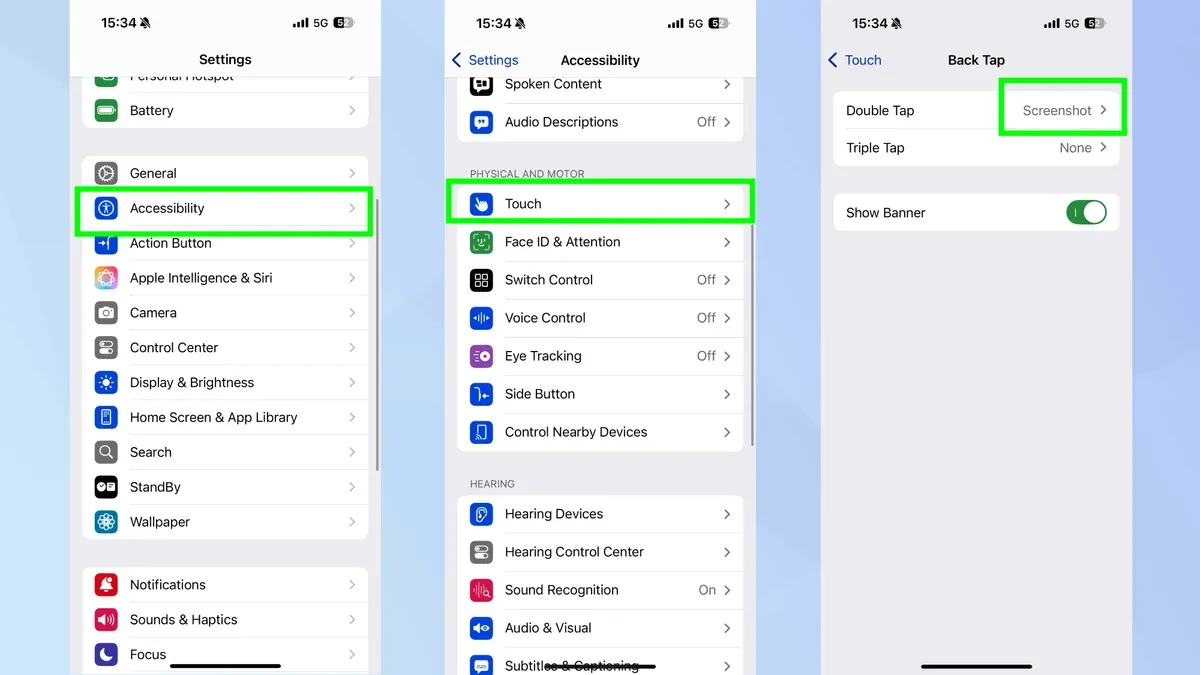
Back Tap: Assign a function to the Apple logo on the back of the phone.
The back of the iPhone has a hidden "button" which is the Apple logo, that can be programmed to quickly perform tasks via tap. This feature is called Back Tap.
To activate, go toSettingsnewsAccessibilitynewsTouchand scroll down to selectBack TapYou can assign different actions to the operation.Double TaporTriple TapFor example, taking a screenshot, opening the camera, turning on the flashlight, or locking the screen.
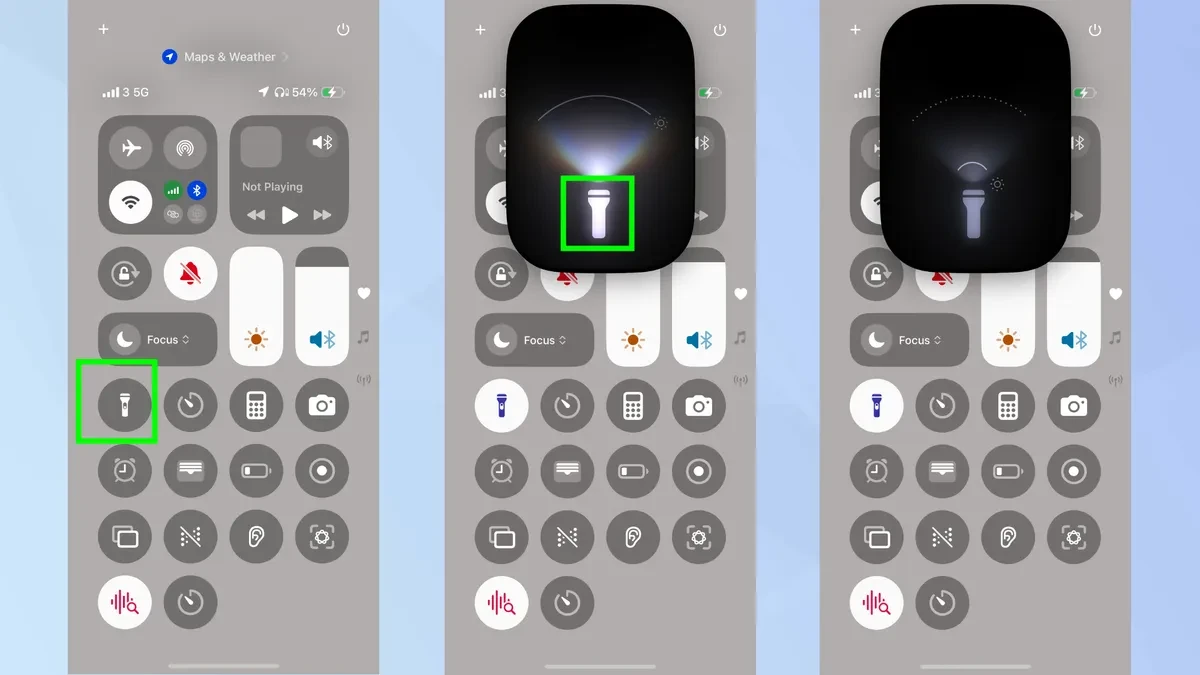
More than just turning it on and off: Adjusting the brightness of your flashlight.
The flashlight on the iPhone isn't just on and off. Users can fully adjust the brightness to suit different situations, from a soft light to maximum intensity.
To access this feature, openControl CenterBy swiping down from the top right corner of the screen, you can adjust the brightness. Then, press and hold the flashlight icon. A vertical slider will appear, allowing you to slide your finger up or down to adjust the brightness.