
6 iPhone 18 Pro settings users should change
The iPhone 18 Pro boasts several noteworthy new features, from a professional camera and photo reference to Siri AI and location protection. Some settings should be adjusted immediately after setting up the device.
After transferring data from an old iPhone to an iPhone 18 Pro, many people tend to keep the default settings. However, the new generation of iPhones has some features worth actively enabling or customizing, especially if you frequently take photos, use AI, or are concerned about privacy.
Turn on Apple's Photo Reference
Apple's Reference Image feature is one of the notable features on the iPhone 18 Pro. This feature aims to help users verify whether a photo was actually taken with the iPhone's camera or has been edited or created using AI.
When activated, the iPhone creates an additional reference image from the main camera sensor. This data can be used to verify the authenticity of an image without associating the photo with the identity of the person who took it.
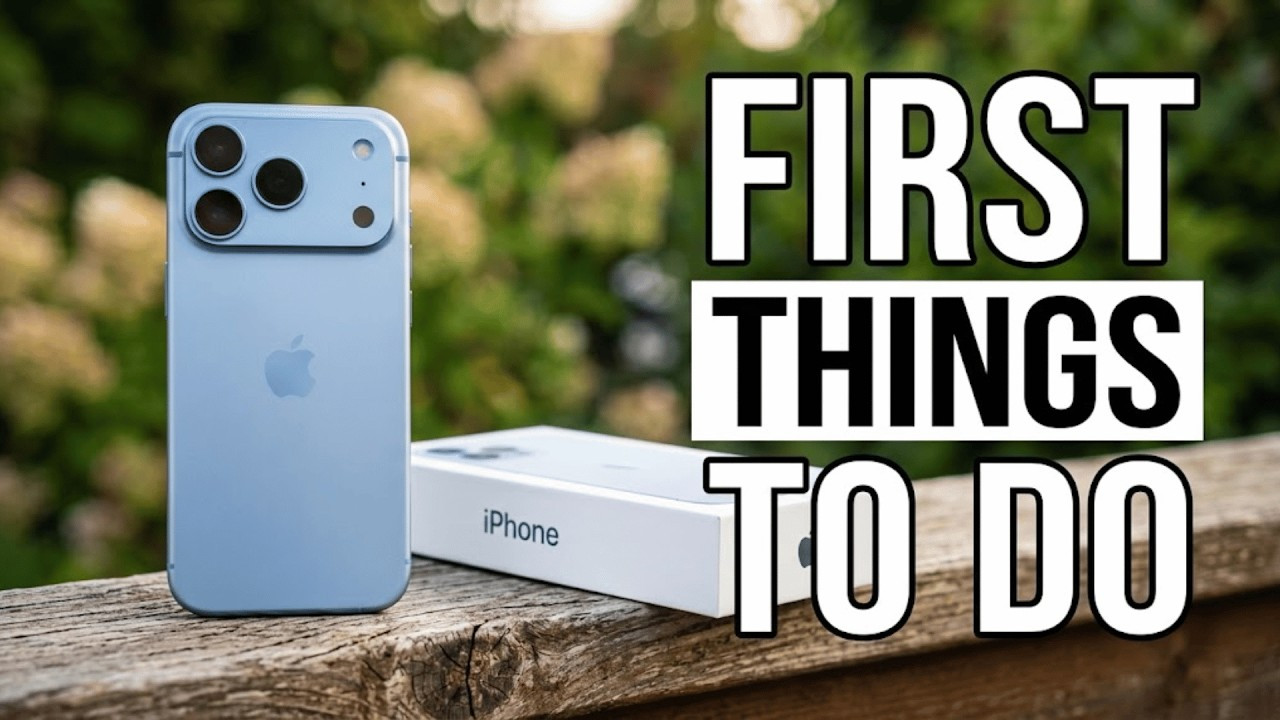
To enable the feature, go to Settings > Camera > Reference Photos, then add Reference Mode. When taking photos, users can select Reference Mode in the Camera app.
This feature is particularly useful given that AI-generated images are becoming increasingly difficult to distinguish from real photographs.
Explore the manual camera control options.
The camera on the iPhone 18 Pro offers more manual control options. Users can adjust aperture, focus, shutter speed, white balance, and exposure histogram directly within the Camera app.
Most notably, the aperture is variable. Users can choose from f/1.48 to f/4.0. A large aperture like f/1.48 allows more light to enter the sensor and creates a more blurred background, while a smaller aperture helps to keep more areas of the image in focus.
Shutter speed can also be adjusted from 1/1,600th of a second to 1 second. Faster speeds are suitable for capturing moving subjects, while slower speeds allow more light to be captured and can create motion blur effects.
For the average user, the parameters can be left on automatic mode. However, these options will be useful if you want to control the image like a professional camera.
Activate Siri AI
iOS 27 introduces a new version of Siri with improved contextual understanding and more natural interaction. Siri can assist users in searching for information on their device, processing content displayed on the screen, and performing various data-driven tasks such as managing messages, notes, calendar events, or emails.
On the iPhone 18 Pro, the A20 Pro chip is also optimized for AI tasks, helping to process complex requests faster.
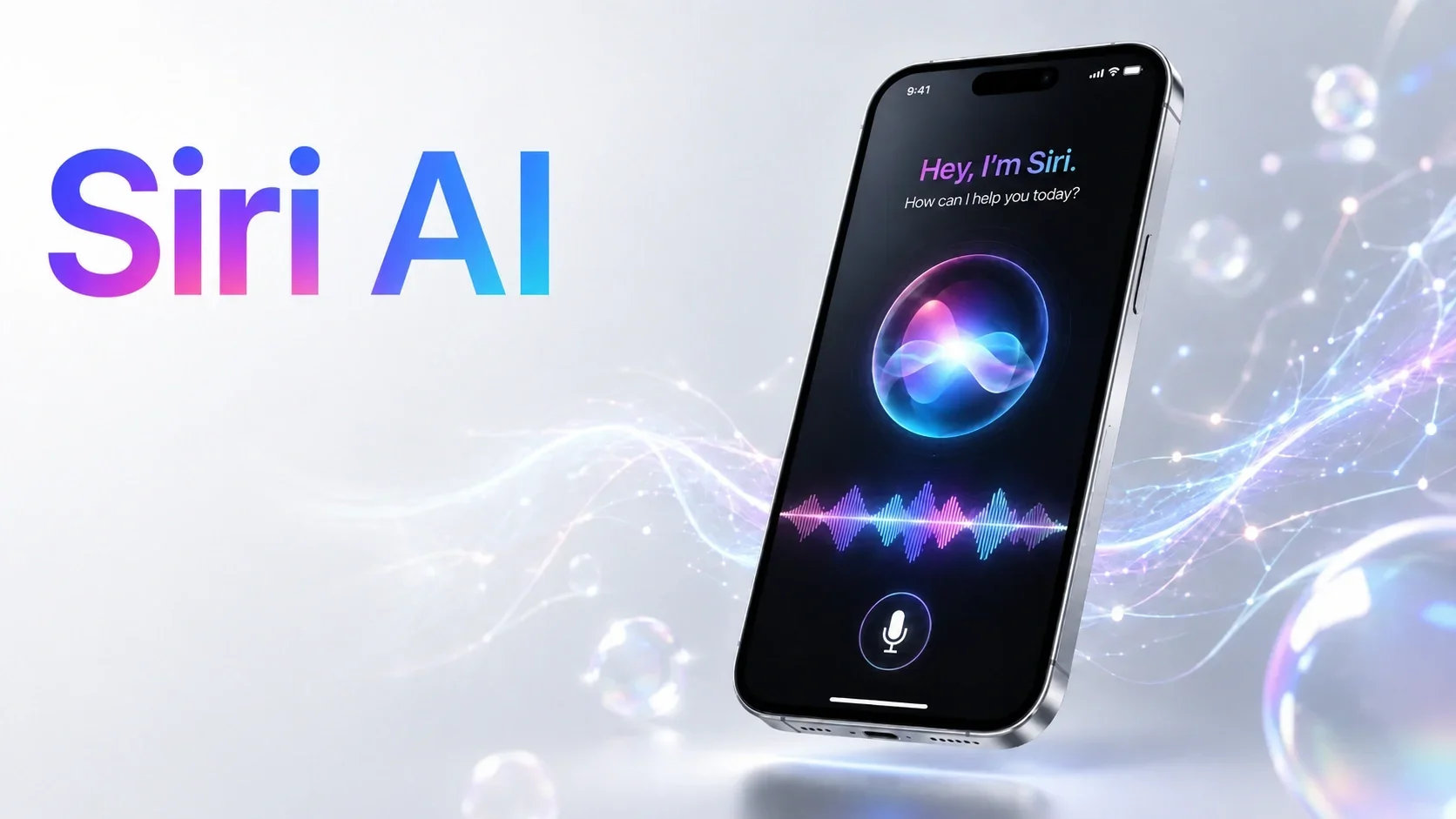
To use the new Siri AI, users need to meet Apple's language and region requirements, then go to Settings > Siri to register for the new version of Siri.
Customize your shooting style.
Photographic styles allow users to shape the color and look of an image right when it's taken, rather than requiring extensive editing afterward.
On the iPhone 18 Pro, Apple added a new generation of this feature with more options for color, texture, and grain. Users can create their own style or choose from pre-set settings.
You can go to Settings > Camera > Shooting Style to adjust these settings. Alternatively, these settings can also be changed directly within the Camera app.
If you prefer a natural look, you can stick with the Standard style. Those who like a more cinematic feel can increase the grain or adjust the colors to create a look similar to a film camera shot.
It's worth noting that users can still adjust these settings after shooting, so it's not necessary to choose the perfect settings right from the start.
Change the lock screen clock to a smaller size.
iOS 27 adds a smaller clock display style to the lock screen. Instead of taking up a large portion of the screen, the clock can be minimized into a widget, allowing more space to be displayed on the wallpaper.
To change it, press and hold the lock screen, select Customize > Clock, then open the Font & Color options and switch to the small clock style.
This is primarily a visual change, but it's suitable for those who want a minimalist lock screen or want to make full use of the wallpaper.
Limit sharing your precise location with your mobile carrier.
Another notable setting relates to privacy. On iPhones that support this feature, users can restrict carriers from determining the device's precise location.
Go to Settings > Cellular > Cellular data options, then turn on Precise location restrictions if your carrier supports it.
According to Apple, this setting does not affect connection quality and does not prevent emergency services or Find My from using necessary location information. The main purpose is to limit the carrier's ability to pinpoint the device's location with excessive precision.
Not all iPhones or carriers support this feature, so the option may not appear on some users' devices.
With the iPhone 18 Pro, adjusting these settings isn't mandatory when using the phone. However, they help users better utilize the new camera, AI features, and privacy tools that Apple has added to the new generation of iPhones.


