7 steps to accurately check a used iPhone to help you avoid buying a refurbished device.
A professional inspection process for used iPhones includes testing the exterior, screen, iCloud, and serious motherboard defects, ensuring users acquire a quality Apple device.
Knowing how to check a used iPhone is a crucial skill for owning a quality Apple device at a reasonable price. This method involves seven steps of comparison, from the exterior to the internal components, to ensure the device hasn't undergone repairs or had low-quality replacement parts installed.
1. Check the appearance and physical buttons.
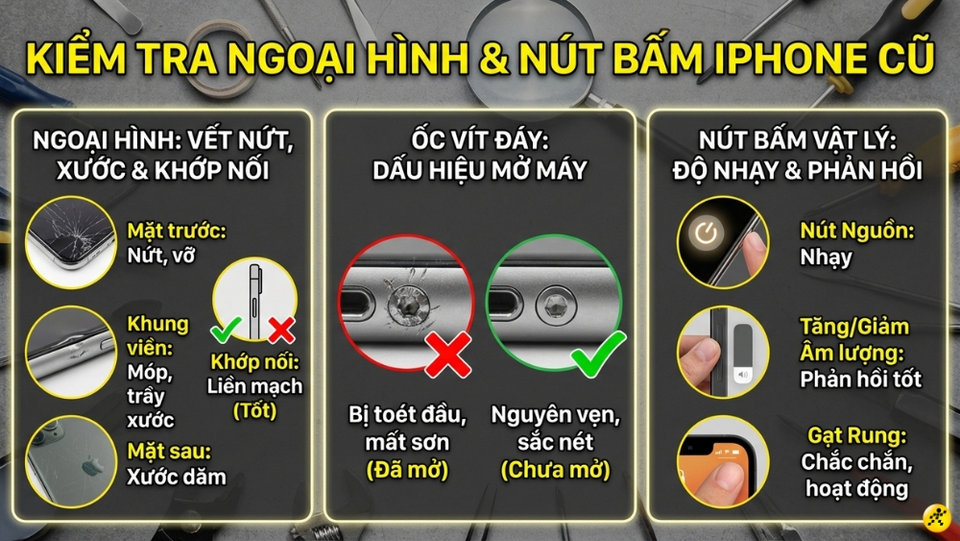
A visual inspection is the first step in assessing whether a phone has been dropped or had its hardware tampered with. A quality used iPhone should have seamless joints and smoothly functioning mechanical parts. You need to carefully examine the front, back, and frame for dents, scratches, or cracks.
In particular, carefully examine the two screws on the bottom edge; if the screws show signs of being stripped, scratched, or have lost their paint, it's highly likely the device has been disassembled. Also, test the responsiveness of the physical buttons such as the power button, volume buttons, and mute switch.
2. Check the screen and touch functionality.
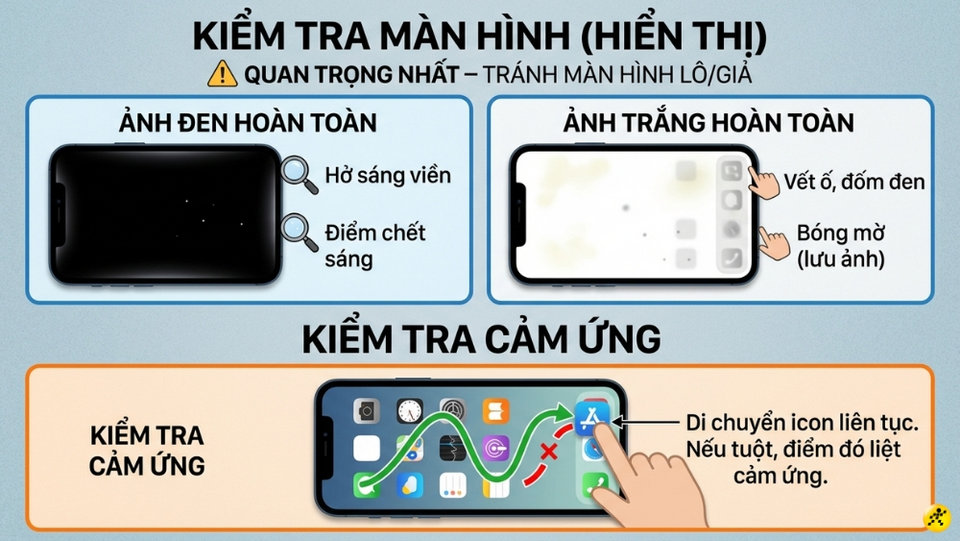
The screen is a high-value component, so checking its display quality is crucial. To check for dead pixels, open a completely black image to see if there is any light leakage at the edges of the screen. Next, switch to a white image to look for stains, black spots, or ghosting (ghosting).
Regarding touch sensitivity, press and hold any app icon and move it continuously across the screen. If the icon slips at one point, that spot may have a dead touch sensor.
3. Verify the IMEI number and country of origin.
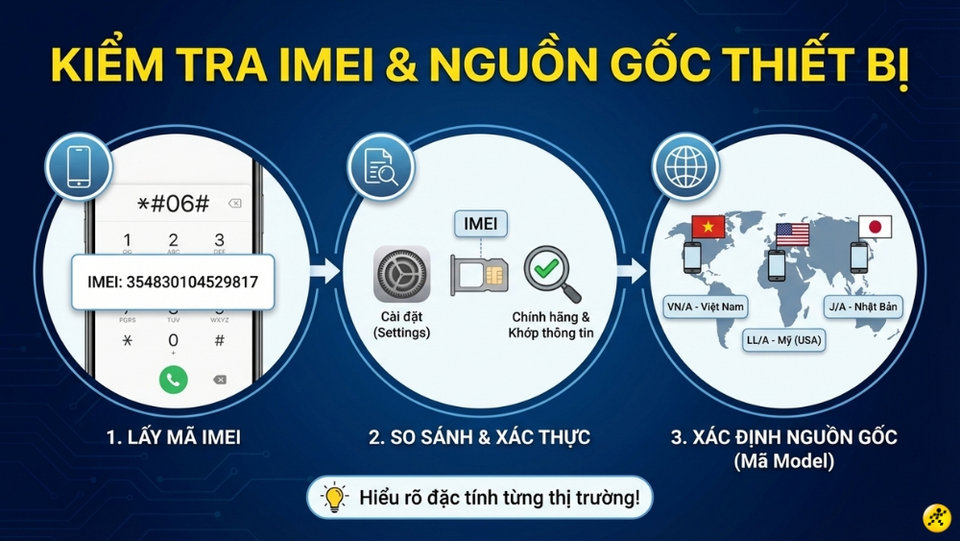
The IMEI number helps you verify that the device is genuine. Go to your dialer, press *#06# to get the IMEI number, then compare it with the information in the Settings and the number on the SIM tray. Additionally, check the Model number to determine the origin: VN/A indicates a Vietnamese product, LL/A indicates a US product, and J/A indicates a Japanese product.
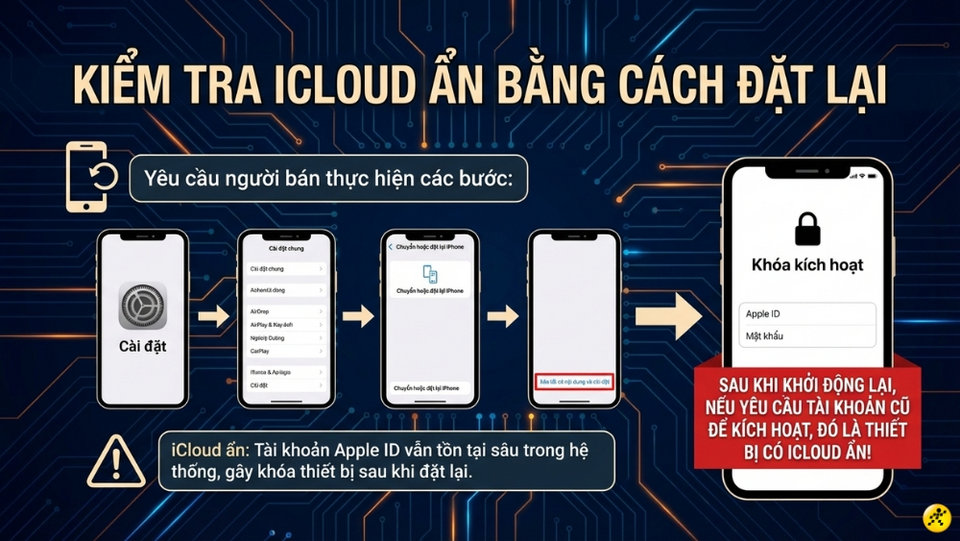
4. Check for hidden iCloud accounts by performing a factory reset (step 2).
You must ensure you don't buy a device that has been remotely locked. Hidden iCloud is a situation where the Apple ID account still exists deep within the system but is not visible, which can cause the device to be completely locked after a reset. Ask the seller to perform the following:Settings > General > Switch or reset iPhone > Erase all content and settingsIf, after restarting, the device prompts you to enter your old account for activation, it means the device has a hidden iCloud lock.
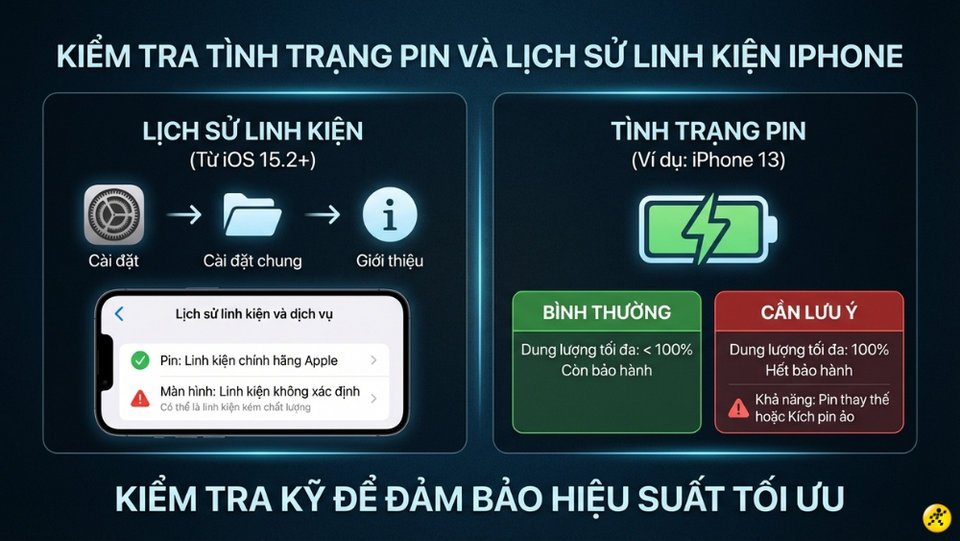
5. Check battery status and component history.
Starting with iOS 15.2, Apple added the "Parts and Service History" feature to the settings.Settings > General > AboutIf the device displays "Unknown component," it could be a low-quality, mass-produced part. Regarding the battery, if the maximum capacity is still at 100% but the device is long out of warranty, it's possible the battery has been replaced or is experiencing a false charge.
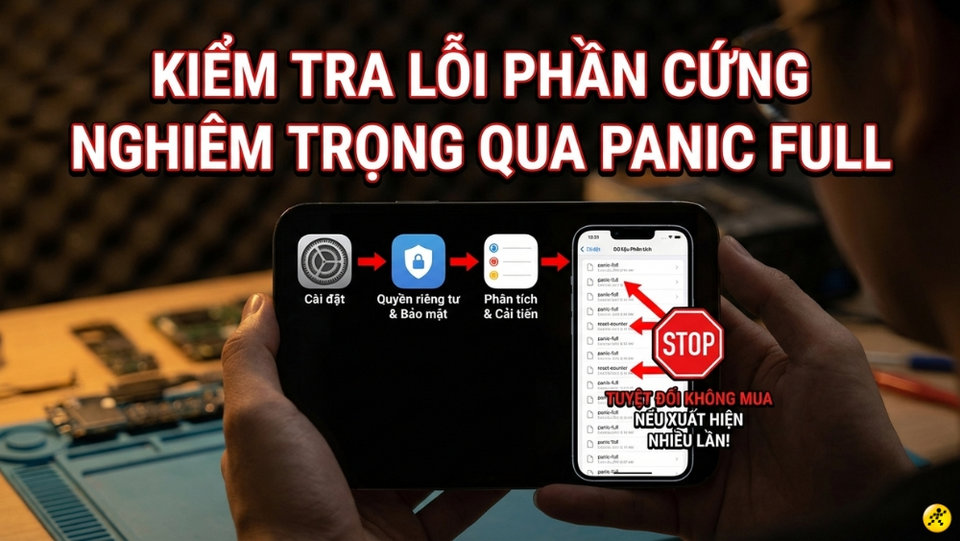
6. Identifying board faults via Panic Full
Panic Full is a sign that the motherboard is experiencing a serious problem, often leading to the computer restarting repeatedly. To check, go toSettings > Privacy & Security > Analytics & Improvements > Analytics DataLook for files whose names begin with "panic-full" or "reset-counter". If these appear multiple times, you absolutely should not buy this device.
7. Test security sensors and connectivity.
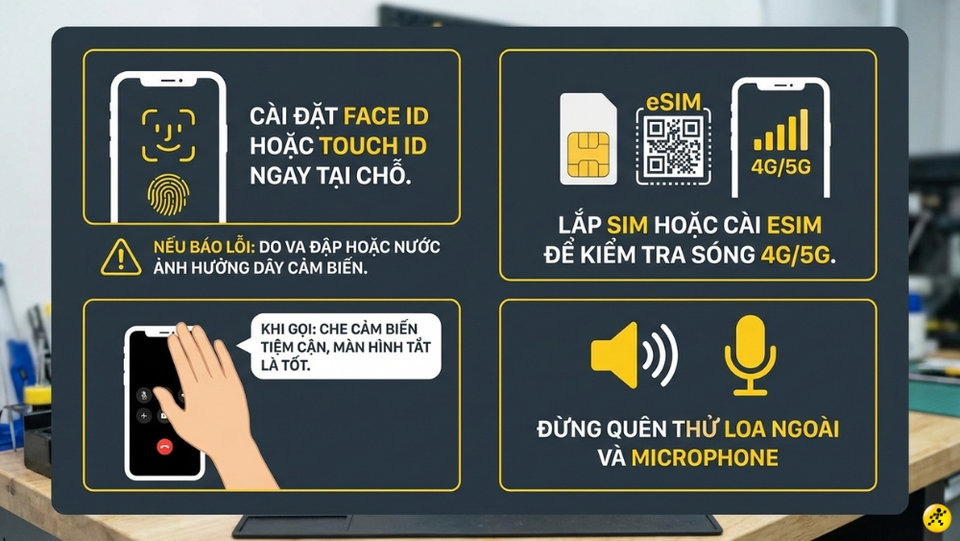
The final step is to try setting up Face ID or Touch ID. If the system reports an error and it cannot be activated, this is usually a result of impact or water damage affecting the sensor cable. Additionally, insert a SIM card to check the 4G/5G signal strength, test the speaker, microphone, and proximity sensor by covering the top of the phone during a call.