
Turn Duck.ai into a separate app on Windows 10 and 11.
This guide provides detailed instructions on how to install the Duck.ai AI chatbot as a standalone application on Windows 10 and 11 via the Edge and Chrome browsers for faster access.
Windows 11 and Windows 10 users can install the Duck.ai AI chatbot as a standalone application, providing a fast and convenient access experience similar to native software. This is done through the Progressive Web App (PWA) feature on Microsoft Edge and Google Chrome browsers.
What is Duck.ai and why should you use it as an app?
Duck.ai is a free artificial intelligence chatbot developed by DuckDuckGo, notable for its commitment to protecting user privacy. The service requires no account, does not track or store conversations, creating a safe interactive environment.
One of Duck.ai's strengths is its ability to allow users to flexibly select and switch between leading AI models from various vendors, including OpenAI (GPT-4o mini), Anthropic (Claude 3.5 Haiku), Meta (Llama 4 Scout), and Mistral AI (Mistral Small 3). This allows users to compare and find the most suitable answer for their needs.
Installing Duck.ai as a PWA transforms the website into an application that can be pinned to the taskbar or Start menu, allowing for quick launch without having to open a browser and access the website manually.
Instructions for installing Duck.ai using Microsoft Edge
The process of installing and uninstalling Duck.ai on the Microsoft Edge browser is very simple and only takes a few steps.
Installation steps
- Open your browser.Microsoft Edge.
- Access the official website ofDuck.ai.
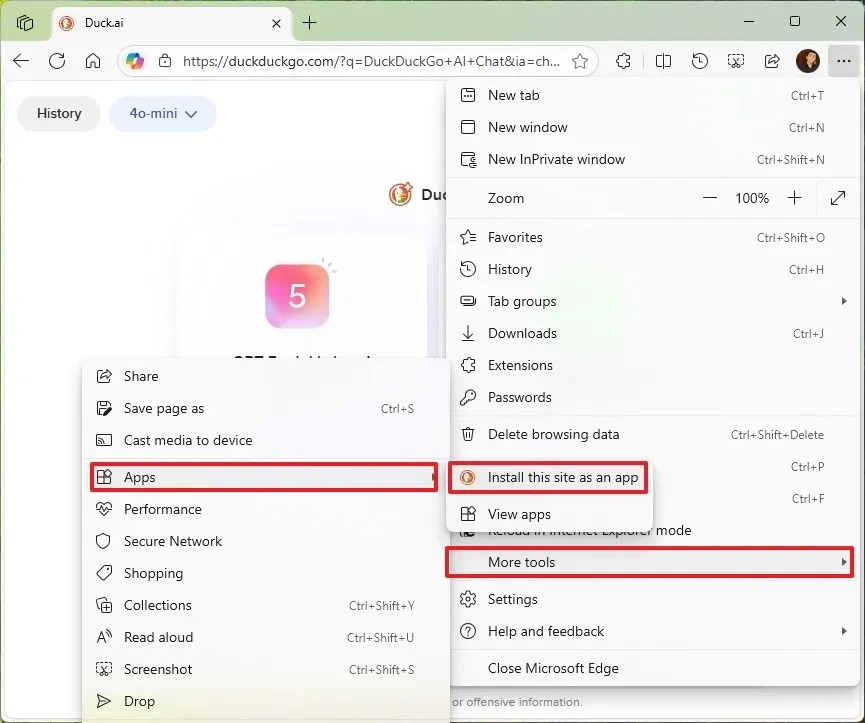
- Click the menu button with the three dots icon in the upper right corner of the browser window.
- SelectApps, then selectInstall this site as an app(Install this website as an app).
- In the dialog box that appears, press the button.Install(Setting).
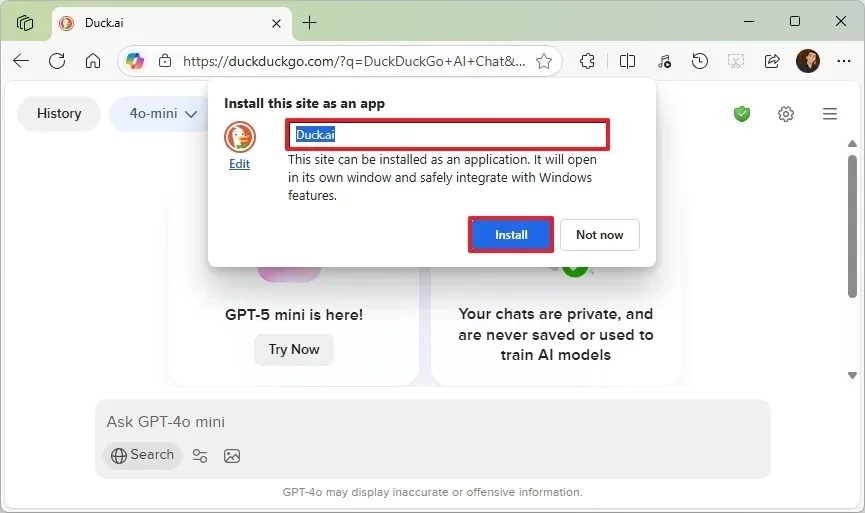
- If prompted to grant permission, selectAllow(Allow).
Once complete, the Duck.ai app will appear in the Start menu. Users can pin the app to the taskbar for more convenient access.
How to uninstall
- Open the installed Duck.ai app.
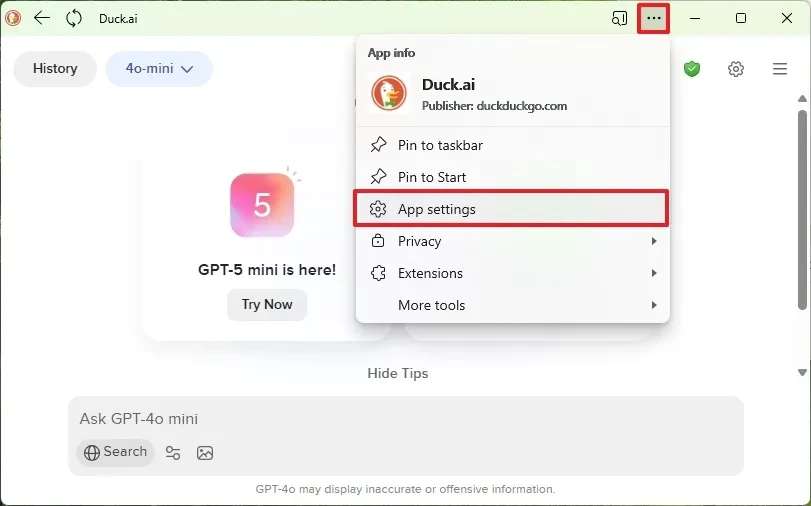
- Click the menu button with the three dots icon in the upper right corner.
- SelectApp settings(Install the app).
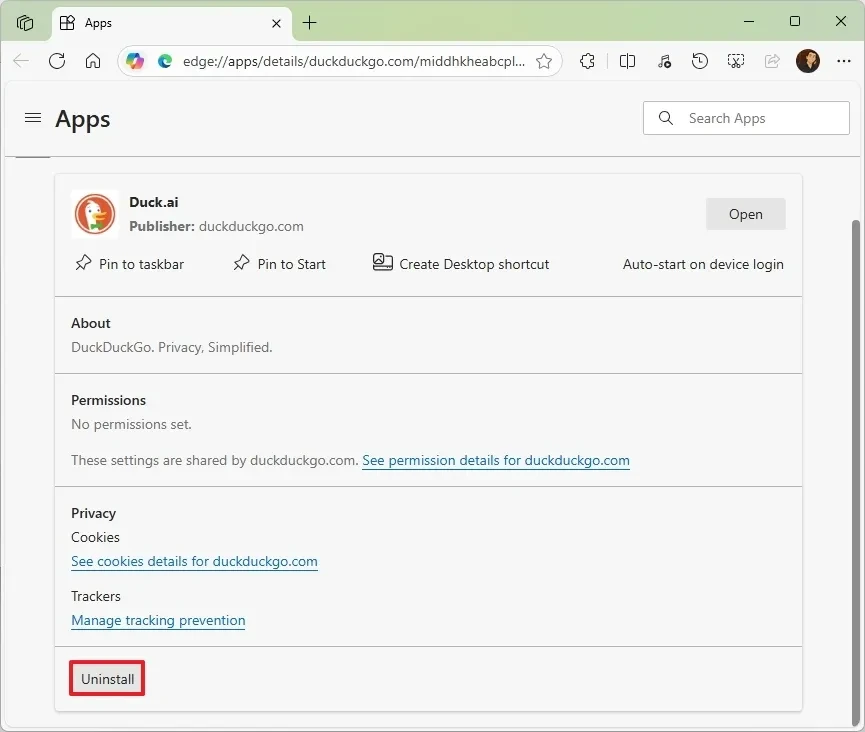
- Press the buttonUnacquire(Uninstall).
- Optionally, you can check the box"Also clear data from Microsoft Edge"to delete all related data.
- Press the buttonmassive(Remove) to confirm.
Instructions for installing Duck.ai using Google Chrome
Similar to Edge, Google Chrome also supports installing Duck.ai as a PWA application on Windows computers.
Installation steps
- Open your browser.Google Compute.
- Access the websiteDuck.ai.
- Click the menu button with the three dots icon in the upper right corner.
- SelectSave and share(Save and share), then selectInstall page as app(Install the site as an app).
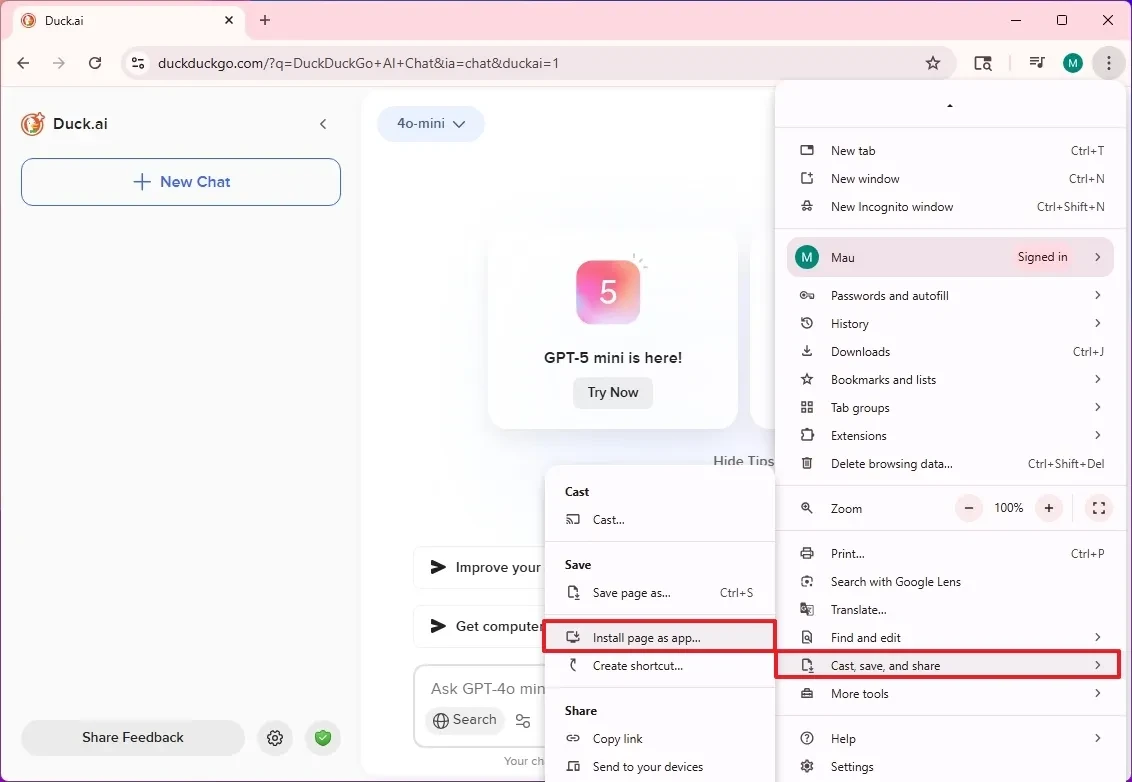
- Press the buttonInstall(Install) to confirm.
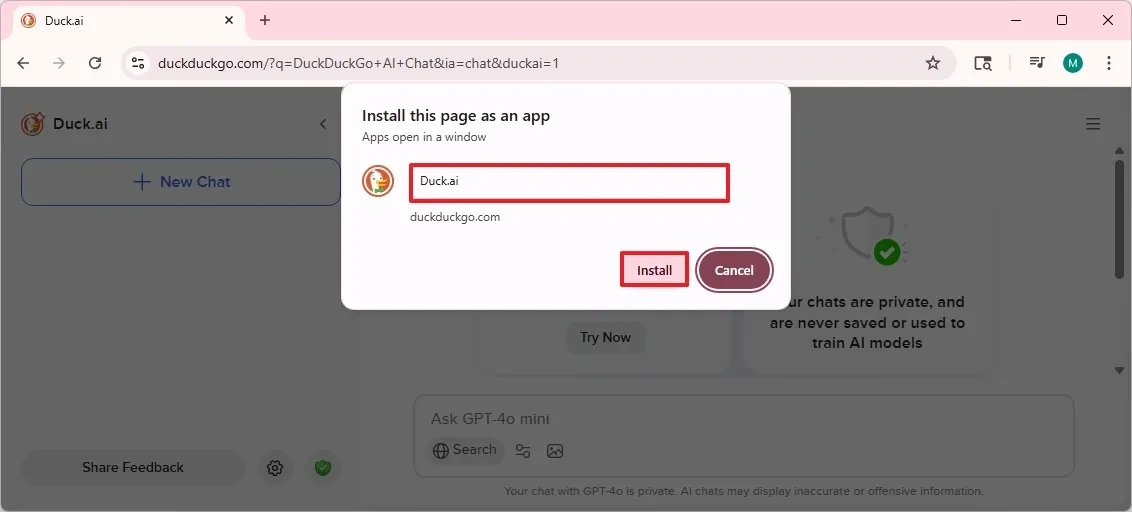
After installation, the application will be added to the system and ready to use from the Start menu or taskbar.
How to uninstall
- Open the Duck.ai app.
- Click the menu button with the three dots icon in the upper right corner.
- Select an optionUninstall Duck.ai(Uninstall Duck.ai).
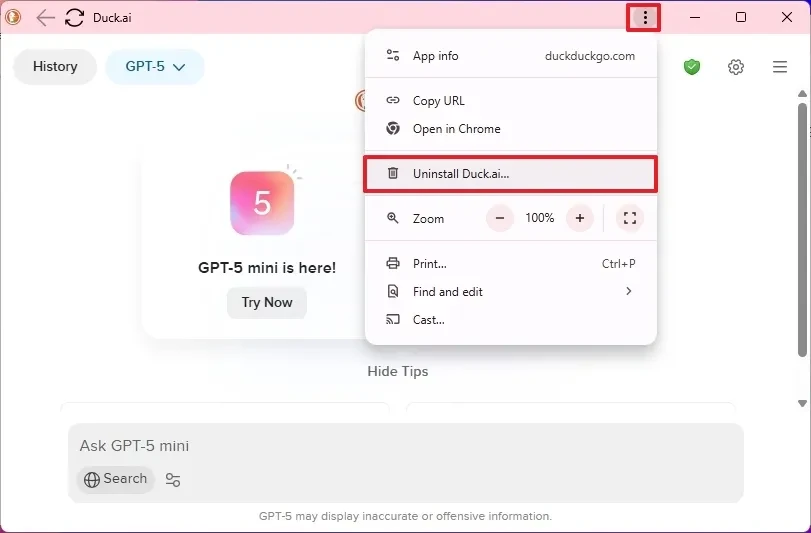
Additionally, users can also uninstall this application through the settings.Settings > Apps > Installed appsWindows is just like any other regular software.


