
How to keep your laptop safe when using public Wi-Fi networks.
Public Wi-Fi networks can be convenient, but they also pose numerous security risks. Without caution, your laptop could easily become a target for hackers. Here are some ways to keep your laptop safe when connecting to public networks.
We all know that public Wi-Fi poses numerous security risks, enough to make many people want to avoid it completely. However, in reality, convenience sometimes makes it hard for us to refuse.
Especially when traveling or on business trips, without a home network or mobile hotspot, public Wi-Fi often becomes the only option for working, accessing email, or searching for information. However, this convenience comes with significant risks, such as the potential for personal data leaks or even becoming a target for hackers.
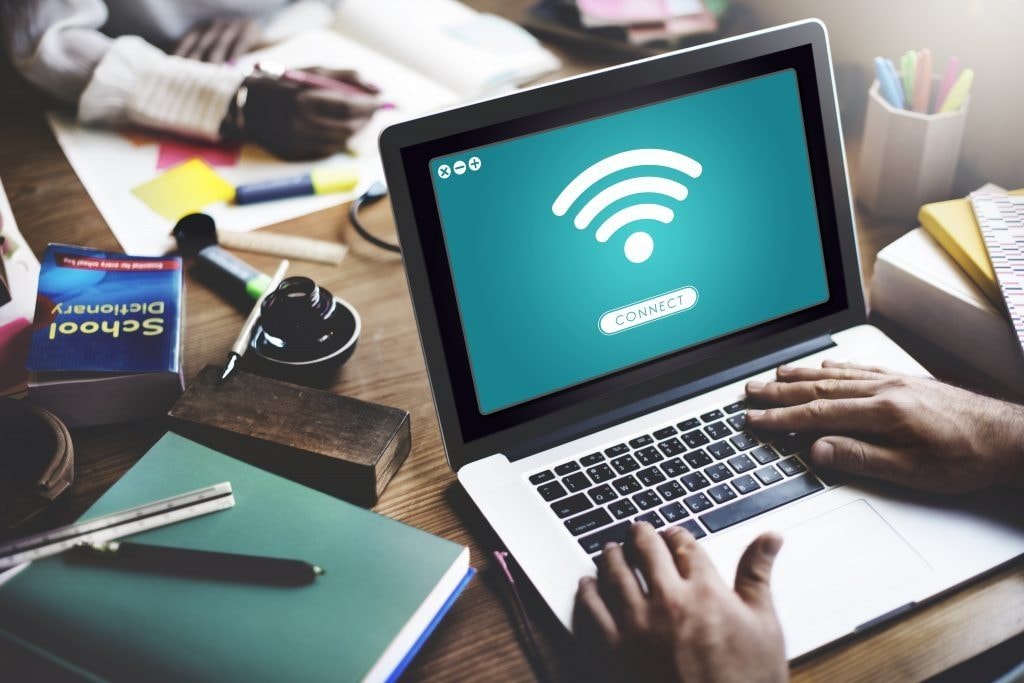
Instead of passively accepting the risks, we can proactively implement some basic but effective security measures. These solutions will help protect laptops and important information, making connecting to public Wi-Fi much safer.
1. Verify network name and password
One common tactic hackers use at public Wi-Fi hotspots is setting up fake networks with names very similar to the official ones. With just a little carelessness, we can accidentally connect to the wrong network and inadvertently give malicious actors access to our data.
Therefore, the first and most important step in protecting your device is to carefully verify the network name (SSID) and password. At cafes, airports, or hotels, ask staff directly for accurate information, instead of trusting familiar networks that appear on the connection list.
If the location has a sign displaying the information, we should also double-check it to be sure. This small habit helps prevent the risk of falling into the trap of fake Wi-Fi, protecting laptops and personal data when connecting in public places.
2. Use a Virtual Private Network (VPN).
One of the most important measures when using public Wi-Fi is to activate a virtual private network (VPN). This tool creates an encrypted "tunnel," securing all internet traffic and hiding online activity from prying eyes, including hackers lurking online.
With a VPN, we can browse the web, send emails, or conduct financial transactions with peace of mind, without worrying about our data being stolen.
3. Use multi-factor authentication on your account.
Even if hackers steal your password, they will still find it difficult to access your account if you have multi-factor authentication (MFA) enabled. This mechanism requires multiple layers of verification, such as an OTP code sent via SMS, an authentication app, or a physical security key, making unauthorized login nearly impossible.
This is an important layer of defense that everyone should enable for their email, social media, or financial service accounts. Additionally, when connecting to public Wi-Fi, we should also avoid performing sensitive actions such as logging into banks or accessing personal profiles.
The risk of real-time data theft still exists, and it's best to avoid it from the start. Combining good security habits with MFA will provide more comprehensive protection for our accounts.
4. Only access secure websites using the HTTPS protocol.
When using public Wi-Fi, one of the most basic but crucial principles is to only access secure websites using the HTTPS protocol. Paying attention to the "https://" prefix and the small padlock icon in the address bar helps ensure that transmitted data is encrypted, minimizing the risk of eavesdropping or website spoofing.
However, that alone is not enough. Another crucial layer of defense is the firewall. Firewalls prevent unauthorized access from the outside, acting as a protective barrier for computers when connected in potentially risky network environments.
By combining safe web browsing habits with keeping your firewall enabled, we can significantly reduce the risk of attacks and feel more secure when working, shopping, or entertaining ourselves online.
5. Turn off file and printer sharing.
One simple but effective way to protect your computer when using public Wi-Fi is to turn off unnecessary sharing features. This helps prevent hackers from silently accessing and exploiting files on your device.
Come inSetting, selectNetworks and the InternetnewsAdvanced network settingsnewsAdvanced sharing settings, then turn it offFile and printer sharingThis feature, which is convenient when working on a local network, becomes a potential vulnerability in a public environment.
In addition, we should also turn off the option.Explore the networkTo add an extra layer of protection, these two small steps will make the device harder to identify online, thereby minimizing the risk of being targeted by malicious actors.


