
How to use Quick Share on Pixel 10 to send files to iPhone
Google has integrated AirDrop into Quick Share, allowing Pixel 10 users to seamlessly share photos, videos, and files with iPhones for the first time.
Sharing files between Android and iPhone phones has always been a major hurdle, but Google has delivered a groundbreaking solution on the Pixel 10. The Quick Share feature now integrates with Apple's AirDrop, allowing for easy and fast file sending and receiving between the two ecosystems.
Previously, users often had to rely on third-party solutions such as cloud storage services or messaging apps. Now, with the new update, transferring photos, videos, or documents directly between Pixel 10 and iPhone has become simpler than ever. Below is a detailed guide on how to use this feature.
Send files from Pixel 10 to iPhone
To share files from your Google Pixel 10 phone to an iPhone, follow these steps. The initial setup process is relatively simple and only needs to be done once.
1. Update necessary applications.
AirDrop compatibility is provided through an update to the "Quick Share Extension". You need to go to the Play Store, search for this app, and tap "Update" to ensure you are using the latest version.
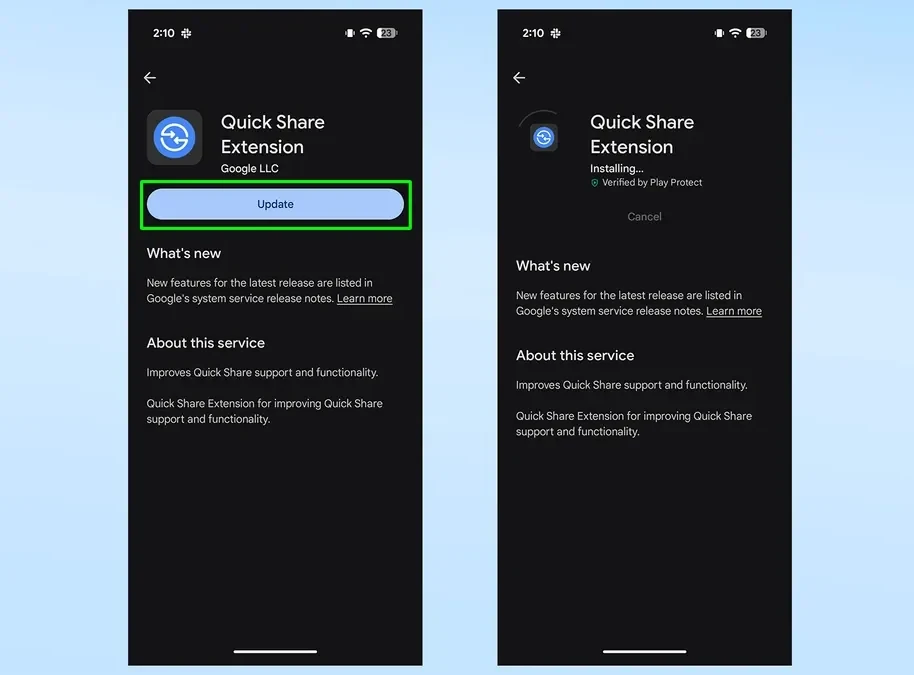
2. Restart the device.
After the update is complete, you need to restart your Pixel 10. Press and hold the Volume Up button and the Power button simultaneously, then select "Restart" from the menu that appears.
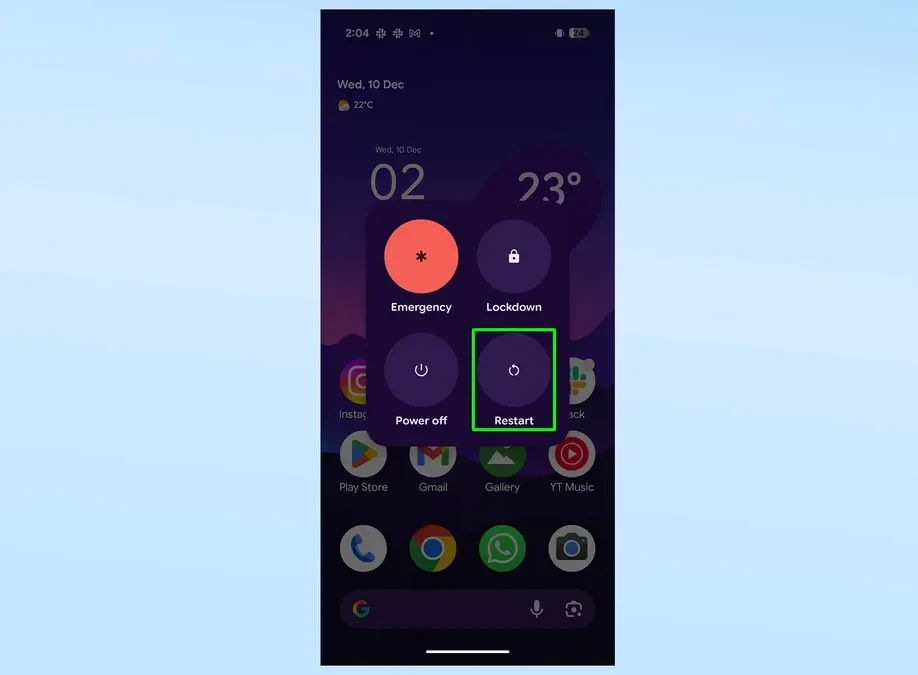
3. Begin the sharing process.
Open the app containing the files you want to send (for example, Google Photos to send photos). Select the desired files, images, or videos, then tap the "Share" icon.
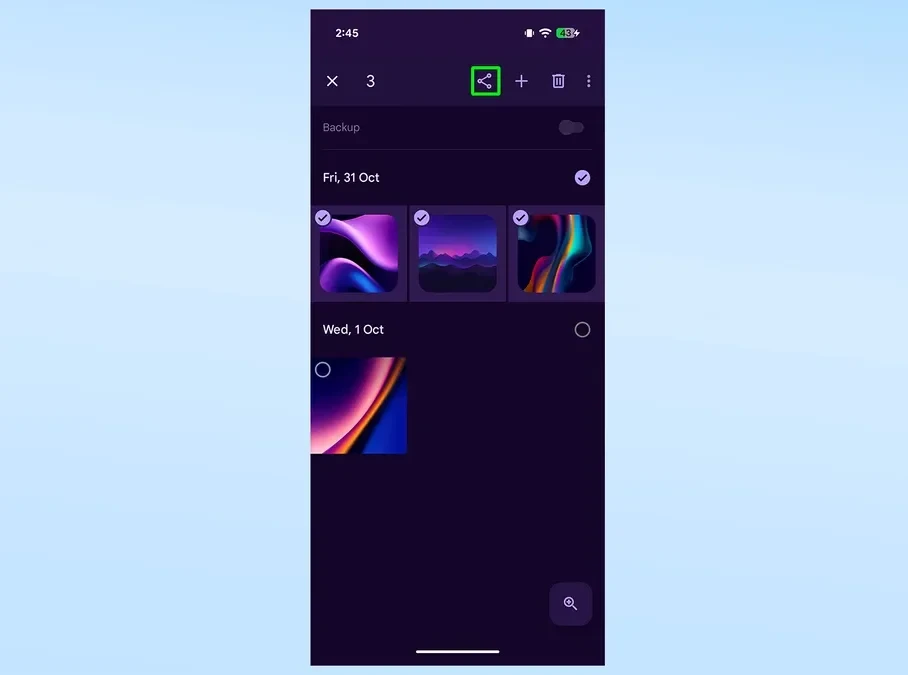
4. Set the display mode.
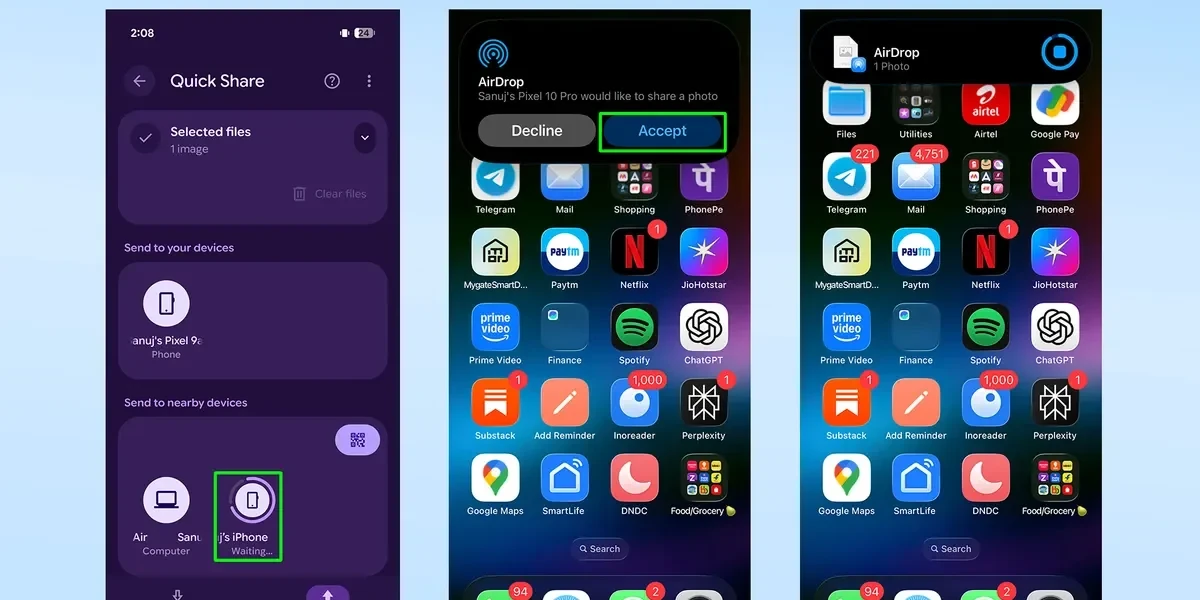
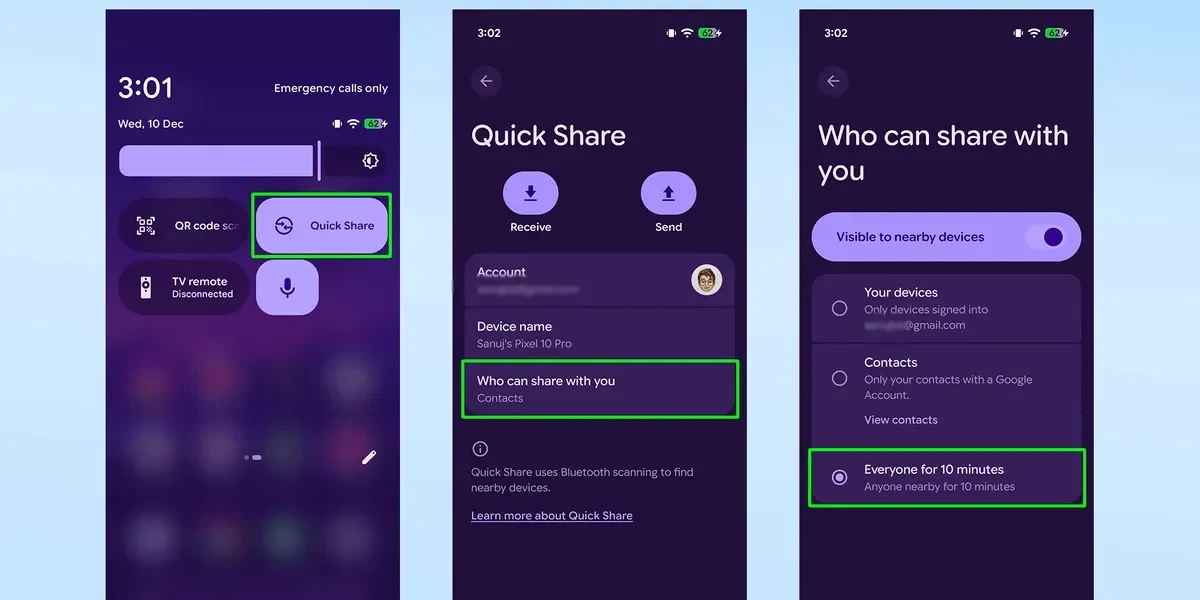
In the Quick Share interface, make sure your Pixel 10 is set to visible to everyone. Similarly, on the receiving iPhone, open Control Center, press and hold the AirDrop icon, and select "Everyone for 10 minutes".
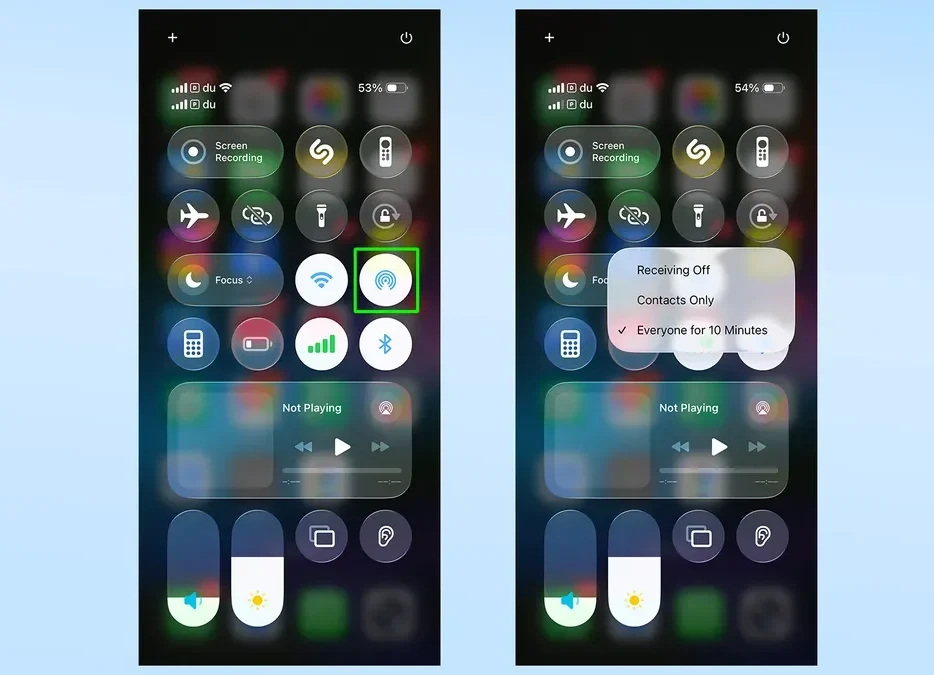
5. Complete file submission.
On the Pixel 10 screen, the iPhone's name will appear in the list of nearby devices. Tap on that iPhone's name. A notification will appear on the iPhone asking you to accept the file. After the iPhone user taps "Accept," the file transfer process will begin.
Receive files from iPhone on Pixel 10
The process of sending files from an iPhone to a Pixel 10 is also done similarly via AirDrop and Quick Share.
1. Make sure the Pixel 10 is ready.
Similar to sending, you need to make sure that the "Quick Share extension" on your Pixel 10 is updated. Also, set your Pixel 10 to be visible to everyone by opening Quick Settings, pressing and holding the Quick Share tile, and selecting "Everyone".
2. Send files from iPhone
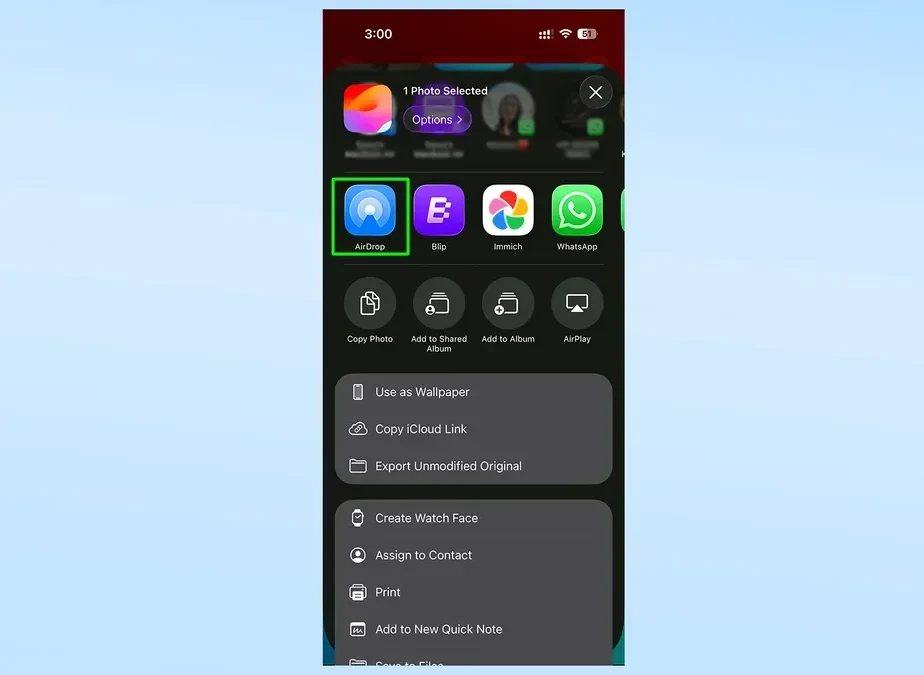
On your iPhone, open the app containing the file you want to send, select the file, and tap the "Share" button. In the share menu, select "AirDrop".
3. Select your device and accept.
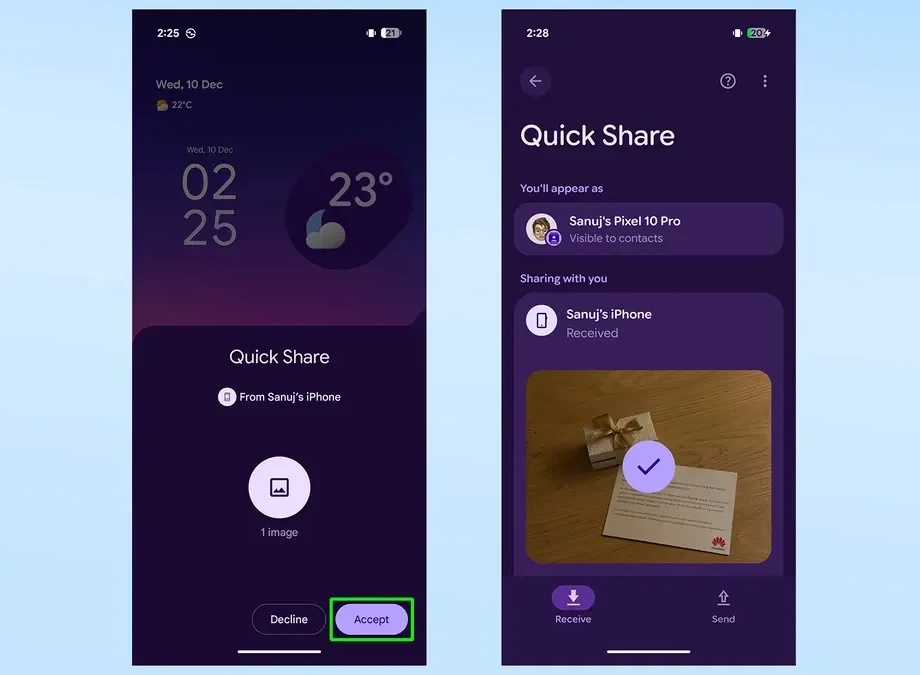
The Pixel 10 will appear in the list of devices that can receive files on the iPhone. Select the Pixel 10's name. Immediately, a Quick Share notification will appear on the Pixel 10. Tap "Accept" to begin receiving files.
4. Open the received file.
Once the transfer is complete, you can find the received files in their respective apps. For example, photos and videos will be located in the "Quick Share" folder within the Google Photos app.
Important note regarding compatibility.
It's important to note that, currently, this AirDrop integration is only available exclusively on Google Pixel 10 devices. Other Android phones, including older Pixel models like the Pixel 9, are not yet supported. Google has not announced plans to expand this feature to other devices.