
How to recover deleted data on Google Drive and iCloud
Users have 30 days to recover important files accidentally deleted from popular cloud storage platforms before they are permanently lost.
Accidentally deleting important data while using a phone or computer is a common occurrence. However, many cloud storage services now integrate recovery features similar to the Recycle Bin on a personal computer. The key is for users to detect and recover the data as soon as possible.
How the synchronization feature works
Most cloud services like Google Drive or iCloud maintain a two-way synchronization mechanism. When a file is edited or deleted on one device, that change is immediately updated on the cloud server and all other connected devices.
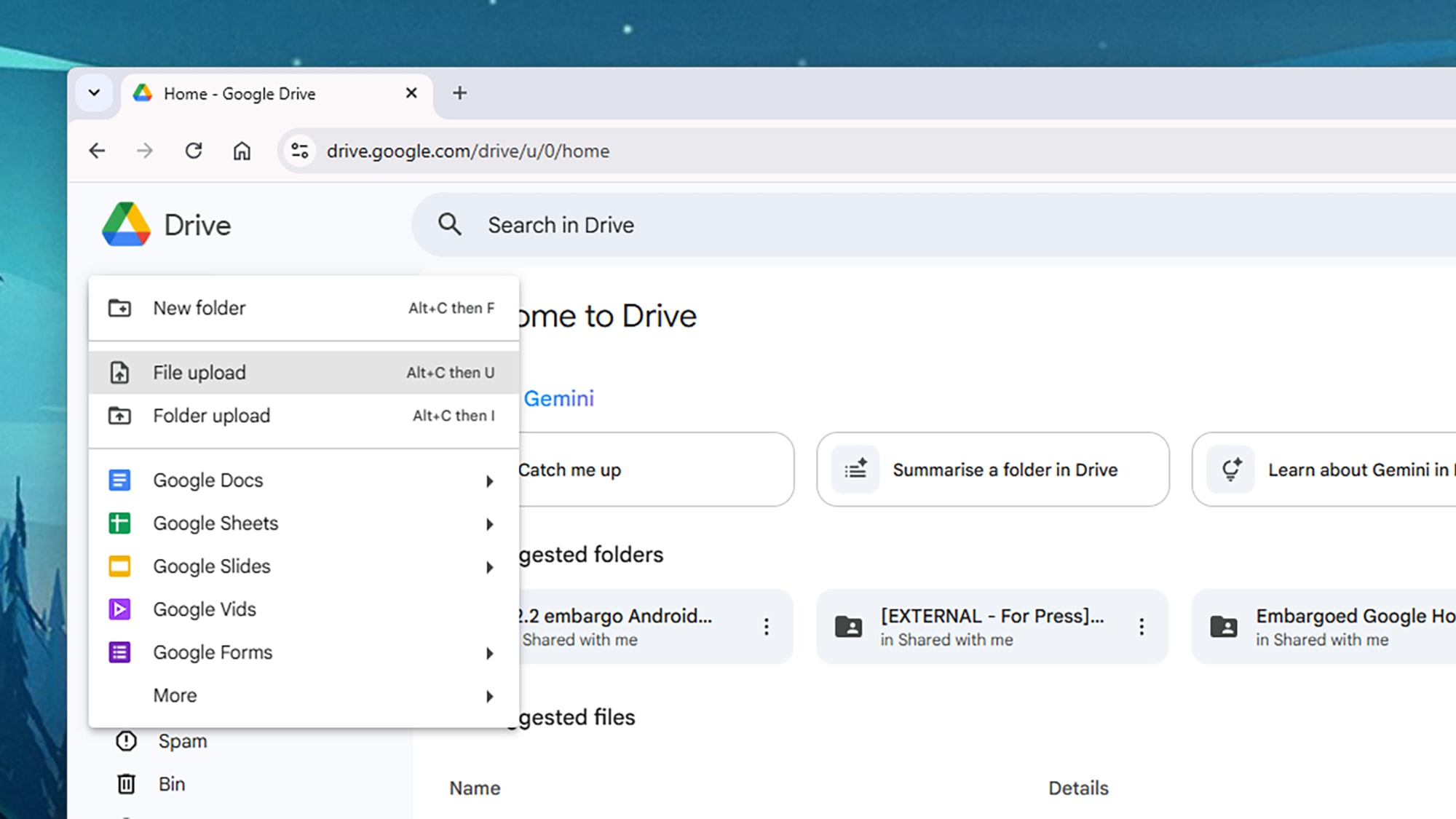
While automatic synchronization offers convenience, it can also cause data to be lost en masse if accidentally deleted. To mitigate this risk, users can choose to manually upload files instead of using the default sync folder. On the iCloud Drive or Google Drive web interface, the "Upload" feature keeps files securely stored in the cloud, unaffected by local changes on the computer.
How to recover files on Google Drive
Google Drive gives users 30 days to recover deleted data. After this time, the system will automatically permanently delete files from the Recycle Bin.
Computer (Web) operation
- Access Google Drive, select the optionTrash can(Bin/Trash) is in the left-hand menu bar.
- Find the file you need to recover (you can use the search filter above).
- Right-click on the file and selectRestore(Restore). The file will be returned to its original root directory.
Operation via mobile app (Android/iOS)
- Open the Google Drive app and select the three-horizontal-lines menu icon in the upper left corner.
- Click on the itemTrash can.
- Tap the three dots next to the file name and selectRestoreTo select multiple files at once, press and hold on the file list.
How to recover data on Apple iCloud
Similar to Google, Apple's iCloud service also retains deleted files for 30 days. Users can restore them via a web browser or directly on their iOS device.
Use the iCloud.com web interface.
From the iCloud web home screen, users scroll down and selectData recoveryHere, the system allows you to recover not only files but also recently deleted contacts, bookmarks, and calendar entries. Users click on it.File recoverySelect the necessary items and confirm that you want to return them to their original positions.
Use the Files app on your iPhone/iPad.
- Open the applicationPaper, select tabReview(Browse) in the bottom right corner.
- Find and select the itemRecently deleted(Recently Deleted).
- Press and hold the file you want to recover and selectRestoreIf you want to restore in bulk, click the three-dot icon in the upper right corner, then selectSelect, select the corresponding files and pressRestoreat the bottom edge of the screen.
Note: If data recovery is not performed within 30 days, the data will be permanently deleted from the server. In this case, data recovery is only possible if the user has another offline backup.