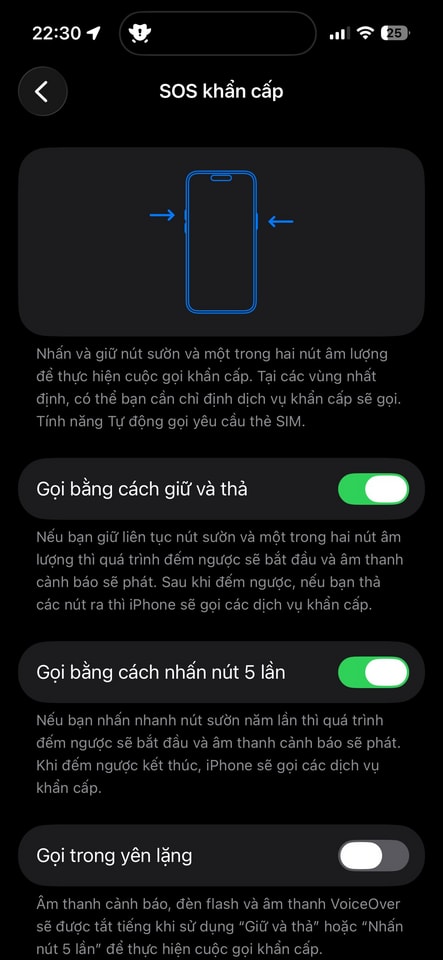
How to activate emergency SOS on iPhone to report your location and call for emergency services in 5 seconds.
The emergency SOS feature allows iPhone users to quickly call for help and send their location to loved ones. Setting up Medical ID is a crucial step for timely medical assistance.
The iPhone's emergency SOS feature is a crucial tool that helps users contact rescue services and notify loved ones of their location in dangerous situations. When activated, the device automatically calls the local emergency number and sends continuous location updates via text message to the pre-set contact list.
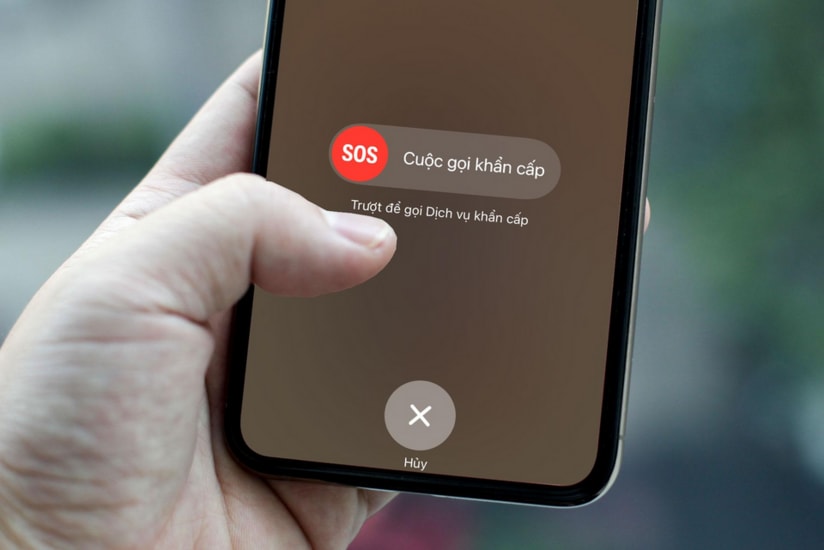
How to quickly activate the emergency SOS feature.
Apple offers two main methods for users to activate an emergency call, depending on their device model and personal settings:
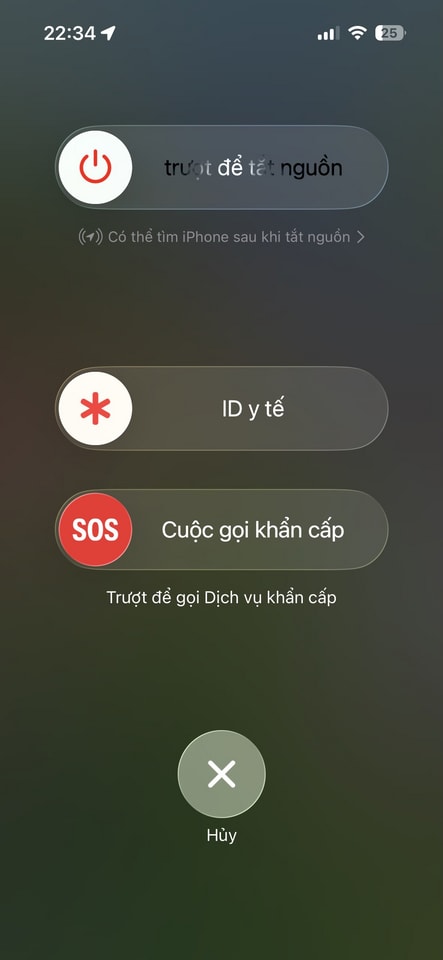
- Method 1:Press and hold the power button and one of the volume buttons simultaneously. Then, drag the "Emergency Call" slider on the screen to make an immediate call.
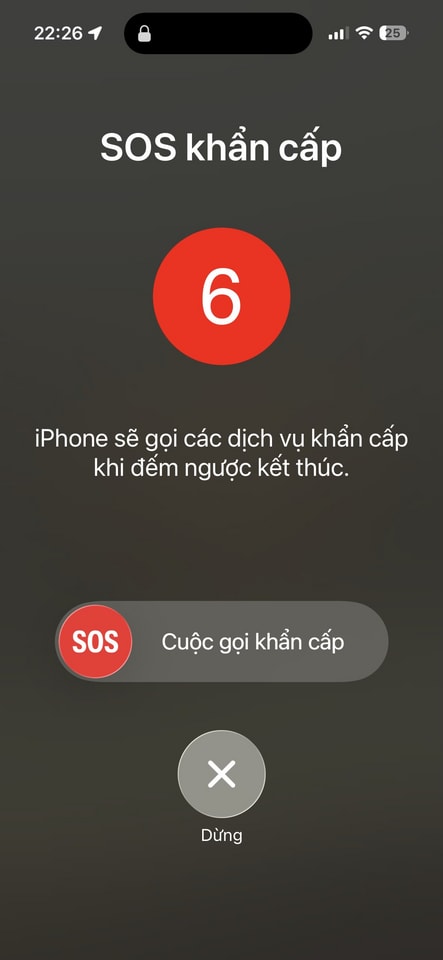
- Method 2:Press the power button five times in quick succession. The iPhone will start a countdown and emit an alert sound before automatically making an emergency call if you don't react quickly enough on the screen.
After ending a call with emergency services, your iPhone will automatically send a text message containing your current location to your pre-set emergency contacts.
Set up medical ID and emergency contacts in the Health app.
To maximize the effectiveness of this feature, users need to set up their personal information in the Health app. Providing medical ID allows emergency personnel to know blood type, allergies, or underlying medical conditions directly from the lock screen without requiring a password.
- Open the applicationHealthand click on your profile picture.
- SelectMedical ID, then click onFix.
- Enter important health information and add a family member's phone number to the section.Emergency contact.
- Activate the optionDisplay when lockedso that this information is accessible in an emergency situation.
Notably, you can double-check these settings by accessing:Setting, select the itemEmergency SOSHere, make sure the quick trigger options are enabled so they are ready for use when needed.