
The simplest way to mirror your iPhone screen to a Samsung, Sony, or LG TV.
Learn how to connect your iPhone to your TV via AirPlay, the manufacturer's app, or HDMI cable for a super smooth movie and game experience on a large screen.
Mirroring your iPhone screen to a TV is a solution for transferring all content from your phone to a larger screen, making the experience of watching movies, playing games, or presenting documents more immersive. Depending on the TV brand, such as Samsung, Sony, or LG, users can choose to connect wirelessly via Wi-Fi or use an HDMI cable to ensure the highest stability.
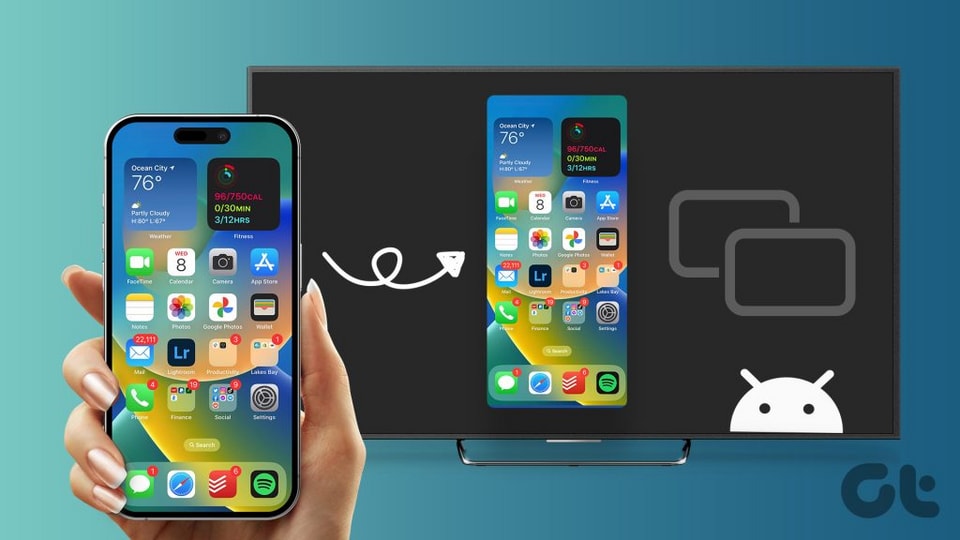
1. How to mirror your iPhone screen wirelessly via AirPlay
This method is compatible with modern Smart TVs that support Apple's wireless transmission technology. To ensure smooth data transfer, the iPhone and TV need to be connected to the same IP address on the local Wi-Fi network.
Use AirPlay 2
AirPlay allows you to share images and audio from your iPhone to Apple TV or other TVs that support AirPlay 2 (such as Samsung, LG, and Sony TVs manufactured from 2019 onwards).
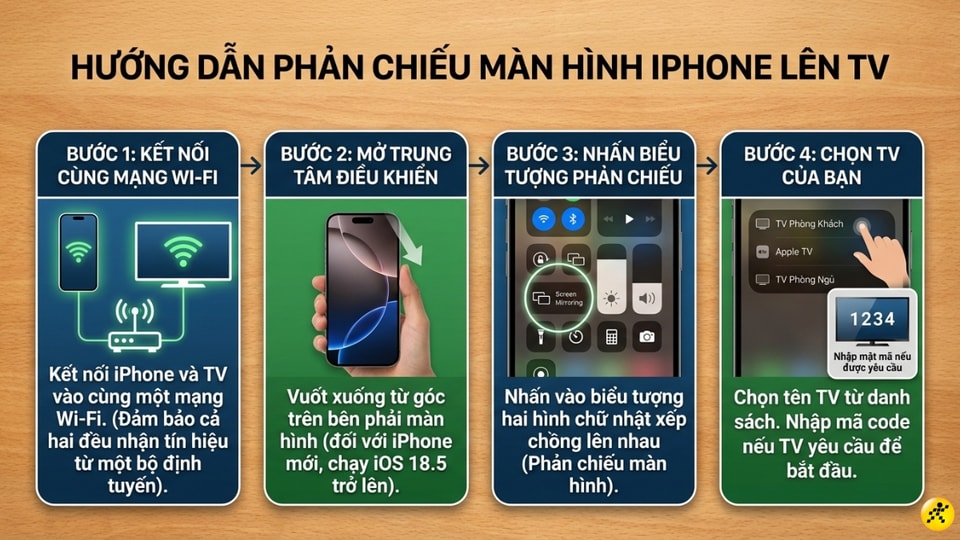
- Step 1:Connect your iPhone and TV to the same Wi-Fi network.
- Step 2:Open Control Center on your iPhone. On newer models like the iPhone 16 Pro Max running iOS 18.5 or later, swipe down from the top right corner of the screen.
- Step 3:Click on the iconScreen mirroring(Screen Mirroring - a design featuring two rectangles nested within each other).
- Step 4:Select your TV's name from the list. If the TV displays a passcode, enter it into your iPhone to begin.
Use the manufacturer's official app.
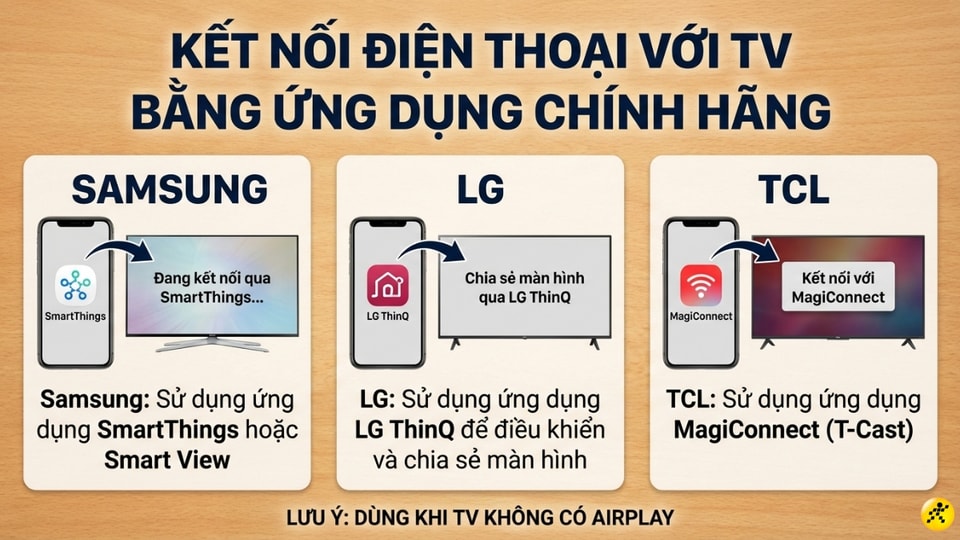
If your TV doesn't support AirPlay, you can use apps developed by the manufacturer to connect:
- Samsung:Use the SmartThings or Smart View app.
- LG:Use the LG ThinQ app to control and share.
- TCL:Use the MagiConnect (T-Cast) app.
Use a third-party app for Android TV.
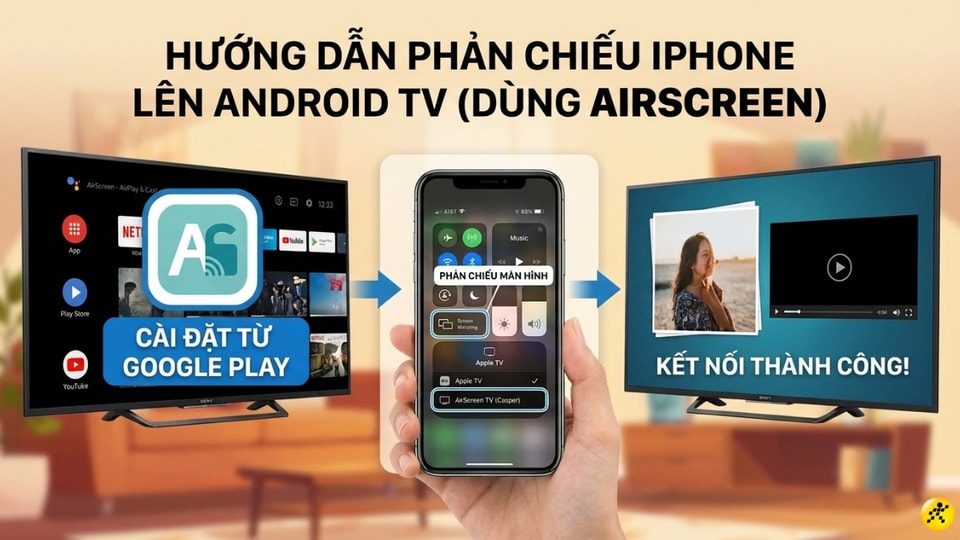
For Android TVs like Sony or Casper, you can install apps.AirScreenFrom the Google Play Store on your TV. This app helps your TV easily receive AirPlay signals from your iPhone.
2. Connect your iPhone to your TV via an HDMI cable (wired).
This is the optimal solution for high-FPS gaming or 4K movie viewing needs thanks to its stable data transmission and near-zero latency, even without an internet connection.
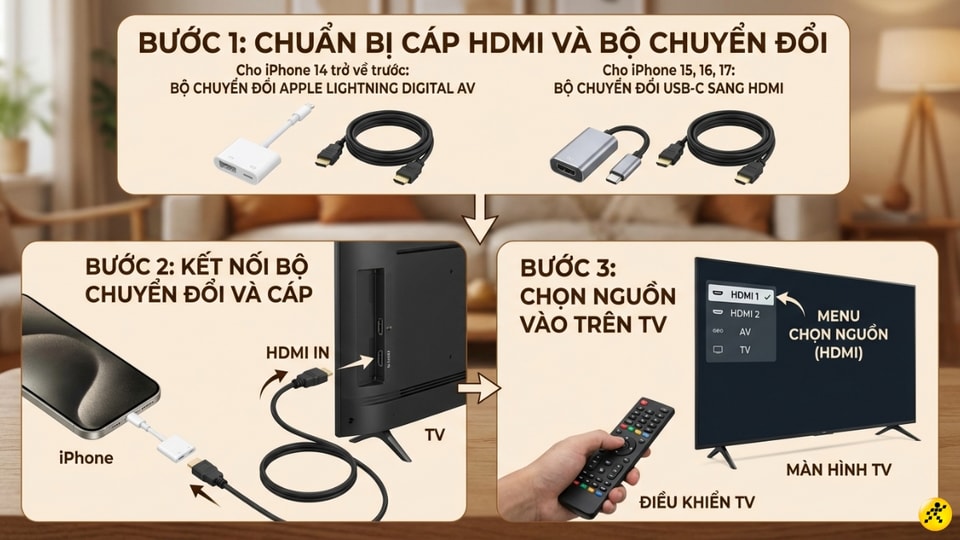
- Step 1:Prepare an HDMI cable and an adapter. For iPhone 14 and earlier models, use the Apple Lightning Digital AV Adapter. For iPhone 15, iPhone 16, and iPhone 17 models, use an adapter that converts to USB-C.
- Step 2:Plug the adapter into the iPhone charging port, then connect the HDMI cable from the adapter to the HDMI port on the TV.
- Step 3:Use the TV remote to switch the input source to the corresponding HDMI port.
3. Comparing wireless and wired connections
| Criteria | Wireless connectivity (AirPlay, App) | Wired connection (HDMI cable) |
|---|---|---|
| Convenience | Very tall, no tangled cables. | On average, accessories are needed. |
| Stability | Depends on the Wi-Fi signal. | Very high frequency, no interference. |
| Delay | There may be slight delays when the network is weak. | Almost zero. |
| Wi-Fi required | Obligatory. | No need. |
4. How to turn off iPhone screen mirroring
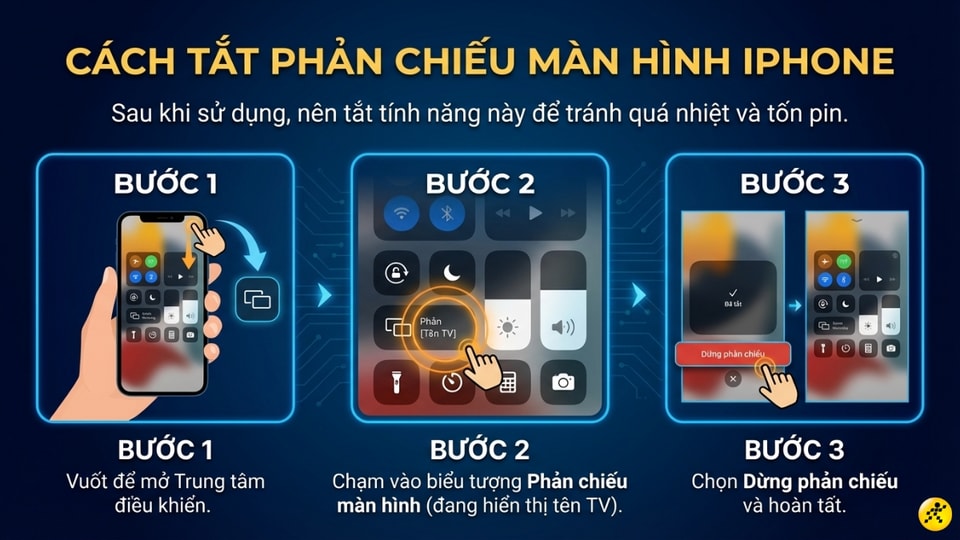
To save battery power and prevent your device from overheating after use, you should turn off this feature by following these steps:
- Swipe to open the Control Center.
- Click on the Screen Mirroring icon (currently displaying the TV name).
- SelectStop reflecting(Stop Mirroring).
5. Troubleshooting common errors
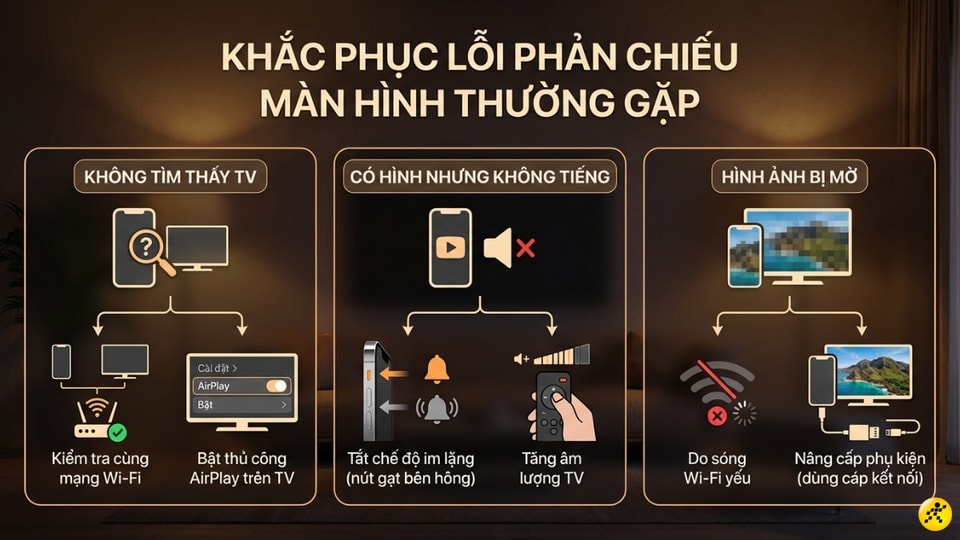
If you experience issues like devices not being found or lag, try restarting your iPhone, TV, and Wi-Fi router simultaneously. Some common problems include:
- TV not found:Check if both devices are on the same Wi-Fi network or enable AirPlay in the TV settings.
- There's a picture, but no sound.Check the mute switch on your iPhone and the TV volume.
- The image is blurry:Due to a weak Wi-Fi signal, consider switching to a wired connection for better quality.
6. Frequently Asked Questions
Does screen mirroring drain the battery?
This feature consumes a significant amount of energy because the iPhone has to process images continuously. You should keep it plugged in when using it for extended periods to avoid running out of power.
Is it possible to use other apps while the video is playing?
If you mirror your screen full-screen, the TV will display all your iPhone activity. However, if you use the "Cast" feature (like YouTube), you can hide the app to do other things without interrupting the TV content.
Does the Netflix app allow screen mirroring?
Due to copyright policies, some Netflix content may be blocked when using AirPlay. The best way is to log in and watch directly through the Netflix app on your Smart TV.


