
How to detect and disable suspicious Apple AirTags that are being tracked without authorization.
Apple and Google have integrated features that automatically alert you when an unfamiliar tracking device moves with you. Here's how to set it up and handle it to protect your personal safety.
Apple AirTag is a useful tool for finding lost items, but its compact size also poses a risk of being exploited for unauthorized location tracking. To protect users, Apple and Google have collaborated to establish a common standard, allowing mobile devices to issue alerts if they detect an unfamiliar tracking tag moving with you.
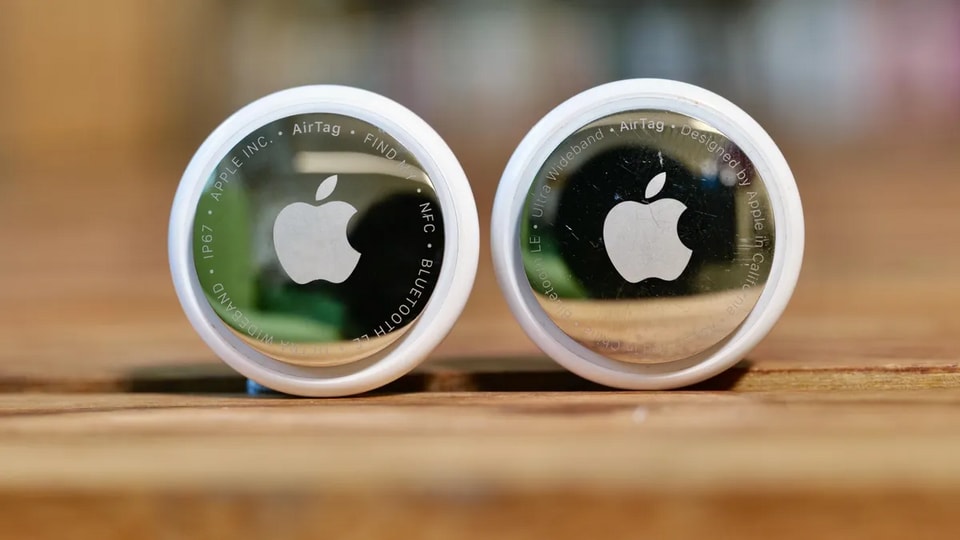
Safety improvements across generations of AirTag
Apple has now shortened the time it takes for the AirTag to sound an alert when it's separated from its owner to 8 to 24 hours (instead of 3 days as before). Notably, the second-generation AirTag features a speaker system that's 50% louder, making it easier for people nearby to identify.
The new design also makes the AirTag's speaker difficult to detach, preventing malicious individuals from disabling the alert sound. Additionally, Android users can now receive notifications if an unfamiliar AirTag is following them, thanks to a technological collaboration between Apple and Google.
How to enable tracking alerts on iPhone
To ensure your iPhone can detect unwanted tracking devices, you need to use iOS 14.5 or later (with AirTag) or iOS 17.5 or later (with other Bluetooth devices). Follow these setup steps:
- Turn on Location Services:Go to Settings > Privacy & Security > Location Services and toggle it on.
- Activate Find My iPhone:Go to Settings > Apple Account > Find > Turn on Find My iPhone.
- Turn on Bluetooth:Make sure Bluetooth is always enabled in Settings to scan for nearby devices.
- Grant permission to receive tracking notifications:Go to Settings > Notifications > Tracking Notifications and select Allow Notifications.
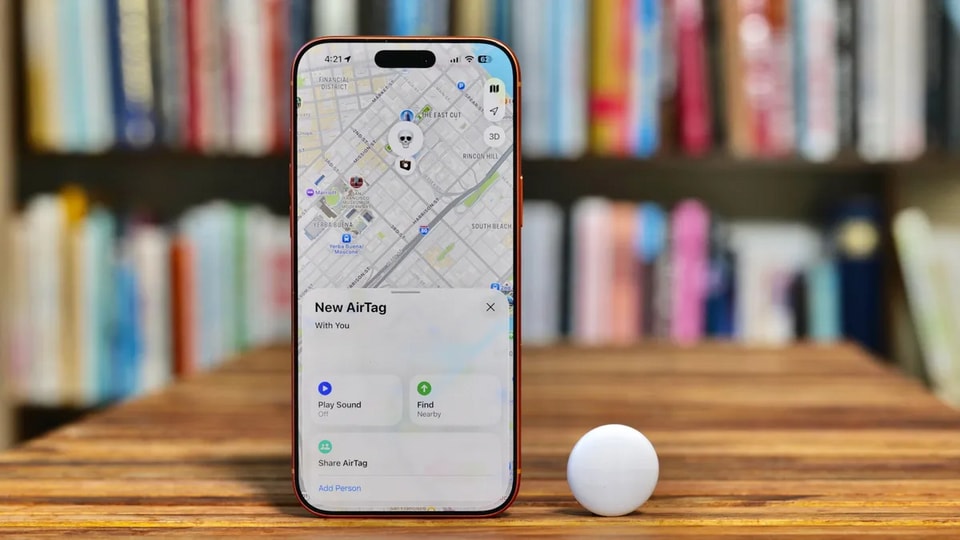
Procedure for handling the detection of an unfamiliar device.
If you receive a "Detection of an unknown tracking device" or "Item detected near you" message, remain calm and follow these instructions:
- Locate the device:Tap the notification, select Continue, then choose Play Sound or Find Nearby to pinpoint the exact location of the AirTag.
- Check the information:If you find the AirTag, bring the top of your iPhone close to the device. A webpage will appear displaying the serial number and the last few digits of the owner's phone number.
- Preserve the evidence:If you suspect you are being intentionally monitored, take a screenshot of your device's information to provide to authorities if necessary.
- Disable:To stop being tracked, press the back of the AirTag, rotate it counterclockwise to open the cover, and remove the battery.
Please note that in environments with a high density of Bluetooth devices, such as trains, airplanes, or public places, false alarms may occasionally occur. However, you should always double-check every notification you receive to ensure your maximum safety.