
How to turn off the 'Setup Complete' notification on Windows 11
Detailed instructions on 2 methods to permanently remove the 'Complete your device setup' reminder, ending the annoying 'Remind me in 3 days' notification loop.
Many Windows 11 users find the "Please complete setting up your device" notification annoying, constantly appearing after every system restart or update. This reminder is often intended to promote Microsoft services such as OneDrive, Microsoft 365, or the Edge browser. However, the limited "Remind me in 3 days" option makes this notification a frustrating loop. This article will guide you through two effective ways to completely disable this notification.
Customize directly in System Settings
This is the simplest and safest method, suitable for most users. By changing a few options in the Settings app, you can prevent Windows 11 from displaying unwanted setup suggestions and prompts.
- Open the applicationSettingsby pressing the key combinationWindows + IOr look in the Start menu.
- Select itemSystemfrom the list on the left.
- Click on the itemNotifications.
- Scroll to the bottom of the page and selectAdditional settings.
- Here, you will see three options. Uncheck the following:"Suggest ways to get the most out of Windows and finish setting up this device".
- For a cleaner experience, you can also uncheck the remaining two items: “Show the Windows welcome experience…” and “Get tips and suggestions when using Windows.”

After completing the steps above, the setup completion message will no longer appear when you log into your computer.
Intervention using Registry Editor for advanced users
This method requires editing the Windows Registry and is only for experienced users. Incorrect editing can cause system errors, so you should back up your Registry before proceeding.
Important note:Careful adherence to the instructions is necessary to avoid unexpected problems with the operating system.
- Open the Run dialog box by pressingWindows + Rtyperegeditand press Enter to openRegistry Editor.
- Navigate to the following path in Registry Editor:
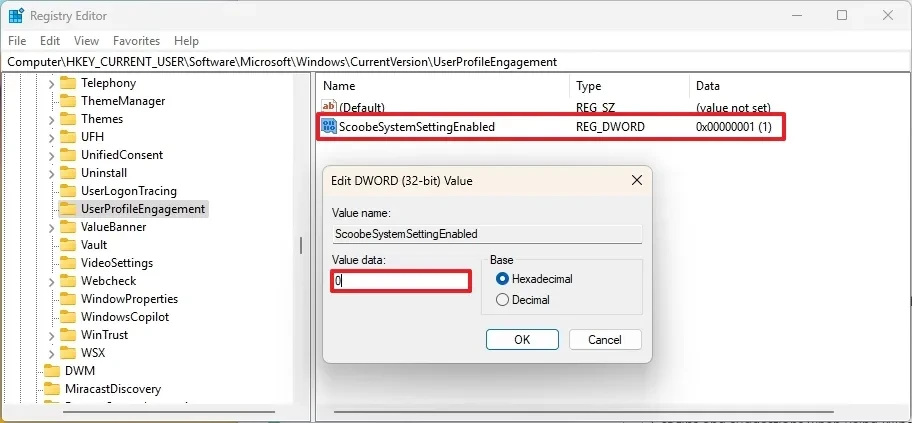
HKEY_CURRENT_USER\Software\Microsoft\Windows\CurrentVersion\UserProfileEngagement - In the right pane, find a DWORD value namedScoobeSystemSettingEnabled.
- Double-click onScoobeSystemSettingEnabledTo open the editing window.
- Change the value in the cell.Value datafrom1wall0.
- PressOKTo save changes.
- Restart your computer to apply the new settings.
After restarting, Windows 11 will stop displaying the “Finish setting up your device” page, giving you a fast and uninterrupted login experience.