
Updating the WSL kernel on Windows 11: A quick and accurate guide.
This guide provides detailed instructions on how to update the Windows Subsystem for Linux (WSL) kernel on Windows 11 with a single command, ensuring system stability, security, and compatibility.
The importance of updating the WSL kernel.
On Windows 11, maintaining the latest version of the kernel and other components of the Windows Subsystem for Linux (WSL) is crucial for performance, security, and compatibility. While WSL updates are typically delivered automatically via Windows Update, users can proactively check for and install the latest version using the command-line tool "wsl.exe".
Note that this process is used to update components of the current WSL version, as opposed to upgrading from WSL 1 to WSL 2, which is a separate platform migration process.
Instructions for updating WSL via Command Prompt
To manually update WSL components on Windows 11, you can follow these simple steps:
- Open menuStart.
- Search for "Command Prompt", right-click on the result and selectRun as administrator(Run with administrator privileges).
- (Optional) To check the current WSL version, enter the following command and press Enter.Enter:
wsl --version - To begin the update process, enter the following command and press Enter.Enter:
wsl --update
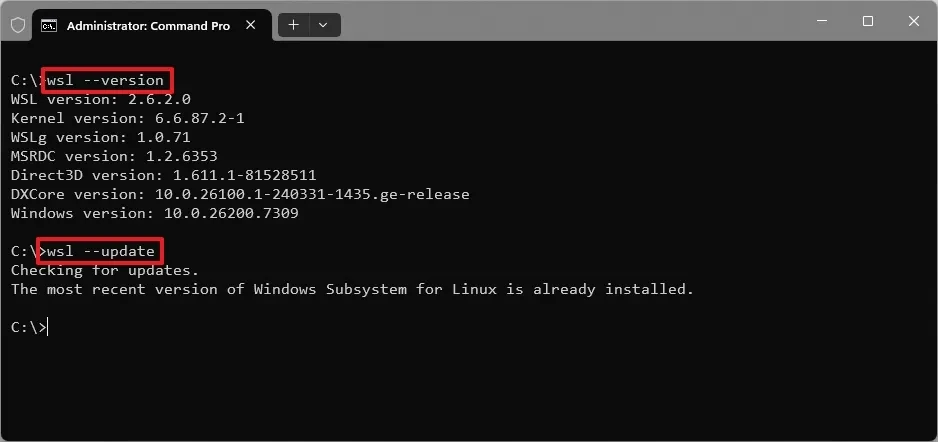
After completing these steps, if a new update is available, the system will automatically download and install it. You can then run the command again.wsl --versionTo confirm that the new version has been applied.
How to revert to a previous version of WSL
If the new version causes problems, you can revert to the previous kernel version using the following command:
wsl --update --rollback
Enable automatic WSL updates
To have the system automatically download and install WSL updates along with other Windows updates, follow these steps:
- Open the applicationadjusting(Setting).
- Select itemWindows Update.
- Click hereAdvanced options(Advanced options).
- Turn on the option“Receive updates for other Microsoft products”(Receive updates for other Microsoft products.)
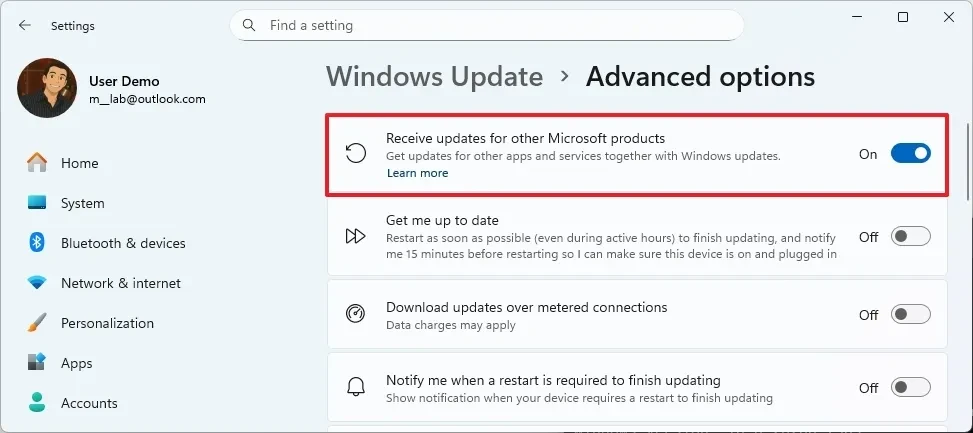
When this option is enabled, WSL updates will be installed automatically, saving you time and ensuring your system is always up-to-date.
Answering frequently asked questions
Here are some frequently asked questions related to updating the Windows Subsystem for Linux:
- Why should you update WSL manually?Despite the automatic mechanism, manual updates using commands are still possible.
wsl --updateEnsure you get the latest version as soon as it's available, without waiting for the Windows Update cycle. - Does updating WSL affect Linux distributions?No. This process only updates the core components of the WSL subsystem; it does not change the Linux distributions (such as Ubuntu, Debian) or the software packages installed within them.
- Why does the WSL version on my machine not match the version on GitHub?Microsoft typically releases new kernels on GitHub before they are included in the Windows Update system. Therefore, there may be a short delay before the latest version is available for automatic updates.


