
ChromeOS Flex: A solution to revive old Windows 10 computers.
As Windows 10's support nears its end, ChromeOS Flex is a free solution that helps older computers that don't qualify for Windows 11 run faster and more securely.
Many computers running Windows 10 will no longer receive updates after October 14, 2025, and will not meet the hardware requirements to upgrade to Windows 11. In this context, Google's ChromeOS Flex has emerged as an effective alternative, allowing users to repurpose older devices with a modern, lightweight, and secure operating system.
ChromeOS Flex: A breath of fresh air for outdated hardware.
ChromeOS Flex is a cloud-based operating system developed by Google, designed to be installed on a variety of hardware, including Windows, Mac, and Linux computers. Unlike the original ChromeOS, which is only available on Chromebooks, the Flex version offers a chance to "revive" older devices.
The transition brings many practical benefits:
- Extending the lifespan of devices:Instead of discarding old hardware, ChromeOS Flex allows you to continue using your computer efficiently, contributing to the reduction of electronic waste.
- Enhance security:The operating system is regularly updated with built-in security features, creating a safe working environment.
- Performance optimization:With its lightweight design, ChromeOS Flex can significantly improve the speed and responsiveness of low-configuration computers.
Minimum hardware requirements
Although Google only certifies and supports a specific list of devices, ChromeOS Flex can still be installed on most computers that meet the following minimum requirements:
- Processor:Intel or AMD x86-64-bit architecture.
- Memory (RAM):Minimum 4GB.
- Storage:Minimum 16GB of free space.
Note that processors and graphics cards manufactured before 2010 may not provide a smooth experience.
Detailed instructions for installing ChromeOS Flex.
The installation process consists of two main stages: creating a bootable USB drive containing the installation files and then installing the operating system onto the computer.
Step 1: Create a ChromeOS Flex installation USB.
You will need a USB drive with a minimum capacity of 8GB and the Google Chrome browser to follow these steps:
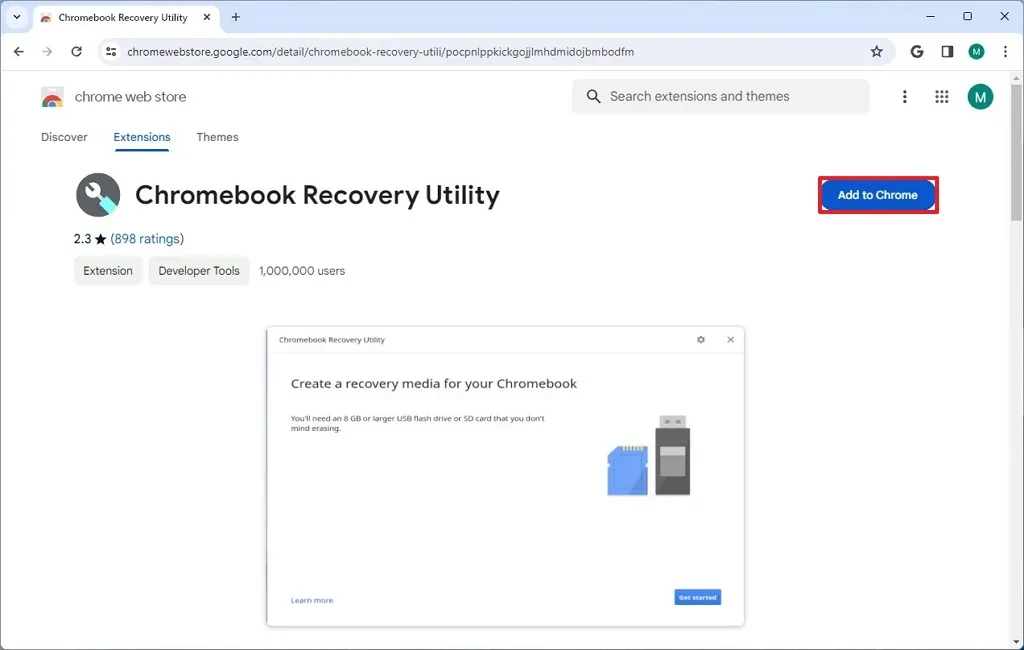
- Open the Chrome browser and go to the extension's page.Emergency Utility.
- Press the button"Add to Chrome".
- Confirm by pressing"Add extension".
- After installation, open the extension from the Extensions icon on your browser's toolbar.
- Press the button"Get started".
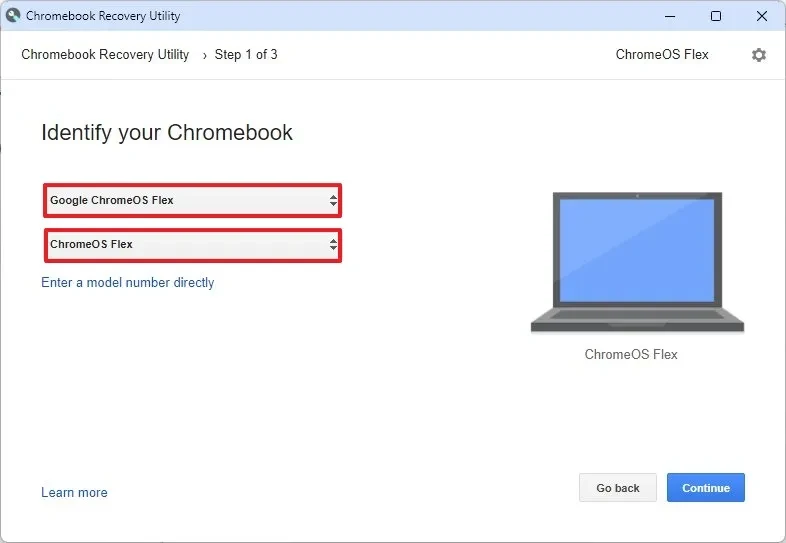
- Select"Select a model from a list".
- In the "Select a manufacturer" section, choose"Google ChromeOS Flex"In the "Select a product" section, choose"ChromeOS Flex".
- Press"Continue".
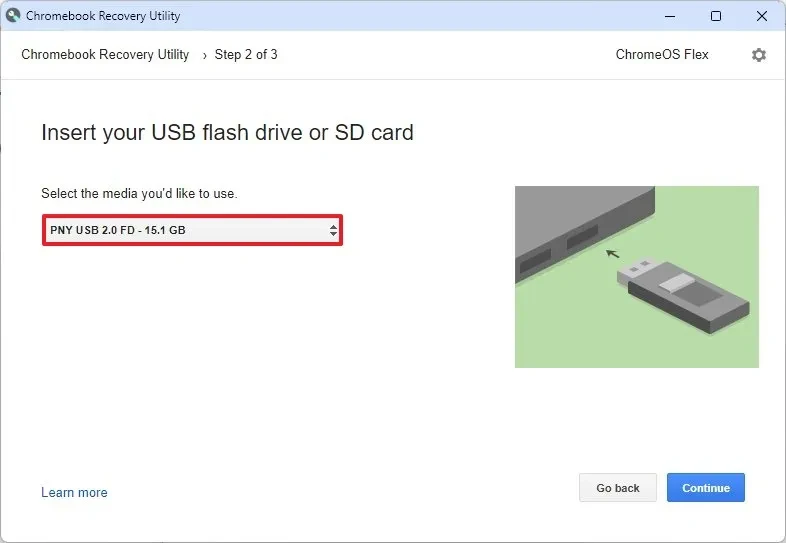
- Plug the USB drive into your computer and select the correct USB drive from the list.
- Press"Continue", then press"Create now"to begin the process.
- When finished, press the button."Done".
Step 2: Install the operating system on your computer.
Once you have a bootable USB drive, plug it into the computer you want to install it on and follow the instructions:
- Restart your computer and access the boot menu or BIOS/UEFI settings. This usually requires pressing a function key such as F2, F10, F12, ESC, or Delete right after the computer starts up. Refer to your computer manufacturer's documentation for the exact key.
- Choose to boot from the USB drive.
- When the welcome screen appears, select your preferred language and keyboard layout, then press Enter."Get Started".
- Select an option"Install ChromeOS Flex"The "Try it first" option allows you to experience the operating system directly from a USB drive without changing any data on your computer.
- Press"Next".
- Read the warning about deleting data carefully and press"Install ChromeOS Flex", then confirm again using the button"Install".
- The installation process will proceed automatically. Once complete, the computer will shut down. Please remove the USB drive and restart your computer.
- After restarting, you will go through the initial setup steps such as connecting to Wi-Fi, accepting the terms of service, and logging in with your Google (Gmail) account.
- Follow the on-screen instructions to complete the account setup and personalization options.
After completing the steps above, your computer is officially running ChromeOS Flex, completely replacing the previous Windows 10 operating system. You will have a faster, more secure device ready for basic learning, work, and entertainment tasks.


