
Converting MBR to GPT: Unlocking UEFI for Windows 11
This guide shows you how to use the built-in MBR2GPT tool to safely convert your hard drive from MBR to GPT without data loss, meeting UEFI requirements for Windows 11 upgrade.
Why is it necessary to convert from MBR to GPT?
To upgrade to Windows 11 or take advantage of modern hardware features, converting your hard drive partition format from Master Boot Record (MBR) to GUID Partition Table (GPT) is a mandatory requirement. GPT is a newer partitioning standard that works with UEFI firmware to enhance security and performance, replacing the outdated BIOS and MBR standards.
MBR, a long-standing technology, has many limitations, most notably its inability to support hard drives larger than 2TB and its limitation to a maximum of four primary partitions. In contrast, GPT along with UEFI offers many superior advantages:
- Supports large drives:Exceeding the 2TB limit of the MBR.
- Faster boot times:Optimize the startup, shutdown, and sleep mode transition processes.
- Enhanced security:Unlock essential Windows features like Secure Boot, which protects the boot process from malware, a mandatory requirement for installing Windows 11.
Fortunately, Microsoft has provided a built-in command-line tool called MBR2GPT, which allows this conversion process to be performed safely without reinstalling the operating system or losing data.
MBR2GPT: A lossless conversion tool
MBR2GPT.exe is a built-in tool from Windows 10 version 1703 onwards. Its main function is to convert a system disk from an MBR partition type to GPT. The advantage of this tool is that it performs the conversion by adding GPT elements to the disk without modifying or deleting existing partitions and data.
Before proceeding, it's important to note that the drive to be converted should have a maximum of three primary partitions, as this process will create an additional EFI system partition (ESP) necessary for UEFI.
Detailed conversion process guide
Although this process is designed to be data-free, creating a full system backup before starting is always an important precaution.
Step 1: Check the current partition format.
First, you need to determine whether your hard drive is using the MBR or GPT format.
- Open menuStart, search for "Disk Management" and open the application.
- Right-click on the Windows installation drive (for example, Disk 0) and selectbarrier.
- Switch tabVolumes.
- Check the "Partition style" section. If it shows "Master Boot Record (MBR)", you need to convert it. If it shows "GUID Partition Table (GPT)", your drive is already in the new format.
Step 2: Perform the conversion in the Recovery Environment.
The safest and most recommended method is to run MBR2GPT from the Windows Recovery Environment (WinRE).
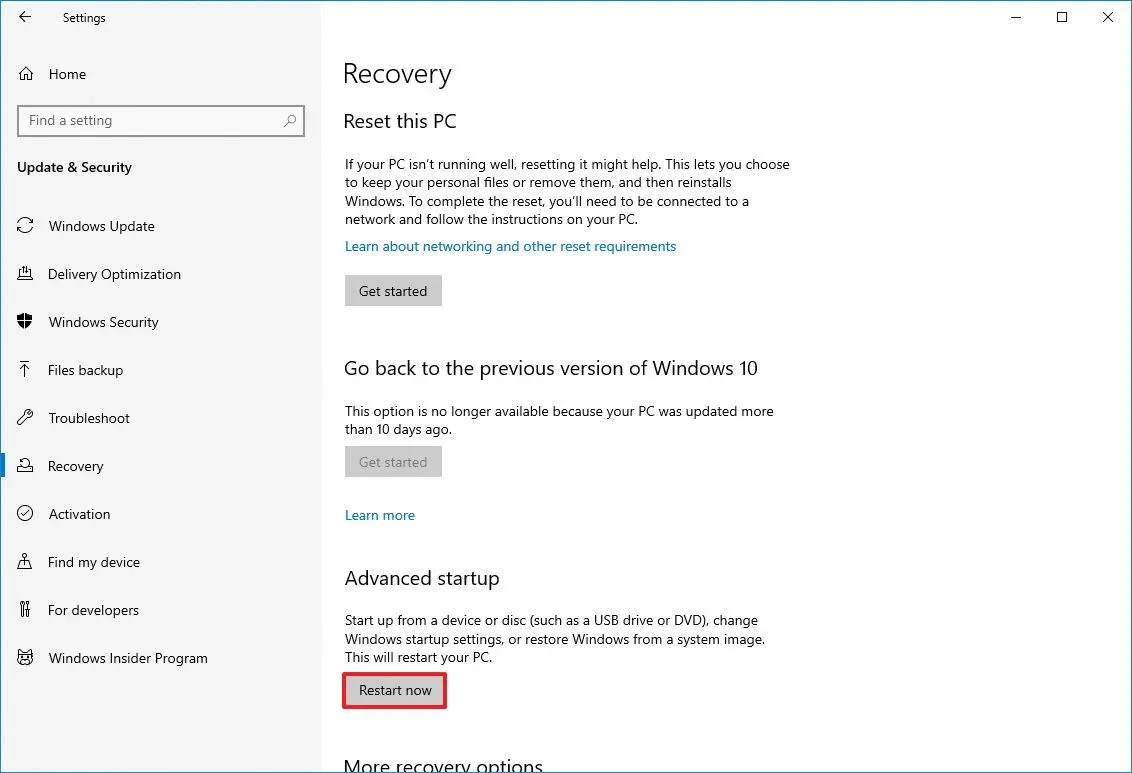
- OpenadjustingnewsUpdate & SecuritynewsRecovery.
- In the "Advanced startup" section, clickRestart now.
- After the computer restarts, selectTroubleshootnewsAdvanced optionsnewsCommand Prompt.
- In the Command Prompt window, enter the following command to authenticate the drive and press Enter:
mbr2gpt /validate - If the verification process is successful, enter the following command to start the conversion and press Enter:
mbr2gpt /convert
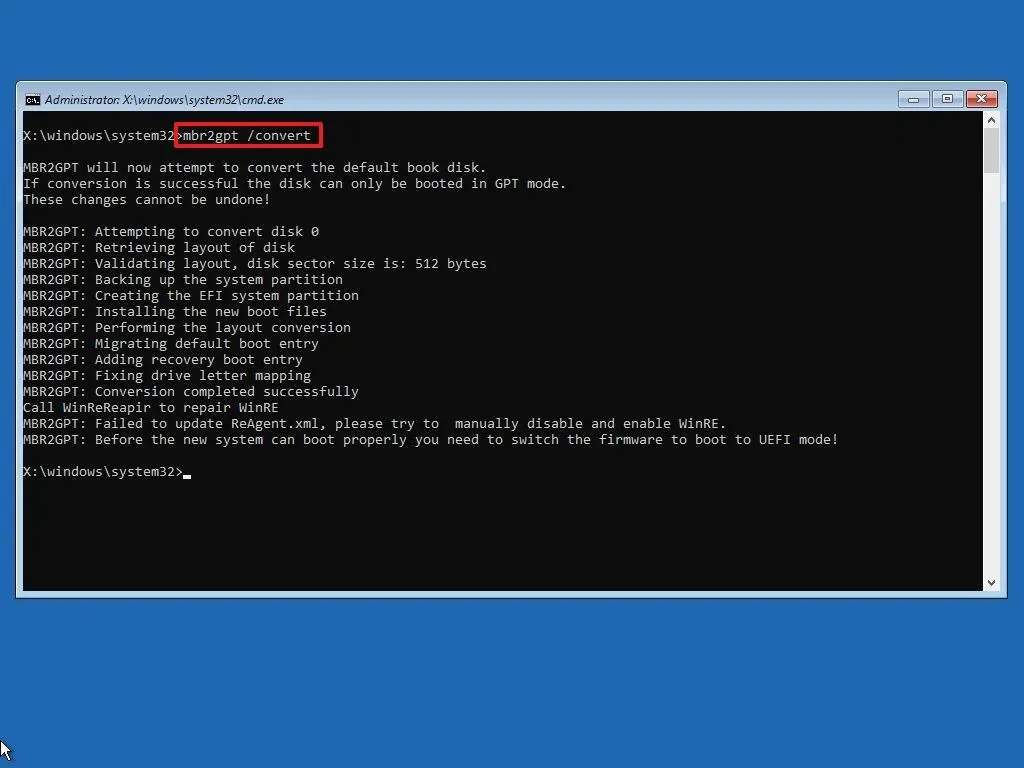
Once the process is complete, turn off your computer to move on to the next step.
Step 3: Convert Firmware from BIOS to UEFI
After converting the drive to GPT, the computer will not be able to boot until you change the firmware mode on the motherboard.
- Restart your computer and immediately press the key to access the firmware settings (usually F1, F2, F10, Del, or Esc, depending on the manufacturer).
- In the settings interface, find the "Boot" menu or similar.
- Change the boot mode from "Legacy" or "BIOS" to"UEFI".
- In the meantime, you should also find and enable the option."Secure Boot"To fully meet the requirements of Windows 11.
- Save the changes and restart your computer.
Step 4: Confirm successful conversion
Once you're back in Windows, you can check to make sure everything is working correctly.
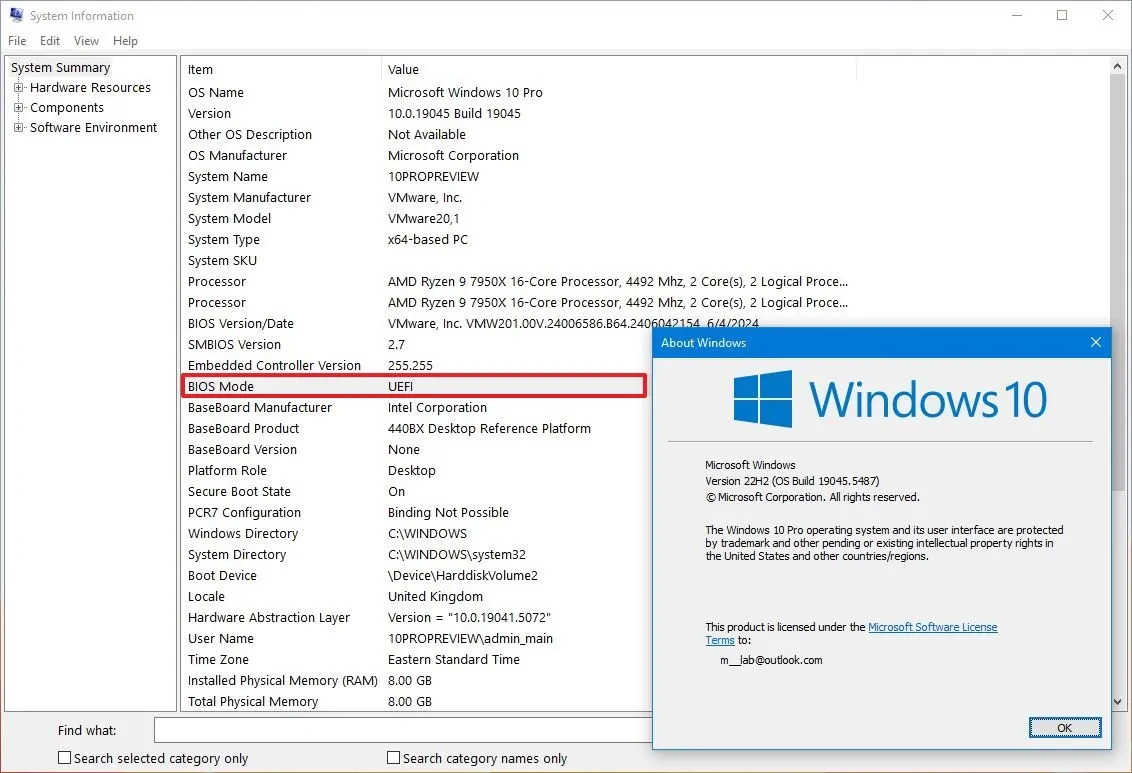
- Open the applicationSystem Information(Search for "msinfo32" in Start menu).
- Check the "BIOS Mode" section; it will now display asUEFI.
- The "Secure Boot State" section should display asOn.
Common MBR2GPT error codes
If the conversion process fails, the tool will return an error code. Here are some common error codes:
| Return code | Describe |
|---|---|
| 1 | The user has canceled the conversion process. |
| 5 | Geometric and layout errors of the selected disk. |
| 6 | One or more volumes on the disk are encrypted (BitLocker needs to be paused). |
| 7 | The disk geometry and layout do not meet the requirements (e.g., there are more than 3 partitions). |
| 8 | Error while creating EFI system partition. |
| 10 | Error while applying GPT layout. |
Successfully converting from MBR to GPT and enabling UEFI is a crucial technical step, preparing your computer for the Windows 11 upgrade and allowing you to enjoy a safer and more efficient operating environment.


