
Switching to a local Windows 11 account: A detailed guide.
Enhance security and privacy by switching from a Microsoft account to a local account on Windows 11. This guide shows you two simple, easy-to-follow methods.
On Windows 11, using a Microsoft account offers many benefits such as data synchronization and cloud service integration. However, for privacy reasons or to have complete control over the data on their device, many users choose to switch to a local account. Local accounts operate independently, do not require an internet connection, and keep all information confined to a single computer.
This article will provide detailed instructions on two ways to switch from a Microsoft account to a local account on Windows 11, helping you regain control of your device.
Two methods for switching to a local account.
There are two main approaches to doing this: disconnecting the existing Microsoft account from the system or creating a completely new local administrator account and transferring the data to it. Each method has its own advantages and disadvantages.
Method 1: Disconnect your current Microsoft account.
This is the quickest and simplest method, retaining all your existing settings, files, and applications. Your account will be directly converted to a local account.
- Openadjusting(Install) on Windows 11 by pressing the key combinationWindows + I.
- Navigate to the itemAccounts(Account).
- Select tabYour Info(Your information).
- In the “Account settings” section, click on the optionSign in with a local account instead(Log in using a local account).
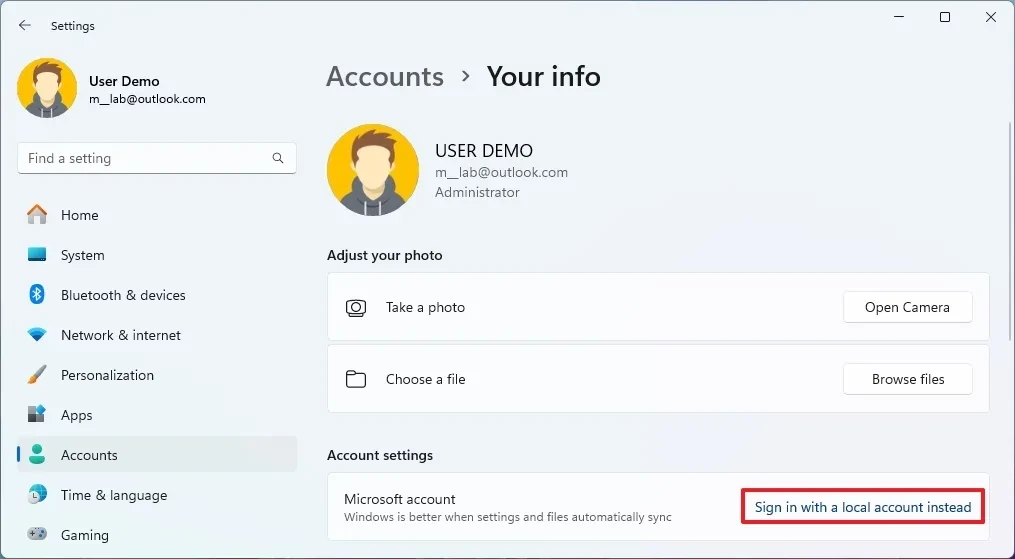
- Click the buttonNext(Continued) for confirmation.
- Enter your current Microsoft account password to verify.
- Create a username for the new local account.
- Set a new password and password hint.
- Click hereNext(Next).
- Finally, clickSign out and finish(Log out and complete).
After the system restarted, you were able to log in with your new local account, with all your data preserved.
Method 2: Create a new local account and migrate data.
This method is suitable when you want a completely new user profile or when an old account is experiencing problems. The process involves creating a new local account, granting administrator privileges, manually backing up data, and deleting the old Microsoft account.
Step 1: Create a new local account
- OpenSettings > Accounts > Other users(Settings > Accounts > Other Users).
- Click the buttonAdd account(Add account).
- SelectI don't have this person's sign-in information(I don't have this person's login information.)
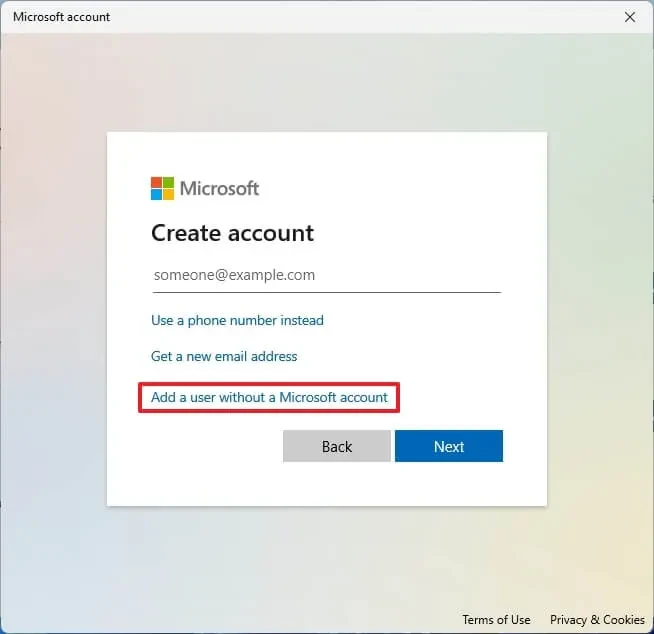
- Select nextAdd a user without a Microsoft account(Add users who do not have a Microsoft account).
- Enter your username, password, and set up security questions. Then press Enter.Next.
Step 2: Grant administrator privileges
- In the sectionOther fingersFind the account you just created and click on it.Adjust account type(Change account type).
- In the dropdown menu, selectAdministratorand pressOK.
Step 3: Migrate data and delete the old account.
- Log out of your current account and log in to your new local account.
- OpenFile Explorer, navigate toC:\Users.
- Open the folder of your old Microsoft account and copy important data from folders such as Documents, Pictures, Downloads, Desktop, etc.
- Paste the copied data into the corresponding folders in the new local account (quick access by typing).%USERPROFILE%(into the address bar of File Explorer).
- After ensuring you have backed up all necessary data, log back into your new local account.
- Go back inSettings > Accounts > Other users, select your old Microsoft account and clickmassive(Erase).
- Confirm by selectingDelete account and data(Delete account and data).
Which method should I choose?
The choice of method depends on your needs. If you simply want to get rid of your Microsoft account and keep everything intact, method 1 (disconnecting) is ideal due to its simplicity and speed. Conversely, if your current account is experiencing problems or you want a completely clean start, method 2 (creating a new account) will be a more radical solution, although it requires more effort in migrating data and reinstalling applications.


