
Double square brackets in Excel: why and how to use them
Excel automatically adds quotation marks when you select a column in a table with your mouse. This article breaks down structured references and three cases that generate double square brackets: special characters, multi-column ranges, and header or total rows.
When typing formulas in Excel, square brackets and other symbols are automatically inserted if you are referencing columns in a table. Many people wonder why formulas sometimes have two pairs of square brackets in a row. The answer lies in Excel's structured referencing mechanism and specific situations where Excel adds an extra layer of protection to avoid ambiguity.
Structured referencing mechanism: how Excel interprets tables
There are two ways to reference data in Excel:
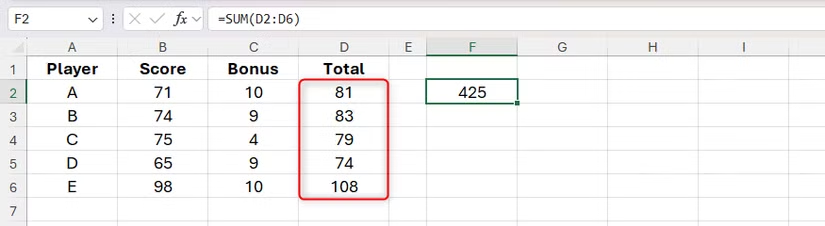
- By referencing by cell address (A1-style), for example, =SUM(D2:D6) to calculate the sum of values from D2 to D6.
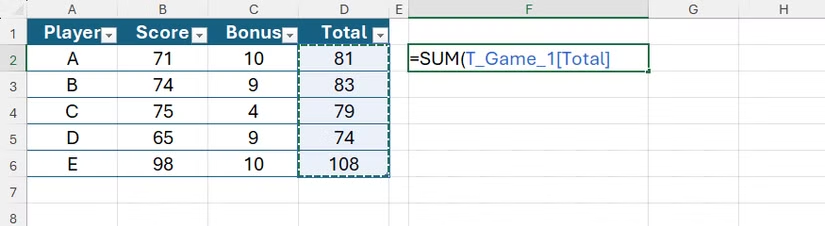
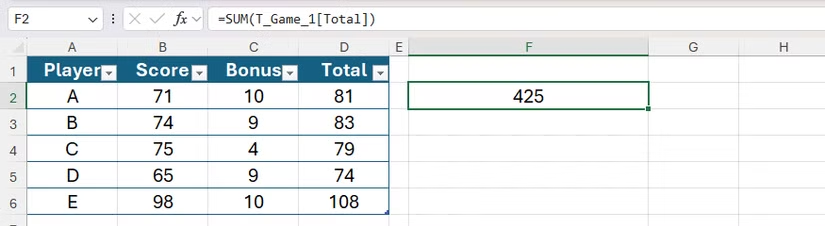
- Structured references use table and column names. After formatting the range A1:D6 into a table, enter =SUM( and then select the Total column of the T_Game_1 table. Excel will create: =SUM(T_Game_1[Total]).
In tables, Excel uses square brackets to enclose column names, distinguishing them from regular cell references and improving readability. When formulas are within the same table, Excel also uses the @ operator (implicit intersection) to indicate the cell in the same row, for example: =SUM([@Score]+[@Bonus]). The @ operator is automatically inserted when you select a column with your mouse to instruct Excel to repeat the calculation row by row.
When do double square brackets appear in formulas?
Column headers contain special characters.
If the column header contains special characters (e.g., asterisks, spaces, etc.), Excel needs to "escape" those characters by adding parentheses. For example, "Score" doesn't contain special characters, so only one class is needed: [@Score]. But with "Bonus," which contains an asterisk, Excel creates: =SUM([@Score]+[@[*Bonus*]]). Similarly, spaces are also special characters, so the formula: =[@[Items Sold]]*[@Price] contains two classes of parentheses around "Items Sold."
Referencing a range of columns
When a formula requires a range of multiple columns, Excel uses outer brackets to specify the row context (using @) and inner brackets to indicate the first and last columns of the range. For example, to calculate the sum of Wk1 to Wk4 for each team in T_Scores: =SUM(T_Scores[@[Wk1]:[Wk4]]). Even when the formula is within a table, Excel retains the table name for clarity and to avoid confusion.
Reference the cell in the header row or the total row.
When referencing a specific row in a table (header row or total row), Excel uses a special identifier with a hash symbol (#) and adds parentheses to indicate the intersection. For example, to select the total cell at F7 of the T_Scores table: =SUM(T_Scores[[#Totals],[Total]]). Then you can calculate the forecast by dividing by 4 and multiplying by 52: =SUM(T_Scores[[#Totals],[Total]]/4)*52.
| Situation | Example in the formula | Meaning |
|---|---|---|
| Title contains special characters | =SUM([@Score]+[@[*Bonus*]]) = [@[Items Sold]]*[@Price] |
Add parentheses to "escape" special characters like asterisks and spaces. |
| Multi-column reference | =SUM(T_Scores[@[Wk1]:[Wk4]]) | The outer brackets indicate the range by row; the inner brackets define the first and last columns. |
| Header row or total row | =SUM(T_Scores[[#Totals],[Total]]) | Use #Totals to indicate the row total and quotation marks to specify the intersection with the column total. |
Technical benefits of using structured references
- Easy to read and maintain: Column and table names help formulas self-interpret, reducing dependence on cell location.
- Less ambiguity: Parentheses added to special characters, column ranges, or rows help Excel interpret them accurately.
- Automatic row iteration: The @ operator is inserted automatically, and the formula runs row by row without needing a dynamic result array.
Limitations and challenges
- Visually cluttered: Parentheses can make formulas look messy, especially when column headers are long or contain many special characters.
- Data structure dependency: Tables need clear column names and headers; using multiple header rows or inconsistent data will make referencing difficult to follow.
A brief comparison with the traditional A1 reference.
- Clarity: Structured references state the column/table names directly; A1 states the cell coordinates. When the table changes position, the structured formulas remain easy to understand.
- Scalability: When adding rows to a table, column-based formulas naturally cover the new data.
- Conciseness: A1 references are generally shorter in characters; conversely, structured references can be longer but offer greater self-description.
Good practices for streamlined and sustainable recipes.
- Name your table in Table Design so that the formulas are easy to follow.
- Keep column headings concise; limit spaces and special characters. If multiple words are needed, use underscores instead.
- Build a structured dataset: a header row, each cell a data point, each column a consistent field.
- When entering formulas, it's best to select the column/cell using the mouse; Excel will automatically insert the @ symbol, #Totals, and necessary parentheses.
In summary, double square brackets are not a bug but a mechanism that helps Excel correctly understand structured references in cases with special characters, multiple columns, or special rows. Understanding this rule makes formulas easier to read, more stable, and suitable for tabular data.


