
Fast Startup in Windows 11: When should you turn it off and how?
The Fast Startup feature allows Windows to start up instantly, but it can cause update errors and system conflicts. Here are 4 ways to safely disable it.
How Fast Startups work: Benefits and trade-offs
Fast Startup is a built-in feature in Windows 11 and Windows 10, designed to shorten computer boot times. This mechanism works by combining hibernation and a complete shutdown. When you shut down your computer, the system saves the operating system kernel, drivers, and system state to a hibernation file (hiberfil.sys), allowing the computer to restart faster from this saved state.
However, this convenience comes with some potential drawbacks. Fast Startup can conflict with the Windows update installation process, complicate the management of encrypted storage devices, and cause problems in dual-boot systems due to restricted access to drives from the other operating system. In some cases, this feature even prevents users from accessing the motherboard's UEFI (BIOS) settings.
Detailed guide on 4 ways to disable Fast Startup on Windows
Below are four methods to disable the Fast Startup feature, ranging from the simplest to more advanced customizations, applicable to both Windows 11 and Windows 10.
Method 1: Customize in the Control Panel
This is the most common and easiest approach for most users.
- Open menuStart, search for "Control Panel" and open the application.
- In the "Category" view, select the item.Hardware and Sound.
- Click herePower Options.
- From the toolbar on the left, selectChoose what the power button does.
- Click on the textChange settings that are currently unavailableto unlock the options.
- Uncheck the boxTurn on fast startup (recommended)to disable the feature.
- Save changes.
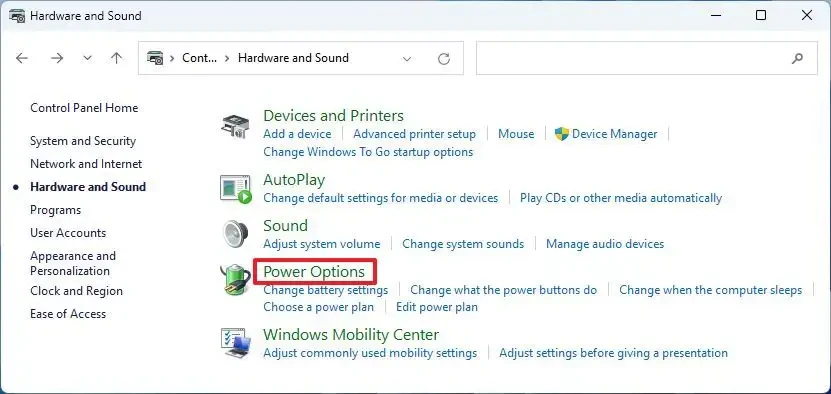
To re-enable the feature, simply repeat the steps above and check the "Turn on fast startup" box again.
Method 2: Using commands in Command Prompt or PowerShell
For users familiar with the command-line interface, this is a quick and efficient solution.
- Open menuStart, search for "Command Prompt" or "PowerShell".
- Right-click on the result and selectRun as administrator.
- Enter the following command and press Enter.EnterTo turn off Fast Startup:
powercfg /h off
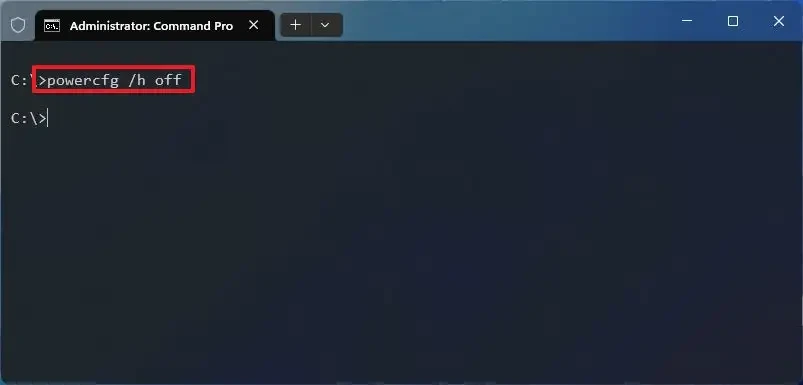
This command will also disable hibernation. To re-enable it, use the commandpowercfg /h on.
Method 3: Configuration via Group Policy Editor
This method only applies to Windows 11 Pro, Enterprise, and Education versions.
- Press the key combinationWindows + Rtype
gpedit.mscand pressEnterTo open the Local Group Policy Editor. - Navigate to the following link:
Computer Configuration > Administrative Templates > System > Shutdown - In the right pane, double-click on policies.Requires use of fast startup.
- Select an optionDisabled.
- ClickApply, then selectOK.
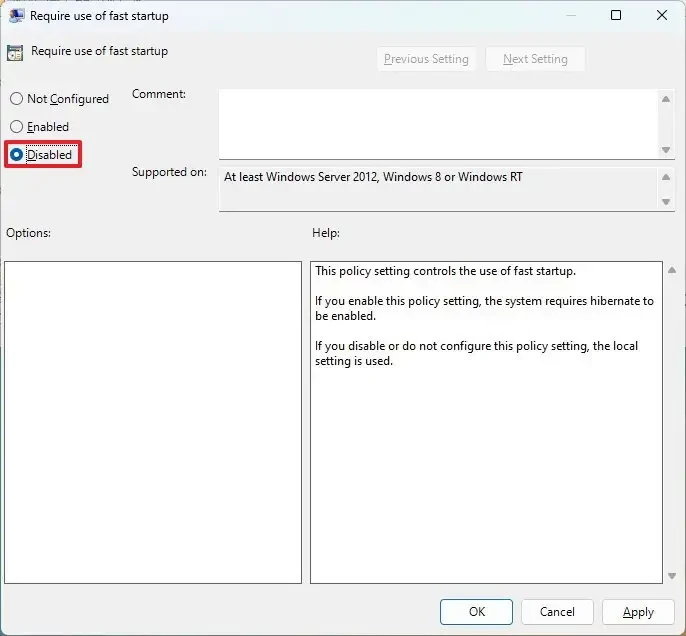
To undo, you can select the "Not configured" option again.
Method 4: Editing the Registry Editor
Note:Editing the Registry can cause serious system problems if not done correctly. You should back up your Registry before proceeding.
- Press the key combinationWindows + Rtype
regeditand pressEnter. - Navigate to the following link:
HKEY_LOCAL_MACHINE\SYSTEM\CurrentControlSet\Control\Session Manager\Power - Find the key with the nameHiberboot Enabledin the right-hand frame.
- Double-click this key, change the value (Value data) from1wall0.
- ClickOKand restart your computer.
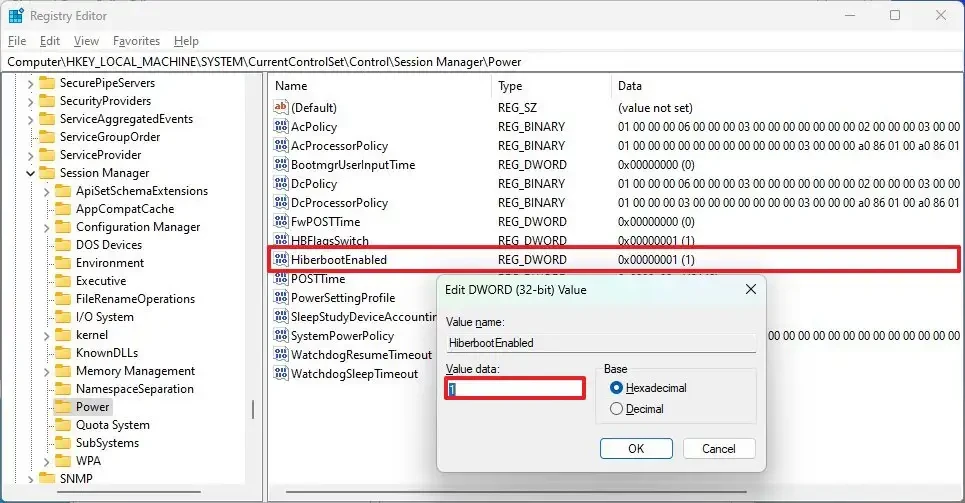
To re-enable it, simply change the value of HiberbootEnabled back to 1.
Conclusion: When should you turn off Fast Startup?
Disabling Fast Startup is only really necessary when you encounter specific problems such as update errors, software conflicts, or issues related to dual-boot systems and UEFI/BIOS access. If your system is stable and you want to take advantage of faster boot times, keeping Windows' default settings is a reasonable option.


