
Decoding Command Prompt: Boosting Work Efficiency on Windows
Beyond its graphical interface, Command Prompt offers deep system control, task automation, and efficient troubleshooting with just a few command lines.
In a world dominated by graphical user interfaces (GUIs), Windows' command-line interface remains a powerful tool, allowing users deeper control over their systems, increased productivity, and efficient troubleshooting. Mastering basic commands is not only for IT professionals but also beneficial for anyone looking to optimize their Windows experience.
Command Prompt and PowerShell: Understanding the Two Command-Line Interfaces Correctly
Windows offers two main command-line interfaces: Command Prompt (CMD) and PowerShell. Command Prompt is a traditional utility that allows users to execute text commands to interact directly with the operating system. With CMD, many complex tasks can be completed quickly with a single command, saving time compared to navigating through multiple graphical windows.
PowerShell is a more advanced version, built on the .NET Framework, offering more powerful automation and configuration management capabilities. Although this article focuses on Command Prompt, most basic commands can be executed in both environments.
Syntax and basic principles
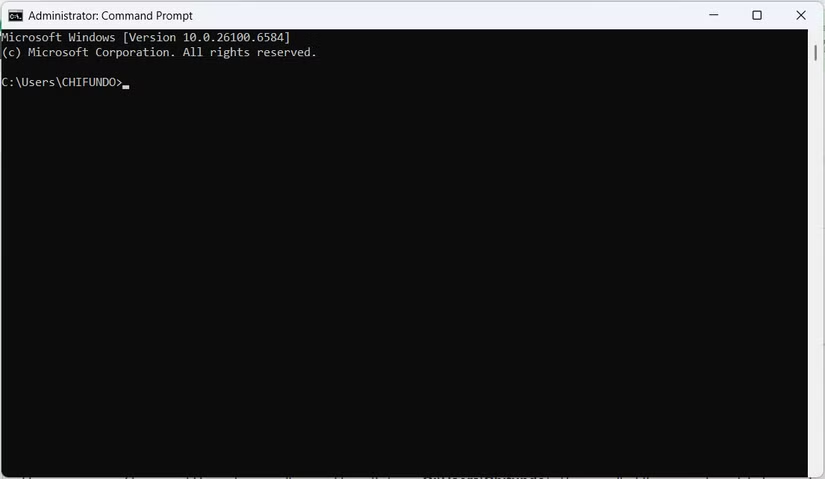
When you open Command Prompt, you will see a file path, for example...C:\Users\Username>This is called the command prompt. This is where you enter commands. A command is a text instruction; after typing it and pressing Enter, the system will execute the corresponding action.
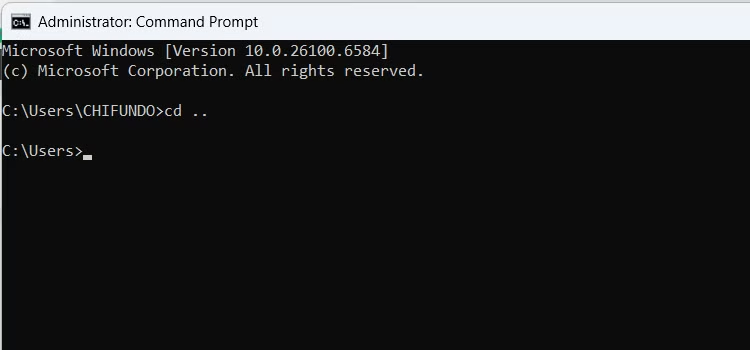
Many commands require additional information, called arguments, to perform specific operations. For example, in the commandCD...,CD(Change directory) is a command to change the directory, and...This argument requests a directory path to be moved up one level. Windows commands are not case-sensitive, but arguments can be context-sensitive.
Essential commands for effective system management.
Mastering some basic commands will help you perform system administration tasks quickly and accurately.
Working with folders and files
File and folder management is one of the most popular applications of Command Prompt.
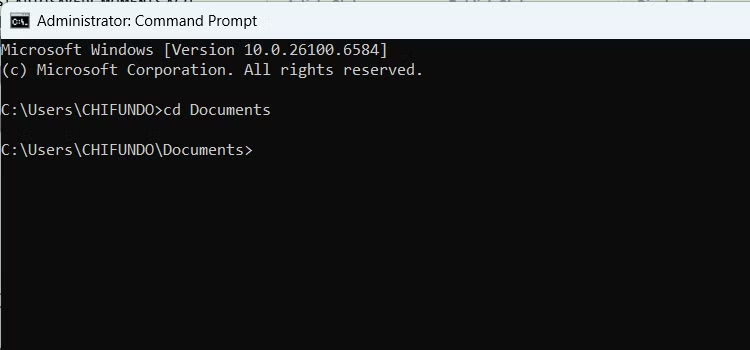
- cd [folder name]: Move to a subdirectory. For example:CD Documents.
- dirList all files and folders in the current location.
- mkdir [directory name]Create a new folder. For example:mkdir DuAnMoi.
- rmdir [directory name]: Delete an empty folder.
- echo. > [filename]Create an empty file. For example:echo. > notes.txt.
- copy [source file] [destination]: Copy the file to another location.
- move [source file] [destination file]: Move files.
- ren [old name] [new name]: Rename a file.
- del [filename]: Delete a file.
Diagnose and test network connectivity.
Command Prompt provides powerful tools for checking and diagnosing network problems.
- ipconfigThis command displays detailed network configuration information for the computer, including IP address, subnet mask, and default gateway. This command is extremely useful when setting up a local network connection.
- ping [web address/IP address]: Sending data packets to a server and measuring the response time. This is the quickest way to check if a website is working or if your network connection is stable.
Advanced system troubleshooting tools
When the system encounters problems, the following commands can help scan and repair potential errors.
- chkdsk /f [drive name]The Check Disk (CHKDSK) utility scans your hard drive for file system errors and repairs them. For example:chkdsk /fc:.
- sfc /scannowSystem File Checker (SFC) scans and repairs corrupted or modified Windows system files.
- DISM /Online /Cleanup-Image /RestoreHealthDeployment Image Servicing and Management (DISM) is a more advanced tool capable of repairing Windows system images when SFC fails to resolve the issue.
Overcoming limitations: The future of the command line on Windows
Although initially challenging, familiarizing yourself with Command Prompt opens up a powerful and flexible way to control Windows. Once proficient in basic commands, users can move on to more advanced topics such as writing batch scripts to automate repetitive tasks, thereby maximizing the operating system's potential. With the continuous development of PowerShell, command-line skills are becoming increasingly important in the modern technological environment.


