
Decoding Windows Sandbox: A secure virtual environment available on Windows
Windows Sandbox creates an isolated Windows 11/10 space, allowing you to test untrusted software without risking your main system.
Windows Sandbox is a built-in feature in Windows 11 and Windows 10 Pro/Enterprise versions that allows users to create a temporary and isolated desktop environment. It's an ideal solution for running untrusted applications or accessing potentially risky websites without affecting the main operating system.
Essentially, Sandbox is a lightweight virtual machine, only about 100MB, that uses Microsoft Hyper-V technology to create a separate kernel. Any changes, files, or applications installed in this environment will be permanently deleted after you close the Sandbox window, ensuring that each startup is a completely new and clean session.
To use this feature, your computer needs to have virtualization enabled in UEFI or BIOS.
How to activate Windows Sandbox on Windows 11 and 10
Users can enable Windows Sandbox through a graphical interface or by using command lines in PowerShell and Command Prompt. The detailed methods are below.
1. Activate via Control Panel
This is a common and easy method to use on both Windows 11 and Windows 10.
- OpenControl Panel.
- Select itemPrograms, then enterPrograms and Features.
- Click on the option“Turn Windows features on or off”on the left side.
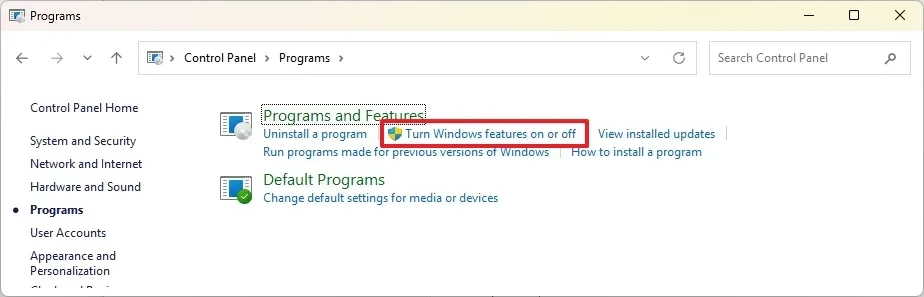
- In the new window that appears, find and check the box.Windows Sandbox.
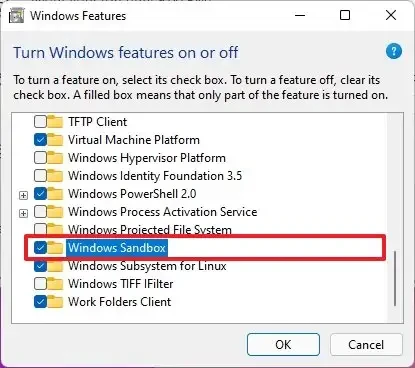
- PressOKand then selectRestart nowAllow the computer to restart and apply the changes.
2. Activate via the Settings app (on newer versions of Windows 11)
With recent versions of Windows 11, you can enable Sandbox directly from the Settings app.
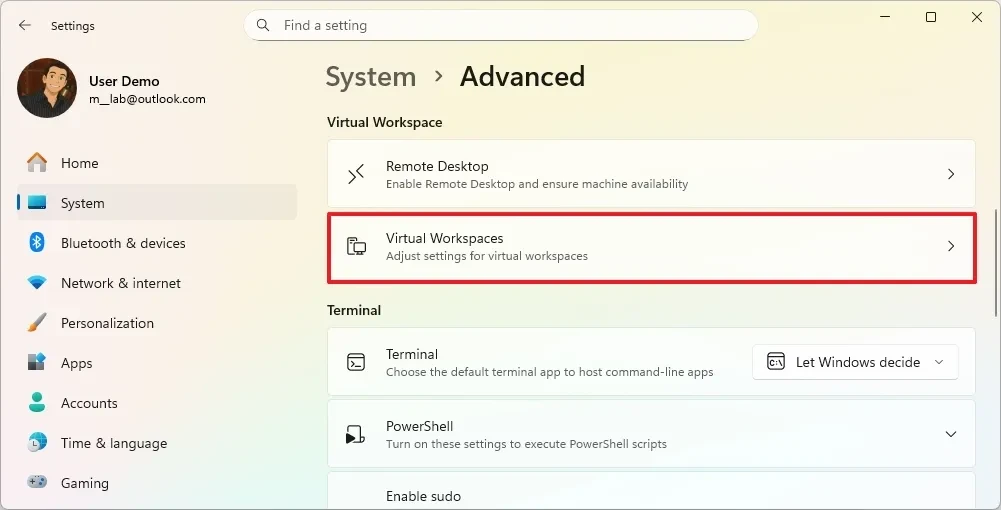
- Openadjustingon Windows 11.
- Go to the sectionSystemand chooseAdvanced.
- Click on settingsVirtual Workspaces.
- Flip the switch"Windows Sandbox"Switch to the On position.
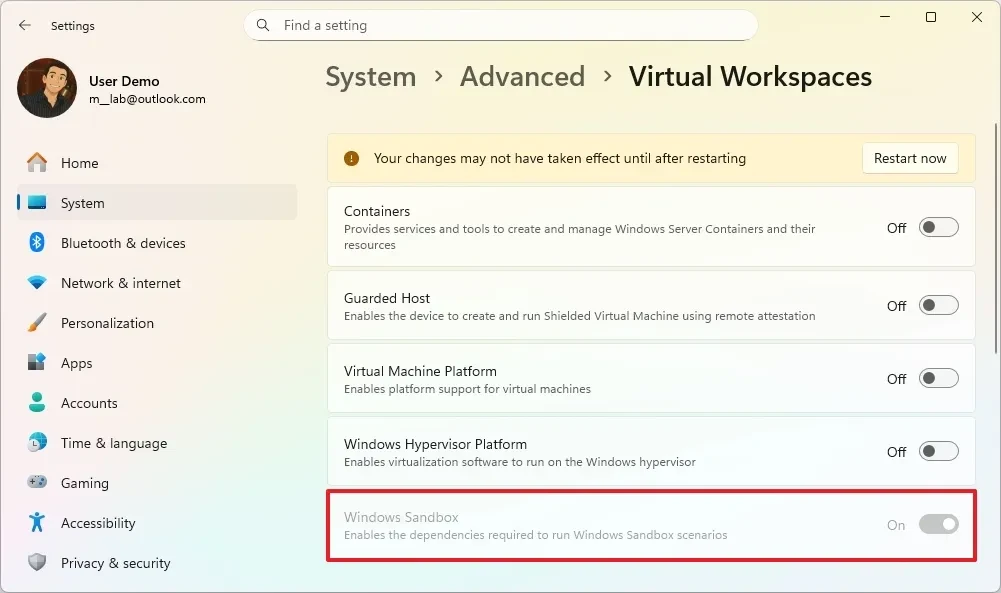
- SelectRestart nowto complete the process.
3. Using PowerShell
For users familiar with the command line, PowerShell provides a quick way to enable this feature.
- Open menuStart, searchPowerShell, right-click and selectRun as administrator.
- Enter the following command and press Enter:
Enable-WindowsOptionalFeature -Online -FeatureName "Containers-DisposableClientVM" -All
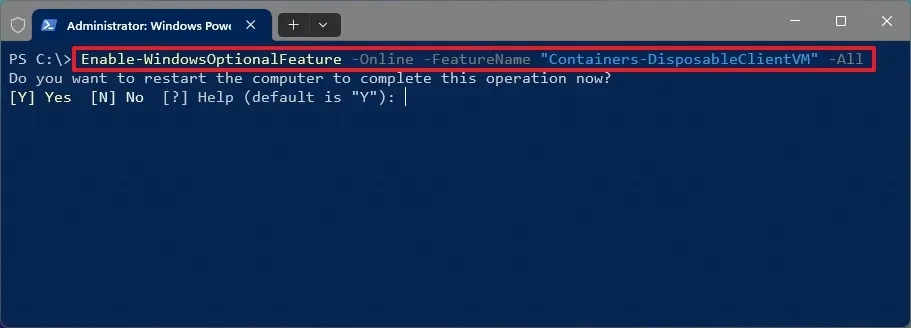
- Import"Y"Press Enter to confirm restarting your computer.
To disable the feature, you can run the following command:Disable-WindowsOptionalFeature -Online -FeatureName "Containers-DisposableClientVM".
4. Using Command Prompt
Similar to PowerShell, Command Prompt is also a powerful tool for managing Windows features.
- Open menuStart, searchCommand Prompt, right-click and selectRun as administrator.
- Enter the following command and press Enter:
Dism /online /Enable-Feature /FeatureName:"Containers-DisposableClientVM" -All
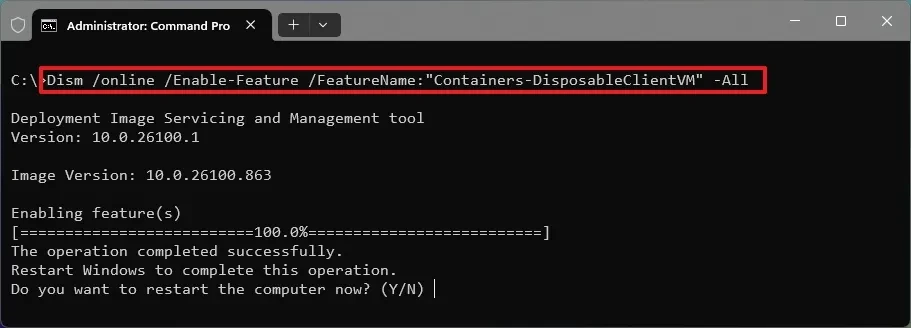
- Import"Y"and press Enter to restart the computer.
To disable the feature, you can run the following command:Dism /online /Disable-Feature /FeatureName:"Containers-DisposableClientVM".
Things to know when using Windows Sandbox
After successful activation, you can find and launch Windows Sandbox from the Start menu. Here are some important points to note:
- Isolation:All activities within the Sandbox are completely isolated from the main system, helping to protect the computer from potential malware.
- Temporary data:All files, applications, and configuration changes will be permanently deleted when you close the Sandbox.
- Copy data:You can easily copy and paste files between the server and the Sandbox environment.
- System requirements:This feature is only available on Windows 10/11 Pro, Enterprise, or Education editions and requires hardware virtualization to be enabled in the BIOS/UEFI.
- Efficiency:Sandbox only consumes system resources (CPU, RAM) while it's running. When closed, it doesn't affect the overall performance of the machine.
Windows Sandbox is a powerful and convenient security tool for developers, IT professionals, and anyone who wants to safely test software. Enabling and using this feature enhances data protection and the stability of the main operating system.


