
Instructions on how to move the Windows 11 taskbar to the familiar left corner.
Windows 11 defaults to centering the taskbar, a change not everyone likes. This guide provides detailed instructions on two methods to move the taskbar back to its traditional left-hand corner.
Windows 11 introduces a new interface with the Taskbar and Start menu centered on the screen. While this design makes it more accessible on larger screens, many users still prefer the classic layout with icons aligned to the left. Fortunately, the operating system provides an option to change the default configuration.
This article will guide you through two ways to align the taskbar to the left on Windows 11, including a safe method via Settings and a more advanced option using Registry Editor.
Customize the taskbar via Settings.
This is the simplest and safest method, recommended for most users. The steps are as follows:
- Open the applicationSettingsby pressing the key combinationWindows + IOr search in the Start menu.
- In the Settings window, select the itemPersonalizationon the left sidebar.
- Next, click on the item.Taskbar.
- Find and click to expand optionsTaskbar behaviors.
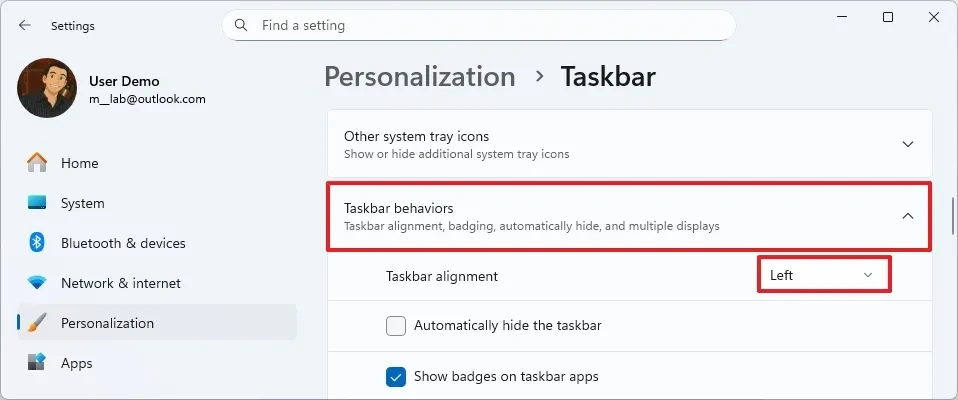
- At the lineTaskbar alignment, change the option from "Center" to"Left".
Once complete, the Start button and application icons on the taskbar will immediately move to the left corner, similar to Windows 10 and earlier versions. To revert to the default settings, simply repeat the steps above and select "Center" in the final step.
Using Registry Editor for Advanced Users
This method is intended for experienced users or in cases requiring automation using scripts. Improperly editing the Registry can cause serious system problems, so you should back up your entire system before proceeding.
- Open the Start menu, type"regedit"and select the resultRegistry EditorTo open the editor.
- Navigate to the following link:
HKEY_CURRENT_USER\Software\Microsoft\Windows\CurrentVersion\Explorer\Advanced - Right-click on the lockAdvanced, selectNew, then selectDWORD (32-bit) Value.
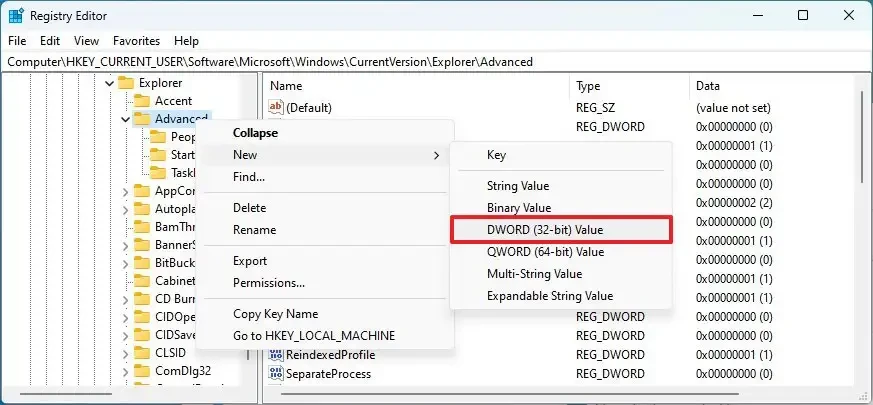
- Name the new value asTaskbarAland press Enter.
- Double-click the lock.TaskbarAlIt both creates and ensures its value.0.
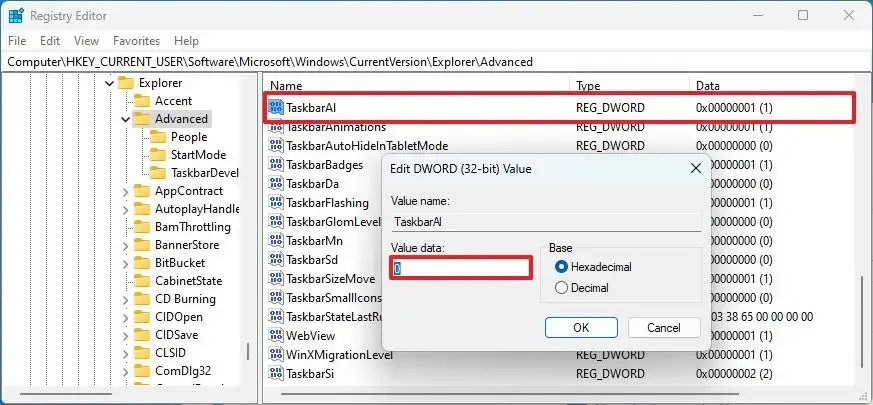
- Click the buttonOKTo save changes.
The taskbar will automatically align to the left after you save the value. If you want to restore the default settings, simply go back to the above path, right-click on the "TaskbarAl" key and select "Delete".
Some frequently asked questions
Is it possible to move the taskbar to the left without using the Registry?
Yes. Windows 11 has this option built into the Settings app. You can access it.Settings > Personalization > Taskbar > Taskbar BehaviorTo make changes without interfering with the Registry.
Does this make Windows 11 look like Windows 10?
This only restores the alignment of the Start button and application icons. The overall design of the taskbar, effects, and other features remain those of Windows 11.
Why should you use the Registry instead of Settings?
Registry methods are useful for automation, scripting, or in management environments where the Settings application is limited.
Do I need to restart my computer after making these changes?
No. In most cases, the change will take effect immediately after you adjust it in Settings or the Registry.
Is it possible to move the taskbar to the top or to other edges?
No. Currently, Windows 11 only supports aligning taskbar icons to the left or center. Moving the entire taskbar to other edges of the screen is not supported.


