
Guide to optimizing RAM in Windows 11 to make your computer run faster.
If your Windows 11 computer is running slowly, it may be due to excessive RAM usage. This article provides effective methods to reduce memory consumption and improve performance without upgrading your hardware.
High RAM usage on Windows 11 can significantly reduce overall performance, causing slow application loading, lag, and decreased stability. Optimizing RAM usage is an effective solution, especially as hardware upgrade costs are trending upwards.
By adjusting system settings and managing background applications and services, users can free up memory resources, helping their computers run more smoothly for everyday tasks ranging from web browsing and office work to gaming.
System optimization: Disable background processes.
One of the most effective ways to reduce the load on RAM is to prevent unnecessary applications and services from starting with the system or running in the background.
Disable applications that start with the system.
Many applications automatically run when the computer starts up, consuming memory even when not in use. Disabling them can free up a significant amount of resources.
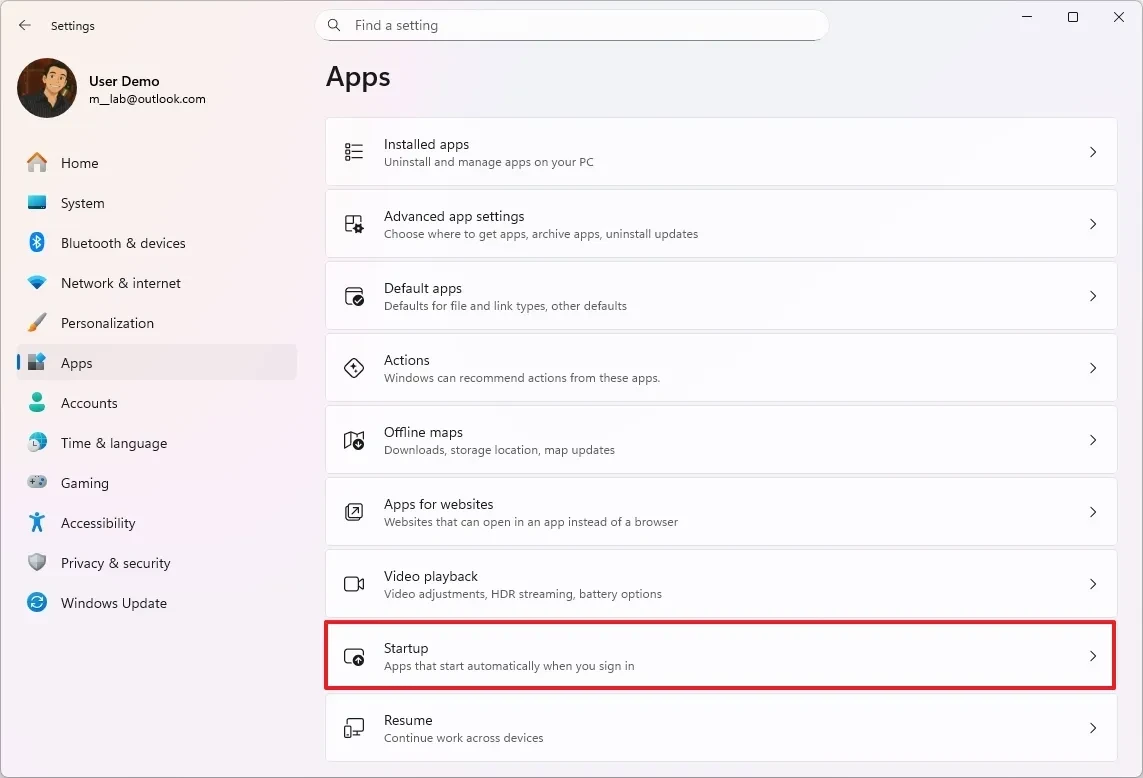
- Openadjusting.
- Navigate to the itemApps, then selectBag.
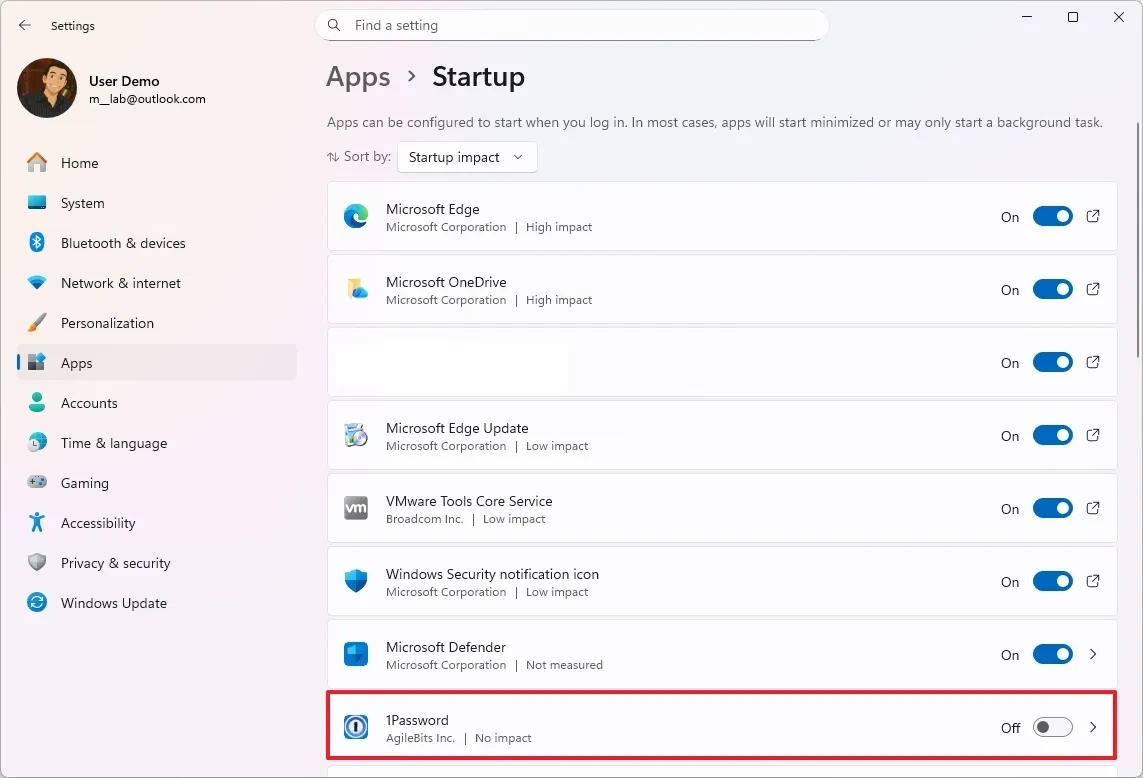
- Use the "Sort by" menu to select "Startup impact" and identify the applications that have the greatest impact.
- Turn off the switches for unnecessary applications. Note that you should not turn off critical system services.
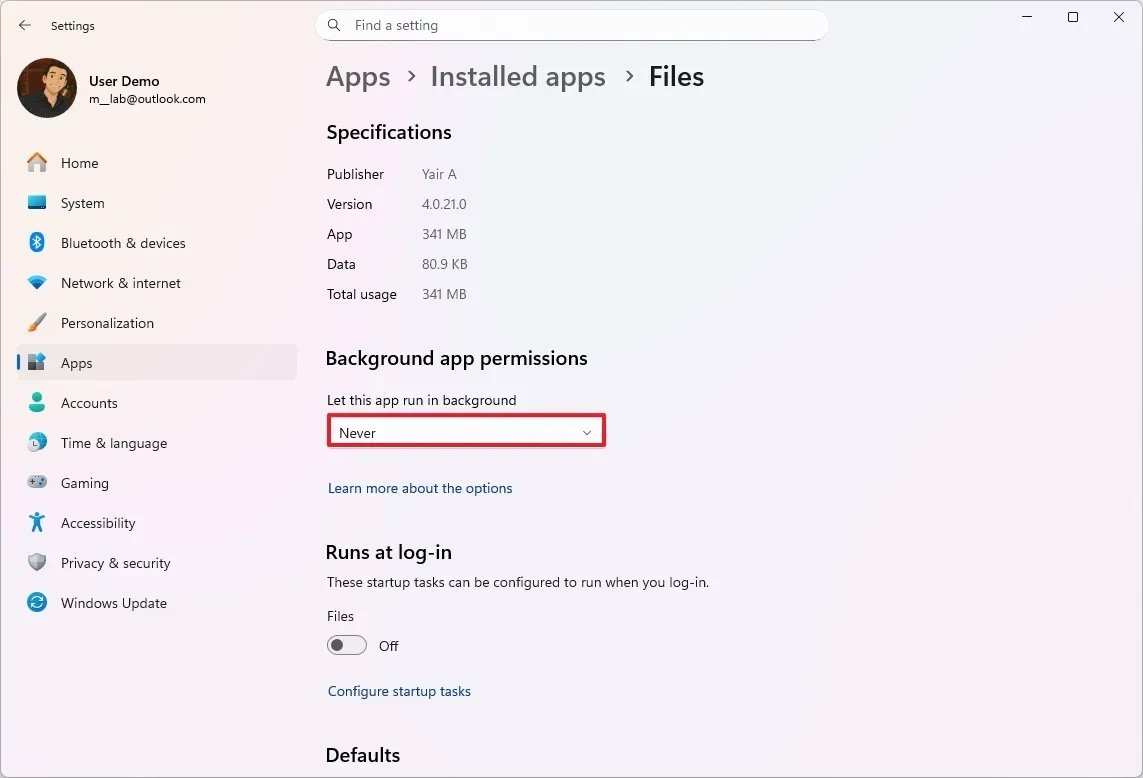
Restrict background running permissions for applications.
Some apps from the Microsoft Store can continue running in the background even after they've been closed. Restricting this permission helps save memory.
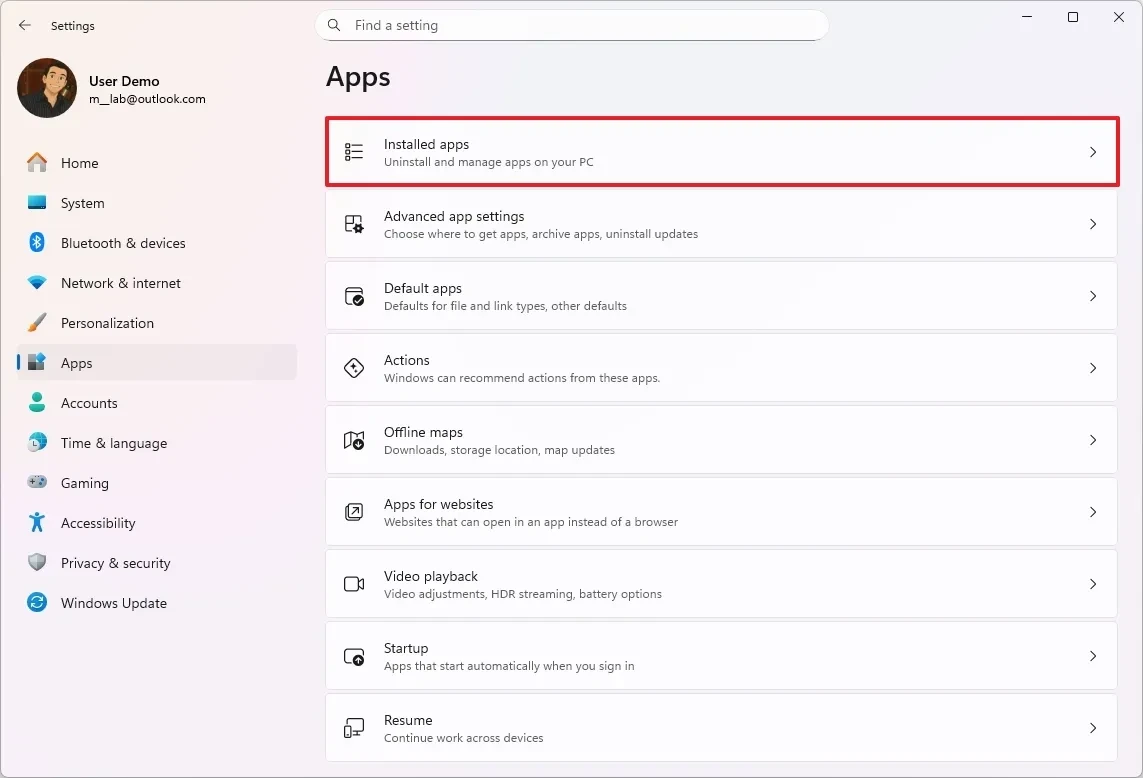
- Openadjustingand go to the sectionApps.
- SelectInstalled apps.
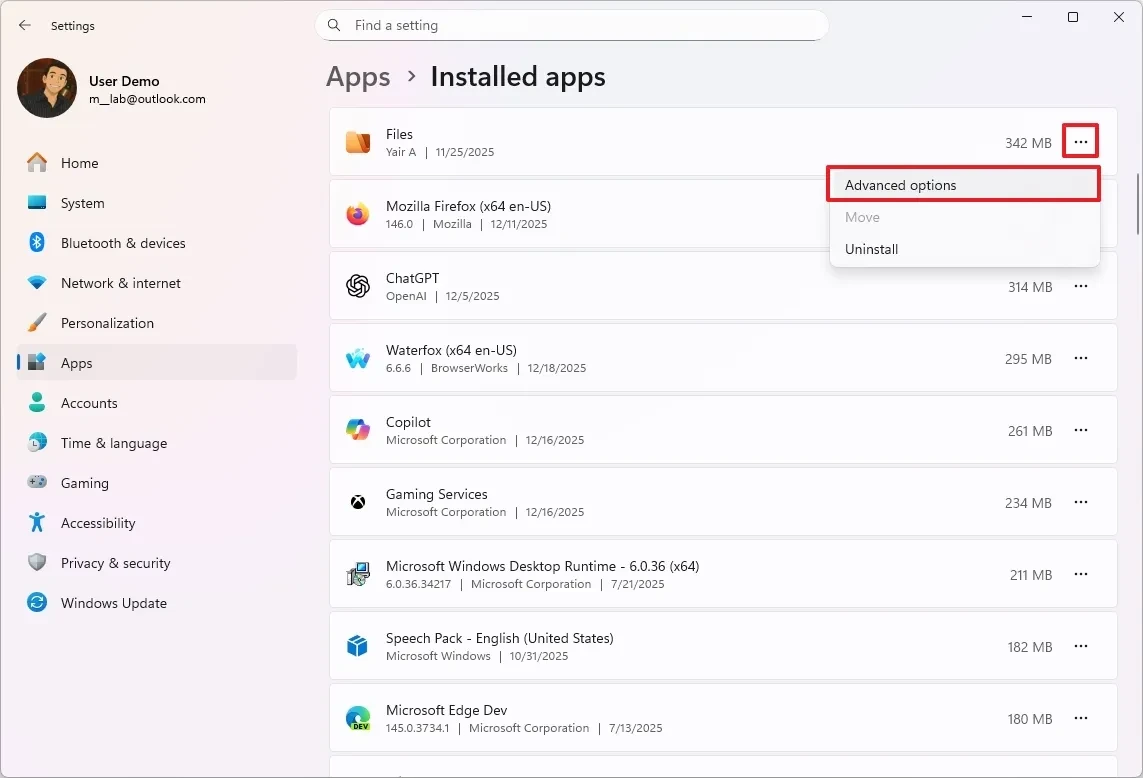
- Find the app you want to adjust, click the three-dot menu, and select it.Advanced options.
- In the "Background app permissions" section, selectNever.
Turn off unnecessary system services.
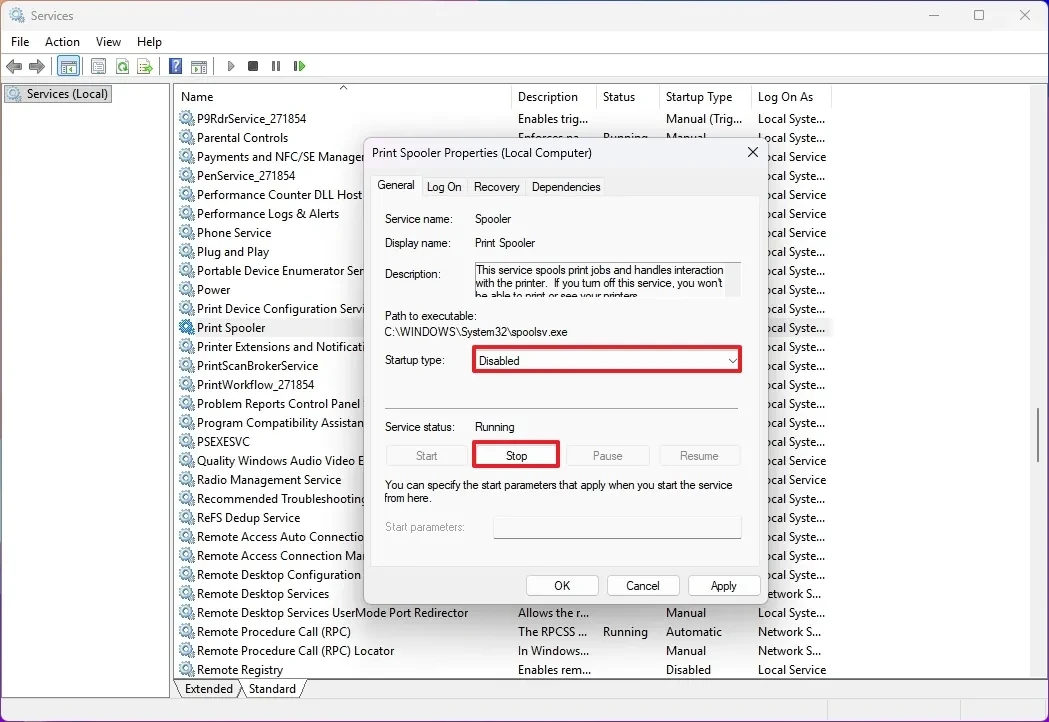
Windows 11 runs many background services, some of which may not be necessary for your needs. Disabling them can free up RAM, but this should be done carefully.
- Open menuStart, searchServicesand open the application.
- Right-click on an unnecessary service (for example, "Print Spooler" if you're not using a printer) and selectbarrier.
- Click the buttonStopto stop the service.
- In the "Startup type" section, selectDisabledorManual.
- ClickApply, LaterOK.
Use the built-in Microsoft PC Manager tool.
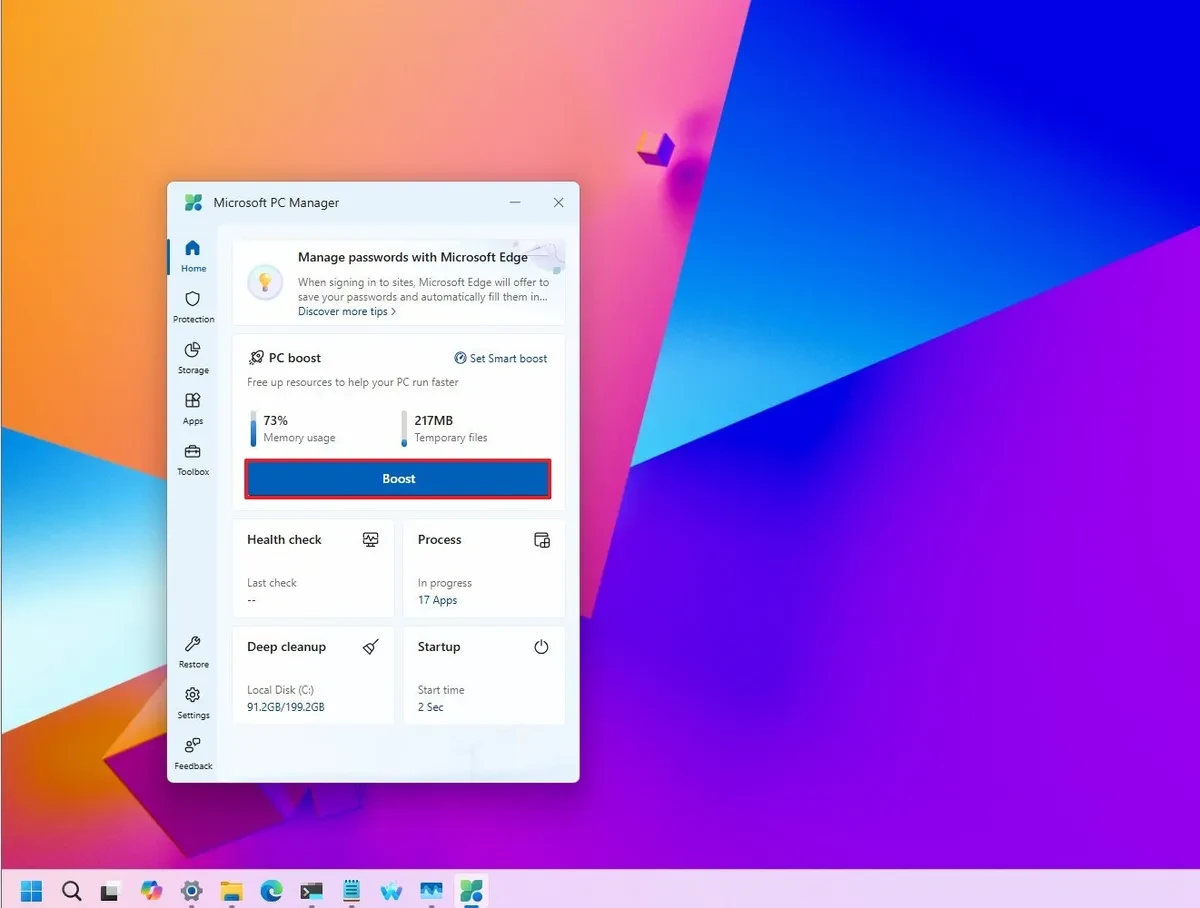
Microsoft PC Manager is a useful tool that offers a "Boost" feature to quickly free up memory and delete temporary files.
- OpenMicrosoft PC Managerfrom the Start menu.
- In the tabGate, click the buttonBoost.
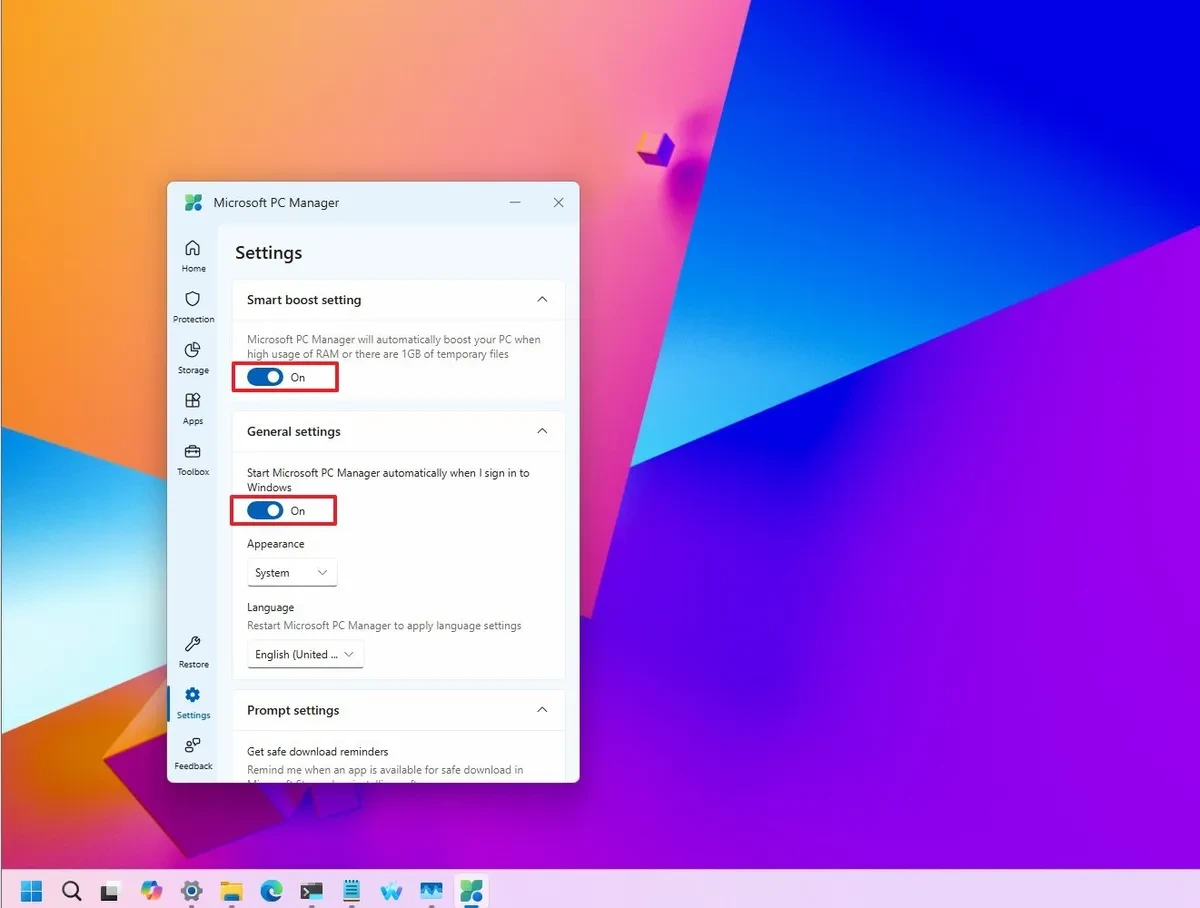
- To automate this, go to "Set Smart boost," and enable "Start boost setting" to automatically optimize when RAM usage is high.
- Enable the option to start with Windows so that the application is always ready.
Clean up apps: Uninstall unnecessary software.
Completely uninstalling unused applications is the most effective way to prevent them from consuming system resources and free up storage space.
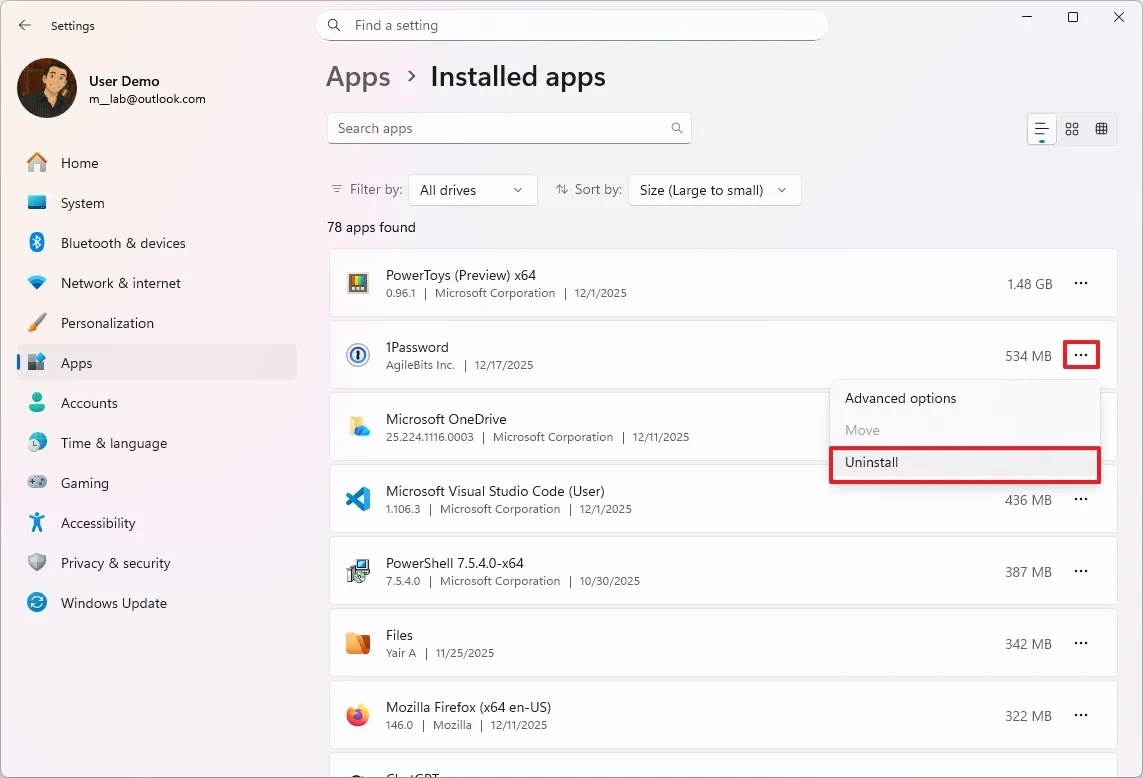
- Openadjusting, enterAppsand chooseInstalled apps.
- Find the app you want to uninstall, click the three-dot menu, and select it.Unacquire.
- Confirm your selection and follow any instructions (if applicable).
Security check: Scan for viruses and malware
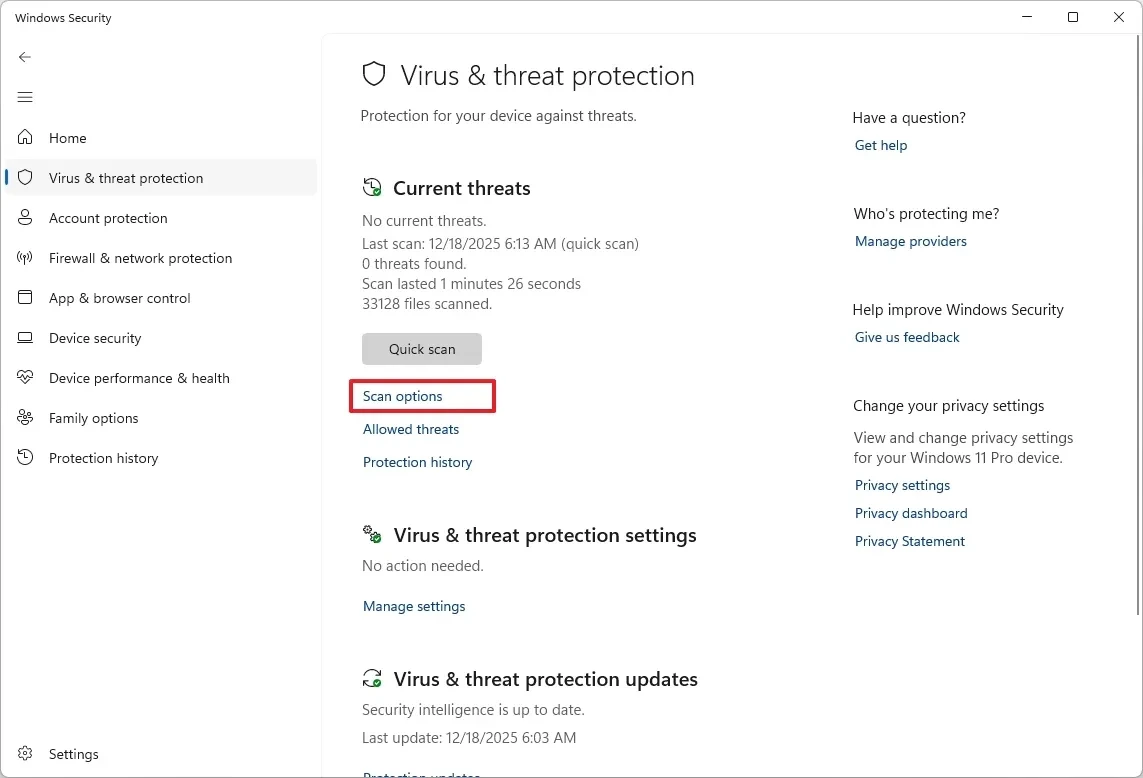
Unusually high RAM usage can be a sign of viruses or malware. Performing a full system scan is a crucial step to ensure safety and performance.
- OpenWindows Securityfrom the Start menu.
- Go to sectionVirus & threat protection.
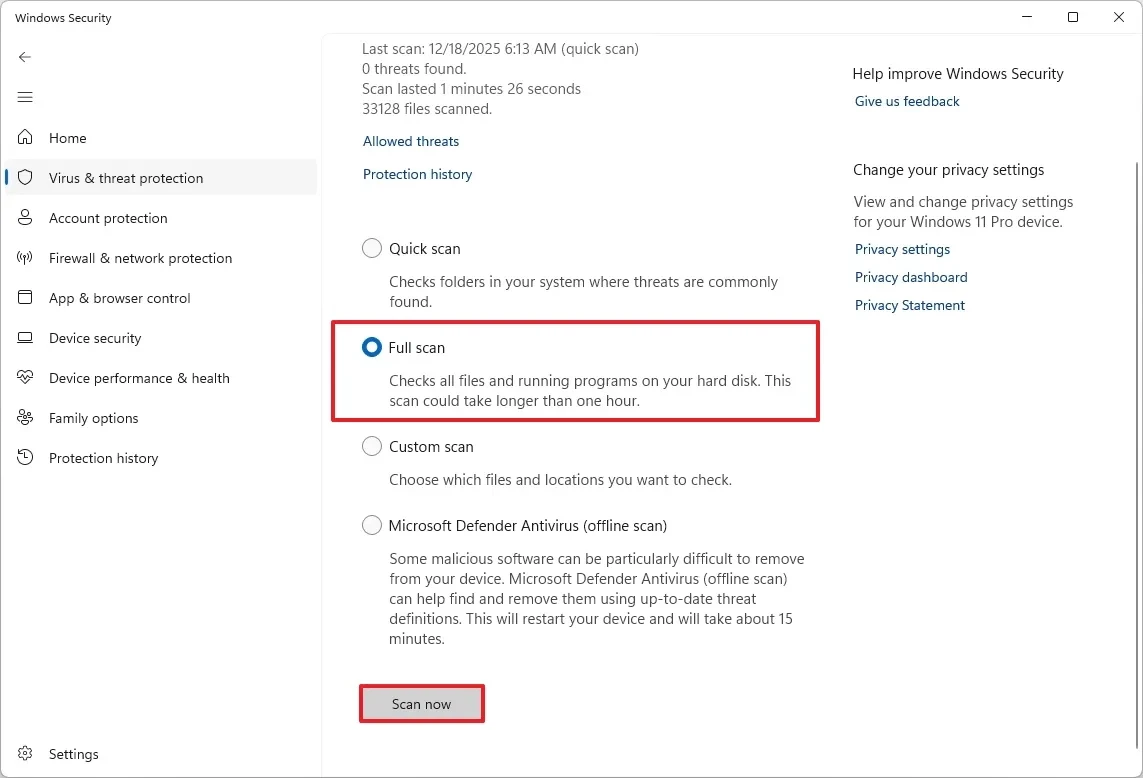
- SelectScan options, then selectFull scan.
- Click hereScan nowto begin the process.
Always keep your system and drivers updated.
Updates often contain bug fixes and performance improvements that can address issues related to memory usage.
System update
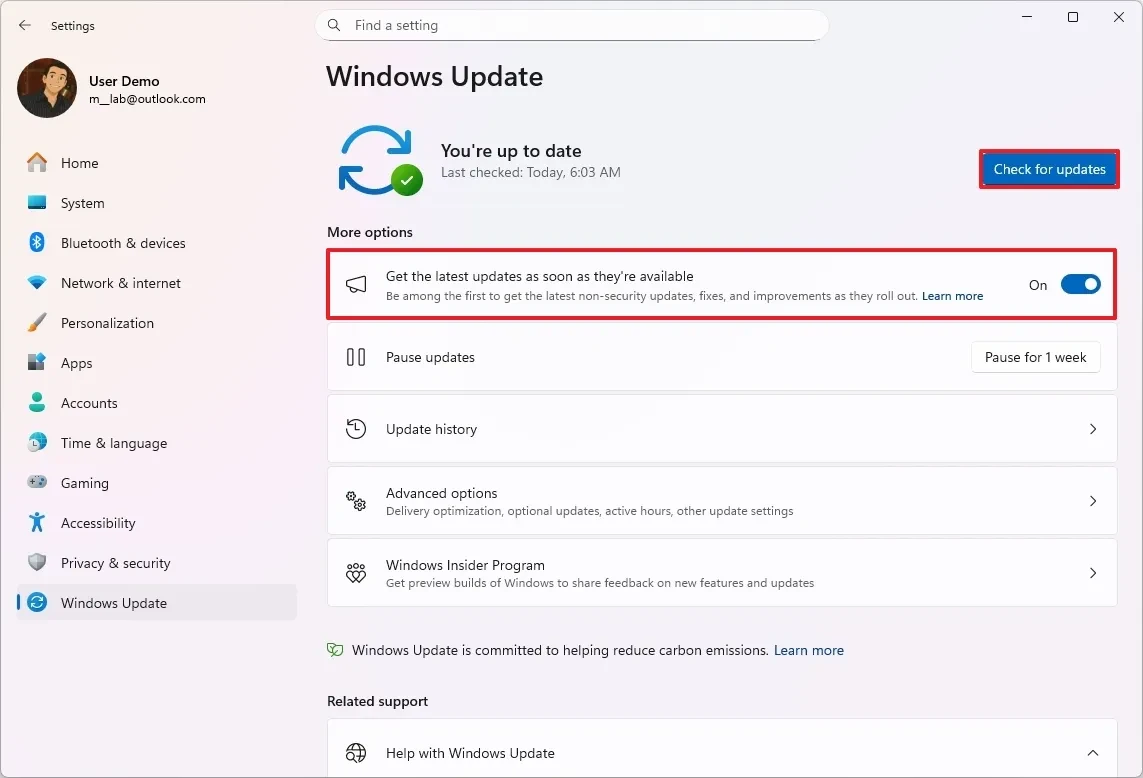
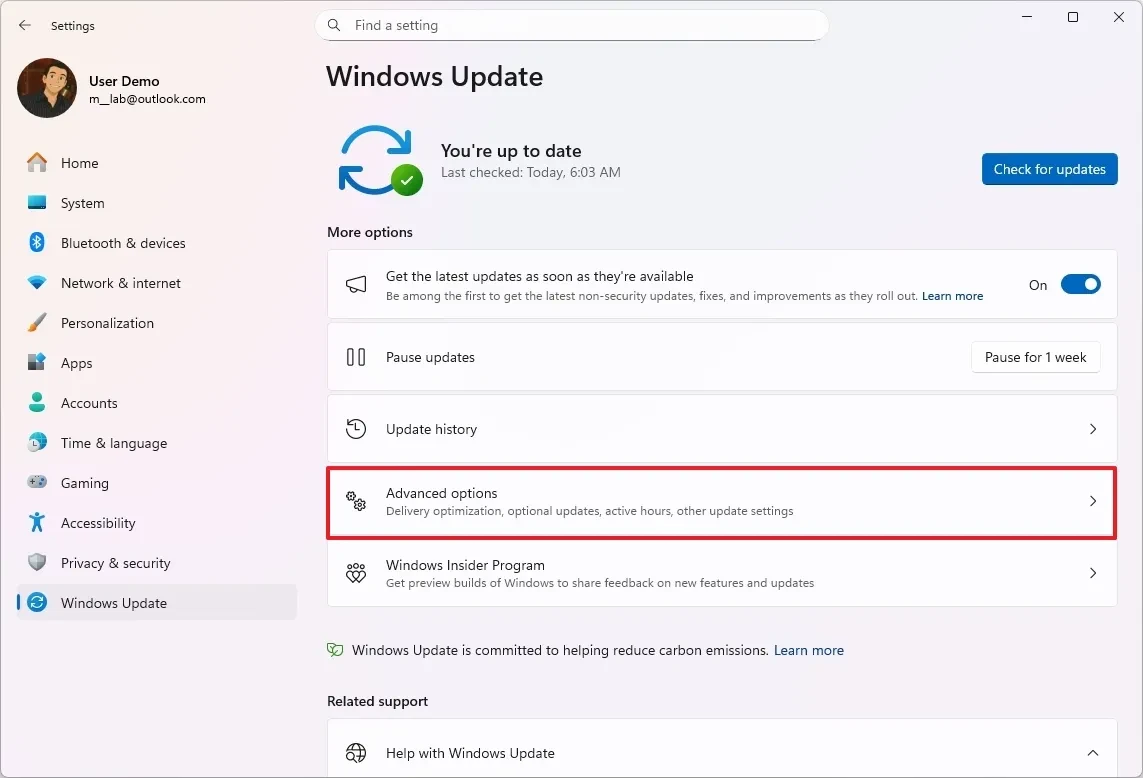
- Openadjustingand enterWindows Update.
- Click the buttonCheck for updatesTo allow the system to download and install the latest updates.
Update drivers
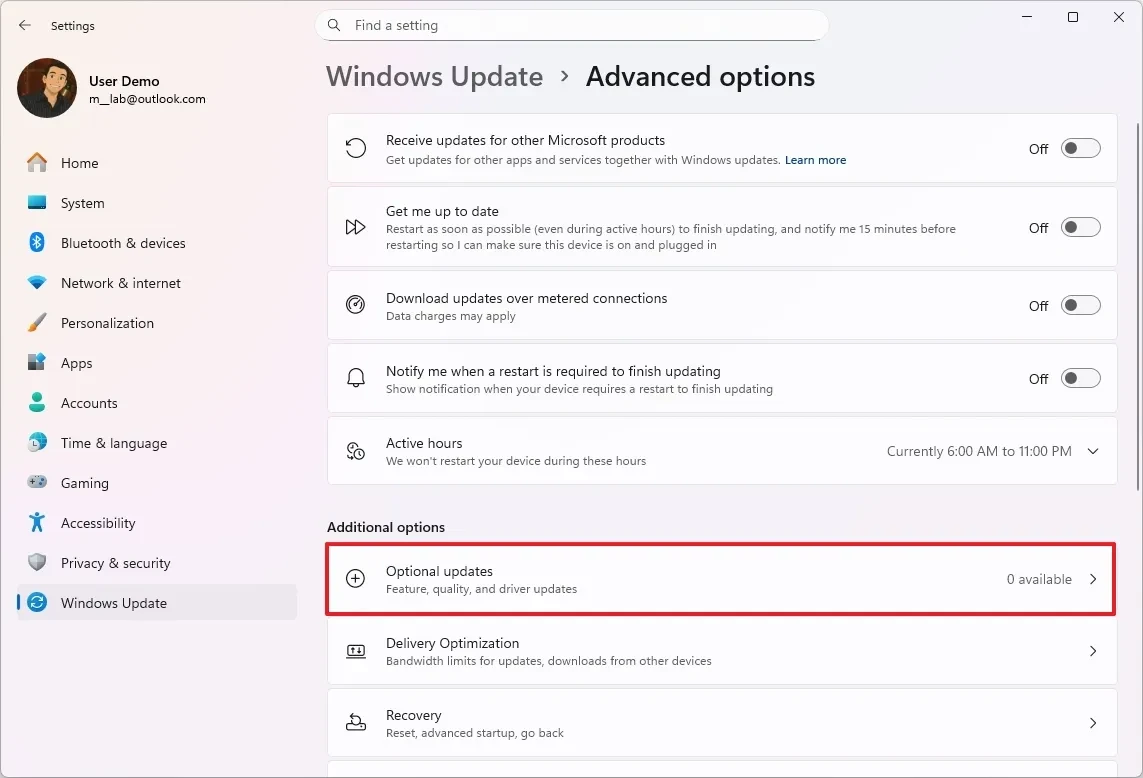
- InWindows Update, selectAdvanced options.
- Click hereOptional check.
- Select the available driver updates and click.Download & install.
Web browser management: The leading RAM hog
Web browsers, with numerous tabs and extensions, are often the most RAM-intensive applications. Optimizing your browser can have a noticeable impact.
Refine Microsoft Edge
The default browser in Windows 11 has several features that help save resources.
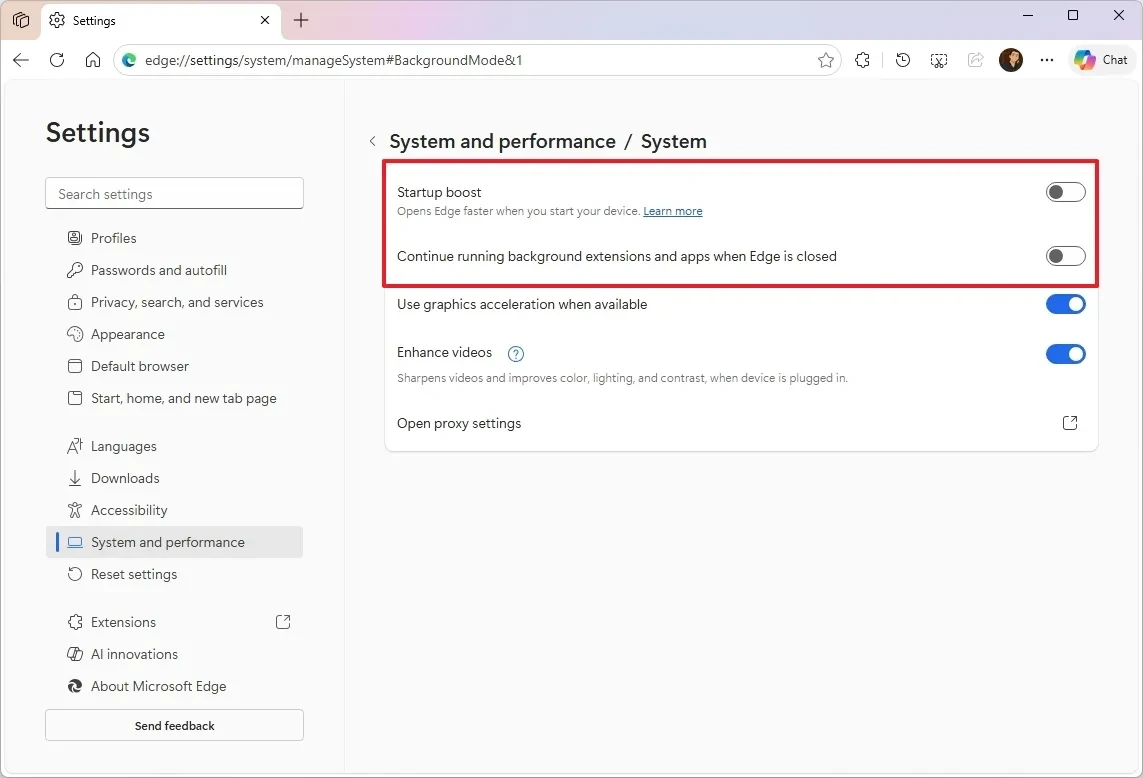
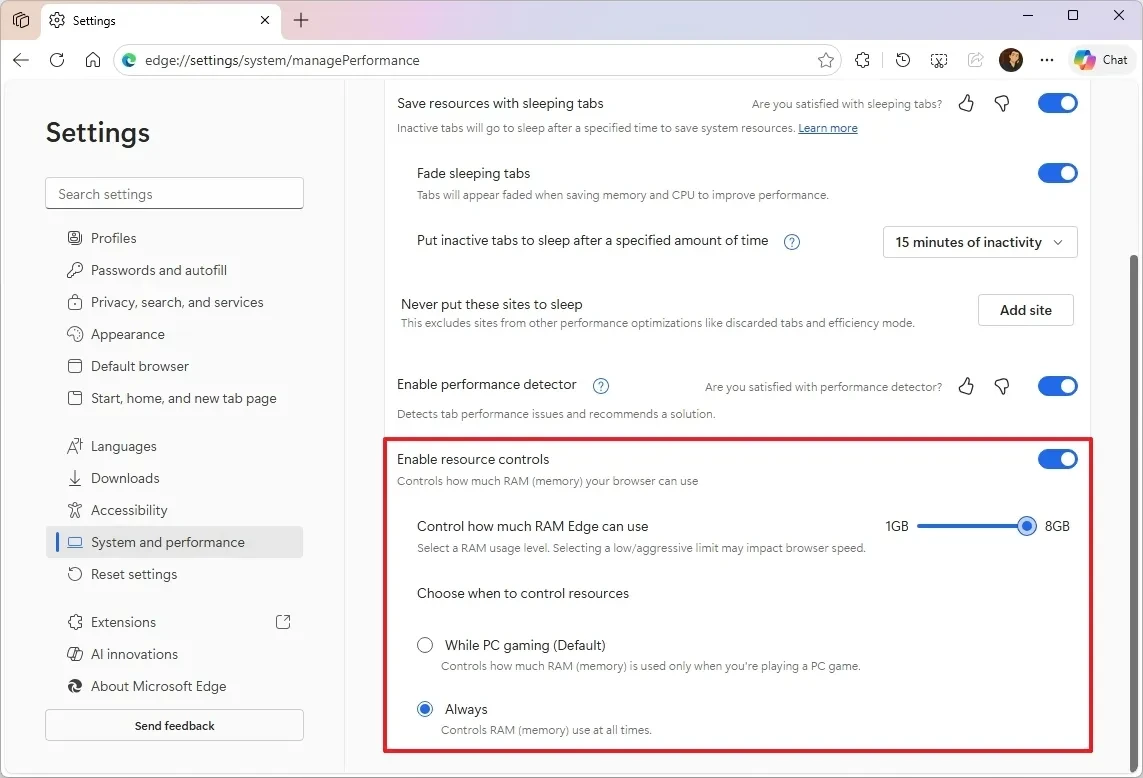
- Openadjustingof Edge, go to the sectionSystem and performance.
- In the tabBackground mode, turn offStartup boostand the "Continue running background extensions and apps when Edge is closed" option.
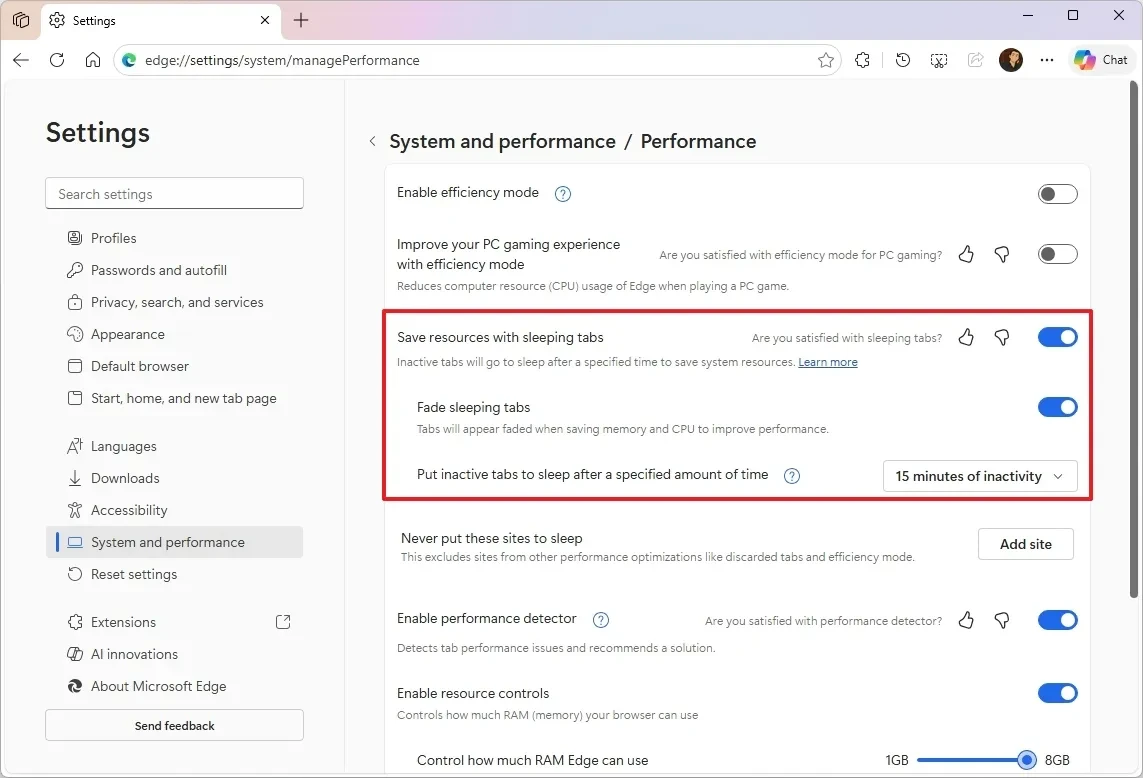
- In the tabPerformance, turn on "Save resources with sleeping tabs" and "Enable resource controls".
Remove unnecessary extensions.
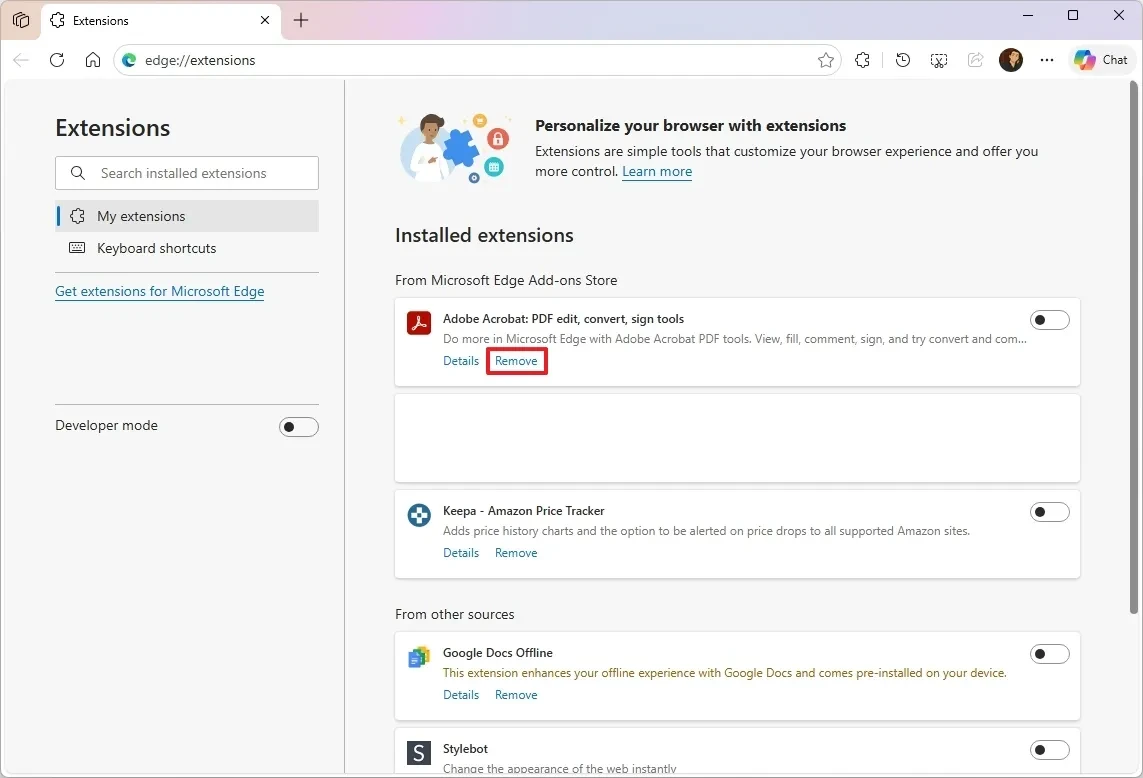
Extensions can consume a lot of memory. Regularly check for and remove extensions that you no longer use.
- In the Edge menu, go toExtensionsand chooseManage Extensions.
- ClickmassiveFor the extension you want to remove.
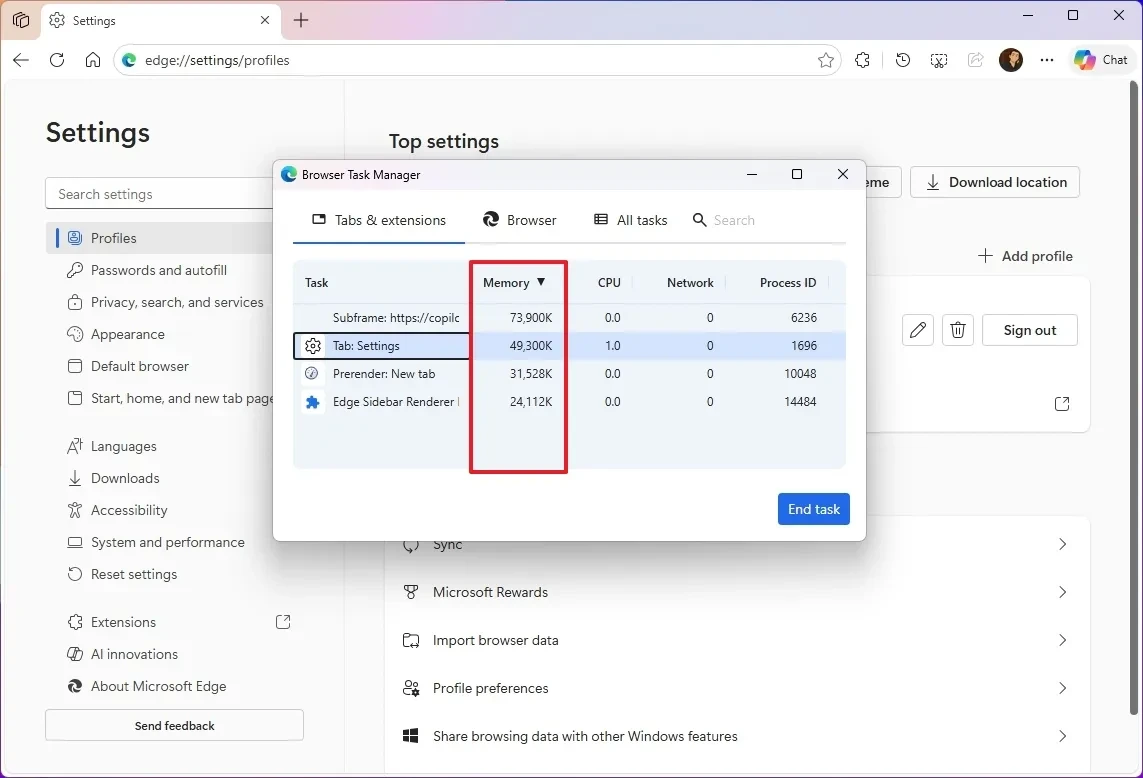
- Use the "Browser task manager" (in More tools) to identify which utilities are using the most memory.
Identify the root cause with Task Manager.
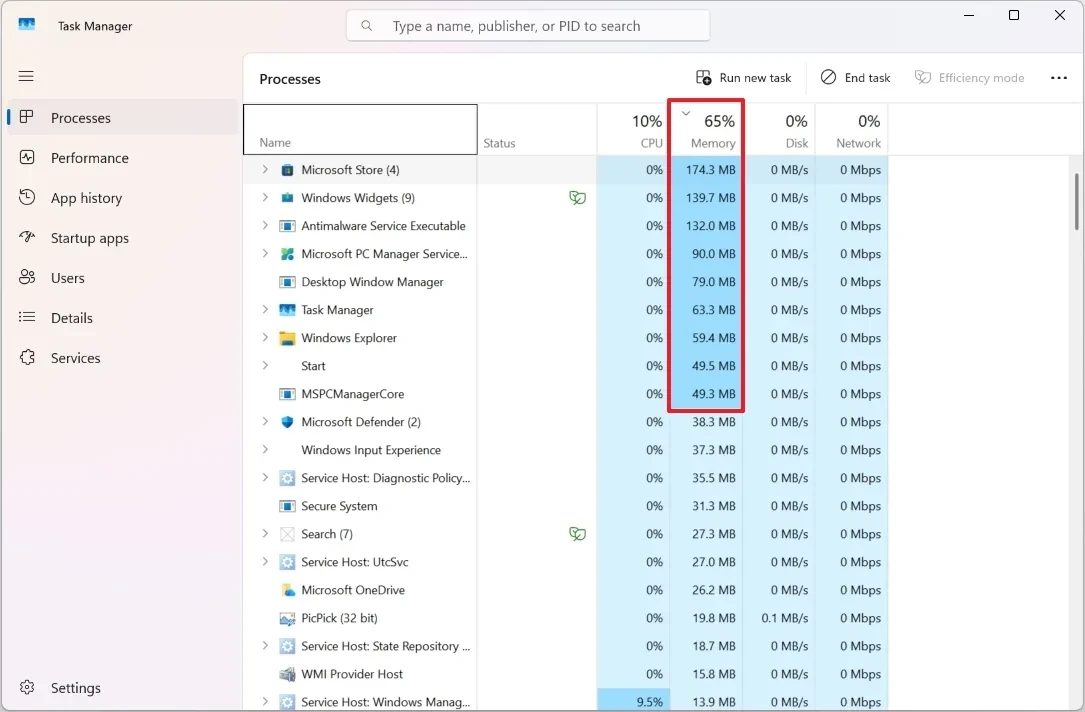
Task Manager is a powerful tool for accurately identifying which applications are using the most RAM.
- OpenTask Manager.
- Go to tabProcesses.
- Click on the column header.MemoryTo sort processes by memory usage from highest to lowest.
- Check the apps at the top of the list to take appropriate action.
The final solution: Reinstall Windows 11
If all of the above methods fail to resolve the issue, reinstalling Windows 11 may be the last resort. This process will eliminate accumulated software errors and restore the system to its original state, often fixing performance and memory usage problems.


