
iOS 26.1: Apple allows customization of Liquid Glass transparency.
The iOS 26.1 update brings fine-tuned control over the transparency of the Liquid Glass effect, allowing users to strike a balance between aesthetics and readability on their iPhones.
Key changes in iOS 26.1
Apple has just released the iOS 26.1 update, bringing a much-anticipated improvement: the ability to adjust the transparency of the Liquid Glass interface. Previously, users could only completely turn this effect on or off through accessibility settings. Now, iOS 26.1 provides a dedicated menu, allowing for more detailed control, creating a balance between design and usability.
This new feature addresses readability issues some users have experienced with a completely transparent interface, while still retaining the distinctive aesthetic of Liquid Glass first introduced on iOS 26.
Instructions for adjusting the Liquid Glass effect.
To use the new feature, users need to follow these steps. This process requires the device to be updated to the latest operating system version.
1. Update to iOS 26.1
First, make sure your iPhone is running iOS 26.1 or later. To check and update, follow these steps:
- Open the applicationSettingson iPhone.
- Select itemGeneral settings.
- Click hereSoftware Update.
- If an update is available, follow the instructions to download and install it.
This update is compatible with all devices that support iOS 26, including models from the iPhone 13 to newer models such as the iPhone 16, iPhone 16 Pro, and iPhone 17.
2. Access Liquid Glass settings.
After a successful update, options to adjust transparency will appear in the screen settings.

- Open the applicationSettings.
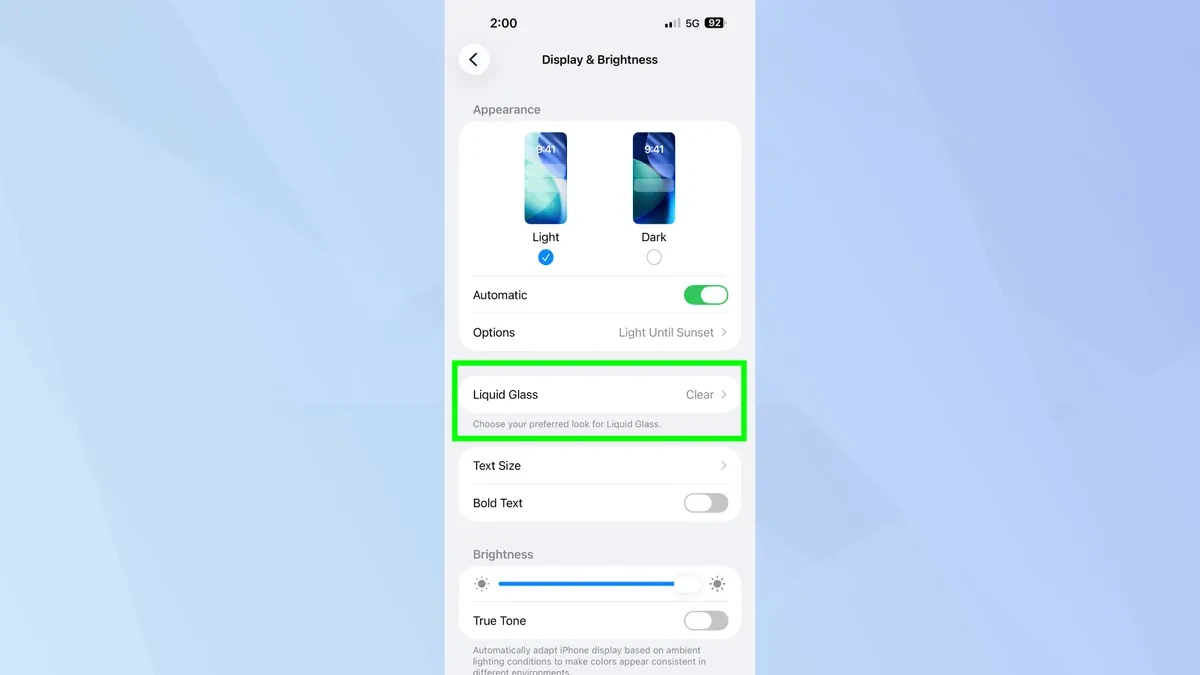
- Navigate to the itemDisplay & Brightness.
- Scroll down and find the optionLiquid GlassThen click to open the control menu.
Analyzing the new transparency options
The new menu offers two main options, allowing users to personalize the interface according to their preferences and needs.
The "Clear" option
This is the original Liquid Glass interface with the translucent effect that has been available since iOS 26. This option retains the original design, suitable for those who prioritize modern aesthetics and do not have issues with readability of text on a translucent background.
The "Tinted" option
This is a new addition in iOS 26.1. When selected, "Tinted" increases the opacity of interface elements. This makes background layers less transparent, helping text and icons stand out and be easier to read, especially in challenging lighting conditions or for users with poor eyesight.
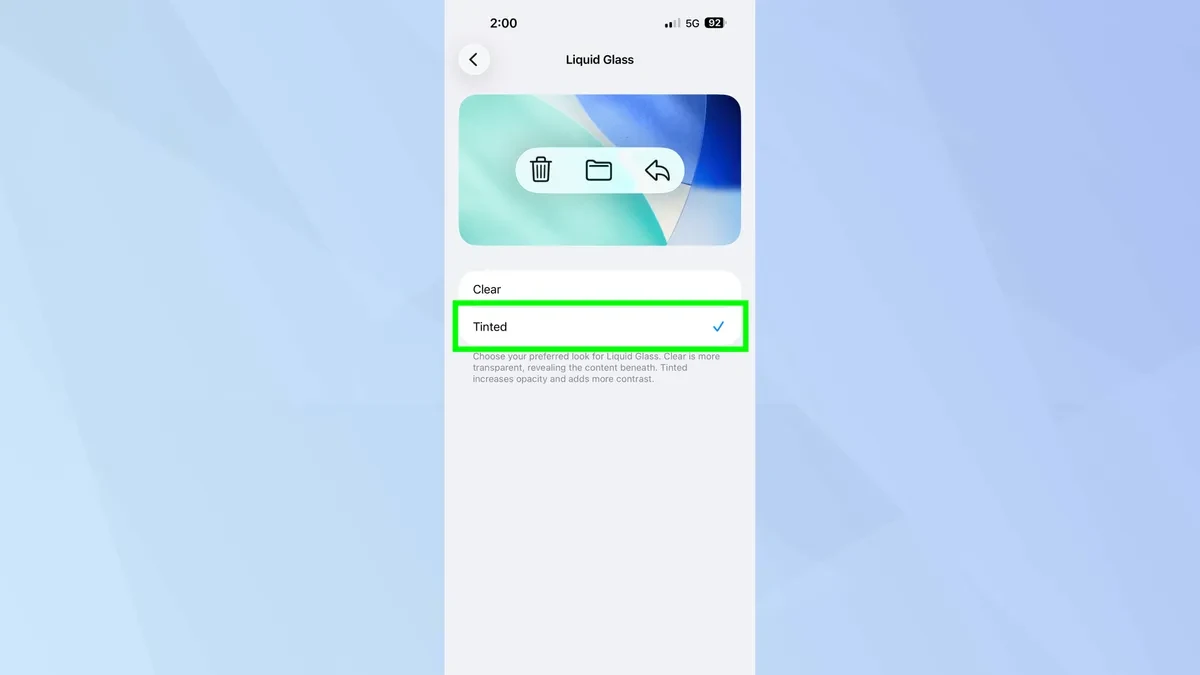
The settings page also displays a visual preview for each option, making it easy for users to compare and make decisions before applying changes system-wide.


