
Computer problems: How to distinguish between hardware and software errors
This guide provides detailed instructions on how to identify typical symptoms of hardware and software errors, along with a step-by-step troubleshooting process to accurately pinpoint the cause.
When does a problem originate from the hardware?
Most computer problems stem from either hardware or software errors. However, pinpointing the exact cause isn't always straightforward. Sometimes, an error that looks like a software issue might actually originate from a malfunctioning hardware component.
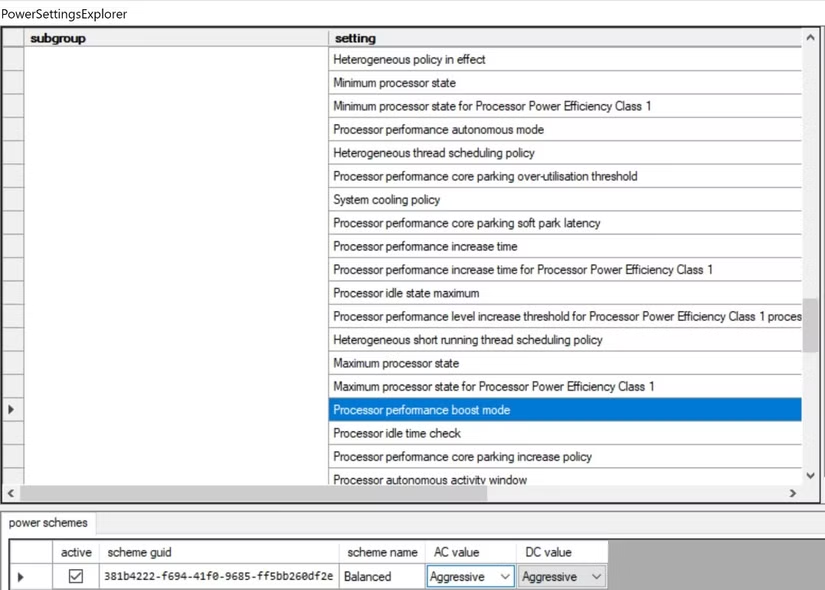
A typical case involves a high-end Dell XPS laptop that frequently experiences Blue Screen of Death (BSOD) or random crashes. Initially, the signs indicated overheating, a problem often related to hardware. However, after checking the entire cooling system, fans, and reinstalling Windows, the issue remained unresolved. The cause was ultimately discovered to be a manufacturer software setting called "Processor Boost Mode" that was set too high, causing overload.
The above case illustrates the complexity of diagnosis. However, in most situations, there are characteristic symptoms that help pinpoint the cause.
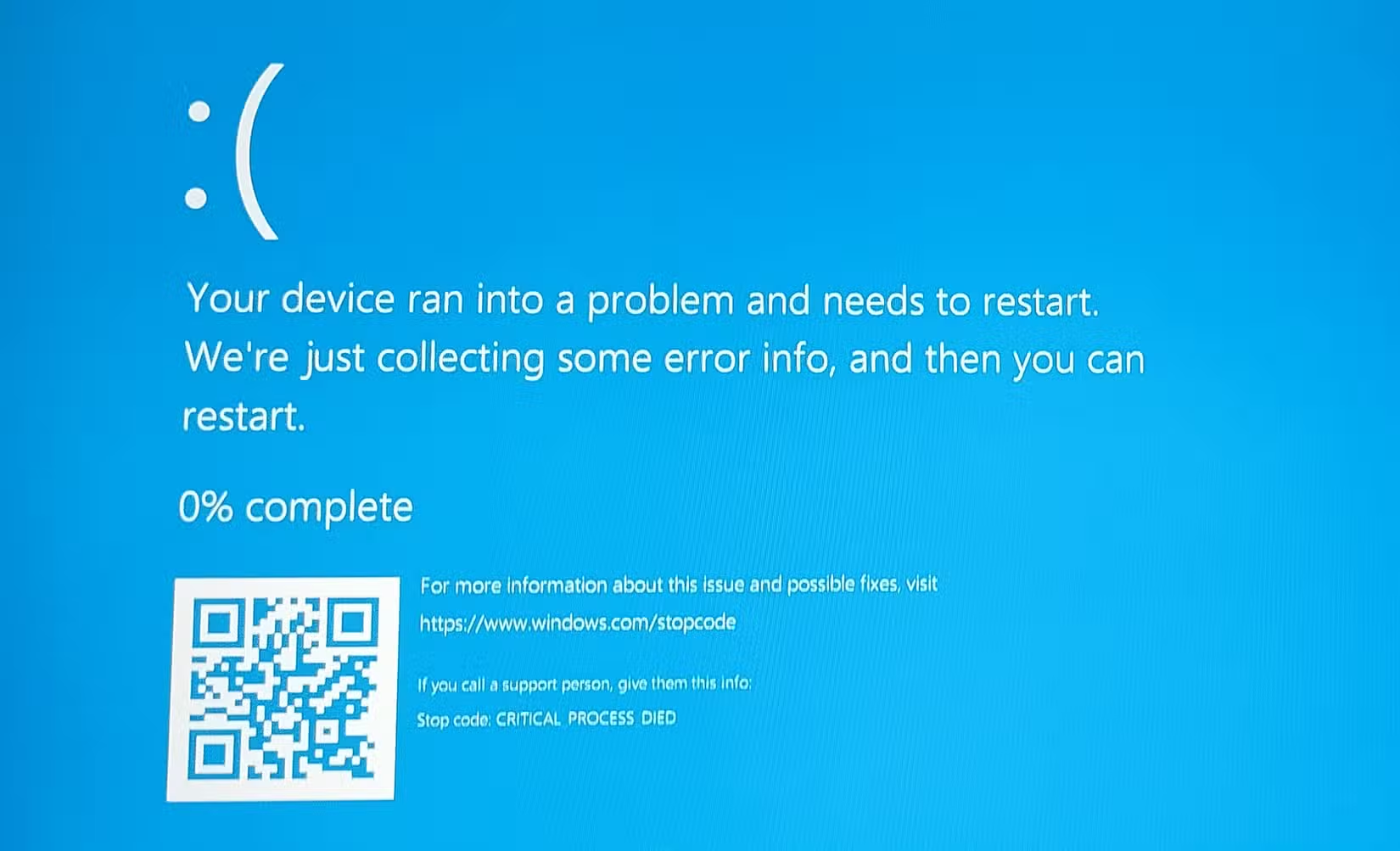
Signs that indicate a hardware failure.
Hardware failures often have clear and physical manifestations. Here are some common symptoms to watch out for:
- Frequent freezing or shutdowns:Especially when performing demanding tasks such as gaming or video editing, this could be a sign of faulty RAM, graphics card (GPU), or power supply.
- Unusual sounds:Clicking or scraping noises coming from inside the computer are often a warning sign that the hard drive (HDD) or cooling fan is about to fail.
- Overheating and sudden shutdown:This indicates that the cooling system is not working efficiently or that a component is overloaded.
- Peripheral devices are not working:Unresponsive USB ports, keyboard, or mouse could be due to a fault on the motherboard.
- Display error:The appearance of strange streaks, color distortion, or flickering on the screen indicates that the GPU or the monitor itself is experiencing problems.
Hardware failures tend to recur randomly and inconsistently, and can become more serious over time if left unaddressed.
When should you consider the possibility of a software bug?
Software-related problems often occur after a system change, such as installing a new application or updating the operating system. Common signs include:
- Specific error message:Pop-up windows displaying "application not responding" or system error codes indicate a corrupted program or system file.
- Slow performance:A sluggish system can be caused by bloatware, malware, or an application that is consuming too many resources.
- Startup issues:A computer failing to load the operating system is usually due to corrupted system files or a failed update.
- The application freezes or closes automatically:If a particular program frequently crashes, the problem is most likely with the software itself.
- Network connection lost:Problems with Wi-Fi or Bluetooth can stem from outdated drivers or incorrect network configuration.
Step-by-step troubleshooting process
To accurately determine the cause, you can implement a systematic diagnostic process. This method helps to gradually eliminate possibilities and find the root of the problem.
1. Start by observing the outside world.
This is the first step and especially helpful if the computer won't power on. Check the power cable, power supply, and make sure the cooling fan is working. If possible, open the case to check that components like RAM and the hard drive are securely connected. Look for signs of abnormalities such as bulging capacitors or burn marks on the motherboard.
2. Use specialized diagnostic tools.
Both Windows and macOS have built-in diagnostic tools. Additionally, there are many third-party software programs that help check the condition of RAM, GPU, hard drives, and other components. Running these tools can help detect potential hardware failures early.
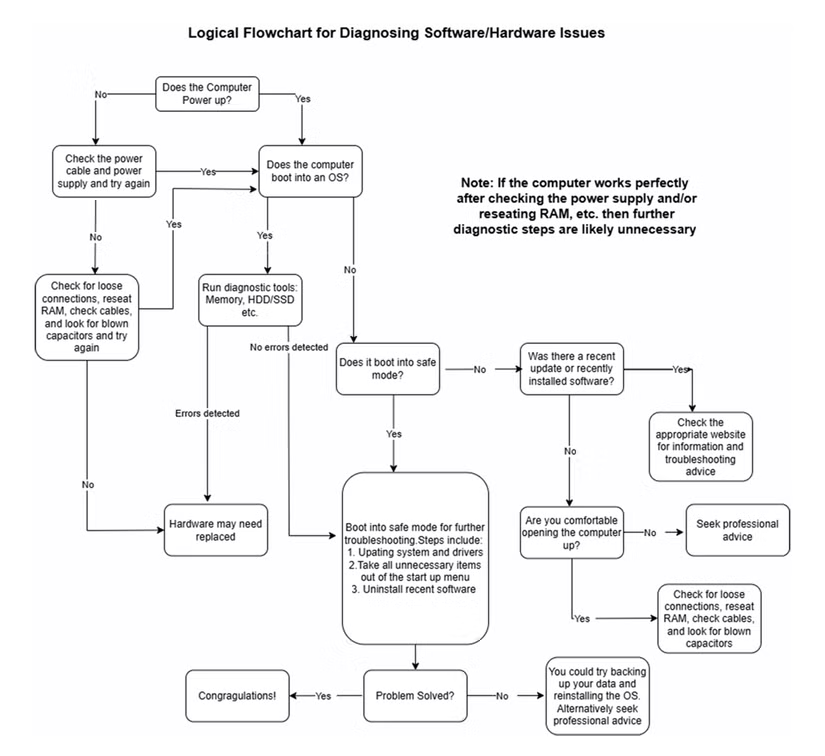
3. Boot into Safe Mode.
Safe Mode boots the operating system with only essential drivers and software. If your computer runs smoothly in this mode, the problem is likely software-related, such as a newly installed driver or a conflicting application. From there, you can uninstall any suspicious programs.
4. Update drivers and operating system.
Outdated drivers or failed operating system updates are common causes of problems. Make sure all your device and operating system drivers are updated to the latest and most stable versions.
5. Reinstall the operating system.
This is considered the last resort, but also the most effective way to completely eliminate software errors. If the problem persists after reinstalling the operating system, the cause is almost certainly a hardware issue. Before taking this step, always back up all important data.
Diagnosing computer problems requires patience and a logical approach. By recognizing symptoms and performing a thorough troubleshooting process, you can identify the problem yourself and find the right solution, saving time and repair costs.


