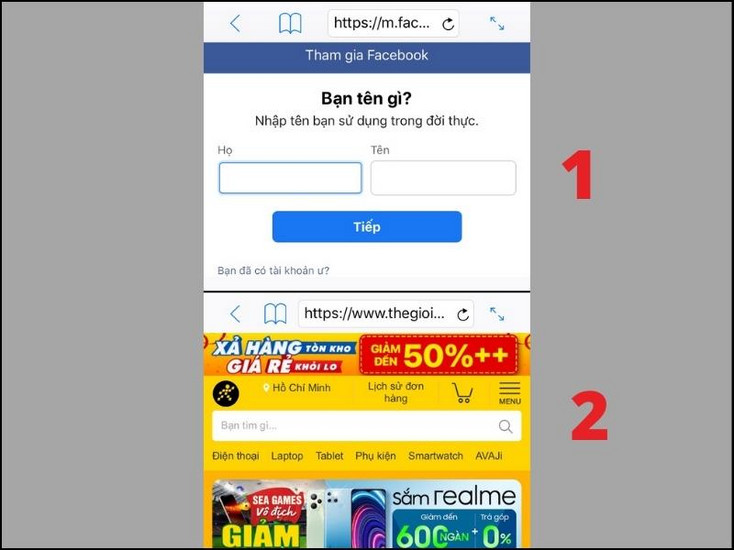
Tips for splitting the iPhone screen for efficient multitasking.
Discover 3 methods for splitting the iPhone screen, allowing users to watch videos while working or browsing social media simultaneously, enhancing their iOS experience.
Splitting your iPhone screen to use two apps simultaneously is an optimal solution for increasing productivity and entertainment. Instead of constantly switching between windows, users can perform tasks concurrently, such as video conferencing while taking notes, or watching YouTube while replying to messages.
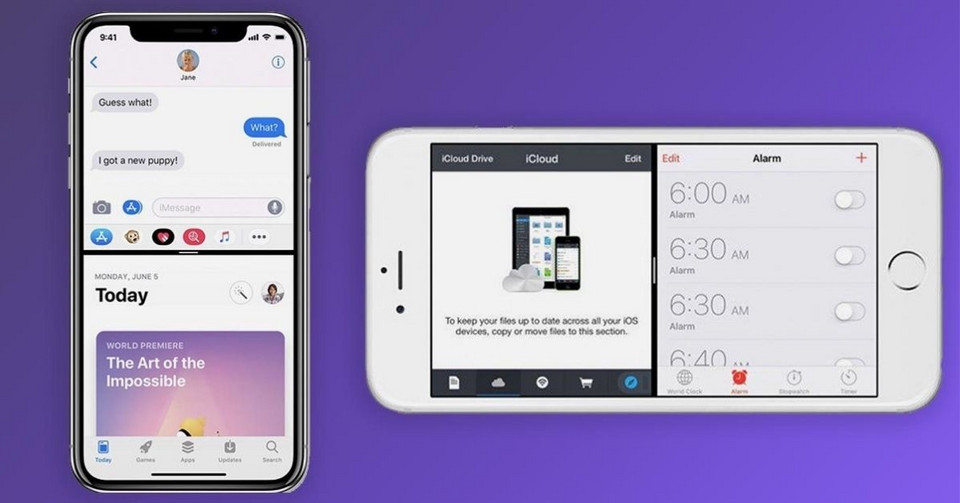
1. Use the Picture-in-Picture (PiP) feature.
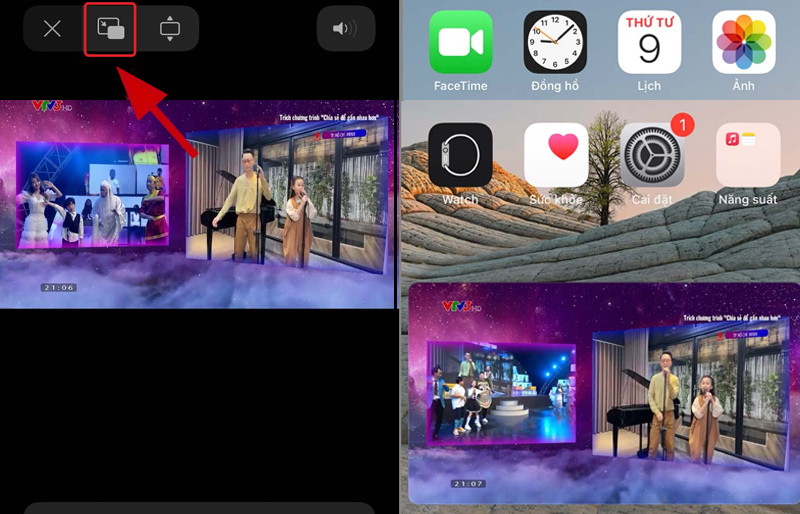
Picture-in-Picture is an official Apple feature for iPhones running iOS 14 and later. This feature allows you to minimize a video into a floating window so you can access other apps without interrupting your viewing.
To activate, follow these steps:
- Step 1:AccessSetting, then selectGeneral settings.
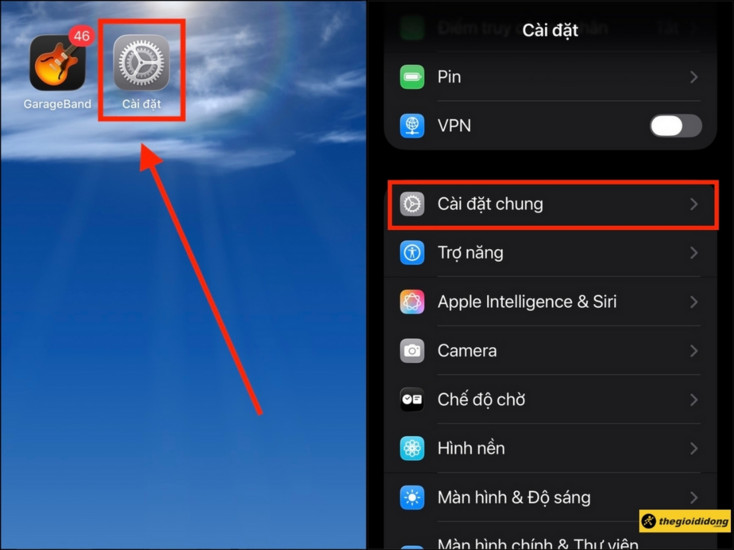
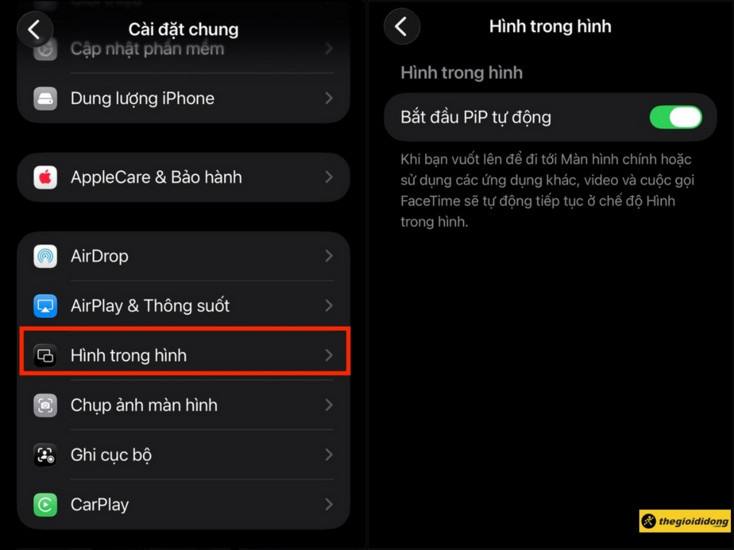
- Step 2:Select itemPicture within a pictureand flip the switch at the lineStart automatic PiP.
- Step 3:Open compatible apps such as Safari, Apple TV+, FaceTime, or Netflix and play the video in full-screen mode.
- Step 4:Tap the PiP icon on the toolbar or swipe up to return to the home screen. The video will automatically minimize, and you can move it to your desired position.
2. Use third-party apps for true multitasking.
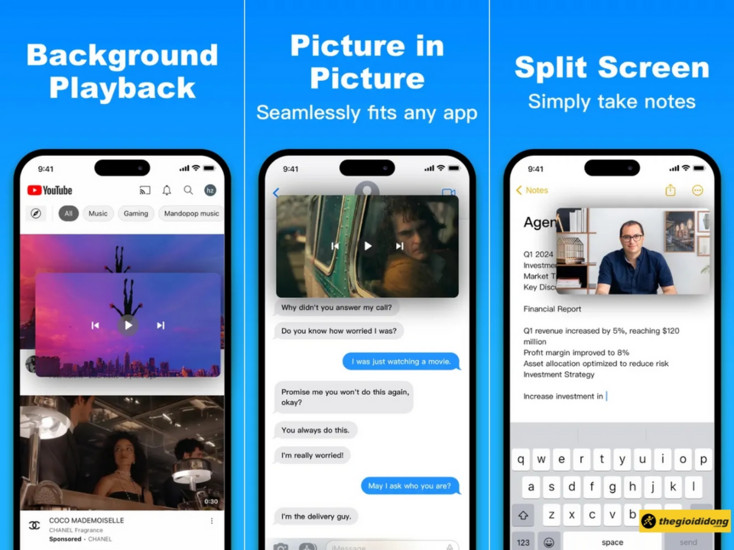
If you want to use any two apps simultaneously instead of just watching videos, apps from the App Store support creating a split-screen web browser interface.
Splitware - Social Network Multitasking
This is a free app that includes built-in shortcuts for Google, Facebook, Instagram, and YouTube. Users can customize which apps they want to display by tapping the "S" icon in the middle of the screen.
Split Web Browser - Browse two websites at the same time
This tool is specifically designed to open two independent browser windows, which is very useful when you need to compare product prices or cross-reference data from two different sources. After downloading, the screen will automatically split into two sections; you just need to enter the web address into each field to begin.
3. Things to note when multitasking on iPhone
While convenient, users should keep a few things in mind to ensure the best experience:
- Battery consumption:Running two tasks simultaneously will consume more resources and battery than usual. You should use newer models with powerful processors (from A16 Bionic onwards) to ensure smooth performance.
- Screen size:iPhone Pro Max or Plus models, with their larger display areas, are better suited for split-screen functionality compared to mini or standard models.
- YouTube support:To use Picture-in-Picture (PiP) directly within the YouTube app, you need a Premium account. Otherwise, you can watch YouTube through the Safari browser to activate this feature.